Extend CE.SDK with your own LUT filters by creating and registering custom filter asset sources for brand-specific color grading.
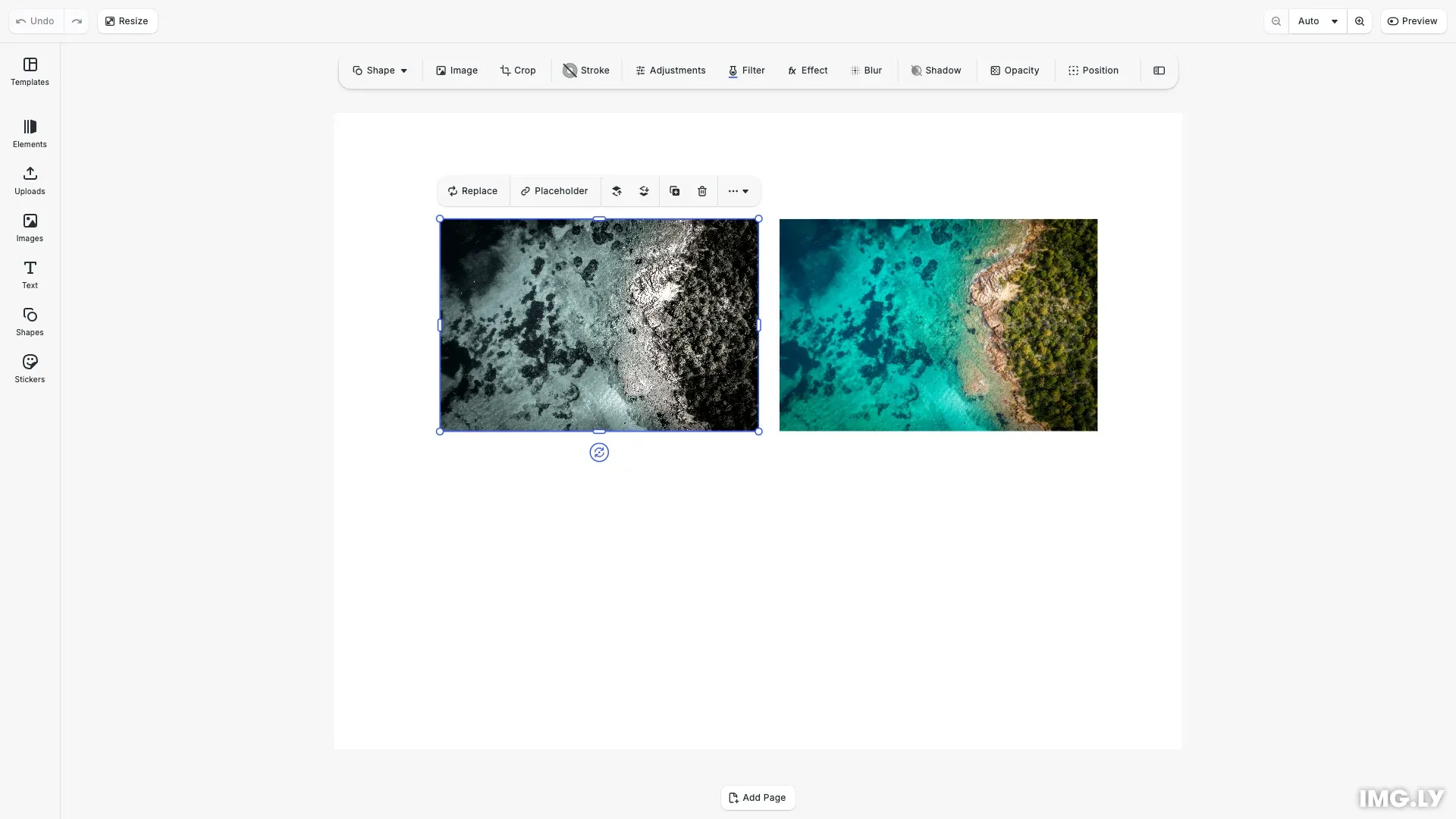
CE.SDK provides built-in LUT filters, but many applications need brand-specific color grading or custom filter collections. Custom filter asset sources let you register your own LUT filters that appear alongside or replace the defaults. Once registered, custom filters integrate seamlessly with the built-in UI and can be applied programmatically.
This guide covers how to create filter asset sources, define filter metadata, load filters from JSON configuration, and apply custom filters to design elements.
Filter Asset Metadata#
LUT filters need these properties in the meta object:
uri- URL to the LUT image file (PNG format)thumbUri- URL to the thumbnail preview imagehorizontalTileCount- Number of horizontal tiles in the LUT grid (typically 5 or 8)verticalTileCount- Number of vertical tiles in the LUT grid (typically 5 or 8)blockType- Must be//ly.img.ubq/effect/lut_filterfor LUT filters
Adding a Custom Filter#
We register a custom filter source using engine.asset.addSource() with a findAssets callback. This callback returns filter assets matching the query parameters. After registering the source, we use cesdk.ui.updateAssetLibraryEntry() to add our custom source to the filter inspector panel.
// Add a custom filter to the built-in LUT filter source// The ID must follow the format //ly.img.cesdk.filters.lut/{name}// for the UI to display the label correctlyengine.asset.addAssetToSource('ly.img.filter', {  id: '//ly.img.cesdk.filters.lut/mycustomfilter',  label: { en: 'MY CUSTOM FILTER' },  tags: { en: ['custom', 'brand'] },  meta: {    uri: 'https://cdn.img.ly/assets/v4/ly.img.filter.lut/LUTs/imgly_lut_ad1920_5_5_128.png',    thumbUri:      'https://cdn.img.ly/assets/v4/ly.img.filter.lut/LUTs/imgly_lut_ad1920_5_5_128.png',    horizontalTileCount: '5',    verticalTileCount: '5',    blockType: '//ly.img.ubq/effect/lut_filter'  }});
// Add translation for the custom filter labelcesdk.i18n.setTranslations({  en: {    'property.lutFilter.mycustomfilter': 'MY CUSTOM FILTER'  }});
// Create a custom filter asset source for organizing multiple filtersconst customFilterSource: AssetSource = {  id: 'my-custom-filters',
  async findAssets(    queryData: AssetQueryData  ): Promise<AssetsQueryResult | undefined> {    // Define custom LUT filter assets    const filters: AssetResult[] = [      {        id: 'vintage-warm',        label: 'Vintage Warm',        tags: ['vintage', 'warm', 'retro'],        meta: {          uri: 'https://cdn.img.ly/assets/v4/ly.img.filter.lut/LUTs/imgly_lut_ad1920_5_5_128.png',          thumbUri:            'https://cdn.img.ly/assets/v4/ly.img.filter.lut/LUTs/imgly_lut_ad1920_5_5_128.png',          horizontalTileCount: '5',          verticalTileCount: '5',          blockType: '//ly.img.ubq/effect/lut_filter'        }      },      {        id: 'cool-cinema',        label: 'Cool Cinema',        tags: ['cinema', 'cool', 'film'],        meta: {          uri: 'https://cdn.img.ly/assets/v4/ly.img.filter.lut/LUTs/imgly_lut_ad1920_5_5_128.png',          thumbUri:            'https://cdn.img.ly/assets/v4/ly.img.filter.lut/LUTs/imgly_lut_ad1920_5_5_128.png',          horizontalTileCount: '5',          verticalTileCount: '5',          blockType: '//ly.img.ubq/effect/lut_filter'        }      },      {        id: 'bw-classic',        label: 'B&W Classic',        tags: ['black and white', 'classic', 'monochrome'],        meta: {          uri: 'https://cdn.img.ly/assets/v4/ly.img.filter.lut/LUTs/imgly_lut_ad1920_5_5_128.png',          thumbUri:            'https://cdn.img.ly/assets/v4/ly.img.filter.lut/LUTs/imgly_lut_ad1920_5_5_128.png',          horizontalTileCount: '5',          verticalTileCount: '5',          blockType: '//ly.img.ubq/effect/lut_filter'        }      }    ];
    // Filter by query if provided    let filteredAssets = filters;    if (queryData.query) {      const searchTerm = queryData.query.toLowerCase();      filteredAssets = filters.filter(        (asset) =>          asset.label?.toLowerCase().includes(searchTerm) ||          asset.tags?.some((tag) => tag.toLowerCase().includes(searchTerm))      );    }
    // Filter by groups if provided    if (queryData.groups && queryData.groups.length > 0) {      filteredAssets = filteredAssets.filter((asset) =>        asset.tags?.some((tag) => queryData.groups?.includes(tag))      );    }
    // Handle pagination    const page = queryData.page ?? 0;    const perPage = queryData.perPage ?? 10;    const startIndex = page * perPage;    const paginatedAssets = filteredAssets.slice(      startIndex,      startIndex + perPage    );
    return {      assets: paginatedAssets,      total: filteredAssets.length,      currentPage: page,      nextPage:        startIndex + perPage < filteredAssets.length ? page + 1 : undefined    };  },
  // Return available filter categories  async getGroups(): Promise<string[]> {    return ['vintage', 'cinema', 'black and white'];  }};
// Register the custom filter source for programmatic accessengine.asset.addSource(customFilterSource);
The findAssets callback receives query parameters including pagination (page, perPage), search terms (query), and category filters (groups). We filter and paginate the results accordingly.
The updateAssetLibraryEntry() call connects our custom source to the ly.img.filter panel, making our filters appear alongside the built-in LUT filters when a user selects an image.
Filter Asset Structure#
Each filter asset returned by findAssets needs:
id- Unique identifier for the filterlabel- Display name shown in the UItags- Keywords for search filteringmeta- Object containing LUT configuration (uri, thumbUri, tile counts, blockType)
The optional getGroups() method returns available filter categories for the UI.
Loading Filters from JSON Configuration#
For larger filter collections, we load definitions from JSON using engine.asset.addLocalAssetSourceFromJSONString(). This approach simplifies management of filter libraries.
// Load filters from a JSON configuration stringconst filterConfigJSON = JSON.stringify({  version: '2.0.0',  id: 'my-json-filters',  assets: [    {      id: 'sunset-glow',      label: { en: 'Sunset Glow' },      tags: { en: ['warm', 'sunset', 'golden'] },      groups: ['Warm Tones'],      meta: {        uri: 'https://cdn.img.ly/assets/v4/ly.img.filter.lut/LUTs/imgly_lut_ad1920_5_5_128.png',        thumbUri:          'https://cdn.img.ly/assets/v4/ly.img.filter.lut/LUTs/imgly_lut_ad1920_5_5_128.png',        horizontalTileCount: '5',        verticalTileCount: '5',        blockType: '//ly.img.ubq/effect/lut_filter'      }    },    {      id: 'ocean-breeze',      label: { en: 'Ocean Breeze' },      tags: { en: ['cool', 'blue', 'ocean'] },      groups: ['Cool Tones'],      meta: {        uri: 'https://cdn.img.ly/assets/v4/ly.img.filter.lut/LUTs/imgly_lut_ad1920_5_5_128.png',        thumbUri:          'https://cdn.img.ly/assets/v4/ly.img.filter.lut/LUTs/imgly_lut_ad1920_5_5_128.png',        horizontalTileCount: '5',        verticalTileCount: '5',        blockType: '//ly.img.ubq/effect/lut_filter'      }    }  ]});
// Create asset source from JSON stringconst jsonSourceId = await engine.asset.addLocalAssetSourceFromJSONString(  filterConfigJSON);console.log('Created JSON-based filter source:', jsonSourceId);
JSON Structure for Filter Assets#
The JSON format includes:
version- Schema version (use “2.0.0”)id- Unique source identifierassets- Array of filter definitions
Each asset in the array contains:
id- Unique filter identifierlabel- Localized label object (e.g.,{ "en": "Filter Name" })tags- Localized tags for searchgroups- Category assignments for UI organizationmeta- LUT configuration properties
For filters hosted on a CDN, use engine.asset.addLocalAssetSourceFromJSONURI() instead, which resolves relative URLs against the JSON file’s parent directory.
Troubleshooting#
Filters Not Appearing in UI#
- Verify the asset source is registered before loading the scene
- Check that filter metadata includes all required fields (
uri,thumbUri, tile counts) - Ensure the
blockTypeis set to//ly.img.ubq/effect/lut_filter - Confirm thumbnails are accessible URLs
LUT Not Rendering Correctly#
- Verify tile count values match the actual LUT image grid dimensions
- Check that the LUT image URL is CORS-enabled for cross-origin requests
- Confirm the LUT image uses PNG format
Filter Thumbnails Missing#
- Verify
thumbUripoints to an accessible image - Check that thumbnail URLs don’t have CORS restrictions
- Ensure thumbnail dimensions are appropriate for UI display (typically 100-200px)
API Reference#
| Method | Description |
|---|---|
engine.asset.addSource(source) | Register a custom asset source with findAssets callback |
engine.asset.addLocalAssetSourceFromJSONString(json, basePath) | Create asset source from inline JSON configuration |
engine.asset.addLocalAssetSourceFromJSONURI(uri) | Load asset source from remote JSON file |
engine.asset.findAssets(sourceId, query) | Query assets from a registered source |
engine.asset.findAllSources() | Get all registered asset source IDs |
engine.asset.removeSource(id) | Remove a registered asset source |
cesdk.ui.updateAssetLibraryEntry(entryId, config) | Add custom sources to filter inspector panel |
engine.block.createEffect(type) | Create effect instance (use //ly.img.ubq/effect/lut_filter for LUT filters) |
engine.block.setString(effect, property, value) | Set string property (LUT file URI) |
engine.block.setInt(effect, property, value) | Set integer property (tile counts) |
engine.block.setFloat(effect, property, value) | Set float property (intensity) |
engine.block.appendEffect(block, effect) | Add effect to block’s effect stack |
Next Steps#
Now that you understand how to create and register custom filter sources, explore related topics:
- Apply Filters and Effects - Learn to apply filters to design elements and manage effect stacks
- Create a Custom LUT Filter - Understand LUT image format and create your own color grading filters
- Blur Effects - Add blur effects to images and videos