Crop images to focus on key subjects, remove unwanted elements, or prepare visuals for specific formats like social media or print using CE.SDK’s crop system.
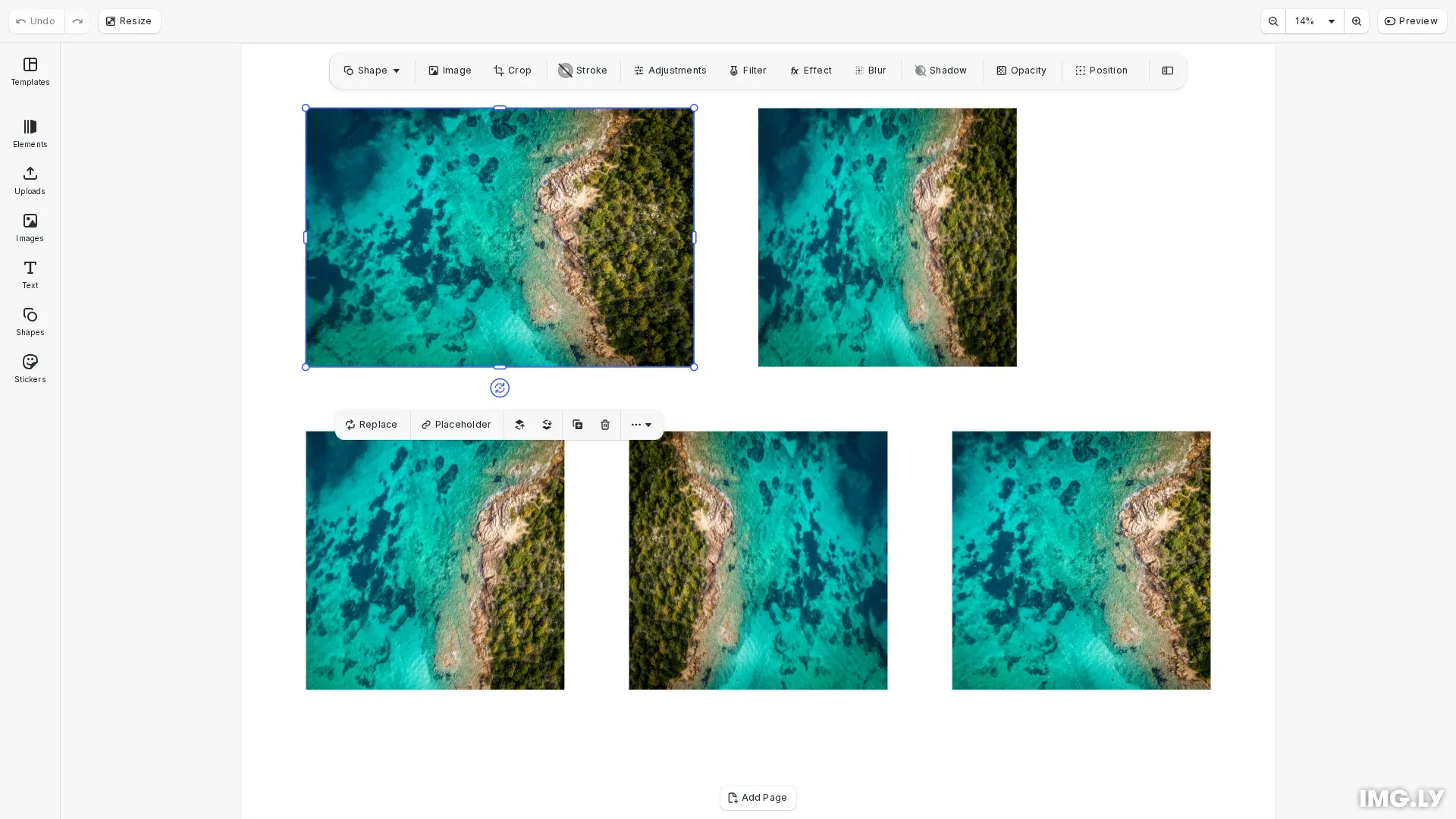
Image cropping in CreativeEditor SDK (CE.SDK) lets you select a region inside an image and discard everything outside that frame. Unlike resizing which changes overall dimensions uniformly, cropping removes unwanted areas while preserving original pixel quality in the selected region.
This guide covers both interactive cropping using the built-in UI and programmatic cropping using the engine API for automation workflows.
What Can Be Cropped#
CE.SDK supports two kinds of crop targets, and they behave differently in the editor:
- Graphic blocks with an image fill — the typical design editor case. The image is one element on a page, and the crop frame is the block’s own frame, adjusted in place with handles.
- Pages with an image fill — the typical photo editor case. The photo is the page’s background fill, and the crop frame is the page itself.
| Graphic block with image fill | Page with image fill | |
|---|---|---|
| Typical use case | Multiple images or graphics on a page, each cropped individually | A single image loaded as the page’s fill, with no separate block on the page |
| While cropping | You can move the crop rectangle (the block’s frame) and it keeps its new position | The crop rectangle (the page’s frame) re-centers after you resize it |
| Resize the crop frame | controlGizmo/showCropHandles (default true) |
page/allowResizeInteraction (default false) |
| Scale the image inside the frame | controlGizmo/showCropScaleHandles (default true) |
page/allowCropInteraction (default true) |
| Lock the aspect ratio | engine.block.setCropAspectRatioLocked() |
page/restrictResizeInteractionToFixedAspectRatio (default false) |
The last three rows list the settings that control the same crop capability for each target. The controlGizmo/* settings apply to pages too — for a page they are prerequisites, and the page/* setting in the same row must be enabled in addition: crop frame handles appear only when both controlGizmo/showCropHandles and page/allowResizeInteraction are true, and scale handles only when both controlGizmo/showCropScaleHandles and page/allowCropInteraction are true. The programmatic crop API works the same way for both targets; the differences only affect the interactive crop UI. For the page setup, see Cropping the Page’s Background Image.
Using the Built-in Crop UI#
The CE.SDK default UI provides an interactive crop tool that allows users to visually adjust crop areas with real-time feedback.
User Workflow#
With the default UI configuration, users can crop images through a visual workflow:
- Select an image - Click on any image block in the canvas
- Enter crop mode - Double-click the image or click the crop icon in the toolbar
- Adjust the crop area - Drag corners or edges to resize the visible region
- Choose aspect ratio - Select a preset ratio if available (e.g., 1:1, 4:3, 16:9)
- Apply the crop - Click “Done” or press Enter to apply changes
The cropped image appears in your project, but the underlying original image preserves its values, even when you rotate or resize the cropped image.
Enable Crop Features in Custom UI#
For developers building custom UIs, you can enable crop functionality using editor settings:
// Enable double-click to enter crop modecesdk.engine.editor.setSettingBool('doubleClickToCropEnabled', true);
// Show crop handles on the control gizmocesdk.engine.editor.setSettingBool('controlGizmo/showCropHandles', true);
// Show crop scale handlescesdk.engine.editor.setSettingBool('controlGizmo/showCropScaleHandles', true);
Define Preset Aspect Ratios#
The aspect ratio and size presets offered in the crop panel come from the ly.img.crop.presets asset source, which is part of the default asset sources added by engine.addDefaultAssetSources(). To offer your own presets — for example social media formats or print sizes — add assets to that source or register your own source with custom preset definitions. See the crop presets guide for the preset structure and source configuration.
Cropping the Page’s Background Image#
In photo editing workflows, the image is usually not a block on the page — it is the page’s background fill. Scenes created with engine.scene.createFromImage() use this structure, and so does the Photo Editor starter kit. Cropping then targets the page itself: select the page and switch the editor to crop mode, and the page’s frame becomes the crop frame.
// The photo is the page's fill, so the page is the crop targetconst page = engine.scene.getCurrentPage();engine.block.select(page);engine.editor.setEditMode('Crop');Unlike graphic blocks, pages gate their crop interaction behind dedicated page settings. These act in addition to the controlGizmo/showCropHandles and controlGizmo/showCropScaleHandles settings, which apply to pages as well — each handle type only appears when both its controlGizmo/* setting and the corresponding page/* setting are enabled:
// Let users pan and resize the image under the page's crop framecesdk.engine.editor.setSettingBool('page/allowCropInteraction', true); // default: true
// Show handles to resize the page's crop framecesdk.engine.editor.setSettingBool('page/allowResizeInteraction', true); // default: false
// Keep the page's aspect ratio fixed while resizing with handlescesdk.engine.editor.setSettingBool(  'page/restrictResizeInteractionToFixedAspectRatio',  true); // default: false
page/allowCropInteraction only covers panning and resizing the image under the page’s crop frame. The handles that resize the crop frame itself are gated by page/allowResizeInteraction, which defaults to false — with default settings, no crop frame handles appear on a page, even though controlGizmo/showCropHandles is enabled. The default editor handles this for you: with the ly.img.crop feature enabled, the editor enables page/allowResizeInteraction while a page is in crop mode, whether or not the crop panel is open, and restores your original value when crop mode is left.
Two more settings round out cropping a page’s background image:
// Keep text and sticker overlays aligned with the photo while croppingcesdk.engine.editor.setSettingBool('page/moveChildrenWhenCroppingFill', true); // default: false
// Highlight the page boundary during croppingcesdk.engine.editor.setSettingBool('page/highlightWhenCropping', true); // default: falseProgrammatic Cropping#
For automation, batch processing, or dynamic applications, you can control cropping entirely through the engine API.
Check Crop Support#
Before applying crop operations, verify the block supports cropping using engine.block.supportsCrop(). Graphic blocks with image fills support cropping, and so do pages whose background fill is an image:
// Verify the block supports cropping before applying crop operationsconst supportsCrop = engine.block.supportsCrop(imageBlock);console.log('Block supports crop:', supportsCrop);Content Fill Modes#
CE.SDK provides three content fill modes that control how images fit within their frame. Set the mode using engine.block.setContentFillMode():
// Check if the block supports content fill modesconst supportsFillMode = engine.block.supportsContentFillMode(imageBlock);console.log('Supports content fill mode:', supportsFillMode);
// Get the current content fill modeconst currentMode = engine.block.getContentFillMode(imageBlock);console.log('Current fill mode:', currentMode);
// Set content fill mode - options are 'Crop', 'Cover', 'Contain'// 'Cover' automatically scales and positions to fill the entire frameengine.block.setContentFillMode(imageBlock, 'Cover');
The available modes are:
- Crop - Manual control over the exact crop region using scale, translation, and rotation
- Cover - Automatically scale and position content to fill the entire frame (no empty areas)
- Contain - Automatically scale and position content to fit entirely within the frame (may show background)
Align Content Fill#
In Cover and Contain modes, the image is centered inside the block by default. Use the alignment APIs to pin the content to a specific edge instead — for example, to keep the top-left of an image visible regardless of the image’s aspect ratio:
// Alignment only applies in 'Cover' and 'Contain' fill modes — it controls// which part of the content stays visible (Cover) or where the letterboxed// content sits (Contain). It is ignored in 'Crop' mode.// Pin the content to the top-left corner instead of the default centerengine.block.setContentFillHorizontalAlignment(imageBlock, 'Left');engine.block.setContentFillVerticalAlignment(imageBlock, 'Top');
// Read the current alignment valuesconst horizontalAlignment =  engine.block.getContentFillHorizontalAlignment(imageBlock);const verticalAlignment =  engine.block.getContentFillVerticalAlignment(imageBlock);console.log('Content fill alignment:', {  horizontalAlignment,  verticalAlignment});
The horizontal options are 'Left', 'Center' (default), and 'Right'. The vertical options are 'Top', 'Center' (default), and 'Bottom'. This is especially useful for templates where the dropped-in image’s aspect ratio is unknown — in Contain mode it controls where the letterboxed content sits, and in Cover mode it controls which part of the oversized content stays visible.
The alignment is ignored in Crop mode, where the user positions the content explicitly.
Scale Crop#
Scale the image content within its frame using crop scale APIs. Values greater than 1.0 zoom in, values less than 1.0 zoom out:
// Create another image block to demonstrate crop scalingconst scaleBlock = await engine.block.addImage(imageUri, {  size: { width: 200, height: 200 }});engine.block.appendChild(page, scaleBlock);engine.block.setPositionX(scaleBlock, 400);engine.block.setPositionY(scaleBlock, 50);
// Set content fill mode to 'Crop' for manual controlengine.block.setContentFillMode(scaleBlock, 'Crop');
// Scale the content within the crop frame// Values > 1 zoom in, values < 1 zoom outengine.block.setCropScaleX(scaleBlock, 1.5);engine.block.setCropScaleY(scaleBlock, 1.5);
// Or use uniform scaling from centerengine.block.setCropScaleRatio(scaleBlock, 1.2);
// Get the current scale valuesconst scaleX = engine.block.getCropScaleX(scaleBlock);const scaleY = engine.block.getCropScaleY(scaleBlock);const scaleRatio = engine.block.getCropScaleRatio(scaleBlock);console.log('Crop scale:', { scaleX, scaleY, scaleRatio });
Use setCropScaleRatio() for uniform scaling from the center, or setCropScaleX() and setCropScaleY() for non-uniform scaling.
Translate Crop#
Pan the image content within the crop frame using translation. Values are percentages of the crop frame dimensions:
// Pan the content within the crop frame using translation// Values are in percentage of the crop frame dimensionsengine.block.setCropTranslationX(scaleBlock, 0.1); // Move 10% rightengine.block.setCropTranslationY(scaleBlock, -0.1); // Move 10% up
// Get the current translation valuesconst translationX = engine.block.getCropTranslationX(scaleBlock);const translationY = engine.block.getCropTranslationY(scaleBlock);console.log('Crop translation:', { translationX, translationY });
Positive X moves content right, positive Y moves content down.
Fill Frame#
Adjust the crop to ensure content fills the frame without empty areas using engine.block.adjustCropToFillFrame(). The minScaleRatio parameter sets the minimum allowed scale:
// Ensure content covers the entire frame without gaps// The minScaleRatio parameter sets the minimum scale allowedconst adjustedRatio = engine.block.adjustCropToFillFrame(scaleBlock, 1.0);console.log('Adjusted scale ratio:', adjustedRatio);This is useful after applying translations or rotations that might reveal empty areas.
Rotate Crop#
Rotate the image content within its frame using engine.block.setCropRotation(). Rotation is specified in radians:
// Create an image block to demonstrate crop rotationconst rotateBlock = await engine.block.addImage(imageUri, {  size: { width: 200, height: 200 }});engine.block.appendChild(page, rotateBlock);engine.block.setPositionX(rotateBlock, 50);engine.block.setPositionY(rotateBlock, 300);engine.block.setContentFillMode(rotateBlock, 'Crop');
// Rotate the content within the crop frame (in radians)// Math.PI / 4 = 45 degreesengine.block.setCropRotation(rotateBlock, Math.PI / 12);
// Get the current rotationconst rotation = engine.block.getCropRotation(rotateBlock);console.log('Crop rotation (radians):', rotation);
// Ensure content still fills the frame after rotationengine.block.adjustCropToFillFrame(rotateBlock, 1.0);
After rotation, call adjustCropToFillFrame() to ensure content still covers the frame.
Flip Crop#
Flip the image content horizontally or vertically within its crop frame. This flips the content itself, not the block:
// Create an image block to demonstrate flippingconst flipBlock = await engine.block.addImage(imageUri, {  size: { width: 200, height: 200 }});engine.block.appendChild(page, flipBlock);engine.block.setPositionX(flipBlock, 300);engine.block.setPositionY(flipBlock, 300);engine.block.setContentFillMode(flipBlock, 'Crop');
// Flip the content horizontallyengine.block.flipCropHorizontal(flipBlock);
Lock Aspect Ratio#
Lock the crop aspect ratio during interactive editing using engine.block.setCropAspectRatioLocked(). When locked, crop handles maintain the current aspect ratio:
// Create an image block to demonstrate aspect ratio lockingconst lockBlock = await engine.block.addImage(imageUri, {  size: { width: 200, height: 200 }});engine.block.appendChild(page, lockBlock);engine.block.setPositionX(lockBlock, 550);engine.block.setPositionY(lockBlock, 300);engine.block.setContentFillMode(lockBlock, 'Crop');
// Lock the crop aspect ratio - when locked, crop handles maintain// the current aspect ratio during resize operationsengine.block.setCropAspectRatioLocked(lockBlock, true);
// Check if aspect ratio is lockedconst isLocked = engine.block.isCropAspectRatioLocked(lockBlock);console.log('Aspect ratio locked:', isLocked);
Reset Crop#
Reset all crop transformations to their default state using engine.block.resetCrop():
// Reset crop to default state (sets content fill mode to 'Cover')engine.block.resetCrop(lockBlock);Coordinate System#
Crop transforms use normalized values:
| Property | Value Type | Description |
|---|---|---|
| Scale | Float (0.0+) | 1.0 is original size, 2.0 is double, 0.5 is half |
| Translation | Float (-1.0 to 1.0) | Percentage of frame dimensions |
| Rotation | Float (radians) | Math.PI = 180°, Math.PI/2 = 90° |
All crop values are independent of canvas zoom level.
Combining Crop with Other Transforms#
You can combine crop operations with other block transforms like position, rotation, and scale. Crop transforms affect the content within the block, while block transforms affect the block itself on the canvas:
// Crop the content (scales/pans the image within its frame)engine.block.setCropScaleRatio(imageBlock, 1.5);engine.block.setCropRotation(imageBlock, Math.PI / 12);
// Transform the block itself (moves/rotates the entire block on canvas)engine.block.setRotation(imageBlock, Math.PI / 6);engine.block.setWidth(imageBlock, 400);Troubleshooting#
| Issue | Cause / Fix |
|---|---|
| Crop functions throw error | Verify block supports crop with supportsCrop() |
| Black bars after scaling | Call adjustCropToFillFrame() or increase scale ratio |
| Content not filling frame | Check content fill mode - use ‘Cover’ for automatic fill |
| Unexpected crop behavior | Ensure content fill mode is set to ‘Crop’ for manual control |
| Crop handles not visible on a block | Enable with cesdk.engine.editor.setSettingBool('controlGizmo/showCropHandles', true) |
| Crop handles not visible on a page | Enable both controlGizmo/showCropHandles and page/allowResizeInteraction (default false) - the gizmo setting alone is not enough for pages, see Cropping the Page’s Background Image |
API Reference#
| Method | Description |
|---|---|
block.supportsCrop(id) |
Check if a block supports cropping |
block.supportsContentFillMode(id) |
Check if block supports fill modes |
block.setContentFillMode(id, mode) |
Set content fill mode (Crop, Cover, Contain) |
block.getContentFillMode(id) |
Get current content fill mode |
block.setContentFillHorizontalAlignment(id, alignment) |
Align fill horizontally (Left, Center, Right) in Cover/Contain modes |
block.getContentFillHorizontalAlignment(id) |
Get horizontal fill alignment |
block.setContentFillVerticalAlignment(id, alignment) |
Align fill vertically (Top, Center, Bottom) in Cover/Contain modes |
block.getContentFillVerticalAlignment(id) |
Get vertical fill alignment |
block.setCropScaleRatio(id, ratio) |
Set uniform crop scale from center |
block.setCropScaleX(id, scaleX) |
Set horizontal crop scale |
block.setCropScaleY(id, scaleY) |
Set vertical crop scale |
block.setCropTranslationX(id, x) |
Set horizontal crop translation |
block.setCropTranslationY(id, y) |
Set vertical crop translation |
block.setCropRotation(id, rotation) |
Set crop rotation in radians |
block.getCropScaleRatio(id) |
Get uniform crop scale ratio |
block.getCropScaleX(id) |
Get horizontal crop scale |
block.getCropScaleY(id) |
Get vertical crop scale |
block.getCropTranslationX(id) |
Get horizontal crop translation |
block.getCropTranslationY(id) |
Get vertical crop translation |
block.getCropRotation(id) |
Get crop rotation in radians |
block.adjustCropToFillFrame(id, minRatio) |
Adjust crop to fill frame |
block.flipCropHorizontal(id) |
Flip content horizontally |
block.flipCropVertical(id) |
Flip content vertically |
block.setCropAspectRatioLocked(id, locked) |
Lock/unlock aspect ratio |
block.isCropAspectRatioLocked(id) |
Check if aspect ratio is locked |
block.resetCrop(id) |
Reset crop to default state |