Add text and image watermarks to designs programmatically using CE.SDK’s block API.
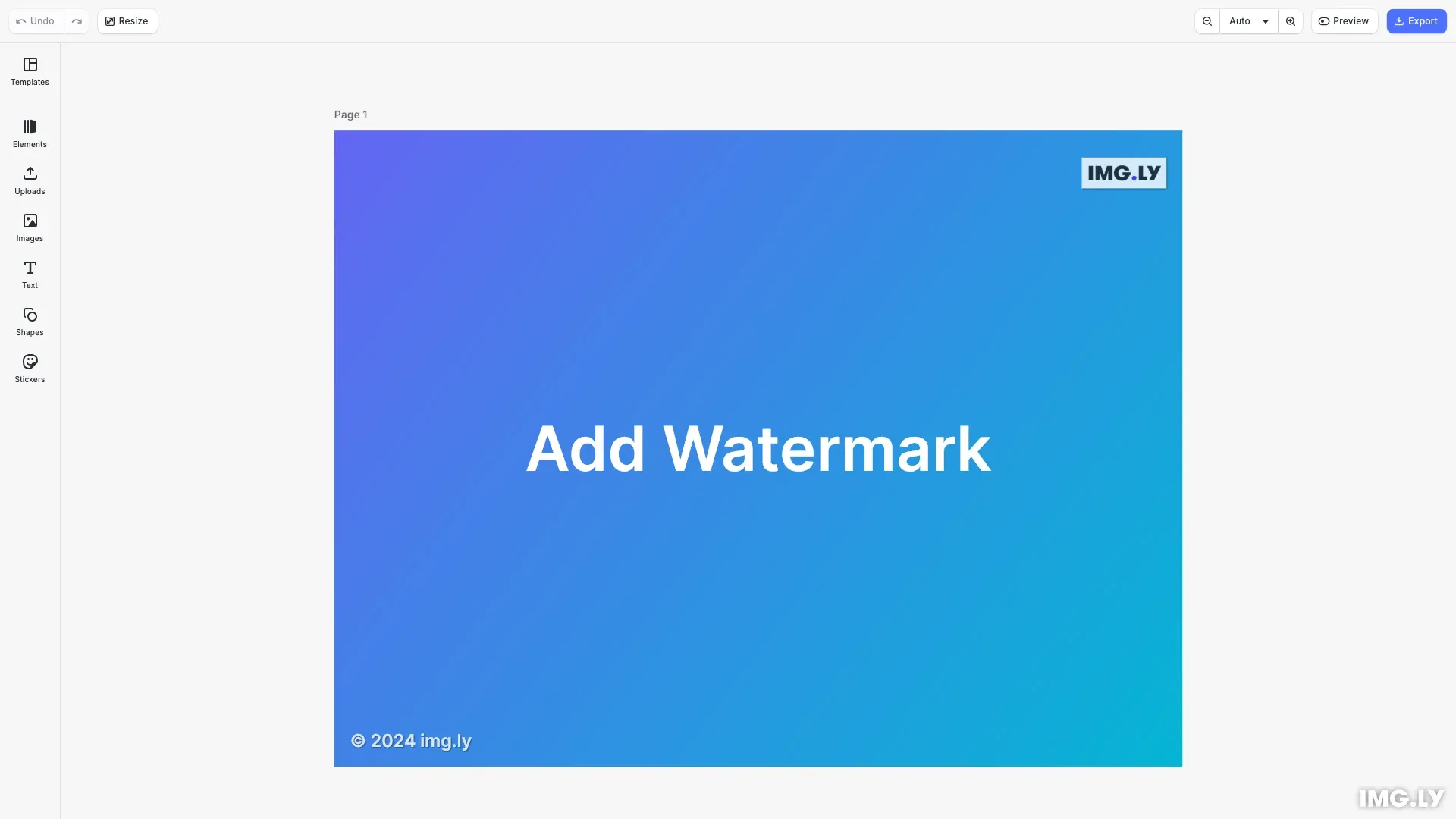
Watermarks protect intellectual property, indicate ownership, add branding, or mark content as drafts. CE.SDK supports two types of watermarks: text watermarks created from text blocks for copyright notices and brand names, and image watermarks created from graphic blocks with image fills for logos and symbols.
This guide covers how to create text and logo watermarks, position them on a design, style them for visibility, and export the watermarked result.
Setup and Prerequisites#
We start by initializing CE.SDK, loading asset sources, and creating a scene with a custom page size. The page provides the canvas where we’ll add our watermarks.
const engine = cesdk.engine;
// Create a scene with custom page dimensionsconst scene = engine.scene.create();const page = engine.block.create('page');engine.block.setWidth(page, 800);engine.block.setHeight(page, 600);engine.block.appendChild(scene, page);
const pageWidth = engine.block.getWidth(page);const pageHeight = engine.block.getHeight(page);
We use engine.scene.create('VerticalStack', {...}) to create a scene with custom page dimensions. The page dimensions are retrieved for positioning calculations later.
Creating Text Watermarks#
Text watermarks display copyright notices, URLs, or brand names. We create a text block, set its content, and add it to the page.
// Create a text block for the watermarkconst textWatermark = engine.block.create('text');
// Set the watermark text contentengine.block.setString(textWatermark, 'text/text', '© 2024 img.ly');
// Left-align the text for the watermarkengine.block.setEnum(textWatermark, 'text/horizontalAlignment', 'Left');
// Add the text block to the pageengine.block.appendChild(page, textWatermark);
The engine.block.create('text') method creates a new text block. We set the text content using engine.block.setString() with the 'text/text' property.
Styling the Text#
We configure the font size, color, and opacity to make the watermark visible but unobtrusive.
// Set font size for the watermarkengine.block.setTextFontSize(textWatermark, 4);
// Set text color to white for contrastengine.block.setTextColor(textWatermark, { r: 1, g: 1, b: 1, a: 1 });
// Set opacity to make it semi-transparentengine.block.setOpacity(textWatermark, 0.8);
// Set width mode to auto so text fits its contentengine.block.setWidthMode(textWatermark, 'Auto');engine.block.setHeightMode(textWatermark, 'Auto');
Key styling options:
- Font size - Use sizes between 14-18px for subtle watermarks
- Text color - White or black depending on the image background
- Opacity - Values between 0.5-0.7 provide a balanced, semi-transparent appearance
- Size mode - Set to
'Auto'so the block automatically fits its text content
Positioning the Watermarks#
We calculate the watermark positions based on the page dimensions and place the logo and text side-by-side at the bottom center of the page.
// Position padding from edgesconst padding = 15;
// Position text watermark at bottom-leftengine.block.setPositionX(textWatermark, padding);engine.block.setPositionY(textWatermark, pageHeight - padding - 20);
// Position logo watermark at top-rightengine.block.setPositionX(logoWatermark, pageWidth - padding - logoWidth);engine.block.setPositionY(logoWatermark, padding);
We retrieve the rendered frame dimensions using engine.block.getFrameWidth() and engine.block.getFrameHeight(), calculate the total width of both watermarks with spacing, then center them horizontally. The vertical position places them near the bottom with padding from the edge.
Creating Logo Watermarks#
Logo watermarks use graphic blocks with image fills to display brand symbols or company logos.
// Create a graphic block for the logo watermarkconst logoWatermark = engine.block.create('graphic');
// Create a rect shape for the logoconst rectShape = engine.block.createShape('rect');engine.block.setShape(logoWatermark, rectShape);
// Create an image fill with a logoconst imageFill = engine.block.createFill('image');engine.block.setString(  imageFill,  'fill/image/imageFileURI',  'https://img.ly/static/ubq_samples/imgly_logo.jpg');
// Apply the fill to the graphic blockengine.block.setFill(logoWatermark, imageFill);
// Set content fill mode to contain the image within boundsengine.block.setContentFillMode(logoWatermark, 'Contain');
// Add to pageengine.block.appendChild(page, logoWatermark);
We create a graphic block, assign a rect shape, then create an image fill with the logo URI. The fill is applied to the graphic block before adding it to the page.
Sizing the Logo#
We set fixed dimensions for the logo and apply opacity to match the text watermark.
// Size the logo watermarkconst logoWidth = 80;const logoHeight = 50;engine.block.setWidth(logoWatermark, logoWidth);engine.block.setHeight(logoWatermark, logoHeight);
// Set opacity for the logo watermarkengine.block.setOpacity(logoWatermark, 0.8);
A good rule is to size logos to 10-20% of the page width. This keeps them visible without dominating the design.
Enhancing Visibility with Drop Shadows#
Drop shadows improve watermark readability against varied backgrounds by adding contrast.
// Add drop shadow to text watermark for better visibilityengine.block.setDropShadowEnabled(textWatermark, true);engine.block.setDropShadowOffsetX(textWatermark, 1);engine.block.setDropShadowOffsetY(textWatermark, 1);engine.block.setDropShadowBlurRadiusX(textWatermark, 2);engine.block.setDropShadowBlurRadiusY(textWatermark, 2);engine.block.setDropShadowColor(textWatermark, {  r: 0,  g: 0,  b: 0,  a: 0.5});
// Add drop shadow to logo watermarkengine.block.setDropShadowEnabled(logoWatermark, true);engine.block.setDropShadowOffsetX(logoWatermark, 1);engine.block.setDropShadowOffsetY(logoWatermark, 1);engine.block.setDropShadowBlurRadiusX(logoWatermark, 2);engine.block.setDropShadowBlurRadiusY(logoWatermark, 2);engine.block.setDropShadowColor(logoWatermark, {  r: 0,  g: 0,  b: 0,  a: 0.5});
Drop shadow parameters:
- Offset X/Y - Distance from the block (2-4 pixels works well)
- Blur Radius X/Y - Softness of the shadow (4-8 pixels for subtle effect)
- Color - Black with 0.5 alpha provides soft contrast without being harsh
Exporting Watermarked Images#
After adding watermarks, we add an export button to the navigation bar that downloads the watermarked image when clicked.
// Add export button to the navigation barcesdk.ui.insertOrderComponent({ in: 'ly.img.navigation.bar', position: 'end' }, {  id: 'ly.img.actions.navigationBar',  children: [    {      id: 'ly.img.action.navigationBar',      key: 'export-watermarked',      label: 'Export',      icon: '@imgly/Download',      onClick: async () => {        // Export the watermarked design        const blob = await engine.block.export(page, {          mimeType: 'image/png'        });
        // Download the watermarked image        await cesdk.utils.downloadFile(blob, 'image/png');      }    }  ]});
We use cesdk.ui.insertOrderComponent() to add a custom button to the editor’s navigation bar. When clicked, engine.block.export() renders the page with all watermarks and returns a blob that cesdk.utils.downloadFile() downloads to the user’s device. Supported formats include PNG, JPEG, and WebP.
Troubleshooting#
Watermark not visible
- Verify the block is within page bounds using position values
- Check opacity is between 0.3-1.0
- Ensure
engine.block.appendChild()was called to add the block to the page
Position appears incorrect
- Recalculate positions using current
pageWidthandpageHeight - Account for watermark dimensions when calculating corner positions
- Remember that coordinates start from the top-left corner
Text not legible
- Increase font size to at least 36px
- Add a drop shadow for contrast against complex backgrounds
- Increase opacity if the watermark is too faint
Logo quality issues
- Use a higher resolution source image for the logo
- Avoid scaling the logo beyond its original dimensions
API Reference#
| Method | Purpose |
|---|---|
engine.block.create(type) | Create text or graphic blocks |
engine.block.createShape(type) | Create shapes for graphic blocks |
engine.block.createFill(type) | Create image fills for logos |
engine.block.setString(id, property, value) | Set text content or image URI |
engine.block.setTextFontSize(id, size) | Set text font size |
engine.block.setTextColor(id, color) | Set text color |
engine.block.setOpacity(id, opacity) | Set block transparency |
engine.block.setPositionX(id, value) | Set horizontal position |
engine.block.setPositionY(id, value) | Set vertical position |
engine.block.setWidth(id, value) | Set block width |
engine.block.setHeight(id, value) | Set block height |
engine.block.getFrameWidth(id) | Get rendered frame width |
engine.block.getFrameHeight(id) | Get rendered frame height |
engine.block.setDropShadowEnabled(id, enabled) | Enable drop shadow |
engine.block.setDropShadowOffsetX(id, offset) | Set shadow X offset |
engine.block.setDropShadowOffsetY(id, offset) | Set shadow Y offset |
engine.block.setDropShadowBlurRadiusX(id, radius) | Set shadow blur |
engine.block.setDropShadowColor(id, color) | Set shadow color |
engine.block.export(id, options) | Export block to blob |
cesdk.ui.insertOrderComponent(options, component) | Add custom button to navigation bar |
cesdk.utils.downloadFile(blob, mimeType) | Download blob as file |
Next Steps#
- Text Styling — Style text blocks with fonts, colors, and effects
- Export Overview — Export options and formats for watermarked images
- Crop Images — Transform images before watermarking