Form-based editing provides structured template customization through input controls rather than canvas manipulation, ideal for non-designers and batch workflows.
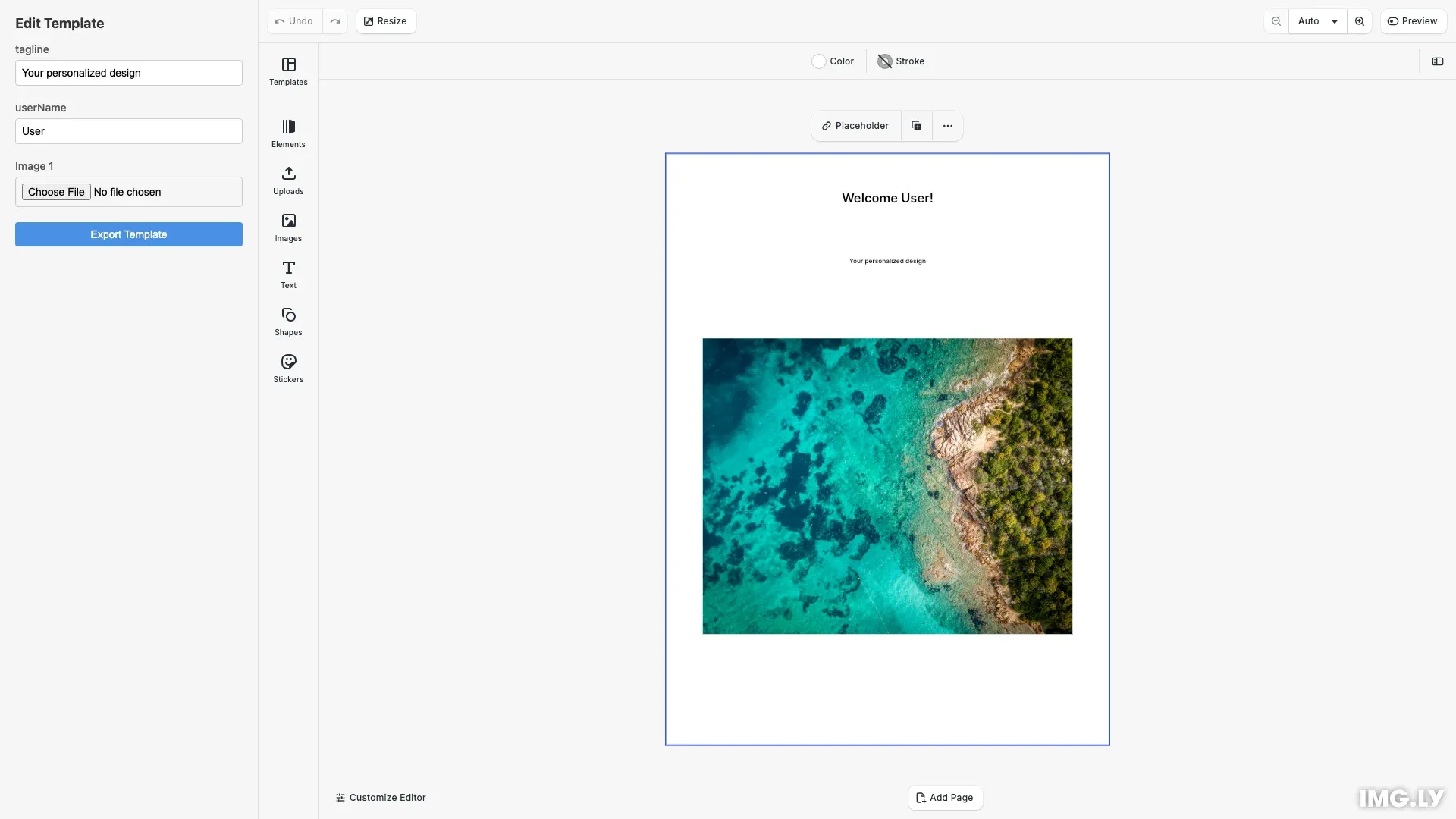
Form-based editing transforms template adoption from visual design into structured data entry. Instead of locating and editing elements on a canvas, users fill familiar form controls (text inputs, file uploads) that map directly to template variables and placeholders.
This guide shows how to discover template variables and placeholders, update content through the engine API, and build custom form panels using CE.SDK’s builder API.
Understanding Form-Based Editing#
Form-based editing replaces direct canvas manipulation with structured form controls. Users interact with text inputs and file uploads instead of clicking elements on the canvas. This approach works well for non-designers, batch workflows, and scenarios requiring strict design control.
Variables control text content. Placeholders control images and videos. Discover these programmatically to build form controls that map to each customization point.
Discovering Template Metadata#
Find all variables and placeholders in the template using the engine API. Variables are text fields like “userName” or “tagline”. Placeholders are image blocks marked as editable.
const variables = engine.variable.findAll();const placeholders = engine.block .findByType('graphic') .filter((id) => engine.block.isPlaceholderEnabled(id));The engine.variable.findAll() method returns all variable keys. Filter graphic blocks by checking isPlaceholderEnabled() to find image placeholders.
Working with Variables#
Variables store text values that can be referenced in text blocks using {{variableName}} syntax.
Using Variables in Text#
Reference variables in text blocks by wrapping variable names in double curly braces:
engine.block.setString(subtitle, 'text/text', '{{tagline}}');The engine replaces {{tagline}} with the variable value when rendering.
Defining Variables#
Set initial values for variables using engine.variable.setString():
engine.variable.setString('tag', 'Welcome');engine.variable.setString('tagline', 'Your personalized design');Updating Variables#
Update variable values through the setValue callback in UI components:
setValue: (newValue) => { engine.variable.setString(key, newValue);}When users type in the TextInput, the engine updates the variable and syncs the canvas automatically.
Replacing Placeholder Content#
Placeholders are graphic blocks marked as editable, allowing users to replace images or videos.
Reading Placeholder Images#
Get the current image from a placeholder by reading its fill:
const fill = engine.block.getFill(blockId);const uri = engine.block.getString( fill, 'fill/image/imageFileURI');Setting New Images#
Update the placeholder image by setting the fill URI:
engine.block.setString( fill, 'fill/image/imageFileURI', reader.result as string);The engine accepts data URLs, allowing direct file upload without external storage.
Building the Form UI#
Create custom panels using cesdk.ui.registerPanel() with builder components. The builder API provides Section, TextInput, MediaPreview, and Button components that automatically match CE.SDK’s theme.
cesdk.ui.registerPanel('template-form', ({ builder }) => { if (variables.length > 0) { builder.Section('variables-section', { title: 'Text Fields', children: () => { variables.forEach((key) => { builder.TextInput(`variable-${key}`, { inputLabel: key, value: engine.variable.getString(key), setValue: (newValue) => { engine.variable.setString(key, newValue); } }); }); } }); }The panel appears in the dock and opens automatically when the editor loads. You can also build forms with plain HTML and vanilla JavaScript—the engine API works the same way regardless of your UI framework.
For more details on custom panels and components:
- Create a Custom Panel — Build sidebar panels for unique workflows
- Register a New Component — Create custom UI components
Error Handling#
Handle common errors gracefully:
- Missing Variables: Display which fields are required
- Invalid File Types: Check MIME types before upload
- Network Errors: Handle asset loading failures
- Permission Errors: Validate modification rights
Provide clear, actionable error messages to guide users.
API Reference#
Variables#
| Method | Description |
|---|---|
engine.variable.findAll() |
List all variable keys in the template |
engine.variable.getString() |
Read a variable’s current value |
engine.variable.setString() |
Update a variable’s value |
Placeholders#
| Method | Description |
|---|---|
engine.block.findByType() |
Find blocks by type (e.g., ‘graphic’) |
engine.block.isPlaceholderEnabled() |
Check if a block is a placeholder |
engine.block.getFill() |
Get the fill ID for a block |
engine.block.setString() |
Update block properties (e.g., image URI) |
UI Builder#
| Method | Description |
|---|---|
cesdk.ui.registerPanel() |
Register a custom panel with builder components |
builder.Section() |
Create a collapsible section |
builder.TextInput() |
Create a text input with live updates |
builder.MediaPreview() |
Create an image preview with upload button |
builder.Button() |
Create a button with click handler |
Next Steps#
- Text Variables — Deep dive into variable management
- Placeholders — Understand placeholder configuration
- Lock Templates — Combine forms with locked designs
- Set Editing Constraints — Fine-tune what users can modify