Create seamless repeating audio playback for background music, sound effects, and rhythmic elements using CE.SDK’s audio looping system.
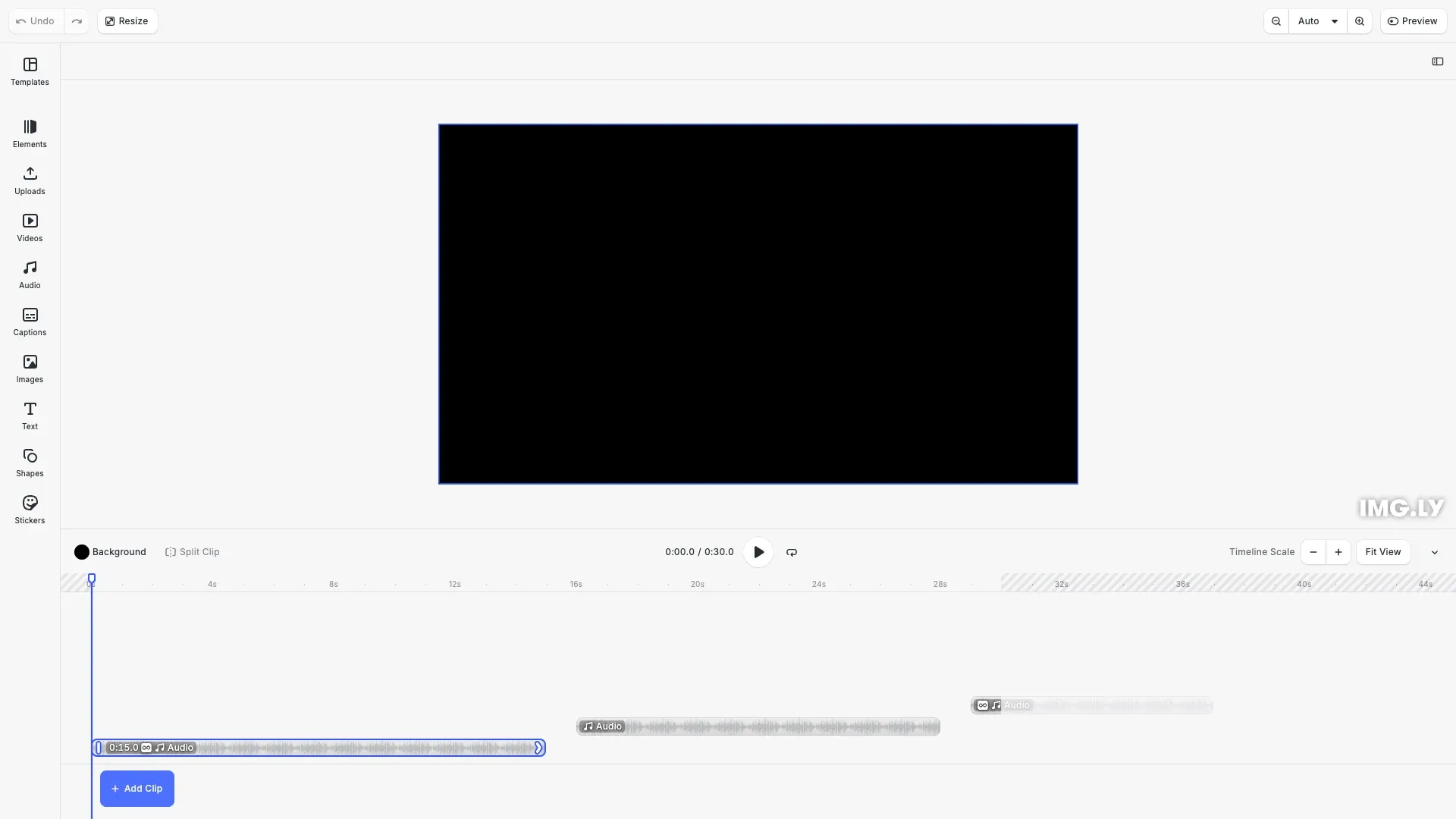
Audio looping allows media to play continuously by restarting from the beginning when it reaches the end. When you set a block’s duration longer than the audio length and enable looping, CE.SDK automatically repeats the audio to fill the entire duration. This makes looping perfect for background music, ambient soundscapes, and repeating sound effects.
This guide covers how to enable and disable audio looping, control looping behavior with duration settings, and loop trimmed audio segments.
Understanding Audio Looping#
When looping is enabled on an audio block, CE.SDK repeats the audio content from the beginning each time it reaches the end. This continues until the block’s duration is filled. For example, a 5-second audio clip with looping enabled and a 15-second duration will play three complete times.
The loop transitions are seamless—CE.SDK jumps immediately from the end back to the beginning without gaps or clicks. The audio content itself determines how smooth the loop sounds. Audio files designed for looping (with matching start and end points) create perfectly seamless loops, while non-looping audio may have audible transitions.
Creating Audio Blocks#
Adding Audio Content#
Audio blocks use file URIs to reference audio sources. We create the block, add it to the page, and set the audio source.
// Create a basic audio blockconst audioBlock = engine.block.create('audio')!;engine.block.appendChild(page, audioBlock);
// Set the audio source URIengine.block.setString(audioBlock, 'audio/fileURI', audioUri);
The audio/fileURI property points to the audio file. CE.SDK supports common audio formats including MP3, M4A, WAV, and AAC.
Enabling Audio Looping#
Loading Audio Resources#
Before working with audio properties like duration or trim, we load the audio resource to ensure metadata is available.
// Load the audio resource to access metadata like durationawait engine.block.forceLoadAVResource(audioBlock);
// Get the total audio durationconst audioDuration = engine.block.getDouble(  audioBlock,  'audio/totalDuration');console.log('Audio duration:', audioDuration, 'seconds');
Loading the resource provides access to the total audio duration, which helps calculate how many times the audio will loop given a specific block duration.
Setting Looping State#
We enable looping by calling setLooping() with true. When combined with a block duration longer than the audio length, the audio repeats to fill the full duration.
// Enable looping for this audio blockengine.block.setLooping(audioBlock, true);
// Set the block duration longer than the audio length// The audio will loop to fill the entire durationengine.block.setDuration(audioBlock, 15);
console.log('Looping enabled - audio will repeat to fill 15 seconds');
In this example, if the audio is 5 seconds long and the block duration is 15 seconds, the audio loops three times (5 seconds × 3 = 15 seconds total).
Querying and Controlling Looping#
Checking Looping State#
We can check whether an audio block has looping enabled at any time.
// Check if an audio block is set to loopconst isLooping = engine.block.isLooping(audioBlock);console.log('Is looping:', isLooping); // trueThis is useful when managing complex compositions with multiple audio tracks, allowing us to query and update looping states dynamically.
Disabling Looping#
To play audio once without repeating, we set looping to false.
const nonLoopingAudio = engine.block.create('audio')!;engine.block.appendChild(page, nonLoopingAudio);engine.block.setString(nonLoopingAudio, 'audio/fileURI', audioUri);await engine.block.forceLoadAVResource(nonLoopingAudio);
// Set time offset so it doesn't overlap with first audioengine.block.setTimeOffset(nonLoopingAudio, 16);
// Disable looping (or leave it at default false)engine.block.setLooping(nonLoopingAudio, false);
// Set duration longer than audio length// Audio will play once and stop (no looping)engine.block.setDuration(nonLoopingAudio, 12);
console.log('Looping disabled - audio plays once and stops');
With looping disabled and a duration longer than the audio length, the audio plays once and then stops, leaving silence for the remaining duration.
Looping with Trim Settings#
Trimming Looped Audio#
We can combine trimming with looping to create short repeating segments from longer audio files.
// Create a third audio block demonstrating looping with trimconst trimmedLoopAudio = engine.block.create('audio')!;engine.block.appendChild(page, trimmedLoopAudio);engine.block.setString(trimmedLoopAudio, 'audio/fileURI', audioUri);await engine.block.forceLoadAVResource(trimmedLoopAudio);
// Trim to a 2-second segmentengine.block.setTrimOffset(trimmedLoopAudio, 1.0);engine.block.setTrimLength(trimmedLoopAudio, 2.0);
// Enable looping and set duration longer than trim lengthengine.block.setLooping(trimmedLoopAudio, true);engine.block.setDuration(trimmedLoopAudio, 8.0);
// Position in timelineengine.block.setTimeOffset(trimmedLoopAudio, 29);
console.log('Trimmed loop - 2s segment will loop 4 times to fill 8s');
This trims the audio to a 2-second segment (from 1.0s to 3.0s of the source), then loops that segment four times to fill an 8-second duration. This technique is powerful for creating rhythmic loops or extracting repeatable portions from longer audio files.
Choosing Loop Points#
For seamless loops, choose trim points where the audio content flows naturally from end to beginning. Audio with consistent rhythm, tone, and volume at trim boundaries creates the smoothest loops. Abrupt changes in content or volume at loop boundaries create noticeable transitions.
API Reference#
| Method | Description | Parameters | Returns |
|---|---|---|---|
create(type) | Create an audio block | type: 'audio' | DesignBlockId |
setString(id, property, value) | Set audio source URI | id: DesignBlockId, property: string, value: string | void |
setLooping(id, enabled) | Enable or disable audio looping | id: DesignBlockId, enabled: boolean | void |
isLooping(id) | Check if audio is set to loop | id: DesignBlockId | boolean |
setDuration(id, duration) | Set block playback duration | id: DesignBlockId, duration: number | void |
getDuration(id) | Get block duration | id: DesignBlockId | number |
setTrimOffset(id, offset) | Set trim start point | id: DesignBlockId, offset: number | void |
setTrimLength(id, length) | Set trim length | id: DesignBlockId, length: number | void |
forceLoadAVResource(id) | Load audio resource with metadata | id: DesignBlockId | Promise<void> |
getDouble(id, property) | Get audio property value | id: DesignBlockId, property: string | number |