Implement undo/redo functionality and manage multiple history stacks to track editing operations.
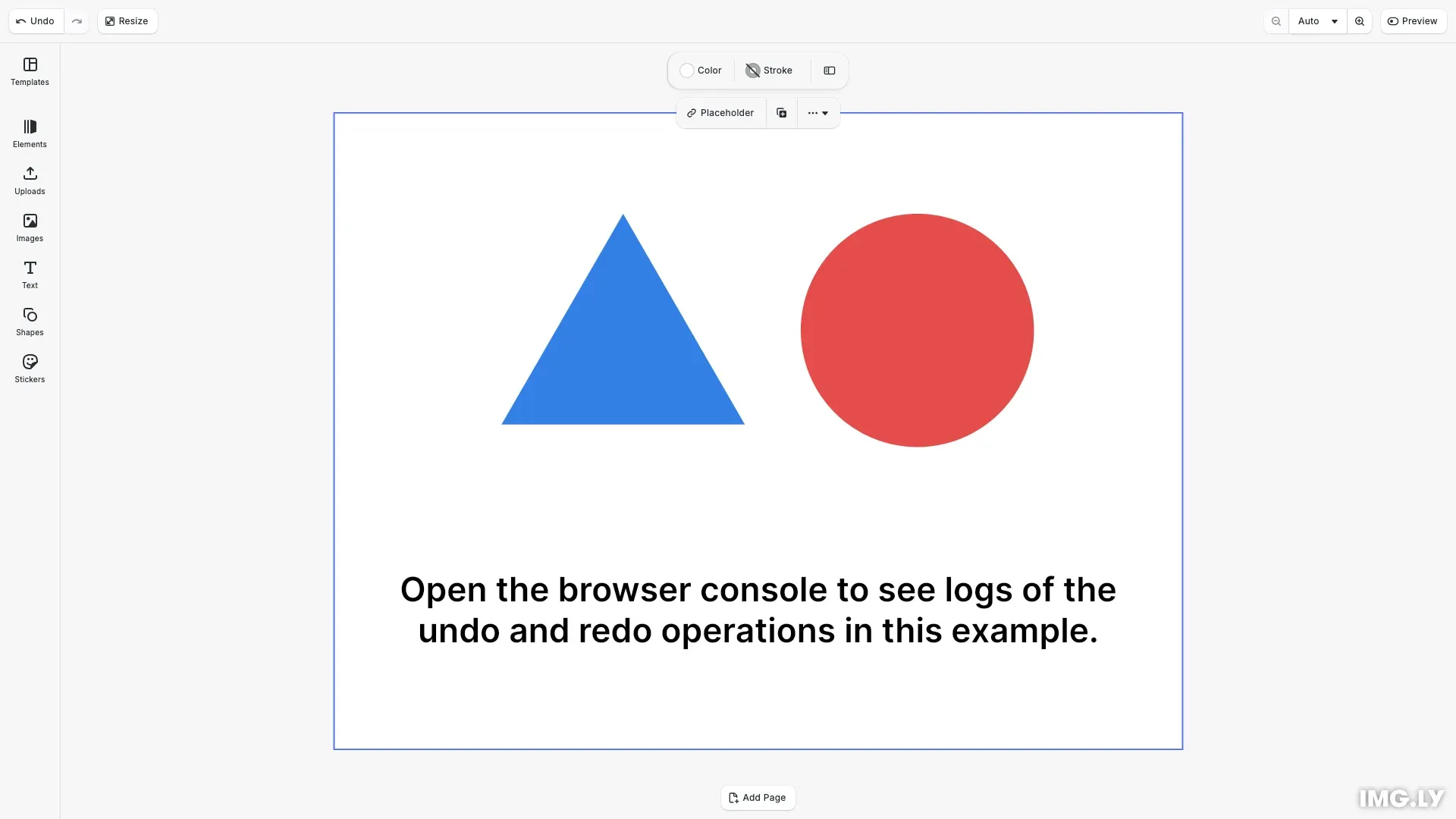
CE.SDK automatically tracks editing operations, enabling users to undo and redo changes. The engine creates undo steps for most operations automatically. You can also create multiple independent history stacks to isolate different editing contexts, such as separate histories for a main canvas and an overlay editing panel.
This guide covers how to use the built-in undo/redo UI controls, perform undo and redo operations programmatically, subscribe to history changes, manually manage undo steps, and work with multiple history stacks.
Setup#
We start by initializing the CE.SDK editor and creating a design scene. The engine automatically creates a history stack when the editor is initialized.
await cesdk.addPlugin(new DesignEditorConfig());
// Add asset source pluginsawait cesdk.addPlugin(new BlurAssetSource());await cesdk.addPlugin(new ColorPaletteAssetSource());await cesdk.addPlugin(new CropPresetsAssetSource());await cesdk.addPlugin(new UploadAssetSources({ include: ['ly.img.image.upload'] }));await cesdk.addPlugin(  new DemoAssetSources({    include: [      'ly.img.templates.blank.*',      'ly.img.templates.presentation.*',      'ly.img.templates.print.*',      'ly.img.templates.social.*',      'ly.img.image.*'    ]  }));await cesdk.addPlugin(new EffectsAssetSource());await cesdk.addPlugin(new FiltersAssetSource());await cesdk.addPlugin(new PagePresetsAssetSource());await cesdk.addPlugin(new StickerAssetSource());await cesdk.addPlugin(new TextAssetSource());await cesdk.addPlugin(new TextComponentAssetSource());await cesdk.addPlugin(new TypefaceAssetSource());await cesdk.addPlugin(new VectorShapeAssetSource());
await cesdk.actions.run('scene.create', {  page: { width: 800, height: 600, unit: 'Pixel' }});
const engine = cesdk.engine;const page = engine.block.findByType('page')[0]!;
Using the Built-in Undo/Redo UI#
The CE.SDK editor includes undo and redo buttons in the navigation bar. When users make changes, the undo button becomes active. After undoing, the redo button allows restoring changes. The UI automatically reflects the current history state, disabling buttons when no operations are available.
Automatic Undo Step Creation#
Most editing operations automatically create undo steps. When we add a shape to the scene, the engine records this operation in the history stack.
// Create a triangle shape and add an undo step to record it in historyconst block = engine.block.create('graphic');engine.block.setPositionX(block, 140);engine.block.setPositionY(block, 95);engine.block.setWidth(block, 265);engine.block.setHeight(block, 265);const triangleShape = engine.block.createShape('polygon');engine.block.setInt(triangleShape, 'shape/polygon/sides', 3);engine.block.setShape(block, triangleShape);const triangleFill = engine.block.createFill('color');engine.block.setColor(triangleFill, 'fill/color/value', { r: 0.2, g: 0.5, b: 0.9, a: 1});engine.block.setFill(block, triangleFill);engine.block.appendChild(page, block);// Commit the block creation to history so it can be undoneengine.editor.addUndoStep();After creating the shape, canUndo() returns true since the operation has been recorded as an undoable step.
Performing Undo and Redo Operations#
We use engine.editor.undo() and engine.editor.redo() to programmatically revert or restore changes. Before calling these methods, check availability with engine.editor.canUndo() and engine.editor.canRedo() to prevent errors.
// Undo the block creationif (engine.editor.canUndo()) { engine.editor.undo(); console.log( 'After undo - canUndo:', engine.editor.canUndo(), 'canRedo:', engine.editor.canRedo() );}The undo operation reverts the most recent change. After undoing, canRedo() returns true since there’s now a step available to restore.
// Redo to restore the blockif (engine.editor.canRedo()) { engine.editor.redo(); console.log( 'After redo - canUndo:', engine.editor.canUndo(), 'canRedo:', engine.editor.canRedo() );}The redo operation restores the most recently undone change. After redoing, canRedo() returns false (unless there are more undo steps to restore).
Subscribing to History Changes#
We use engine.editor.onHistoryUpdated() to receive notifications when the history state changes. The callback fires after any undo, redo, or new operation. This enables synchronizing custom UI elements with the current history state.
// Subscribe to history updates to track state changesconst unsubscribe = engine.editor.onHistoryUpdated(() => { const canUndo = engine.editor.canUndo(); const canRedo = engine.editor.canRedo(); console.log('History updated:', { canUndo, canRedo });});The subscription returns an unsubscribe function. Call it when you no longer need notifications, such as when unmounting a component.
Managing Undo Steps Manually#
Most editing operations automatically create undo steps. However, some custom operations may require manual checkpoint creation using engine.editor.addUndoStep(). This is useful when you make multiple related changes that should be undone as a single unit.
// Manually add an undo step after custom operationsengine.block.setPositionX(block, 190);engine.editor.addUndoStep();console.log('Manual undo step added. canUndo:', engine.editor.canUndo());
// Remove the most recent undo step if neededif (engine.editor.canUndo()) {  engine.editor.removeUndoStep();  console.log('Most recent undo step removed');}// Reset block position to its original locationengine.block.setPositionX(block, 140);
We use engine.editor.removeUndoStep() to remove the most recent undo step. Always check canUndo() before calling this method to ensure an undo step is available. This can be useful when you need to discard changes without affecting the redo stack.
Working with Multiple History Stacks#
CE.SDK supports multiple independent history stacks for isolated editing contexts. This is useful when you need separate undo/redo histories for different parts of your application, such as a main canvas and an overlay editor.
Creating and Switching History Stacks#
We create a new history stack using engine.editor.createHistory(). Use engine.editor.setActiveHistory() to switch between stacks. Only the active history responds to undo/redo operations.
// Create a second history stack for isolated operationsconst secondaryHistory = engine.editor.createHistory();const primaryHistory = engine.editor.getActiveHistory();console.log(  'Created secondary history. Primary:',  primaryHistory,  'Secondary:',  secondaryHistory);
// Switch to the secondary historyengine.editor.setActiveHistory(secondaryHistory);console.log(  'Switched to secondary history. Active:',  engine.editor.getActiveHistory());
// Operations in secondary history are isolated from the primary historyconst secondBlock = engine.block.create('graphic');engine.block.setPositionX(secondBlock, 440);engine.block.setPositionY(secondBlock, 95);engine.block.setWidth(secondBlock, 220);engine.block.setHeight(secondBlock, 220);const circleShape = engine.block.createShape('ellipse');engine.block.setShape(secondBlock, circleShape);const circleFill = engine.block.createFill('color');engine.block.setColor(circleFill, 'fill/color/value', {  r: 0.9,  g: 0.3,  b: 0.3,  a: 1});engine.block.setFill(secondBlock, circleFill);engine.block.appendChild(page, secondBlock);// Commit changes to the secondary historyengine.editor.addUndoStep();console.log(  'Block added in secondary history. canUndo:',  engine.editor.canUndo());
// Switch back to primary historyengine.editor.setActiveHistory(primaryHistory);console.log(  'Switched back to primary history. canUndo:',  engine.editor.canUndo());
Operations performed while a history is active only affect that history. When you switch back to the primary history, its undo/redo state remains unchanged by operations performed in the secondary history.
Cleaning Up History Stacks#
We destroy unused history stacks with engine.editor.destroyHistory() to free resources. Always clean up secondary histories when they’re no longer needed.
// Clean up the secondary history when no longer neededengine.editor.destroyHistory(secondaryHistory);console.log('Secondary history destroyed');Troubleshooting#
Common issues when working with undo/redo functionality:
- Undo step not recorded: Ensure changes occur after the history subscription is active. The engine only tracks operations that happen while the history is being monitored.
- Redo not available: Performing any new action after undo clears the redo stack. This is standard behavior to prevent branching history states.
- Wrong history active: Always verify the correct history is set with
getActiveHistory()before performing undo/redo operations when using multiple stacks.