A quick action is a one-tap button that edits the selected block immediately, with no panel in between. Surface the built-in actions, then add your own that run engine edits on tap.
Overview#
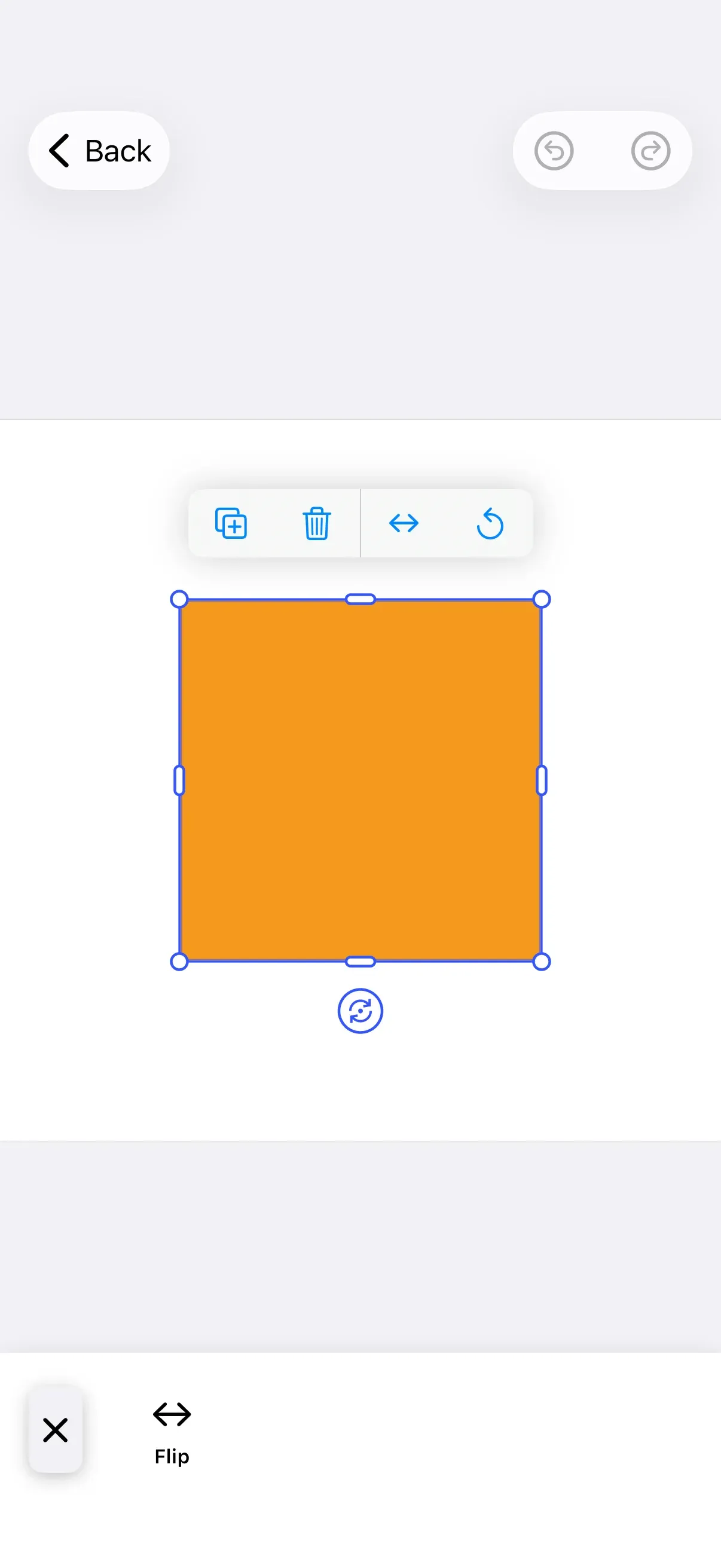
Quick actions live where the user is already working: the canvas menu that floats next to a selected block, and the inspector bar that runs along the bottom of the editor. Each one is a button whose action closure reaches into the engine and edits the current selection on tap — duplicate, delete, flip, reset — without opening a sheet.
CE.SDK ships a set of predefined quick actions and lets you add your own. A custom quick action is a CanvasMenu.Button (or InspectorBar.Button) whose handler calls the engine; the only difference from an ordinary button is that the handler does real editing work.
| Symbol | Purpose |
|---|---|
CanvasMenu.Buttons.duplicate() (and siblings) |
Predefined quick actions |
CanvasMenu.Button(id:action:label:) |
A custom one-tap action |
CanvasMenu.Context.selection |
The cached selection the handler edits |
InspectorBar.Button(id:action:label:) |
Reuse the action from a second surface |
The example builds on GuideEditorConfiguration, the minimal baseline the iOS guides repository ships with only a navigation bar configured. Substitute your own editor configuration — the canvasMenu and inspectorBar builders are exposed on every configuration, so the rest of the calls stay the same. Because canvasMenu.items and inspectorBar.items declare the full list, they replace whatever the configuration already had; use .modify to add to an existing list instead, as the Canvas Menu guide explains. The Configuration guide covers the editor setup as a whole.
Built-in Quick Actions#
CE.SDK ships factory functions for the common edits. Each returns a button with a sensible default action, label, and visibility, so dropping it into the list is enough:
CanvasMenu.Buttons.duplicate()CanvasMenu.Buttons.delete()duplicate and delete above are two of five predefined quick actions; the others are bringForward, sendBackward, and selectGroup. Each one gates its own visibility to the situations where the action applies.
A Custom One-Tap Action#
When the predefined buttons don’t cover your edit, write the edit once as a small helper so any surface can call it. Here it mirrors the block horizontally:
/// A reusable one-tap edit: mirror the selected block horizontally. Engine calls/// run on the main actor, so the helper is annotated to match.////// The handler edits the engine directly, so it commits an undo step when it/// finishes — otherwise the change wouldn't become a discrete entry in the/// editor's undo/redo history. The built-in quick actions do this for you.@MainActorprivate func flipHorizontally(_ engine: Engine, _ block: DesignBlockID) throws { try engine.block.setFlipHorizontal(block, flip: !engine.block.getFlipHorizontal(block)) try engine.editor.addUndoStep()}Because the handler edits the engine directly, it calls engine.editor.addUndoStep() when it finishes so the flip becomes a discrete entry in the editor’s undo/redo history — the built-in quick actions do this for you.
Then construct a CanvasMenu.Button with a reverse-domain id, an action that calls the helper, and a label. The action closure receives the CanvasMenu.Context, whose engine and cached selection are all the handler needs:
CanvasMenu.Button( id: "my.app.quickAction.flip", action: { context in try flipHorizontally(context.engine, context.selection.block) }, label: { _ in Label("Flip", systemImage: "arrow.left.and.right") }, isVisible: { context in context.selection.type == .graphic },)context.selection.blockis the block the menu is attached to.- The
isVisibleclosure keeps the button on graphic blocks, where a flip makes sense. - Engine calls throw; the button body catches the error and surfaces it through the editor, so
tryis all you write. - The edit applies on tap — no confirmation step, which is what makes it a quick action.
A Compound Quick Action#
A single tap can run several engine calls. This action resets the block’s orientation by clearing its rotation and horizontal flip together:
CanvasMenu.Button( id: "my.app.quickAction.resetOrientation", action: { context in let engine = context.engine let block = context.selection.block try engine.block.setRotation(block, radians: 0) try engine.block.setFlipHorizontal(block, flip: false) try engine.editor.addUndoStep() // one step reverts both edits together }, label: { _ in Label("Reset", systemImage: "arrow.counterclockwise") }, isVisible: { context in context.selection.type == .graphic },)Because every call runs inside one handler, the block lands in its final state in a single tap. The single addUndoStep() after both edits collapses them into one atomic history entry, so a later undo reverts the rotation and the flip together.
Gate the Action to the Selection#
Pass an isVisible closure so an action only appears where its edit makes sense. The flip and reset actions read context.selection.type and show only for graphic blocks:
isVisible: { context in context.selection.type == .graphic},Use isEnabled instead when you want the button to stay visible but grayed out. Both closures read the cached selection, which stays stable for the menu’s presentation lifecycle.
Reuse the Action in the Inspector Bar#
A quick action isn’t tied to the canvas menu. The same helper works from an InspectorBar.Button — the inspector bar exposes the same engine and selection, so the handler is identical:
builder.inspectorBar { inspectorBar in inspectorBar.items { _ in InspectorBar.Button( id: "my.app.inspectorBar.quickAction.flip", action: { context in try flipHorizontally(context.engine, context.selection.block) }, label: { _ in Label("Flip", systemImage: "arrow.left.and.right") }, isVisible: { context in context.selection.type == .graphic }, ) }}API Reference#
| Symbol | Category | Purpose |
|---|---|---|
builder.canvasMenu { canvasMenu in … } |
Config | Enter canvas menu configuration |
canvasMenu.items { context in … } |
Config | Declare the canvas menu item list |
CanvasMenu.Buttons.duplicate() (and siblings) |
Item | Predefined quick actions |
CanvasMenu.Button(id:action:label:isEnabled:isVisible:) |
Item | A custom one-tap action |
CanvasMenu.Context.selection |
Context | Cached selection (block, type, fillType, kind) |
engine.block.setFlipHorizontal(_:flip:) |
Block | Mirror the block horizontally |
engine.block.getFlipHorizontal(_:) |
Block | Read the current horizontal flip |
engine.block.setRotation(_:radians:) |
Block | Set the block’s absolute rotation |
builder.inspectorBar { inspectorBar in … } |
Config | Enter inspector bar configuration |
InspectorBar.Button(id:action:label:isEnabled:isVisible:) |
Item | Reuse the action in the inspector bar |
Next Steps#
- Add a New Button — Add buttons to the Dock, Canvas Menu, Inspector Bar, and Navigation Bar.
- Canvas Menu — Configure the floating toolbar that hosts quick actions.
- Inspector Bar — The context-sensitive bar for the selected block.
- Remove Background — A one-click editing operation in depth.