Control how the editor behaves at runtime: react to editing events, drive sheets and alerts, intercept built-in operations, toggle features, and adjust appearance from your own app logic.
Overview#
The editor is event-driven, and you customize its behaviour through its EditorConfiguration rather than imperative UI calls. Three layers work together: lifecycle callbacks that run at defined moments, an event channel that sends EditorEvent values through an EditorEventHandler, and engine subscriptions that stream changes back to your code. The example builds on GuideEditorConfiguration, a minimal baseline the iOS guides repository ships; the same calls apply to whichever editor configuration your app extends. The Configuration guide covers how EditorConfiguration and EngineSettings set up the editor as a whole.
Listening to Editing Events#
Set up runtime listeners in the onLoaded callback. Its context provides the Engine, the EditorEventHandler, and a task closure that owns the async work for the editor’s lifetime. Subscribe to engine.event.subscribe(to:) to receive created, updated, and destroyed events for the blocks you pass in — an empty array observes every block — or to engine.editor.onStateChanged to track editor state such as the current edit mode. Subscriptions only fire for changes after they start, so register them here.
builder.onLoaded { context, _ in  let engine = context.engine
  // React to blocks being created, updated, or destroyed in the scene.  context.task {    for await events in engine.event.subscribe(to: []) {      for event in events {        switch event.type {        case .created: print("Block created: \(event.block)")        case .updated: print("Block updated: \(event.block)")        case .destroyed: print("Block destroyed: \(event.block)")        @unknown default: break        }      }    }  }
  // React to editor state changes, such as the current edit mode.  context.task {    for await _ in engine.editor.onStateChanged {      print("Edit mode is now: \(engine.editor.getEditMode())")    }  }}
For the full set of lifecycle callbacks, see Events.
Driving Sheets and Panels#
The editor presents its panels as sheets. Send a sheet event through the EditorEventHandler to open one; the editor owns the presentation, and there is no query for whether a sheet is currently open.
var sheetEditor: some View { Editor(settings) .imgly.configuration { GuideEditorConfiguration { builder in builder.dock { dock in dock.items { _ in Dock.Buttons.elementsLibrary() Dock.Buttons.imagesLibrary() } } builder.onLoaded { context, _ in context.eventHandler.send(.openSheet(type: .libraryAdd { context.assetLibrary.elementsTab })) } } }}Showing Alerts and Dialogs#
The editor surfaces feedback as alerts. The default callbacks send events such as showErrorAlert and showCloseConfirmationAlert through the event handler, and you send the same events from your own callbacks to present them. There is no separate toast API, so reach for alerts and sheets when you need to show feedback.
builder.onError { error, eventHandler, _ in eventHandler.send(.showErrorAlert(error))}builder.onClose { engine, eventHandler, _ in let hasUnsavedChanges = (try? engine.editor.canUndo()) ?? false if hasUnsavedChanges { eventHandler.send(.showCloseConfirmationAlert) } else { eventHandler.send(.closeEditor) }}Intercepting Default Behaviour#
The EditorConfiguration callbacks are the interception points for the editor’s built-in operations. onExport, onUpload, onClose, and onError each run your logic in place of, or alongside, the default handling for that operation — the alerts above intercept the close and error flows. See Events for how each callback is wired and what default behaviour it carries.
Appearance at Runtime#
The editor follows the SwiftUI environment, so set the color scheme on the editor view with preferredColorScheme(_:), bound to a @State value, to switch between light and dark at runtime.
.preferredColorScheme(colorScheme)For brand colors and full theme customization, see Theming.
Feature Management at Runtime#
Toggle features close to where they appear: every dock, navigation bar, inspector bar, and canvas menu item takes isEnabled and isVisible closures that run with the component’s context, so a control can react to the current selection or your own app state. Supplying a closure replaces the factory default, so reproduce any selection or scope logic the default carried.
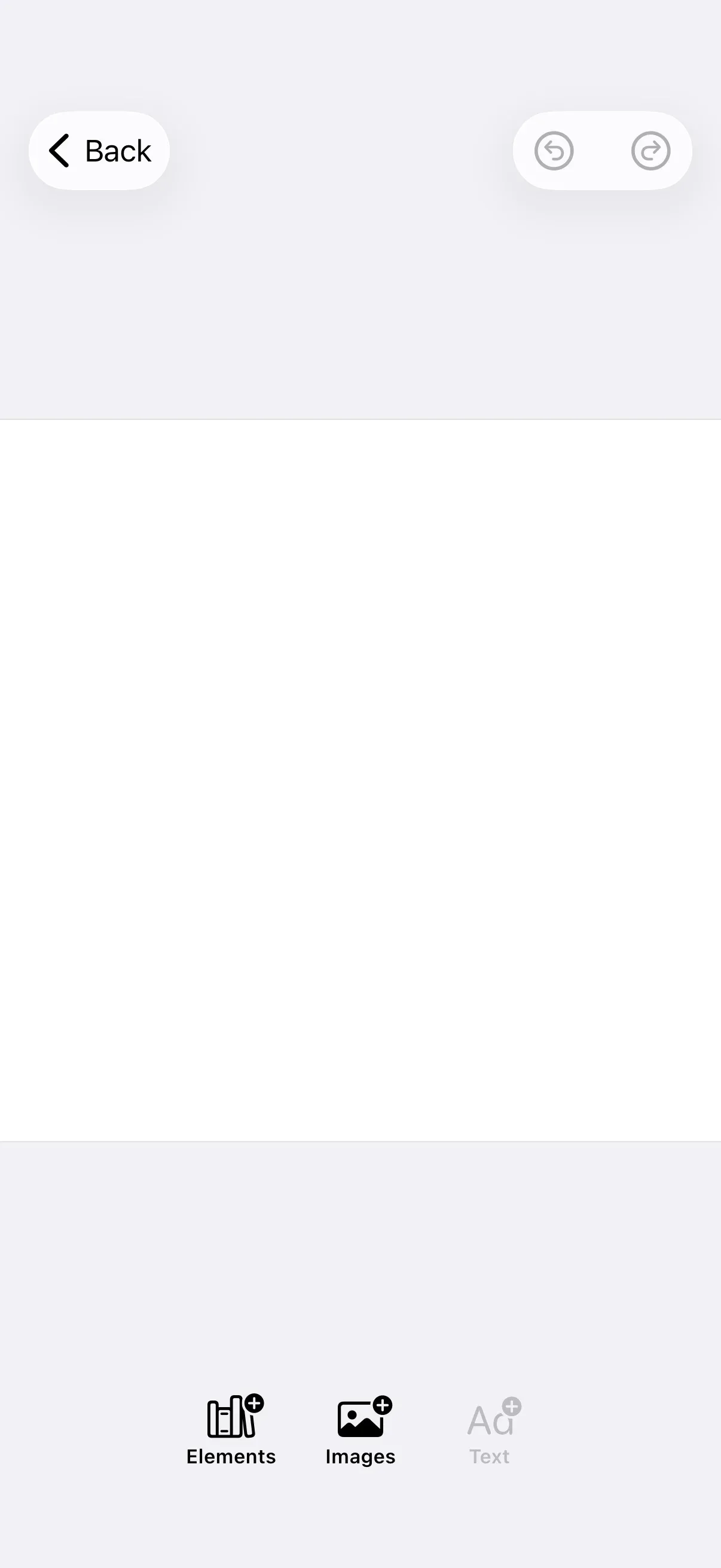
// GuideEditorConfiguration ships an empty dock, so `items` sets the full list.builder.dock { dock in dock.items { _ in Dock.Buttons.elementsLibrary() Dock.Buttons.imagesLibrary() // Visible but greyed out and inactive until your app enables it. Dock.Buttons.textLibrary(isEnabled: { _ in Self.textFeatureEnabled }) }}To restrict a capability across the whole editor instead of one control, switch the editor to the Adopter role with engine.editor.setRole(_:) and set engine scopes with engine.editor.setGlobalScope(key:value:). See Disable or Enable Features.
Integrating with External State#
Keep the editor and your application state in sync in both directions. Observe the engine with engine.event.subscribe(to:) and engine.editor.onStateChanged, then push the changes into your own store; react to your store by sending EditorEvent values through the handler or by flipping the per-component isEnabled and isVisible closures.
API Reference#
| Method | Description |
|---|---|
builder.onLoaded { context, _ in … } |
Register subscriptions once the editor is ready; context exposes engine, eventHandler, and task |
engine.event.subscribe(to:) |
Stream of created, updated, and destroyed events for the given blocks |
engine.editor.onStateChanged |
Stream of editor state changes |
EditorEventHandler.send(_:) |
Send an EditorEvent such as an alert or a sheet |
builder.onExport / onUpload / onClose / onError |
Intercept the editor’s built-in operations |
isEnabled / isVisible (component closures) |
Toggle a control from its component context |
engine.editor.setGlobalScope(key:value:) |
Restrict a capability across the editor |
engine.editor.setRole(_:) |
Switch the engine’s permission role |
preferredColorScheme(_:) |
Set the editor’s light or dark appearance |
Next Steps#
- Events — Configure editor lifecycle callbacks and observe editor events.
- Disable or Enable Features — Toggle features statically or from the current selection.
- Theming — Customize the editor’s visual theme to match your brand.
- Notifications and Dialogs — Trigger custom alerts, confirmations, or modal dialogs within the editor.
- Build Your Own UI — Drive the engine directly when you replace the editor UI.