Extend the asset library by registering custom asset sources and surfacing them in the editor’s asset panel — customizing a category in place, without replacing the panel.
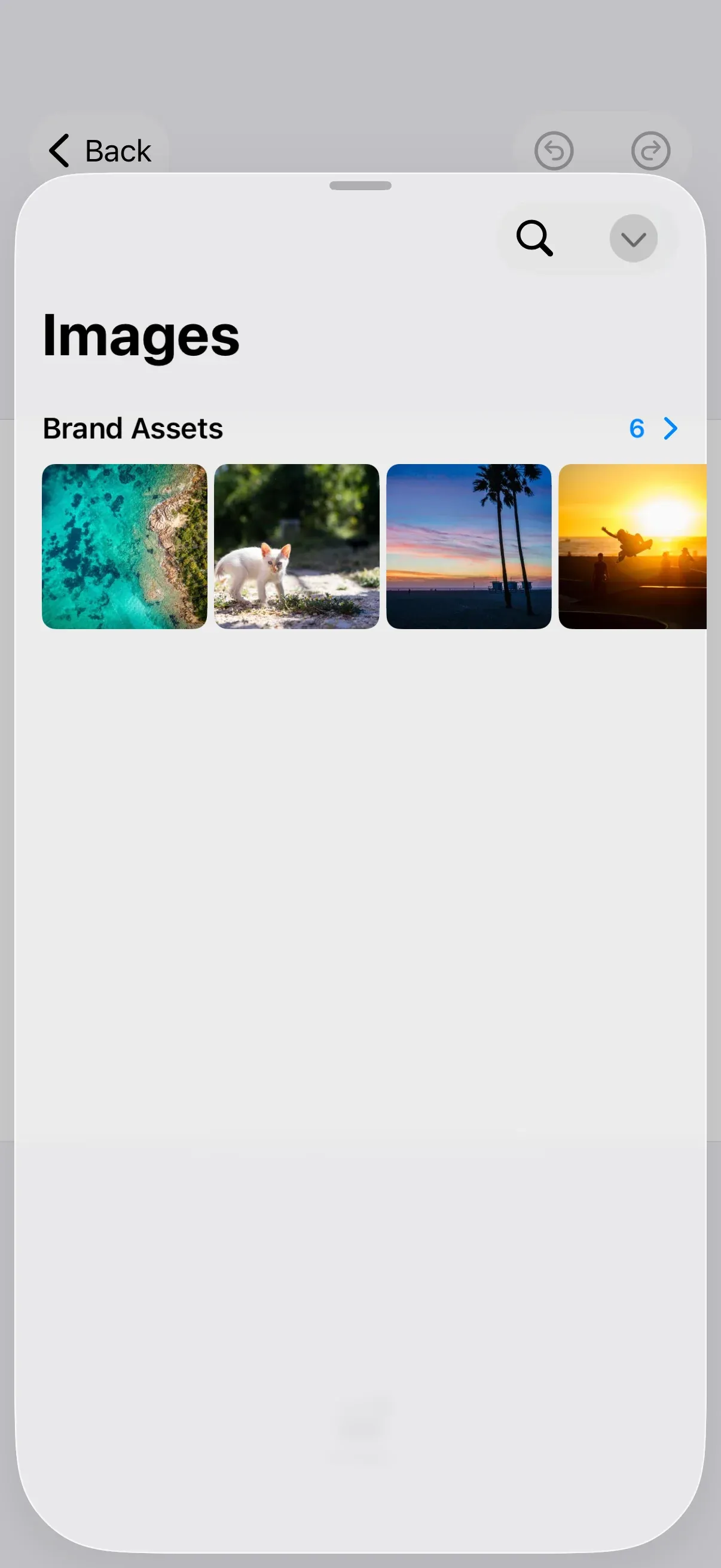
The asset library is the panel the editor opens when users add or replace media. It is defined through the editor configuration, so you can add your own asset sources to it and decide which sections appear, in which tabs, and in what order. The Configuration guide covers how the editor configuration and EngineSettings set up the editor as a whole; this guide focuses on wiring custom sources into the panel. For deeper customization — fully custom tabs, replace sheets, and layouts — see Customize Asset Library.
Register a Custom Asset Source#
Register a source on the engine in the editor’s onCreate callback. A local source — created with try engine.asset.addLocalSource(sourceID:) — holds assets you add at runtime with addAsset(to:asset:), which suits your own catalog, user uploads, or generated content.
try engine.asset.addLocalSource(sourceID: Self.brandSourceID)for index in 1 ... 6 { try engine.asset.addAsset( to: Self.brandSourceID, asset: AssetDefinition( id: "sample-\(index)", meta: [ "uri": "\(basePath)/ly.img.image/images/sample_\(index).jpg", "thumbUri": "\(basePath)/ly.img.image/thumbnails/sample_\(index).jpg", "fillType": "//ly.img.ubq/fill/image", ], label: ["en": "Sample \(index)"], ), )}Each asset needs a unique id and a meta dictionary. For an image, provide the full-resolution uri, a thumbUri for the grid preview, and the fillType so the engine knows how to apply it. Read the editor’s basePath setting with engine.editor.getSettingString("basePath") to build asset URLs that stay aligned with the base URL the editor is configured with.
For a source backed by a remote API instead, implement the AssetSource protocol and register it with try engine.asset.addSource(_:) — the Unsplash guide walks through a complete implementation.
Add Your Source to the Asset Library#
Configure the asset library through builder.assetLibrary. Use modify to adjust the editor’s default categories without discarding them — every tab you don’t touch stays exactly as the editor configured it. Here replace(id:) recomposes a single tab: the Images tab now shows your Brand Assets source, while every other tab in the library stays untouched. A Dock.Buttons.imagesLibrary() item gives users a button to open it.
builder.assetLibrary { assetLibrary in  assetLibrary.modify { categories in    // Recompose just the Images tab to show your source. Every other    // tab the editor provides stays untouched.    categories.replace(id: AssetLibraryCategory.ID.images, AssetLibraryCategory(      id: AssetLibraryCategory.ID.images,      title: "Images",      icon: Image(systemName: "photo"),      sections: [        .image(id: Self.brandSourceID, title: "Brand Assets", source: .init(id: Self.brandSourceID)),      ],    ))  }}
builder.dock { dock in  dock.items { _ in    Dock.Buttons.imagesLibrary()  }}
Category IDs live on AssetLibraryCategory.ID (.images, .videos, .audio, .text, .shapes, .stickers). replace(id:) is one of several modify operations: modifySections(of:) { $0.addFirst(…) } adds a section to a tab in place without redeclaring it, addLast/addFirst add a whole new tab, and remove(id:) drops one — all leaving the rest of the library intact.
Enabling User Uploads#
To let users add their own content, register a local source restricted to the file types you accept with supportedMimeTypes, then surface it with an AssetLibrarySection.imageUpload section — anywhere you add sections, such as inside the modify block above or the dedicated tab below. The upload section renders an add button, and uploaded items become available for queries immediately.
try engine.asset.addLocalSource( sourceID: Self.uploadSourceID, supportedMimeTypes: ["image/png", "image/jpeg"],)Manage an upload source’s contents at runtime with try engine.asset.addAsset(to:asset:) and try engine.asset.removeAsset(from:assetID:).
Group Sources into a Dedicated Tab#
To present your sources as their own category instead of extending an existing one, build an AssetLibraryCategory and add it with addLast (or addFirst / addAfter(id:)). It becomes a new tab in the panel while the default tabs stay untouched.
// A dedicated tab is an alternative to extending the Images tab: build a// category and add it in a `modify` block with// `categories.addLast(Self.brandLibraryTab())`, leaving the default tabs intact.private static func brandLibraryTab() -> AssetLibraryCategory { AssetLibraryCategory( id: "my-brand-library", title: "My Library", icon: Image(systemName: "square.grid.2x2"), sections: [ .image(id: brandSourceID, title: "Brand Assets", source: .init(id: brandSourceID)), .imageUpload(id: uploadSourceID, title: "Uploads", source: .init(id: uploadSourceID)), ], )}A category carries a title, an icon, and its sections. Equivalent section factories exist for the other media types (.video, .audio, .shape, .sticker, .text, and their *Upload variants).
Going Further#
When modify is not enough — fully custom tabs, replace-sheet content, or per-solution layouts — supply the complete category set with builder.categories([…]), or return a custom AssetLibrary from builder.view { … }. This is covered end to end in Customize Asset Library.
Troubleshooting#
Source not appearing in the panel — confirm the source is registered in onCreate before the panel opens, and that an AssetLibrarySection inside your modify block references the exact same source ID.
Custom section is there but the tab is empty otherwise — the built-in sections in a category are backed by the default asset sources (ly.img.image, etc.). Register those sources too if you want them to appear alongside yours; modify keeps the sections, but empty sources render nothing.
Thumbnails not loading — check that each asset’s meta carries a reachable thumbUri and a uri, and that fillType is set so the engine can apply the asset.
Upload button missing — surface the source with AssetLibrarySection.imageUpload, not AssetLibrarySection.image; only upload sections render the add button.
API Reference#
Asset sources (engine)#
| Method | Description |
|---|---|
try engine.asset.addLocalSource(sourceID:supportedMimeTypes:) |
Add a local source for your own catalog, uploads, or runtime content |
try engine.asset.addAsset(to:asset:) |
Add an asset to a local source |
try engine.asset.removeAsset(from:assetID:) |
Remove an asset from a local source |
try engine.asset.addSource(_ source: AssetSource) |
Register a source backed by the AssetSource protocol (e.g. a remote API) |
try await engine.asset.addLocalAssetSourceFromJSON(_:matcher:) |
Register a source from a content.json manifest (e.g. the built-in default sources) |
engine.asset.findAllSources() |
List registered source IDs |
try engine.asset.getSupportedMIMETypes(sourceID:) |
Read a source’s accepted MIME types |
Asset library (editor configuration)#
| Symbol | Description |
|---|---|
builder.assetLibrary { assetLibrary in assetLibrary.modify { … } } |
Modify the editor’s default categories in place, without replacing them |
CategoryModifier.replace(id:_:) |
Swap a single category (tab) for a recomposed one |
CategoryModifier.modifySections(of:_:) |
Modify the sections of a category, identified by its ID |
CategoryModifier.addFirst(_:) / .addLast(_:) / .addAfter(id:_:) / .remove(id:) |
Add or remove whole categories (tabs) |
SectionModifier.addFirst(_:) / .addLast(_:) / .addAfter(id:_:) |
Add sections to a category |
AssetLibrarySection.image(id:title:source:) |
Declare a browse section backed by a source |
AssetLibrarySection.imageUpload(id:title:source:) |
Declare an upload section backed by a local source |
AssetLibraryCategory(id:title:icon:sections:) |
A category (tab) grouping sections |
AssetLibraryCategory.ID.images (and .videos, .audio, …) |
Default category IDs to target with modifySections(of:) |
Dock.Buttons.imagesLibrary() |
Dock button that opens the images library panel |
Next Steps#
- Customize Asset Library — Adapt the asset library’s tabs, layout, and replace sheets.
- Create a Custom Panel — Design a custom sidebar panel to support unique workflows and user needs.
- Unsplash — Implement a remote
AssetSourceend to end. - Register a New Component — Create and register custom UI components for deep integration with your app.
- Import Media Concepts — Understand sources, assets, and how media flows into a scene.
- Add a New Button — Extend other editor surfaces with custom actions.