Search
Loading...
Skip to content

Add a New Button

Add custom buttons to extend editor functionality with app-specific actions across four UI components.
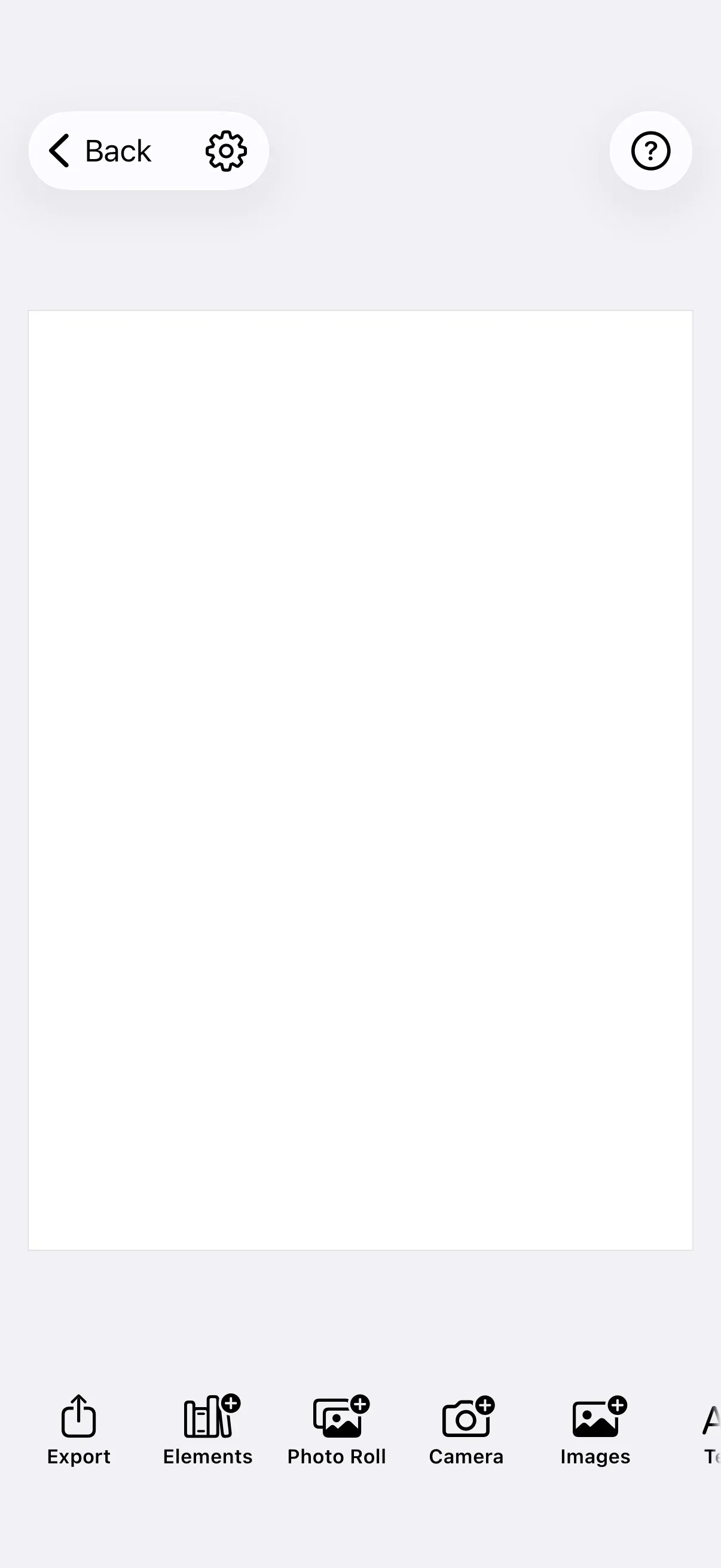
We add custom buttons to the Dock, Canvas Menu, Inspector Bar, and Navigation Bar to provide quick access to app-specific features and workflows.

iOS editor with custom buttons in various UI locations

Explore the complete code sample on GitHub.

Understanding Button Components#

CE.SDK iOS uses a shared button pattern across all UI components. We create buttons using component-specific Button types (Dock.Button, CanvasMenu.Button, etc.) with consistent parameters.

Shared Button Pattern:

All buttons accept the same core parameters:

  • id - Unique identifier using reverse domain notation
  • action - Closure executed when button is tapped
  • label - SwiftUI view describing the button (typically Label)
  • isEnabled - Optional closure controlling whether button is tappable
  • isVisible - Optional closure controlling whether button appears

Context Differences:

Each component provides different context properties for conditional logic:

ComponentengineeventHandlerassetLibraryselectionstate
Dock
CanvasMenu
InspectorBar
NavigationBar✅*

*engine is optional (nil during creation)

When to Use Each Component:

  • Dock - Global actions accessible from any editing state
  • Canvas Menu - Selection-specific actions for the currently selected element
  • Inspector Bar - Property-related actions for inspecting or modifying elements
  • Navigation Bar - App-level navigation and high-priority global actions

Creating Buttons#

We create buttons by providing required parameters and optional configuration:

Required Parameters:

Dock.Button(
id: "my.app.dock.button.export", // Unique identifier
action: { context in // Action when tapped
print("Export button tapped")
},
label: { context in // Button appearance
Label("Export", systemImage: "square.and.arrow.up")
}
)

ID Naming Convention:

id: "my.app.dock.button.export",

We use reverse domain notation to avoid ID conflicts:

  • "my.app.dock.button.export" - Clear hierarchy and ownership
  • "com.company.feature.action" - Organized by domain
  • "customButton" - Too generic, risks collision
  • "button1" - Unclear purpose

Optional Parameters:

Both isEnabled and isVisible default to true. We override them for conditional behavior:

CanvasMenu.Button(
id: "my.app.button.conditional",
action: { context in /* ... */ },
label: { context in Label("Action", systemImage: "star") },
isEnabled: { context in /* return Bool */ }, // Button is tappable
isVisible: { context in /* return Bool */ } // Button appears
)

Adding to Dock#

The Dock appears at the bottom of the editor, providing access to asset libraries and global tools. We add buttons here for frequently-used global actions.

.imgly.modifyDockItems { context, items in
items.addFirst {
Dock.Button(
id: "my.app.dock.button.export",
action: { context in
print("Custom export button tapped")
},
label: { context in
Label("Export", systemImage: "square.and.arrow.up")
},
)
}
}

Key Points:

  • No selection context - Dock buttons work globally
  • Use addFirst to prioritize button placement
  • Access context.engine for engine operations
  • Use context.eventHandler to send editor events

Adding to Canvas Menu#

The Canvas Menu appears when users select an element on the canvas. We add buttons here for selection-specific actions.

.imgly.modifyCanvasMenuItems { context, items in
items.addFirst {
CanvasMenu.Button(
id: "my.app.canvasMenu.button.favorite",
action: { context in
print("Favorite button tapped")
},
label: { context in
Label("Favorite", systemImage: "star.fill")
},
isVisible: { context in
// Only show for text blocks
context.selection.type?.rawValue == "//ly.img.ubq/text"
},
)
}
}

Key Points:

  • Has context.selection for conditional logic
  • Buttons change based on selected element type
  • Use context.selection.type to filter by block type
  • Ideal for context-aware custom actions

Conditional Visibility Example:

isVisible: { context in
// Only show for text blocks
context.selection.type?.rawValue == "//ly.img.ubq/text"
},

We use context.selection.type to show buttons only for specific element types.

Adding to Inspector Bar#

The Inspector Bar shows properties and actions for the selected element. We add buttons here for property-related custom actions.

.imgly.modifyInspectorBarItems { context, items in
items.addFirst {
InspectorBar.Button(
id: "my.app.inspectorBar.button.process",
action: { context in
print("Process button tapped")
},
label: { context in
Label("Process", systemImage: "gearshape")
},
isEnabled: { context in
// Only enabled if selection has fill
context.selection.fillType != nil
},
)
}
}

Key Points:

  • Has context.selection for property-based logic
  • Use isEnabled to disable buttons when conditions aren’t met
  • Access context.selection.fillType for fill-related logic
  • Buttons appear in the properties sidebar

Conditional Enabled State:

We use isEnabled to control when buttons are tappable based on element properties.

Adding to Navigation Bar#

The Navigation Bar appears at the top of the editor with three distinct placement areas. We add buttons here for app-level navigation and high-priority actions.

.imgly.modifyNavigationBarItems { context, items in
// Add to right side (trailing)
items.addFirst(placement: .topBarTrailing) {
NavigationBar.Button(
id: "my.app.navbar.button.help",
) { context in
print("Help button tapped")
} label: { context in
Label("Help", systemImage: "questionmark.circle")
}
}
// Add to left side (leading)
items.addLast(placement: .topBarLeading) {
NavigationBar.Button(
id: "my.app.navbar.button.settings",
) { context in
print("Settings button tapped")
} label: { context in
Label("Settings", systemImage: "gearshape")
}
}
}

Navigation Bar Placement:

.imgly.modifyNavigationBarItems { context, items in
// Add to right side (trailing)
items.addFirst(placement: .topBarTrailing) {
NavigationBar.Button(
id: "my.app.navbar.button.help",
) { context in
print("Help button tapped")
} label: { context in
Label("Help", systemImage: "questionmark.circle")
}
}
// Add to left side (leading)
items.addLast(placement: .topBarLeading) {
NavigationBar.Button(
id: "my.app.navbar.button.settings",
) { context in
print("Settings button tapped")
} label: { context in
Label("Settings", systemImage: "gearshape")
}
}
}

The Navigation Bar organizes buttons into three placement groups:

PlacementDescriptionCommon Uses
.topBarLeadingLeft sideClose, back, settings
.topBarTrailingRight sideActions, help, export
.principalCenterTitle, important controls

We must specify placement when adding buttons to the navigation bar:

items.addFirst(placement: .topBarTrailing) {
NavigationBar.Button(id: "my.app.button.help") { _ in
// Help action
} label: { _ in
Label("Help", systemImage: "questionmark.circle")
}
}

Advanced Techniques#

Conditional Visibility Based on Selection#

Canvas Menu and Inspector Bar contexts include a selection property for conditional button display:

.imgly.modifyCanvasMenuItems { context, items in
items.addFirst {
CanvasMenu.Button(
id: "my.app.textOnly",
action: { _ in /* Text-specific action */ },
label: { _ in Label("Format Text", systemImage: "textformat") },
isVisible: { context in
// Only show for text blocks
context.selection.type == "//ly.img.ubq/text"
}
)
}
}

Custom Enabled/Disabled States#

We use isEnabled to control button interaction based on context:

.imgly.modifyInspectorBarItems { context, items in
items.addFirst {
InspectorBar.Button(
id: "my.app.conditionalAction",
action: { _ in /* Action */ },
label: { _ in Label("Process", systemImage: "gearshape") },
isEnabled: { context in
// Only enabled if block has specific property
context.selection.fillType != nil
}
)
}
}

Using Engine APIs in Actions#

We access the engine through context to perform operations:

.imgly.modifyDockItems { context, items in
items.addFirst {
Dock.Button(
id: "my.app.createShape",
action: { context in
do {
let block = try context.engine.block.create(.graphic)
try context.engine.block.setKind(block, kind: .shape)
// Configure the block...
} catch {
print("Error creating shape: \(error)")
}
},
label: { _ in Label("Add Shape", systemImage: "square.on.circle") }
)
}
}

Sending Editor Events#

We use context.eventHandler to send events:

.imgly.modifyCanvasMenuItems { context, items in
items.addFirst {
CanvasMenu.Button(
id: "my.app.duplicateAndEdit",
action: { context in
context.eventHandler.send(.duplicateSelection)
// Additional custom logic...
},
label: { _ in Label("Duplicate & Edit", systemImage: "doc.on.doc") }
)
}
}

Troubleshooting#

Button Not Appearing#

Symptom: Custom button doesn’t show in UI

Causes:

  • isVisible returns false
  • Button added to wrong component
  • ID collision with existing button

Solutions:

// Ensure isVisible returns true (default)
isVisible: { _ in true }
// Verify correct component modifier
.imgly.modifyDockItems { ... } // For dock
.imgly.modifyCanvasMenuItems { ... } // For canvas menu
// Use unique ID with reverse domain notation
id: "my.app.component.button.action"

Action Not Firing#

Symptom: Tapping button has no effect

Causes:

  • isEnabled returns false
  • Action closure has syntax error
  • Missing import statements

Solutions:

// Check isEnabled (defaults to true)
isEnabled: { _ in true }
// Verify action closure syntax
action: { context in
print("Button tapped") // Simple test
}
// Ensure IMGLYDesignEditor is imported
import IMGLYDesignEditor

Context Property Errors#

Symptom: Crash when accessing context.selection

Cause: Using selection in Dock or Navigation Bar (doesn’t exist)

Solution:

// ✅ Selection available in Canvas Menu and Inspector Bar
.imgly.modifyCanvasMenuItems { context, items in
let blockType = context.selection.type // Works!
}
// ❌ Selection NOT available in Dock
.imgly.modifyDockItems { context, items in
let blockType = context.selection.type // Crash!
}

Symptom: Button appears in wrong location

Cause: Wrong placement specified or placement not specified

Solution:

// Specify placement explicitly for navigation bar
items.addFirst(placement: .topBarLeading) { // Left side
NavigationBar.Button(id: "...") { _ in } label: { _ in }
}
items.addFirst(placement: .topBarTrailing) { // Right side
NavigationBar.Button(id: "...") { _ in } label: { _ in }
}
items.addFirst(placement: .principal) { // Center
NavigationBar.Button(id: "...") { _ in } label: { _ in }
}

Next Steps#

Explore related UI customization guides: