ly.img.page.presets asset source. 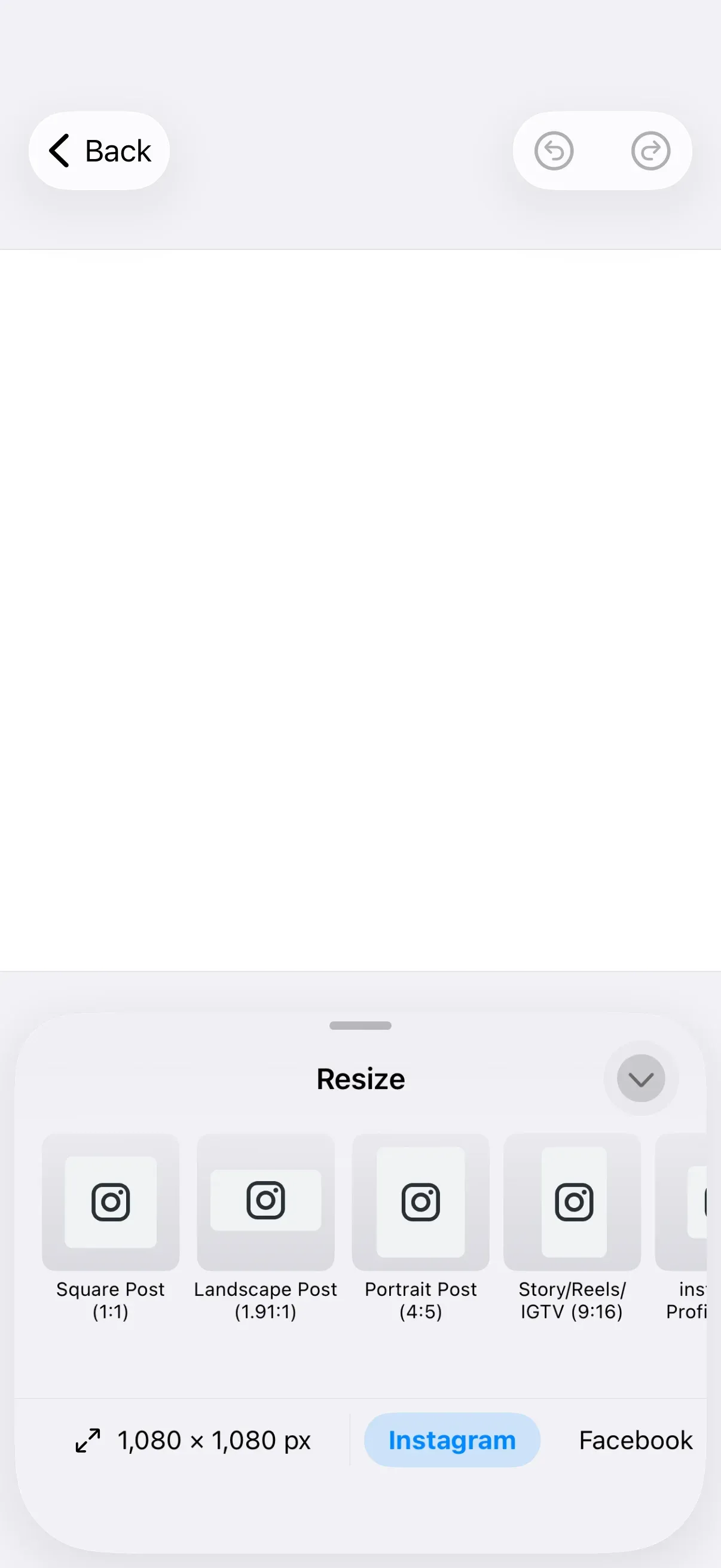
The iOS editor ships with a resize sheet that lets users pick a page format from the ly.img.page.presets asset source. Append your own AssetDefinition entries to that source to surface formats tailored to your product — social posts, print sizes, brand templates, or anything else. This guide builds on GuideEditorConfiguration, a small helper class the iOS guides repository ships as a minimal baseline; substitute your own editor configuration class with the same onCreate and dock hooks. The Configuration guide covers how EditorConfiguration and EngineSettings set up the editor as a whole.
Using the Built-in Page Format UI#
The page format selector lives in the resize sheet, which the editor opens when the user taps a dock button bound to EditorEvent.openSheet(type: .resize()). The sheet renders every asset in ly.img.page.presets as a tappable tile; selecting one resizes every page in the scene to the preset’s dimensions.
To expose the entry point in your dock, set the items to include Dock.Buttons.resize(). The call below replaces the dock’s items, so include any other dock buttons your app needs in the same closure.
builder.dock { dock in dock.items { _ in Dock.Buttons.resize() }}Approaches to Customize the Presets#
Three approaches let you shape the asset list the resize sheet reads from ly.img.page.presets. Pick the one that matches your asset pipeline:
- Edit a self-hosted
content.jsondirectly. When you host the asset manifest yourself, the JSON is the single source of truth — add, remove, or reorder entries there and the editor picks them up the next timeaddLocalAssetSourceFromJSON(_:matcher:)loads the file. See Serve Assets for hosting the manifest and Asset Content JSON Schema for the entry layout (payload.transformPreset,meta.thumbUri, and the other fields the resize sheet reads). - Filter at load time with
matcher:. When you keep one self-hosted manifest but want to surface different subsets of it per product configuration — say a free tier that sees a few formats and a premium tier that sees all of them — pass an array of glob patterns toaddLocalAssetSourceFromJSON(_:matcher:)instead of maintaining a separate JSON for each tier. The engine registers only assets whoseidmatches at least one pattern; the*wildcard works inside a pattern.matcher: ["page-sizes-hd-*"]registers just the HD video resolutions from your manifest, for instance. The same per-tier split can also be expressed with the other two approaches. - Append programmatically with
addAsset(to:asset:). Add customAssetDefinitionentries to an already-registered source at runtime. Useful when the extra presets come from your own backend, user preferences, or branding data that can’t live in a static JSON. This guide demonstrates the third approach.
Configuring the Editor on Create#
GuideEditorConfiguration is minimal — it ships only a navigation bar with close, undo, and redo. Register the page presets source and your custom AssetDefinition entries inside builder.onCreate(_:). The closure receives the engine instance, so every call below — scene setup, asset registration, custom preset additions — runs against the same engine in the order shown.
builder.onCreate { engine, _ in  // Set up a scene the editor can render  let scene = try engine.scene.create()  let page = try engine.block.create(.page)  try engine.block.appendChild(to: scene, child: page)  try engine.block.setWidth(page, value: 1080)  try engine.block.setHeight(page, value: 1080)
  // Register the page presets source the resize sheet reads from,  // resolving its manifest against the engine's `basePath` (initialized  // from `EngineSettings.baseURL`) so it follows your asset host.  let basePath = try engine.editor.getSettingString("basePath")  let presetsURL = URL(string: "\(basePath)/ly.img.page.presets/content.json")!  let presetsSourceID = try await engine.asset.addLocalAssetSourceFromJSON(presetsURL)
  // Pixel preset — use .px for digital formats such as social posts  try engine.asset.addAsset(    to: presetsSourceID,    asset: AssetDefinition(      id: "brand-square-post",      groups: ["social"],      meta: ["thumbUri": "https://your-cdn.example.com/thumbnails/brand-square.png"],      payload: AssetPayload(        transformPreset: .fixedSize(width: 1080, height: 1080, designUnit: .px),      ),      label: ["en": "Brand Square (1:1)"],    ),  )
  // Millimeter preset — use .mm for international print formats  try engine.asset.addAsset(    to: presetsSourceID,    asset: AssetDefinition(      id: "brand-din-a4",      groups: ["print"],      meta: ["thumbUri": "https://your-cdn.example.com/thumbnails/din-a4.png"],      payload: AssetPayload(        transformPreset: .fixedSize(width: 210, height: 297, designUnit: .mm),      ),      label: ["en": "DIN A4 (210 × 297 mm)"],    ),  )
  // Inch preset — use .in for imperial print formats  try engine.asset.addAsset(    to: presetsSourceID,    asset: AssetDefinition(      id: "brand-us-letter",      groups: ["print"],      meta: ["thumbUri": "https://your-cdn.example.com/thumbnails/us-letter.png"],      payload: AssetPayload(        transformPreset: .fixedSize(width: 8.5, height: 11, designUnit: .in),      ),      label: ["en": "US Letter (8.5 × 11 in)"],    ),  )}
engine.asset.addLocalAssetSourceFromJSON(_:matcher:) fetches the manifest at the given URL and returns the registered source ID. Pass it through to each engine.asset.addAsset(to:asset:) call so the custom presets land in the same source the resize sheet reads from. The manifest URL is resolved against the engine’s basePath setting — initialized from EngineSettings(baseURL:) — so it follows whatever asset host you configure; see the Serve Assets guide for hosting it in production.
Defining Custom Presets#
Each page format is an AssetDefinition whose payload.transformPreset is an AssetTransformPreset.fixedSize(width:height:designUnit:). meta["thumbUri"] is required — the resize sheet renders each tile from this URL and falls back to an empty thumbnail when the value is missing. Point at a square thumbnail your app hosts.
DesignUnit accepts three cases, shown together in the onCreate closure above:
.px— pixel dimensions for digital formats such as social posts. TheBrand Square (1:1)preset useswidth: 1080, height: 1080..mm— millimeter dimensions for international print formats. TheDIN A4preset useswidth: 210, height: 297..in— inch dimensions for imperial print formats. TheUS Letterpreset useswidth: 8.5, height: 11.
Page Orientation#
Orientation follows the preset’s dimensions on apply: width greater than height applies as landscape, height greater than width applies as portrait. To expose both orientations of the same format, register two AssetDefinition entries with the dimensions swapped and label them accordingly. The iOS resize sheet applies the chosen preset’s dimensions directly; there is no separate orientation toggle in the sheet.
API Reference#
| API | Purpose |
|---|---|
EditorConfiguration.Builder.onCreate(_:) |
Register a handler that runs when the editor creates its scene. The right place to register asset sources and append custom presets. |
engine.asset.addLocalAssetSourceFromJSON(_ contentURL: URL, matcher: [String]?) |
Register an asset source from a remote content.json manifest. Returns the source ID for use with addAsset(to:asset:). |
engine.asset.addAsset(to:asset:) |
Append an AssetDefinition to an existing local asset source. |
AssetDefinition(id:groups:meta:payload:label:tags:) |
Describes a single asset, including its meta["thumbUri"] and its payload. |
AssetPayload(transformPreset:) |
Wraps the structured payload used by page format presets. |
AssetTransformPreset.fixedSize(width:height:designUnit:) |
The preset case used for fixed page dimensions. |
DesignUnit |
The unit for width and height: .px, .mm, or .in. |
Dock.Buttons.resize() |
Dock button that opens the resize sheet through EditorEvent.openSheet(type: .resize()). |
Next Steps#
- Crop Presets — Customize the crop preset library readers reach from the inspector bar.
- Dock — Configure the dock buttons that frame the editor canvas.
- Serve Assets — Self-host the default asset manifests for production use.