Search Docs
Loading...
Skip to content

Hide Elements

Control UI visibility through complete component hiding or selective item removal across editor components.

We configure UI element visibility through two distinct approaches: hiding entire components or removing specific items while keeping containers visible.

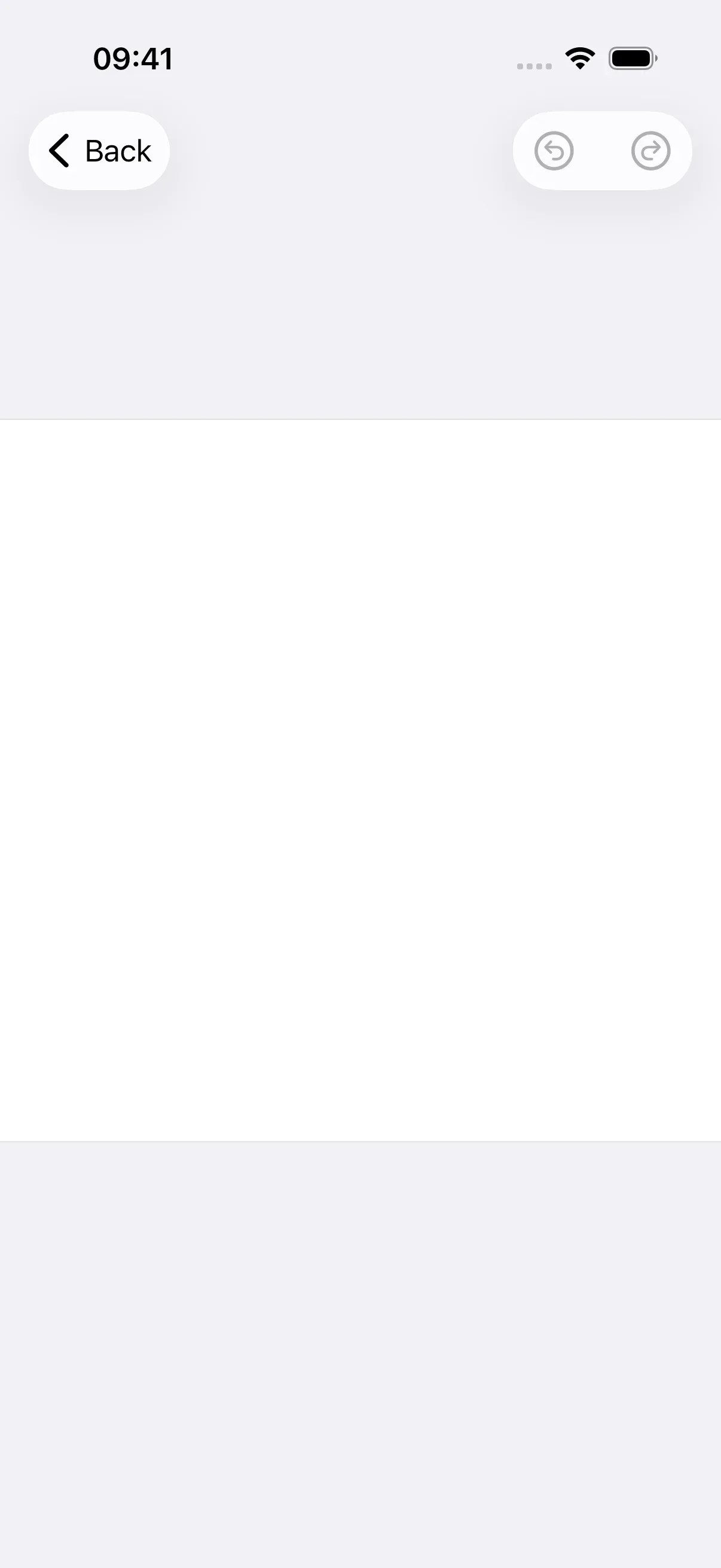
Editor with hidden dock

Explore the complete code sample on GitHub.

Understanding Hide vs. Remove#

CE.SDK iOS provides two approaches for controlling UI element visibility:

Hiding Components removes the entire UI component from the view hierarchy. We provide an empty items closure on the builder.dock configuration, which hides the dock container and background completely. This capability is dock-specific—other components don’t support full hiding.

Removing Items selectively removes individual buttons while keeping the component container visible. We use builder.[component] with [component].modify and items.remove(id:) to remove specific buttons from any component.

Key Distinction:

ApproachMethodResultComponents
Hide Componentbuilder.dock { dock in dock.items { _ in } }Entire container hiddenDock only
Remove Itemsbuilder.[component] { c in c.modify { _, items in items.remove(id:) } }Container visible, items removedAll components

Why the Difference?

The dock supports complete hiding because it’s a self-contained toolbar. Other components (Navigation Bar, Canvas Menu, Inspector Bar) use SwiftUI layout patterns where the container always renders—removing items affects only the buttons, not the component structure.

Hiding the Dock#

We hide the dock completely by providing an empty items closure on builder.dock:

// To hide the dock completely, provide an empty items closure
// The dock is the only UI component that fully hides when given no items
var editorWithHiddenDock: some View {
Editor(settings)
.imgly.configuration {
DesignEditorConfiguration { builder in
builder.dock { dock in
dock.items { _ in
// Empty - dock will be completely hidden
}
}
}
}
}

Key Points:

  • Only UI component supporting complete container hiding
  • Background and all content removed from view hierarchy
  • Useful for minimal or focused editing modes
  • Cannot be applied to other components (Navigation Bar, Canvas Menu, Inspector Bar)

When to Hide the Dock:

  • Distraction-free editing experiences
  • Custom toolbar implementations
  • Minimal interfaces for specific workflows
  • Full-screen canvas-focused modes

Removing Specific Items#

We remove individual items from any component using builder.[component] with [component].modify and items.remove(id:):

// To remove specific items from any component, use the modify variants
// The component container remains visible, only the specified items are removed
var editorWithRemovedItems: some View {
Editor(settings)
.imgly.configuration {
DesignEditorConfiguration { builder in
builder.dock { dock in
dock.modify { _, items in
items.remove(id: Dock.Buttons.ID.elementsLibrary)
items.remove(id: Dock.Buttons.ID.shapesLibrary)
}
}
builder.navigationBar { navigationBar in
navigationBar.modify { _, items in
items.remove(id: NavigationBar.Buttons.ID.undo)
items.remove(id: NavigationBar.Buttons.ID.redo)
}
}
}
}
}

Key Points:

  • Container remains visible, only specified buttons removed
  • Works across all components (Dock, Navigation Bar, Canvas Menu, Inspector Bar)
  • Use component-specific ID enums (e.g., Dock.Buttons.ID.*)
  • Multiple items can be removed in sequence

Removing from Dock#

builder.dock { dock in
dock.modify { _, items in
items.remove(id: Dock.Buttons.ID.elementsLibrary)
items.remove(id: Dock.Buttons.ID.shapesLibrary)
}
}

We use Dock.Buttons.ID.* to reference dock buttons for removal.

Removing from Navigation Bar#

builder.navigationBar { navigationBar in
navigationBar.modify { _, items in
items.remove(id: NavigationBar.Buttons.ID.undo)
items.remove(id: NavigationBar.Buttons.ID.redo)
}
}

We use NavigationBar.Buttons.ID.* to reference navigation bar buttons for removal.

Removing from Other Components#

The same pattern applies to all components:

// Canvas Menu
builder.canvasMenu { canvasMenu in
canvasMenu.modify { _, items in
items.remove(id: CanvasMenu.Buttons.ID.bringForward)
items.remove(id: CanvasMenu.Buttons.ID.sendBackward)
}
}
// Inspector Bar
builder.inspectorBar { inspectorBar in
inspectorBar.modify { _, items in
items.remove(id: InspectorBar.Buttons.ID.crop)
items.remove(id: InspectorBar.Buttons.ID.filter)
}
}

Common Use Cases#

Hide Dock for Distraction-Free Editing#

We hide the dock completely to create focused editing experiences:

Editor(settings)
.imgly.configuration {
DesignEditorConfiguration { builder in
builder.dock { dock in
dock.items { _ in
// Empty - dock hidden
}
}
}
}

Use when: Maximizing canvas space, creating minimal interfaces, or implementing custom toolbars.

Remove Specific Items to Simplify Interface#

We remove individual buttons to streamline the interface for specific workflows:

Editor(settings)
.imgly.configuration {
DesignEditorConfiguration { builder in
builder.dock { dock in
dock.modify { _, items in
// Keep only essential tools
items.remove(id: Dock.Buttons.ID.stickersLibrary)
items.remove(id: Dock.Buttons.ID.shapesLibrary)
}
}
}
}

Use when: Limiting functionality, creating beginner-friendly interfaces, or enforcing workflow constraints.

Limit Navigation Options#

We remove navigation buttons to control user flow:

Editor(settings)
.imgly.configuration {
DesignEditorConfiguration { builder in
builder.navigationBar { navigationBar in
navigationBar.modify { _, items in
// Remove undo/redo for simpler interface
items.remove(id: NavigationBar.Buttons.ID.undo)
items.remove(id: NavigationBar.Buttons.ID.redo)
}
}
}
}

Use when: Guided workflows, simplified editing modes, or workflow enforcement.

How Hide and Remove Interact#

Hide and Remove are Independent:

  • Hiding the dock (dock.items { _ in }) affects the entire component
  • Removing items (dock.modify { _, items in }) affects individual buttons
  • We can use both: hide dock, remove items from other components

Example Combining Both:

Editor(settings)
.imgly.configuration {
DesignEditorConfiguration { builder in
builder.dock { dock in
dock.items { _ in
// Empty - dock hidden
}
}
builder.navigationBar { navigationBar in
navigationBar.modify { _, items in
// Remove specific navigation buttons
items.remove(id: NavigationBar.Buttons.ID.undo)
}
}
}
}

Troubleshooting#

Dock Not Hiding#

Symptom: Dock still visible after providing empty closure

Causes:

  • Using dock.modify instead of dock.items
  • Items closure not actually empty (contains items)

Solutions:

// ✅ Correct - hides dock completely
builder.dock { dock in
dock.items { _ in
// Empty - dock hidden
}
}
// ❌ Wrong - modifies items but doesn't hide container
builder.dock { dock in
dock.modify { _, items in
// Even if empty, container remains visible
}
}

Other Components Not Hiding#

Symptom: Navigation Bar, Canvas Menu, or Inspector Bar still visible with empty closures

Cause: Only dock supports complete container hiding

Solution:

// ❌ Won't hide navigation bar container
builder.navigationBar { navigationBar in
navigationBar.items { _ in }
}
// ✅ Remove all items instead
builder.navigationBar { navigationBar in
navigationBar.modify { _, items in
items.remove(id: NavigationBar.Buttons.ID.undo)
items.remove(id: NavigationBar.Buttons.ID.redo)
items.remove(id: NavigationBar.Buttons.ID.export)
items.remove(id: NavigationBar.Buttons.ID.closeEditor)
}
}

Items Still Visible After Remove#

Symptom: Button still appears after calling items.remove(id:)

Causes:

  • Wrong component ID enum (e.g., using Dock.Buttons.ID in navigation bar)
  • Typo in ID
  • Modify closure not being called

Solutions:

// ✅ Use correct component's ID enum
builder.dock { dock in
dock.modify { _, items in
items.remove(id: Dock.Buttons.ID.elementsLibrary) // Dock ID for dock
}
}
builder.navigationBar { navigationBar in
navigationBar.modify { _, items in
items.remove(id: NavigationBar.Buttons.ID.undo) // Navbar ID for navbar
}
}
// ❌ Wrong - mixing component IDs
builder.dock { dock in
dock.modify { _, items in
items.remove(id: NavigationBar.Buttons.ID.undo) // Wrong component!
}
}

Container Remains Visible#

Symptom: Component background/container still visible after removing all items

Cause: Expected behavior—only dock supports container hiding

Solution: This is by design. For components other than dock, removing all items leaves an empty container. If container visibility is critical, consider layout adjustments or alternative UI structures.

Error: ID Does Not Exist#

Symptom: Runtime error The 'remove' operation was invoked with id '...' which does not exist

Causes:

  • Button ID doesn’t exist in component’s default configuration
  • Typo in ID string
  • Button already removed earlier

Solutions:

// ✅ Verify button exists in component
// Check Dock.Buttons.ID, NavigationBar.Buttons.ID, etc. enums
// ✅ Use ID constants, not strings
items.remove(id: Dock.Buttons.ID.elementsLibrary) // Correct
// ❌ Don't use string literals
items.remove(id: "elementsLibrary") // Error-prone
// ✅ Don't remove same ID twice
items.remove(id: Dock.Buttons.ID.elementsLibrary)
// items.remove(id: Dock.Buttons.ID.elementsLibrary) // Error!

Next Steps#

Explore related UI customization guides: