Enforce specific aspect ratios or fixed dimensions on design blocks using the force crop API.
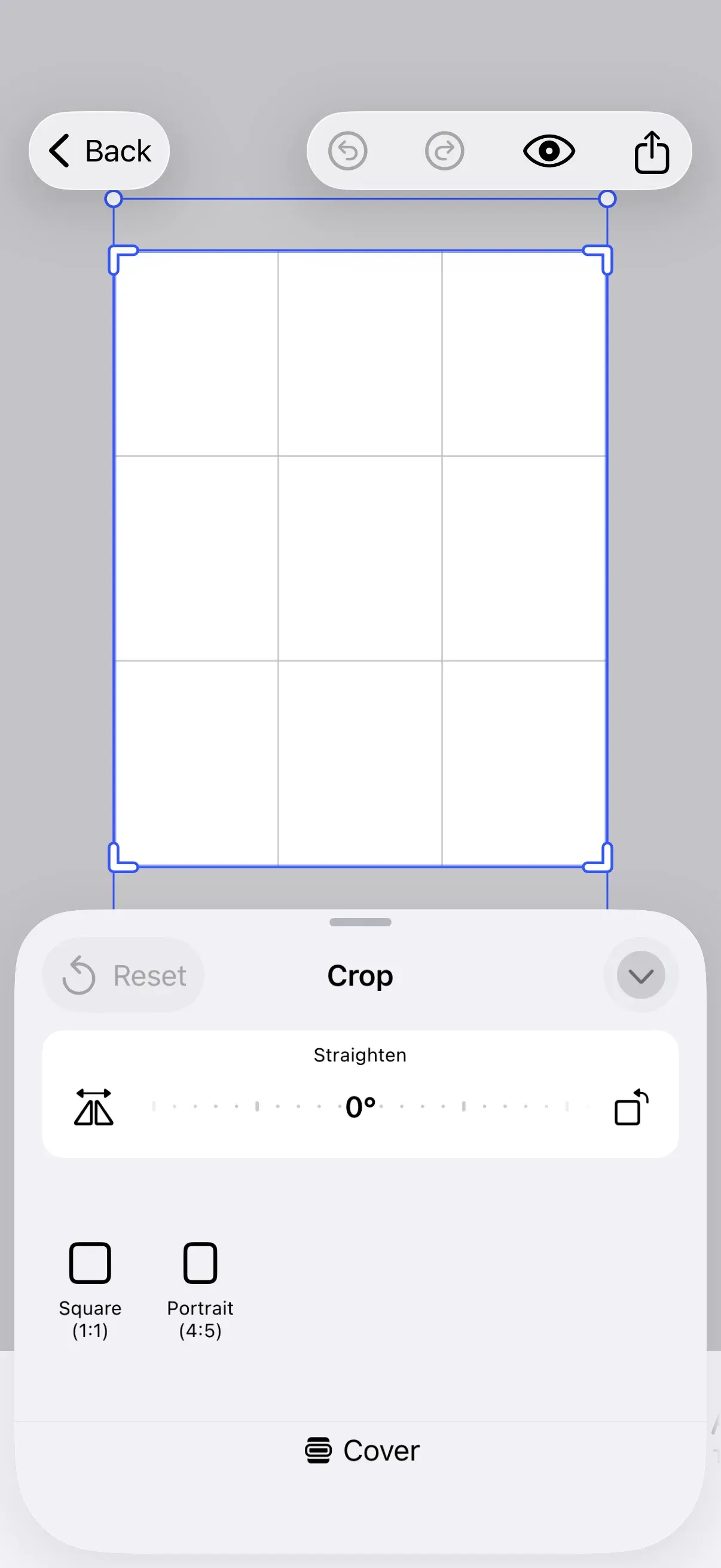
The force crop API applies crop presets to blocks that support cropping. This is useful when content must match specific formats — such as social media posts or profile photos — before export. You control whether the crop UI appears after applying a preset through three modes.
The complete code sample is available on GitHub.
Overview#
Force crop uses the EditorEvents.ApplyForceCrop event, sent through the editor’s event handler during the .imgly.onLoaded callback. The event takes a block ID, an array of ForceCropPreset candidates, and a ForceCropMode.
| Type | Purpose |
|---|---|
ForceCropPreset | Identifies a crop preset by source ID and preset ID |
ForceCropMode | Controls crop UI behavior: .silent, .always, or .ifNeeded |
AssetDefinition | Defines a custom crop preset with a transform preset payload |
AssetTransformPreset | Specifies fixed aspect ratio or fixed size dimensions |
Setting Up Force Crop#
We configure force crop in the .imgly.onLoaded callback. This replaces the default crop presets source with custom presets, builds the candidates array, and sends the force crop event.
.imgly.onLoaded { context in  guard let page = try context.engine.scene.getCurrentPage() else { return }
  let sourceID = Engine.DefaultAssetSource.cropPresets.rawValue
  // Replace the default crop presets source with custom presets  try context.engine.asset.removeSource(sourceID: sourceID)  try context.engine.asset.addLocalSource(sourceID: sourceID)
  let presets = [squarePreset, portraitPreset]  var presetCandidates: [ForceCropPreset] = []  for preset in presets {    try context.engine.asset.addAsset(to: sourceID, asset: preset)    presetCandidates.append(ForceCropPreset(sourceID: sourceID, presetID: preset.id))  }
The code removes the default ly.img.crop.presets source and recreates it with only the presets we want. Each preset is added to the source and collected as a ForceCropPreset candidate.
Creating Custom Crop Presets#
Fixed Aspect Ratio Presets#
Fixed aspect ratio presets maintain a ratio but allow flexible dimensions. We use .fixedAspectRatio(width:height:) with values representing the ratio.
let squarePreset = AssetDefinition(  id: "square",  payload: AssetPayload(    transformPreset: .fixedAspectRatio(width: 1, height: 1),  ),  label: ["en": "Square (1:1)"],)
let portraitPreset = AssetDefinition(  id: "portrait",  payload: AssetPayload(    transformPreset: .fixedAspectRatio(width: 4, height: 5),  ),  label: ["en": "Portrait (4:5)"],)
Fixed Size Presets#
Fixed size presets enforce exact pixel dimensions. We use .fixedSize(width:height:designUnit:) with specific measurements.
let profilePhotoPreset = AssetDefinition( id: "profile-photo", payload: AssetPayload( transformPreset: .fixedSize(width: 400, height: 400, designUnit: .px), ), label: ["en": "Profile Photo (400x400)"],)Applying Force Crop#
We send the .applyForceCrop event through the editor’s event handler. When multiple preset candidates are provided, the system automatically selects the best match based on the block’s current dimensions.
context.eventHandler.send(.applyForceCrop( to: page, with: presetCandidates, mode: .always,))Understanding Crop Modes#
The ForceCropMode parameter controls how the editor responds after applying a crop preset.
| Mode | Behavior |
|---|---|
.silent | Applies the crop without opening the crop UI. The editor remains in its current mode. Use for batch operations or invisible cropping. |
.always | Applies the crop and opens the crop sheet for user adjustment. |
.ifNeeded | Applies the crop only if dimensions differ from the target. Opens the crop sheet only when changes occur. |
Next Steps#
- Hide Elements - Remove or hide UI components
- Rearrange Buttons - Change button order across components