Customize crop presets to provide users with aspect ratio options tailored to your application’s needs.
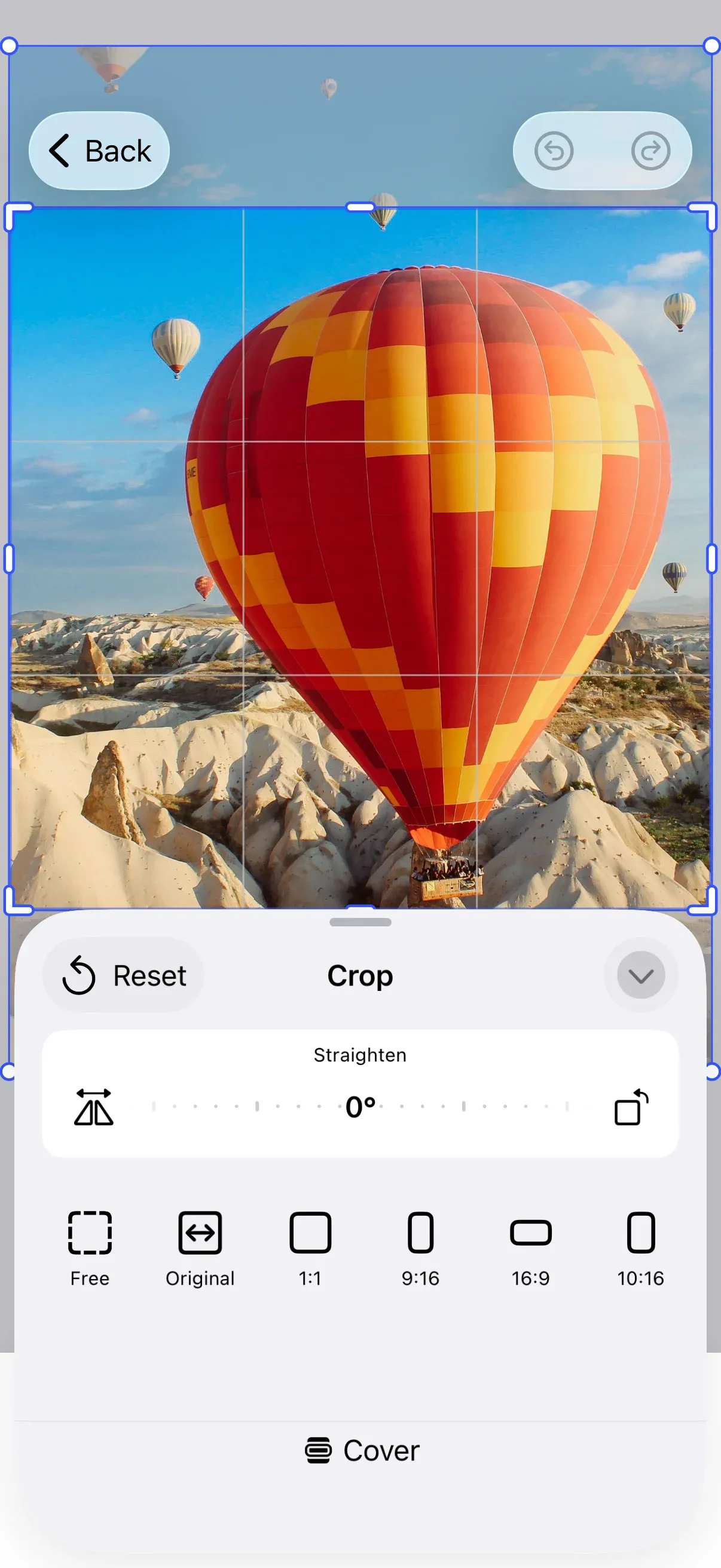
Crop presets define the aspect ratios and dimensions users select when cropping images or pages. CE.SDK ships with a default set of common ratios (1:1, 16:9, 4:3, and others), and you control which presets appear by shaping the ly.img.crop.presets asset source the crop UI reads from.
This guide wires the crop button into the inspector bar, explains where the crop UI reads presets from, loads the default presets, and shows three ways to customize the list: editing a self-hosted JSON, filtering at load time with a matcher, or adding presets programmatically.
Wiring the Crop Button into the Inspector Bar#
When a user selects an image or video block, the inspector bar can offer a crop button. InspectorBar.Buttons.crop() opens the crop sheet for the selected block, reading its options from the ly.img.crop.presets source.
builder.inspectorBar { inspectorBar in inspectorBar.items { _ in InspectorBar.Buttons.crop() InspectorBar.Buttons.delete() }}The button appears only when the selected block has an image or video fill, its kind is neither "sticker" nor "animatedSticker", engine.block.supportsCrop(_:) returns true, and its layer/crop scope is allowed. Tapping it presents the crop sheet shown in the screenshot above, with its horizontally scrollable preset strip. The Configuration guide covers how EditorConfiguration and EngineSettings set up the editor as a whole.
Crop Entry Points and Their Preset Sources#
The crop sheet reads its presets from the asset source IDs it is opened with, so which presets a user sees depends on how they reach the sheet.
- Inspector bar crop button —
InspectorBar.Buttons.crop()opens the sheet for the selected block, reading["ly.img.crop.presets"]. Under the hood it sendsEditorEvent.openSheet(type: .crop(style:id:assetSourceIDs:)); pass a differentassetSourceIDsarray to read from your own source, or from several sources at once. - Dock crop button —
Dock.Buttons.crop()opens the same sheet for the current page, reading bothly.img.crop.presetsandly.img.page.presetsso page-sizing presets appear alongside the crop ratios. - Double-click to crop — double-tapping an image or video block opens the crop sheet directly. This path always reads
ly.img.crop.presetsand cannot be pointed at another source. Toggle it with thedoubleClickToCropEnabledengine setting (on by default); photo-editor–style configurations turn it off withengine.editor.setSettingBool("doubleClickToCropEnabled", value: false)and surface cropping through the dock crop button instead.
Because double-click always reads ly.img.crop.presets, register your presets under that exact source ID — as this guide does — to make them available from every entry point. A custom source ID reaches only the inspector bar or dock button, where you pass it explicitly through assetSourceIDs.
Loading the Default Crop Presets#
Load the default presets by resolving the content.json URL against the engine’s basePath setting — initialized from EngineSettings(baseURL:) — and passing it to engine.asset.addLocalAssetSourceFromJSON(_:). The call registers the source under the id declared in the JSON — ly.img.crop.presets, the source ID the crop UI reads from.
// Resolve the crop preset `content.json` against the engine's `basePath`// setting (initialized from `EngineSettings.baseURL`) so it follows your// asset host instead of pinning a fixed version.let basePath = try engine.editor.getSettingString("basePath")let cropPresetsURL = URL(string: "\(basePath)/ly.img.crop.presets/content.json")!let sourceID = try await engine.asset.addLocalAssetSourceFromJSON(cropPresetsURL)Resolving against basePath keeps the URL in step with whatever asset host you configure instead of pinning a fixed version. The default baseURL points at the public IMG.LY CDN for evaluation; for production, host the asset files yourself and point EngineSettings(baseURL:) at your own server. See Serve Assets for the self-hosting workflow.
Customizing Which Presets Appear#
The crop UI shows exactly the assets contained in ly.img.crop.presets. Choose whichever of the following approaches fits how much control you need.
Approach 1 — Edit the Self-Hosted Asset JSON#
If you already self-host your assets, the most direct option is to author the content.json for ly.img.crop.presets with exactly the presets you want — trimming the defaults, reordering them, or adding your own — then load it with the same addLocalAssetSourceFromJSON(_:) call shown above. Each asset’s payload.transformPreset defines its crop behavior. See Asset Content JSON Schema for the manifest structure and payload fields.
Approach 2 — Filter at Load Time with a Matcher#
To narrow IMG.LY’s default content.json without editing it, pass a matcher to addLocalAssetSourceFromJSON(_:matcher:). The matcher is an array of glob patterns tested against each asset’s id; an asset loads if it matches any pattern, and * matches any sequence of characters. The default source ships a set of common ratios (ly.img.crop.presets.fixed-ratio.free, ly.img.crop.presets.fixed-ratio.1_1, ly.img.crop.presets.fixed-ratio.9_16, ly.img.crop.presets.fixed-ratio.16_9, and others).
static func loadFilteredCropPresets(_ engine: Engine) async throws -> String { let basePath = try engine.editor.getSettingString("basePath") let cropPresetsURL = URL(string: "\(basePath)/ly.img.crop.presets/content.json")! return try await engine.asset.addLocalAssetSourceFromJSON( cropPresetsURL, matcher: [ "ly.img.crop.presets.fixed-ratio.free", "ly.img.crop.presets.fixed-ratio.1_1", "ly.img.crop.presets.fixed-ratio.16_9", "ly.img.crop.presets.fixed-ratio.9_16", ], )}This loads only Free, 1:1, 16:9, and 9:16. Use ["ly.img.crop.presets.fixed-ratio.*"] to keep every fixed-ratio preset, or list specific IDs to narrow further.
Approach 3 — Add Presets Programmatically#
To keep the defaults and append your own, call engine.asset.addAsset(to:asset:) against the loaded source. Each preset is an AssetDefinition whose payload carries one of the four AssetTransformPreset cases.
Free Aspect Ratio#
.freeAspectRatio enables unconstrained cropping. The user drags any handle of the crop frame independently.
static let unconstrained = AssetDefinition( id: "custom-unconstrained", payload: AssetPayload(transformPreset: .freeAspectRatio), label: ["en": "Unconstrained", "de": "Unbeschränkt"],)Fixed Aspect Ratio#
.fixedAspectRatio(width:height:) constrains the crop frame to a specific ratio. The width and height values define the ratio (21:9 in the example), not absolute dimensions.
static let cinemascope = AssetDefinition( id: "custom-cinemascope", payload: AssetPayload(transformPreset: .fixedAspectRatio(width: 21, height: 9)), label: ["en": "21:9", "de": "21:9"],)Content Aspect Ratio#
.contentAspectRatio resizes the selected block to the intrinsic aspect ratio of its image or video content. The engine reads the natural width and height from the fill’s sourceSet when the preset is applied — useful for reverting a cropped block back to the natural proportions of its content.
static let matchContent = AssetDefinition( id: "custom-match-content", payload: AssetPayload(transformPreset: .contentAspectRatio), label: ["en": "Match Content", "de": "Inhalt"],)Applying this preset to a block without resolvable content dimensions (a text block, an empty placeholder, or a page) returns an error.
Fixed Size#
.fixedSize(width:height:designUnit:) sets exact dimensions for the block. The designUnit defaults to .px; pass .mm or .in for physical units.
Unlike the other three types — which the crop UI draws itself (an SF Symbol for .freeAspectRatio and .contentAspectRatio, a stroked rounded-rectangle outline for .fixedAspectRatio) — a fixed-size preset renders as an image tile and requires a meta["thumbUri"] pointing at a thumbnail image. This example reuses the square ratio thumbnail that ships with the default crop presets.
static func squarePost(thumbURL: URL) -> AssetDefinition { AssetDefinition( id: "custom-square-1080", meta: ["thumbUri": thumbURL.absoluteString], payload: AssetPayload( transformPreset: .fixedSize(width: 1080, height: 1080, designUnit: .px), ), label: ["en": "Square Post", "de": "Quadratisch"], )}Add the presets to the source after loading it. The fixed-size preset requires a thumbnail, so resolve the crop presets’ square ratio thumbnail against the same basePath and pass it to squarePost(thumbURL:):
let squareThumbURL = URL(string: "\(basePath)/ly.img.crop.presets/thumbnails/ratio-1-1.png")!try engine.asset.addAsset(to: sourceID, asset: Self.unconstrained)try engine.asset.addAsset(to: sourceID, asset: Self.cinemascope)try engine.asset.addAsset(to: sourceID, asset: Self.matchContent)try engine.asset.addAsset(to: sourceID, asset: Self.squarePost(thumbURL: squareThumbURL))Give each preset a unique id — the engine rejects an asset whose id already exists in the source. To swap out a default, call engine.asset.removeAsset(from:assetID:) for its ID before adding your replacement. To build the list entirely from typed presets without any JSON, register an empty source under the ly.img.crop.presets ID and add only your own assets:
static func registerCustomCropPresets(_ engine: Engine) throws { let sourceID = "ly.img.crop.presets" try engine.asset.addLocalSource(sourceID: sourceID) let basePath = try engine.editor.getSettingString("basePath") let squareThumbURL = URL(string: "\(basePath)/ly.img.crop.presets/thumbnails/ratio-1-1.png")! try engine.asset.addAsset(to: sourceID, asset: unconstrained) try engine.asset.addAsset(to: sourceID, asset: cinemascope) try engine.asset.addAsset(to: sourceID, asset: matchContent) try engine.asset.addAsset(to: sourceID, asset: squarePost(thumbURL: squareThumbURL))}Localization#
Each AssetDefinition accepts a label dictionary keyed by locale identifier — the four presets above each pass both "en" and "de" entries. The editor matches the user’s active locale and falls back to the first entry otherwise.
IMGLYEngine.Locale is a typealias for String, so pass "en", "de", "fr", etc. directly. The tags parameter accepts the same shape ([Locale: [String]]?) for free-text search.
Troubleshooting#
Presets Not Appearing#
Verify the source exists and contains your assets:
engine.asset.findAllSources()returns the IDs of every registered source."ly.img.crop.presets"should be in the list once you calladdLocalAssetSourceFromJSON(_:).engine.asset.findAssets(sourceID:query:)returns the assets registered to a source. Use it to confirm your custom presets reached the source.
If your custom assets are missing, the setup may have completed after the crop UI rendered the strip. Move the asset setup into EditorConfiguration.Builder.onCreate, which runs before the UI mounts.
Invalid Preset Type#
Construct presets with the typed AssetTransformPreset enum cases — .freeAspectRatio, .fixedAspectRatio(width:height:), .contentAspectRatio, or .fixedSize(width:height:designUnit:). The typed cases always produce a valid payload; a preset authored in raw JSON whose transformPreset object is missing its type field is rejected when the crop is applied.
Missing Labels#
The label dictionary must contain at least an "en" entry. Without it, the editor displays the preset’s id instead of a localized name.
API Reference#
| API | Description |
|---|---|
InspectorBar.Buttons.crop() |
Inspector bar button that opens the crop sheet for the selected block, reading ly.img.crop.presets |
Dock.Buttons.crop() |
Dock button that opens the crop sheet for the current page, reading ly.img.crop.presets and ly.img.page.presets |
EditorEvent.openSheet(type: .crop(style:id:assetSourceIDs:)) |
Opens the crop sheet for a block; style sets the sheet presentation and assetSourceIDs chooses which source(s) supply the presets |
engine.asset.addLocalAssetSourceFromJSON(_:matcher:) |
Load an asset source from a content.json URL; the optional matcher filters assets by id |
engine.asset.addLocalSource(sourceID:) |
Register an empty local asset source under a chosen ID |
engine.asset.addAsset(to:asset:) |
Add an AssetDefinition to an asset source |
engine.asset.removeAsset(from:assetID:) |
Remove an asset from a source by its ID |
engine.asset.findAllSources() |
List all registered asset sources |
engine.asset.findAssets(sourceID:query:) |
Query the assets in a source |
AssetTransformPreset |
Enum with four cases describing crop behavior: .freeAspectRatio, .fixedAspectRatio(width:height:), .contentAspectRatio, .fixedSize(width:height:designUnit:) |
AssetDefinition(id:groups:meta:payload:label:tags:) |
Describes an asset added via addAsset(to:asset:) |
AssetPayload(transformPreset:) |
Wraps an AssetTransformPreset for an AssetDefinition |
Next Steps#
- Asset Content JSON Schema — Author the
content.jsonmanifest for custom asset sources - Force Crop — Enforce specific aspect ratios when the editor loads
- Hide Elements — Remove or hide UI components
- Rearrange Buttons — Change button order across components