Override individual editor labels on iOS — declaratively through Apple String Catalogs, or in code by passing custom title closures to the editor’s button factories.
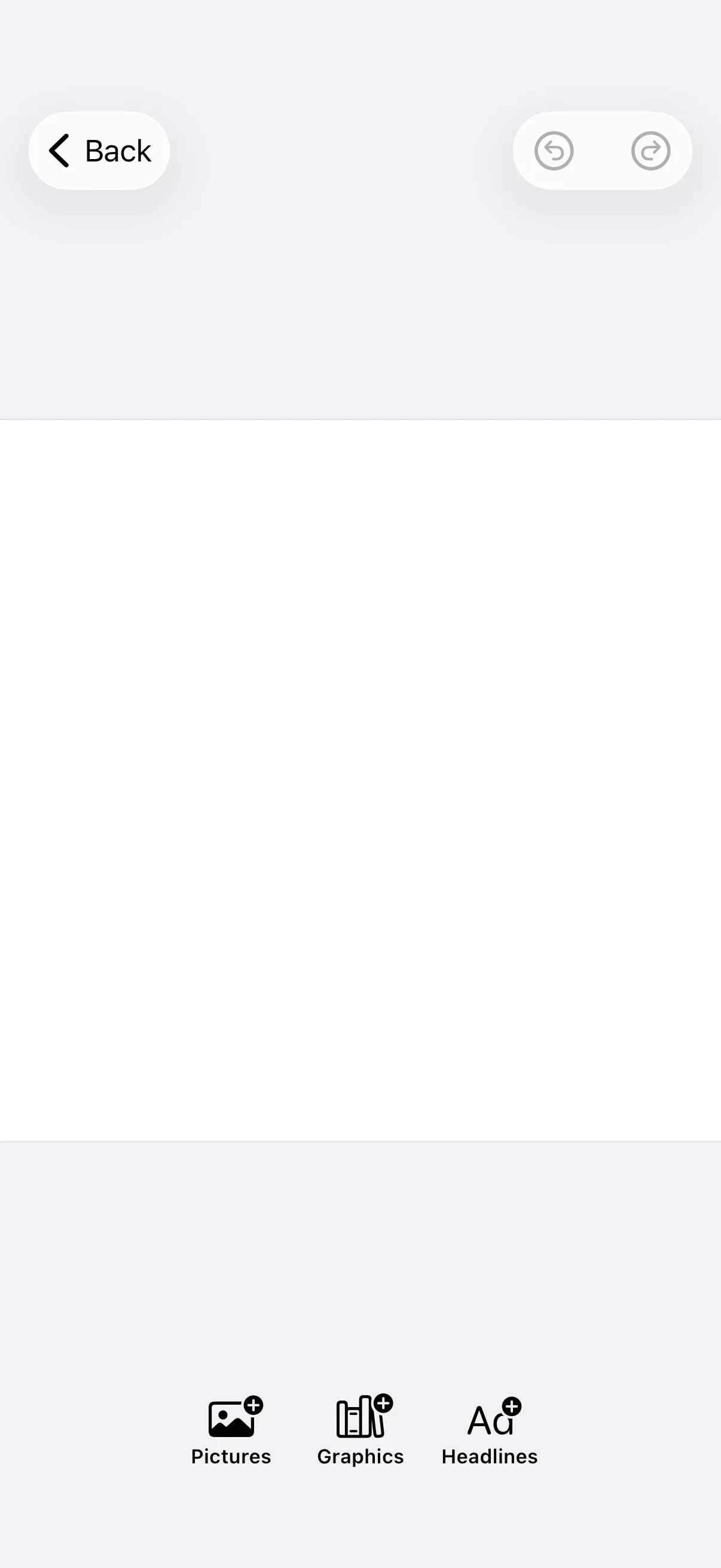
iOS exposes two complementary paths for changing the editor’s UI text. The catalog-based path is a declarative override in Localizable.xcstrings / IMGLYEditor.xcstrings — the same mechanism the full Localization guide uses, so it carries a value per locale you support. The programmatic path replaces the label of a specific button by passing a custom title: (or label:) closure to a CE.SDK button factory in your editor configuration. The two differ in where the override lives and what it can do: a catalog entry is a static, localizable string keyed by identifier; a programmatic override is code, scoped to the button instance you configure, and can derive its text from runtime state.
Custom labels and full localization share the catalog mechanism but answer different questions. Custom labels override a focused set of strings in your default language to match brand or product terminology; full localization adds a new language or replaces complete translation sets. See Localization for the language-switching flow.
How Custom Labels Work on iOS#
When the editor renders a label, CE.SDK resolves each key against three (bundle, table) pairs in order:
Localizable.xcstrings(orLocalizable.strings) in your app’s main bundle.IMGLYEditor.xcstringsin your app’s main bundle, if you ship one.IMGLYEditor.xcstringsin theIMGLYCoreUIbundle — the SDK default.
The first pair that contains the key wins. Any key you redefine in your app’s Localizable.xcstrings overrides both the SDK’s bundled value and any copy you keep in your own IMGLYEditor.xcstrings. Once a bundle is selected, the entry for the active locale renders; if that bundle has no entry for the active locale, the bundle’s source-language value (usually English) renders.
The lookup chain only inspects Localizable.xcstrings and IMGLYEditor.xcstrings — a catalog under any other name (MyBrand.xcstrings, for example) is not picked up.
Finding the Key You Want to Customize#
Every editor string has a stable key of the form ly_img_editor_<surface>_<element>_<name>. Browse the canonical list in the SDK’s IMGLYEditor.xcstrings and search for the visible text you want to change.
A few examples drawn from common branding requests:
| Visible UI element | Key | Default value |
|---|---|---|
| “Photo Roll” dock button | ly_img_editor_dock_button_photo_roll |
“Photo Roll” |
| “Elements” dock button | ly_img_editor_dock_button_elements |
“Elements” |
| “Images” dock button | ly_img_editor_dock_button_images |
“Images” |
| “Duplicate” inspector bar button | ly_img_editor_inspector_bar_button_duplicate |
“Duplicate” |
The lookup is by string equality, so copy keys character-for-character. A single typo silently falls through to the next layer in the chain.
Overriding a Single Label#
Add the key to your app’s Localizable.xcstrings and supply a value for every locale you support. The SDK falls back to its bundled values for every key you leave alone.
{ "sourceLanguage" : "en", "strings" : { "ly_img_editor_dock_button_photo_roll" : { "localizations" : { "en" : { "stringUnit" : { "state" : "translated", "value" : "Gallery" } }, "de" : { "stringUnit" : { "state" : "translated", "value" : "Galerie" } } } } }, "version" : "1.0"}The dock button now reads “Gallery” on an English device and “Galerie” on a German device. Every other editor label still resolves to its SDK default.
If you provide a value for only one locale, Apple’s locale resolution for your bundle falls back to that locale’s source language for any other active locale — even on a German device. To preserve German on the rest of the editor, either translate the override for every locale you target, or remove the key and let the SDK’s bundled translation surface.
Overriding Multiple Labels for Brand Consistency#
For consistent brand voice, group related overrides in a single catalog. The example below replaces several dock buttons and inspector actions to match a “Pictures / Graphics / Duplicate → Copy” terminology set.
{ "sourceLanguage" : "en", "strings" : { "ly_img_editor_dock_button_images" : { "localizations" : { "en" : { "stringUnit" : { "state" : "translated", "value" : "Pictures" } }, "de" : { "stringUnit" : { "state" : "translated", "value" : "Aufnahmen" } } } }, "ly_img_editor_dock_button_elements" : { "localizations" : { "en" : { "stringUnit" : { "state" : "translated", "value" : "Graphics" } }, "de" : { "stringUnit" : { "state" : "translated", "value" : "Grafiken" } } } }, "ly_img_editor_inspector_bar_button_duplicate" : { "localizations" : { "en" : { "stringUnit" : { "state" : "translated", "value" : "Copy" } }, "de" : { "stringUnit" : { "state" : "translated", "value" : "Kopieren" } } } } }, "version" : "1.0"}If your overrides grow beyond a small focused list — custom button names, sheet titles, alert copy, asset library section names — consider keeping them in a sibling IMGLYEditor.xcstrings in your main bundle instead. The structure is identical; the lookup checks it after Localizable.xcstrings but before falling back to the SDK’s bundled catalog. Keeping editor overrides out of your app’s primary catalog is a maintenance preference, not a behavioral difference.
Best Practices#
Override only the keys you need. The lookup chain resolves any missing key against the next layer, so a tight focused list of brand-specific overrides is easier to maintain than a full copy of the SDK’s catalog. Compare your overrides against the SDK’s current IMGLYEditor.xcstrings when upgrading versions to catch any new strings that may warrant a branded translation.
Keep terminology consistent across related labels. When you rename “Images” to “Pictures”, look for related keys (ly_img_editor_dock_button_photo_roll, asset library section labels, related sheet titles) so users see a single coherent terminology set across the editor.
Mind label length. Buttons in the dock, inspector bar, and navigation bar render in tight horizontal space. Test your wording in the running editor — long words can truncate in narrow surfaces. Sheet titles and alert messages tolerate longer copy.
Document your overrides. Keep a comment block or README near your Localizable.xcstrings listing which keys you override and why. The list usually grows over time as the editor’s surface grows.
Programmatic Label Overrides in the Editor Configuration#
Every dock and inspector bar button factory accepts a title: parameter; navigation bar and canvas menu button factories accept a label: parameter. The defaults call Text(.imgly.localized("<key>")), which runs the catalog lookup chain described above. Passing a custom closure replaces the label for that specific button instance — the button no longer resolves its SDK catalog key, and the rename lives in your configuration code rather than a resource file.
Use this path when the rename belongs in code: a caption specific to one editor configuration, or a label derived from runtime state. Reach for the catalog path for a declarative, resource-file override that changes the SDK’s ly_img_editor_* key wherever it appears.
Override the Title on a Dock Button#
Dock.Buttons.X(title:icon:...) accepts a title: @ViewBuilder closure. Replace the default Text(.imgly.localized(...)) with your own Text view:
builder.dock { dock in dock.items { _ in Dock.Buttons.imagesLibrary(title: { _ in Text("Pictures") }) Dock.Buttons.elementsLibrary(title: { _ in Text("Graphics") }) Dock.Buttons.textLibrary(title: { _ in Text("Headlines") }) }}The custom titles render in the dock label area below each icon, replacing what the catalog would resolve. The icon defaults still come from Image.imgly.*; the same factory’s icon: parameter accepts a parallel @ViewBuilder closure if you want to override the glyph at the same call site — see Icons.
Override the Title on an Inspector Bar Button#
InspectorBar.Buttons.X(title:icon:...) exposes the same title: parameter:
builder.inspectorBar { inspectorBar in inspectorBar.items { _ in InspectorBar.Buttons.duplicate(title: { _ in Text("Copy") }) InspectorBar.Buttons.delete(title: { _ in Text("Remove") }) InspectorBar.Buttons.crop() }}Calling InspectorBar.Buttons.crop() without arguments keeps the default — overrides are opt-in per button.
Override the Label on a Navigation Bar Button#
NavigationBar.Buttons.X(label:...) and CanvasMenu.Buttons.X(label:...) take a single label: closure that returns the complete Label view (text + icon together). Because the closure builds both halves, reproduce the default icon (Image.imgly.undo) and label style when you only want to change the text. The example below renames “Undo” to “Revert” while keeping the default glyph and the editor’s adaptiveIconOnly label style:
builder.navigationBar { navigationBar in navigationBar.modify { _, items in items.replace(id: NavigationBar.Buttons.ID.undo) { NavigationBar.Buttons.undo(label: { context in Label { Text("Revert") } icon: { Image.imgly.undo } .opacity(context.state.viewMode == .preview ? 0 : 1) .labelStyle(.imgly.adaptiveIconOnly) }) } }}The .adaptiveIconOnly style shows the title alongside the icon only in the compact vertical size class (landscape iPhone); everywhere else — portrait iPhone, and iPad in both orientations — the button shows the icon alone. VoiceOver still announces “Revert” in all cases, because the accessibility label carries the text independently of the visual label style. That visibility is governed by the label style, so a catalog override of the same key behaves identically.
Localizing Programmatic Labels#
String-literal labels still localize the standard SwiftUI way: Text("Revert") is a LocalizedStringKey, so adding Revert to your app’s Localizable.xcstrings with per-locale values is enough. Use Text(.imgly.localized(_:)) when you want the closure to resolve through the editor’s full catalog chain instead — for example, to reuse an existing ly_img_editor_* key — or Text(verbatim:) to opt out of localization entirely.
Catalog vs. Programmatic Overrides vs. Full Localization#
Three customization paths share parts of the same plumbing — choose the one that matches your scope:
Catalog overrides (covered above):
- Declarative override in
Localizable.xcstringsorIMGLYEditor.xcstrings— no editor-configuration code. - Localizable: supply a value per locale you support.
- Keyed by identifier, so a value applies wherever that key is referenced (usually a single surface; a few common keys are reused).
- Use case: rebrand “Photo Roll” to “Gallery”, localized for every language you ship.
Programmatic overrides (covered above):
- Replace the label of a specific button instance you configure.
- Live in code; coexist with the catalog (unconfigured buttons still resolve through it).
- Still localize through standard SwiftUI: string literals resolve against your app’s
Localizable.xcstrings, and.imgly.localized(_:)reaches the editor catalog chain. - Use case: rename a button only in one specific editor configuration, or set the label from runtime state.
Full localization (see Localization):
- Add a new language column to the same catalogs, or supply a complete translation set.
- Selected by the system from
Info.plistCFBundleLocalizations+ user device language. - Use case: ship French or Japanese alongside the SDK’s bundled English and German.
The three paths combine cleanly. A catalog with French entries plus a programmatic override on the dock’s Images button gives you a localized editor with one button labeled by your code — the lookup chain still runs for every other label.
Troubleshooting#
My Override Has No Effect#
Confirm the key matches the SDK’s IMGLYEditor.xcstrings exactly. The lookup is string-equality based and a single typo silently falls through to the next layer. Also verify the override lives in your app’s main bundle (not in a framework target) — the lookup chain checks Bundle.main before the SDK’s bundle.
Some Strings Stay in English on a German Device#
Once a key exists in your app’s Localizable.xcstrings, the lookup commits to that catalog at step 1 of the chain and stops checking the SDK’s bundled translations for it. If you only provided an English value for the key, Apple’s locale resolution for your bundle falls back to English everywhere — even on a German device, where the SDK would otherwise have shown its bundled German translation. Add a value for every locale you support, or remove the key and let the SDK’s bundled translation surface.
A Custom Catalog Filename Is Not Picked Up#
The lookup chain only inspects Localizable.xcstrings and IMGLYEditor.xcstrings. Files under any other name — MyBrand.xcstrings, BrandOverrides.xcstrings — are not part of the chain and the editor will not see their contents.
Key Reference#
| Concern | Where |
|---|---|
| Key naming convention | ly_img_editor_<surface>_<element>_<name> |
| Canonical key list | IMGLYEditor.xcstrings in IMGLYUI-swift |
| Override catalog (recommended) | Localizable.xcstrings in your main bundle |
| Override catalog (alternative, for large override sets) | IMGLYEditor.xcstrings in your main bundle |
| Lookup order | App Localizable → App IMGLYEditor → SDK IMGLYEditor |
Commonly Customized Keys#
| Surface | Key | Default value |
|---|---|---|
| Dock — Photo Roll | ly_img_editor_dock_button_photo_roll |
“Photo Roll” |
| Dock — Elements | ly_img_editor_dock_button_elements |
“Elements” |
| Dock — Images | ly_img_editor_dock_button_images |
“Images” |
| Dock — Text | ly_img_editor_dock_button_text |
“Text” |
| Dock — Shapes | ly_img_editor_dock_button_shapes |
“Shapes” |
| Dock — Stickers | ly_img_editor_dock_button_stickers |
“Stickers” |
| Inspector bar — Duplicate | ly_img_editor_inspector_bar_button_duplicate |
“Duplicate” |
| Inspector bar — Delete | ly_img_editor_inspector_bar_button_delete |
“Delete” |
Browse the full catalog for the complete set.
Next Steps#
- Localization — Add new languages or replace complete translation sets through the same catalog mechanism.
- Icons — Customize the icons on editor buttons, the visual counterpart to renaming their labels.
- Theming — Customize the visual appearance of the editor interface.
- Custom UI Components — Build custom UI elements for your workflow