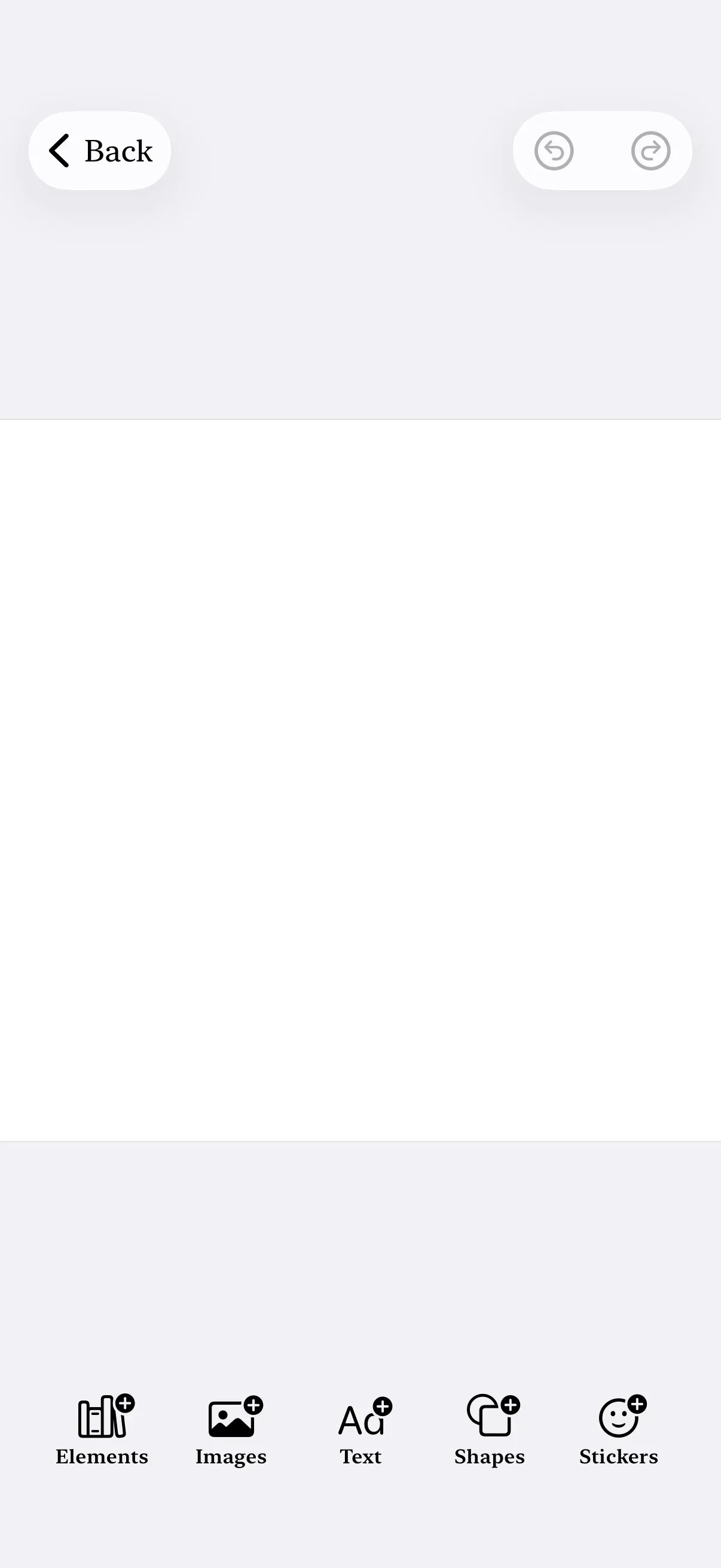
Switch the editor’s UI font design to match your application’s visual style.
Overview#
The Editor view is a SwiftUI view, so it inherits the standard SwiftUI font modifiers from its parent hierarchy. Apply .fontDesign(_:) to the Editor to switch the font design used by every UI element — dock labels, button captions, sheet titles, and inspector text.
| API | Purpose |
|---|---|
.fontDesign(_:) |
SwiftUI view modifier that sets the font design for all descendant text |
Font.Design.default |
The default system font |
Font.Design.serif |
A serif system font |
Font.Design.monospaced |
A monospaced system font |
Font.Design.rounded |
A rounded system font |
.fontDesign(_:) is available on iOS 16.1 and later. If your deployment target is iOS 16.0, mark the call site with @available(iOS 16.1, *) or gate it behind if #available(iOS 16.1, *).
Apply the Font Design#
Place .fontDesign(_:) directly on the Editor view, after the configuration modifier. The chosen design propagates through SwiftUI’s environment to every UI label rendered with a system font.
Editor(settings) .imgly.configuration { GuideEditorConfiguration() } .fontDesign(.serif)Pass any value from the table above, or nil to remove a font design override applied higher in the view tree.
Custom Fonts#
A font design selects between the four system typefaces — it does not load an arbitrary font family. The editor’s UI text is drawn with the system font, and no environment value swaps the whole interface to a registered custom font. .fontDesign(_:) is the only setting that restyles every label at once.
To bring in a custom font, restyle individual button labels instead. Pass a title: (or label:) closure to a button factory, rebuild the button’s default label, and apply .font(.custom(_:size:)) to it — where the string is the PostScript name of a font your app has registered:
builder.dock { dock in dock.items { _ in Dock.Buttons.elementsLibrary(title: { _ in Text(.imgly.localized("ly_img_editor_dock_button_elements")) .font(.custom("BrandFont", size: 12)) }) }}Rebuild the label from the button’s existing localization key with .imgly.localized(_:) so the wording and any translations stay intact and only the font changes. Returning a plain Text("Elements") would replace the label text as well. The closure’s .font(.custom(...)) takes precedence over the design the component would otherwise apply. This works per button — there is no single call that reaches every label — so you repeat it for each button you want to restyle. Button factories exist for the dock, navigation bar, inspector bar, and canvas menu; buttons rendered inside sheets are not exposed, so the approach reaches the top-level surfaces and stops there.
Troubleshooting#
Font Design Not Applied#
- Verify the deployment target is iOS 16.1 or later. The
.fontDesign(_:)modifier is unavailable on iOS 16.0. - Confirm the modifier sits on the
Editorview itself, not on an ancestor that the editor doesn’t observe. SwiftUI environment values cascade down the view tree, so placing the modifier on theEditor(or any parent) propagates the design. - Check for a competing
.fontDesign(_:)higher up that explicitly sets.default. The closest modifier in the hierarchy wins.
Some Text Does Not Change#
A small number of UI elements pin a font design explicitly. Those elements continue to use their own design regardless of the value supplied here.
API Reference#
| API | Purpose |
|---|---|
View.fontDesign(_:) |
Set the font design for all descendant text rendered with a system font |
Font.Design |
The available system font designs: .default, .serif, .monospaced, .rounded |
Font.custom(_:size:) |
Reference a registered custom font by its PostScript name in a label closure |
title: / label: closures |
Per-button view builders on the dock, navigation bar, inspector bar, and canvas menu factories |
.imgly.localized(_:) |
Resolve a button’s default localized title from its key, to preserve wording while restyling |
Next Steps#
- Theming — Override the color scheme and adopt the system theme
- Custom Labels — Override individual button and label text with custom title closures