Generate captions automatically from spoken audio in video and audio blocks using CE.SDK’s Auto Captions plugin.
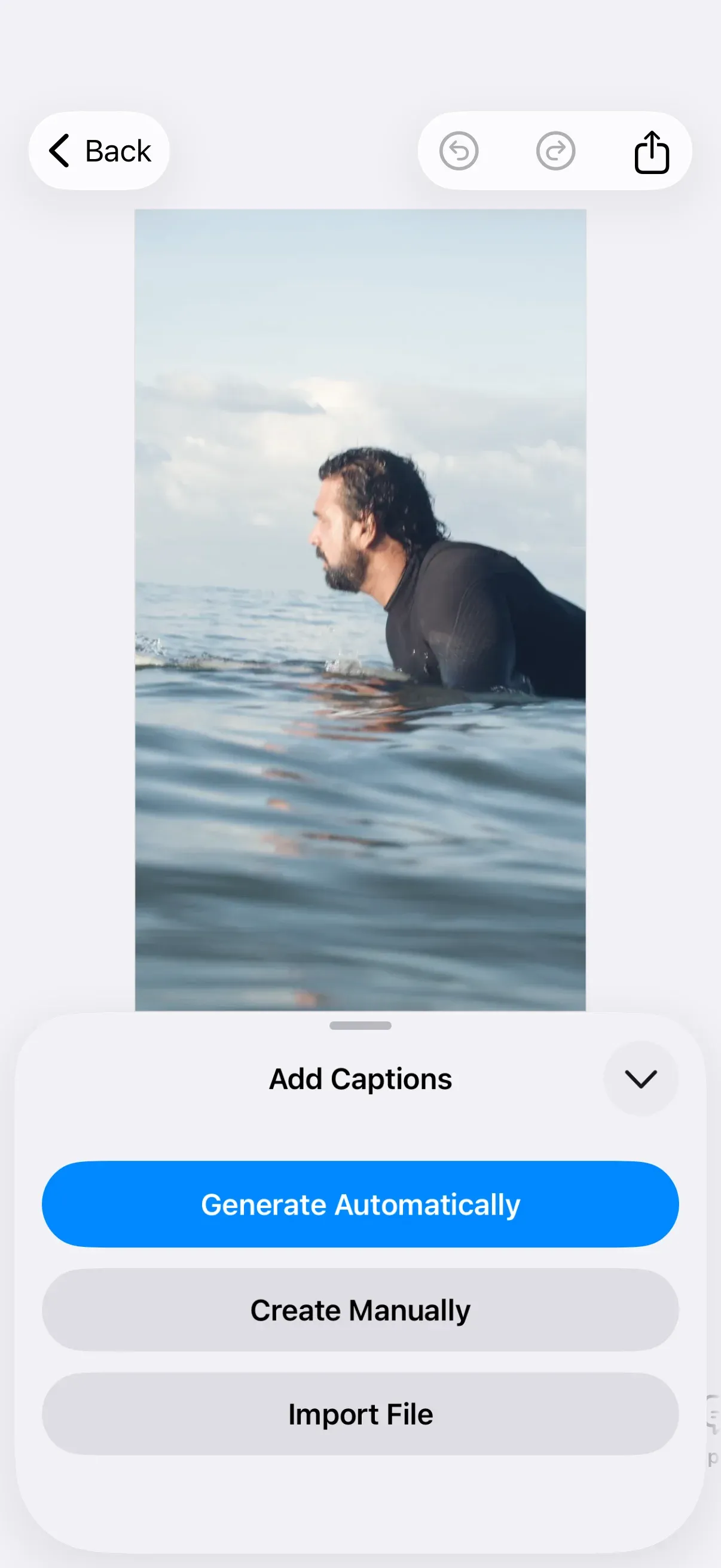
The Auto Captions plugin transcribes the scene’s audible content and creates styled, time-synced caption blocks from the result. It ships with a built-in provider that runs the ElevenLabs Scribe v2 speech-to-text model through the IMG.LY AI Gateway, and you can plug in any speech-to-text service by implementing the TranscriptionProvider protocol. For manually creating and editing captions, see Add Captions.
The example builds on the Video Editor Starter Kit’s VideoEditorConfiguration, which already registers the captions dock button. The plugin’s action lives in the Add Captions sheet that button opens, so an editor configuration without it needs Dock.Buttons.captions() registered as well.
Using the Built-in UI#
Registering the plugin adds a primary Generate Automatically action to the Add Captions sheet, which opens from the captions dock button. The action stays disabled while the scene has no audio or video content to transcribe.
Tapping Generate Automatically swaps the sheet for a “Generating Captions” state with a Cancel button. Nothing is created until the transcription completes, so cancelling — or dismissing the sheet — leaves the scene untouched. On success, the result is imported through the same pipeline as an SRT/VTT file import: captions arrive styled and time-synced, replace any existing captions, and land as a single undo step. The sheet then switches to the Edit Captions list, where you tap a caption to edit its text and use the keyboard action bar to split, merge, add, and delete — see Add Captions.
The plugin transcribes the scene’s audible content as a whole: every audio block and every video with an audio track. Muted blocks, blocks with their volume at zero, and videos without audio tracks are skipped, and each block’s cues are placed at its position on the page timeline.
Installing the Plugin#
Add the IMGLYPluginAutoCaptions Swift package (iOS 16+) to your project via Swift Package Manager:
https://github.com/imgly/IMGLYPluginAutoCaptions-swiftThe plugin follows CE.SDK’s unified versioning — install the version that matches your CE.SDK version.
Configuring the Built-in Provider#
Import IMGLYEditor and the plugin module in the file where you set up the editor:
import IMGLYEditorimport IMGLYEngineimport IMGLYPluginAutoCaptionsRegister AutoCaptionsPlugin inside .imgly.configuration { }, alongside your editor configuration. The built-in GatewayTranscriptionProvider only needs an IMG.LY API key — the gateway handles provider routing, billing, and asset storage:
Editor(settings) .imgly.configuration { VideoEditorConfiguration() AutoCaptionsPlugin(provider: GatewayTranscriptionProvider(apiKey: "sk_…")) }You create and manage API keys in the IMG.LY Dashboard. Keys use the sk_ prefix, and you control which AI models a key can access and its credit budget per key in the Dashboard. The provider also accepts an optional gatewayURL: parameter for a custom gateway base URL.
A key shipped in your app binary can be extracted from it, so scope it to the models auto-captioning needs and give it a credit budget you are willing to lose. To keep the key off devices, point gatewayURL: at a backend you control that holds the real key and forwards requests.
The snippet registers nothing beyond the plugin: the starter kit configuration already supplies the captions dock button, and the Add Captions sheet it opens is where the plugin’s action appears. See Add Captions for the full captions surface, including the caption inspector buttons and how to register them in a custom configuration.
Transcription Options#
Pass a TranscriptionOptions value to control the transcription language and how the transcript is broken into subtitle cues:
Editor(settings) .imgly.configuration { VideoEditorConfiguration() AutoCaptionsPlugin( provider: GatewayTranscriptionProvider(apiKey: "sk_…"), options: TranscriptionOptions( language: "en", maxLineLength: 30, maxLines: 2, ), ) }| Option | Default | Purpose |
|---|---|---|
language |
nil |
BCP-47 code of the spoken language, e.g. "en", "de", "pt". nil lets the provider detect the language automatically. |
maxLineLength |
37 |
Maximum characters per subtitle line before the next word starts a new line. |
maxLines |
1 |
Maximum lines per subtitle cue before the next words start a new cue. |
Implementing a Custom Transcription Provider#
Use any speech-to-text service by conforming to the TranscriptionProvider protocol. It requires a name string and a transcribe(audio:mimeType:options:) method that turns a staged audio file into SRT subtitle text:
/// A minimal custom provider: send the audio to any speech-to-text service and/// return SRT text.struct CustomTranscriptionProvider: TranscriptionProvider {  let name = "My Speech-to-Text Service"
  func transcribe(audio: URL, mimeType: String, options: TranscriptionOptions) async throws -> String {    var request = URLRequest(url: URL(string: "https://example.com/transcribe")!)    request.httpMethod = "POST"    request.setValue(mimeType, forHTTPHeaderField: "Content-Type")    if let language = options.language {      request.setValue(language, forHTTPHeaderField: "Accept-Language")    }    // Upload from the file so a long recording streams out instead of being read    // into memory.    let (data, _) = try await URLSession.shared.upload(for: request, fromFile: audio)    // Convert your service's response to SRT here; return an empty string when    // no speech was detected.    guard let srt = String(bytes: data, encoding: .utf8) else {      throw URLError(.cannotDecodeContentData)    }    return srt  }}
The method receives a file URL for one audible block’s whole source track, along with its MIME type — audio/mp4 for the AAC track extracted from a video, and for a standalone audio block the source file’s own type, commonly audio/mpeg — plus the TranscriptionOptions you configured. Stream the file rather than reading it into memory: a scene’s audio is unbounded, and one long recording is enough to exhaust it. URLSession’s upload(for:fromFile:) does this for you. The plugin deletes the file once generation ends, so don’t hold on to the URL past the call.
Return an SRT-formatted string with timings relative to the start of the audio, or an empty string when no speech was detected. Any error you throw surfaces as a generation-failure alert in the editor, and name identifies the provider in the failure log. The surrounding task is cancelled when the user taps Cancel, so keep implementations cooperatively cancellable — URLSession’s async APIs already are.
Pass your provider to the plugin in place of the built-in one:
Editor(settings) .imgly.configuration { VideoEditorConfiguration() AutoCaptionsPlugin(provider: CustomTranscriptionProvider()) }Full Custom Generation#
The plugin is built on the editor’s caption generation hook. To own the whole pipeline — not just the speech-to-text step — skip the plugin and register a callback with the configuration builder’s captionsGeneration(_:) method:
Editor(settings) .imgly.configuration { VideoEditorConfiguration { builder in builder.captionsGeneration { engine in // Replace this with your own pipeline: transcribe the scene's audible content // and serialize the cues as SRT or VTT, timed relative to the page timeline. let srt = try await Self.transcribeScene(engine) // Returning `nil` shows the dedicated "No speech was detected" alert; any // error you throw shows the generic failure alert. guard !srt.isEmpty else { return nil } let file = FileManager.default.temporaryDirectory .appendingPathComponent(UUID().uuidString) .appendingPathExtension("srt") try srt.write(to: file, atomically: true, encoding: .utf8) return file } } }The callback is a plain @MainActor (Engine) async throws -> URL?, so nothing captions-specific has to be imported from the editor. It receives the editor’s Engine for reading the scene’s audio and video content; the skeleton above returns a fixed cue instead. Return the URL of a temporary SRT or VTT file with cue timings relative to the page timeline, or nil when there is nothing to transcribe. The editor owns the UI around it: it shows the same Generate Automatically action and busy state, imports the returned file — replacing any existing captions — and deletes the file afterwards. Anything you throw surfaces as a generic failure alert, and the editor cancels the surrounding task when the user taps Cancel. The plugin’s own name for this type is CaptionsGenerator.
Error Handling#
The editor presents generation failures in a “Couldn’t Generate Captions” alert:
- No speech: When the scene has nothing audible or the transcription comes back empty, the alert reads “No speech was detected in the audio.”
- Any other error: Transport or service errors from the provider show “Something went wrong while generating captions. Please try again.”
- Cancellation: Cancelling shows no alert — the sheet returns to its Add Captions state and the scene stays untouched.
When several blocks are transcribed, one block’s failure doesn’t sink the others; an error only surfaces when nothing was produced at all. The plugin logs per-block failures under the subsystem ly.img.plugin.autoCaptions, naming the provider on transcription errors.
Troubleshooting#
- Generate Automatically doesn’t appear: The action only shows when a generation callback is configured. Register
AutoCaptionsPlugininside.imgly.configuration { }alongside your editor configuration. If your configuration is not the starter kit’s, also addDock.Buttons.captions()so the Add Captions sheet can be opened. - Generate Automatically is disabled: The scene has no audio or video content to transcribe. Add a video or audio block first.
- No-speech alert despite spoken content: Muted blocks, blocks with their volume at zero, and videos without audio tracks are skipped. Check the mute and volume state of the blocks that carry the speech.
- Generation fails with the generic alert: Verify the device can reach the gateway and the API key is valid. The failure log under the subsystem
ly.img.plugin.autoCaptionsnames the provider and the underlying error. - Generated captions appear unstyled: Default styling comes from the
ly.img.caption.presetsasset source, which ships pre-registered with the default video asset sources — verify it hasn’t been excluded.
API Reference#
| API | Category | Purpose |
|---|---|---|
AutoCaptionsPlugin(provider:options:) |
Plugin registration | Adds the Generate Automatically action to the Add Captions sheet, backed by the given provider. |
GatewayTranscriptionProvider(apiKey:gatewayURL:) |
Provider | Built-in provider running ElevenLabs Scribe v2 through the IMG.LY AI Gateway. |
TranscriptionOptions(language:maxLineLength:maxLines:) |
Provider | Language and subtitle formatting options passed to the provider. |
TranscriptionProvider |
Provider contract | Protocol for plugging any speech-to-text service into the plugin. |
TranscriptionProvider.transcribe(audio:mimeType:options:) |
Provider contract | Turns a staged audio file into SRT subtitle text. |
EditorConfiguration.Builder.captionsGeneration(_:) |
Editor hook | Registers a custom generation callback without the plugin. |
CaptionsGenerator |
Plugin alias | The plugin’s alias for @MainActor (Engine) async throws -> URL? — produces a temporary SRT or VTT file, or nil when no speech was detected. |
Dock.Buttons.captions(action:title:icon:isEnabled:isVisible:) |
Dock | Dock button that opens the Add Captions sheet. |
Next Steps#
- Add Captions — Manually create, import, and style caption blocks
- Update Caption Presets — Extend the caption style presets with custom styles using content.json updates
- Dock — Configure the dock area to show or hide tools, panels, or quick access actions