Load and configure custom fonts in CE.SDK to match brand guidelines or provide users with a curated font selection.
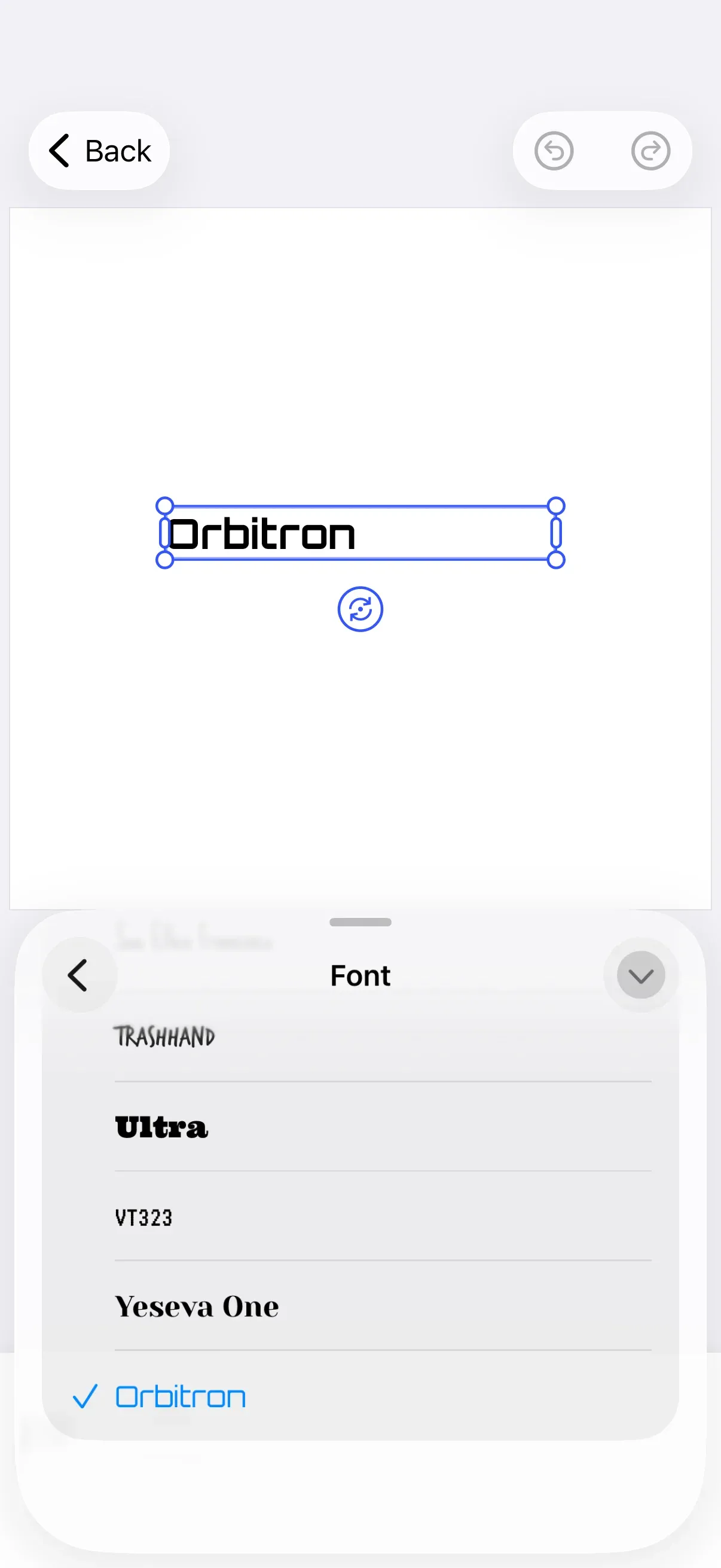
CE.SDK includes a set of default typefaces, but you can customize the available fonts by registering your own typeface assets. The editor’s font library reads from a single asset source whose ID is "ly.img.typeface" — anything registered under that ID, whether a single custom typeface or a full replacement of the bundled defaults, becomes the editor’s font picker.
This guide builds on GuideEditorConfiguration, a small helper class the iOS guides repository ships as a minimal baseline; substitute your own editor configuration class — the onCreate hook used here is available on every configuration. The Configuration guide covers how EditorConfiguration and EngineSettings set up the editor as a whole.
This guide covers how to define typefaces with multiple font weights and styles, add a custom typeface to the font library alongside the bundled defaults, replace the defaults entirely, and apply fonts programmatically to text blocks.
Typeface and Font Structure#
A Typeface represents a font family. It has a name shown in the editor’s font picker and a fonts array listing each individual font variant the editor can apply.
Each Font carries:
uri— URL of the font file (TTF, OTF, WOFF, or WOFF2)subFamily— Human-readable variant name (e.g."Regular","Bold Italic")weight—FontWeight:.thin,.extraLight,.light,.normal,.medium,.semiBold,.bold,.extraBold, or.heavystyle—FontStyle:.normalor.italic
let orbitron = Typeface( name: "Orbitron", fonts: [ Font( uri: URL( string: "https://fonts.gstatic.com/s/orbitron/v35/yMJMMIlzdpvBhQQL_SC3X9yhF25-T1nyGy6xpg.ttf", )!, subFamily: "Regular", weight: .normal, style: .normal, ), Font( uri: URL( string: "https://fonts.gstatic.com/s/orbitron/v35/yMJMMIlzdpvBhQQL_SC3X9yhF25-T1ny_Cmxpg.ttf", )!, subFamily: "Bold", weight: .bold, style: .normal, ), ],)The example loads Orbitron from a public CDN; in production point uri at assets you control.
Add a Custom Typeface to the Font Library#
The iOS editor’s font picker is hardcoded to read from a single asset source whose ID is "ly.img.typeface". Every typeface that shows up in the library — bundled or custom — must be registered under that ID. To add a custom typeface alongside the bundled defaults, load the bundled typeface content into that source first with engine.asset.addLocalAssetSourceFromJSON(_:), then add your own typeface to the same source with engine.asset.addAsset(to:asset:).
Read the asset base URL from the engine settings inside onCreate, then load the bundled typeface content:
let basePath = try engine.editor.getSettingString("basePath")guard let baseURL = URL(string: basePath) else { return }let typefaceSourceID = try await engine.asset.addLocalAssetSourceFromJSON( baseURL .appendingPathComponent("ly.img.typeface") .appendingPathComponent("content.json"),)Add your custom typeface with engine.asset.addAsset(to:asset:), passing the source ID returned by the load call above. Each AssetDefinition wraps the typeface in an AssetPayload:
try engine.asset.addAsset( to: typefaceSourceID, asset: AssetDefinition( id: "orbitron", groups: ["latin"], payload: AssetPayload(typeface: orbitron), label: ["en": "Orbitron"], ),)The label dictionary controls how the asset appears in the editor’s font library.
Replace the Default Typefaces#
To ship a custom-fonts-only library — no bundled defaults — skip the addLocalAssetSourceFromJSON(_:) call and register a fresh, empty local source under "ly.img.typeface" instead with engine.asset.addLocalSource(sourceID: "ly.img.typeface"). Then add typefaces to the empty source with engine.asset.addAsset(to: "ly.img.typeface", asset:). The font library shows only the typefaces you added.
Apply Fonts Programmatically#
Two APIs apply typefaces to text blocks directly:
engine.block.setFont(_:fontFileURL:typeface:)swaps the font for the entire block and resets per-range formatting.engine.block.setTypeface(_:typeface:in:)applies the typeface to a range and preserves existing formatting.
static func applyTypeface(engine: Engine, textBlock: DesignBlockID, typeface: Typeface) throws { try engine.block.setFont( textBlock, fontFileURL: typeface.fonts[0].uri, typeface: typeface, )}Query the current typefaces with engine.block.getTypeface(_:) (the block’s base typeface) or engine.block.getTypefaces(_:in:) (the unique typefaces inside a range). For the full set of text-styling APIs — font sizes, weights, styles, colors, decorations — see the Text Styling guide.
Troubleshooting#
Font Not Appearing in the Library#
- Confirm the source is registered under ID
"ly.img.typeface"— either by loading the bundled content withengine.asset.addLocalAssetSourceFromJSON(_:)or by creating an empty source withengine.asset.addLocalSource(sourceID: "ly.img.typeface"). The editor only reads from that exact ID. - Verify the asset’s
payloadis built with anAssetPayload(typeface:)value. A definition without atypefacepayload is added to the source but the editor cannot render it as a font.
Font Not Loading#
- Confirm the
Font.uriis reachable from the device. CE.SDK fetches the font file at the URL you provide, so it must resolve over the network (or point at a bundledfile://URL). - For HTTPS URLs, confirm the host is not blocked by the app’s App Transport Security configuration.
Font Weight or Style Not Available#
The editor matches the user’s bold/italic selection against the weight and style of the entries in the fonts array. If the typeface only contains (.normal, .normal) and (.bold, .normal), italic variants are not selectable. Add the missing Font entries to the typeface to make them available.
getTypeface(_:) Throws#
A new .text block does not have an explicit typeface set until setFont(_:fontFileURL:typeface:) is called once. Read with engine.block.getTypefaces(_:in:) (which returns an empty array for unset state) or apply a typeface first.
API Reference#
Methods#
| Method | Description |
|---|---|
engine.asset.addLocalAssetSourceFromJSON(_:) |
Load asset content from a JSON URL into the source declared by the JSON. Use the bundled ly.img.typeface/content.json to register the default typefaces. |
engine.asset.addLocalSource(sourceID:) |
Register an empty local asset source. Use ID "ly.img.typeface" to replace the defaults. |
engine.asset.addAsset(to:asset:) |
Add an AssetDefinition to a registered source. |
engine.block.setFont(_:fontFileURL:typeface:) |
Apply a font to the entire text block. Resets per-range formatting. |
engine.block.setTypeface(_:typeface:in:) |
Apply a typeface to a text range. Preserves existing formatting. |
engine.block.getTypeface(_:) |
Return the base typeface of a text block. |
engine.block.getTypefaces(_:in:) |
Return the unique typefaces inside a text range. |
Types#
| Type | Description |
|---|---|
Typeface |
A font family: name plus an array of Font variants. |
Font |
A single font variant: uri, subFamily, weight, and style. |
AssetDefinition |
An asset entry to register with a source. Carries an optional payload and label. |
AssetPayload |
Container for structured asset data; pass a Typeface via payload.typeface. |
Next Steps#
- Text Styling — Programmatic text styling APIs including font weight, style, color, and decorations
- Add Text — Create text blocks and set their initial content
- Text Decorations — Underline, strike-through, and background fill on text