Create and configure geometric shapes programmatically using the Engine API—rectangles, ellipses, stars, polygons, lines, and custom vector paths combined with fills.
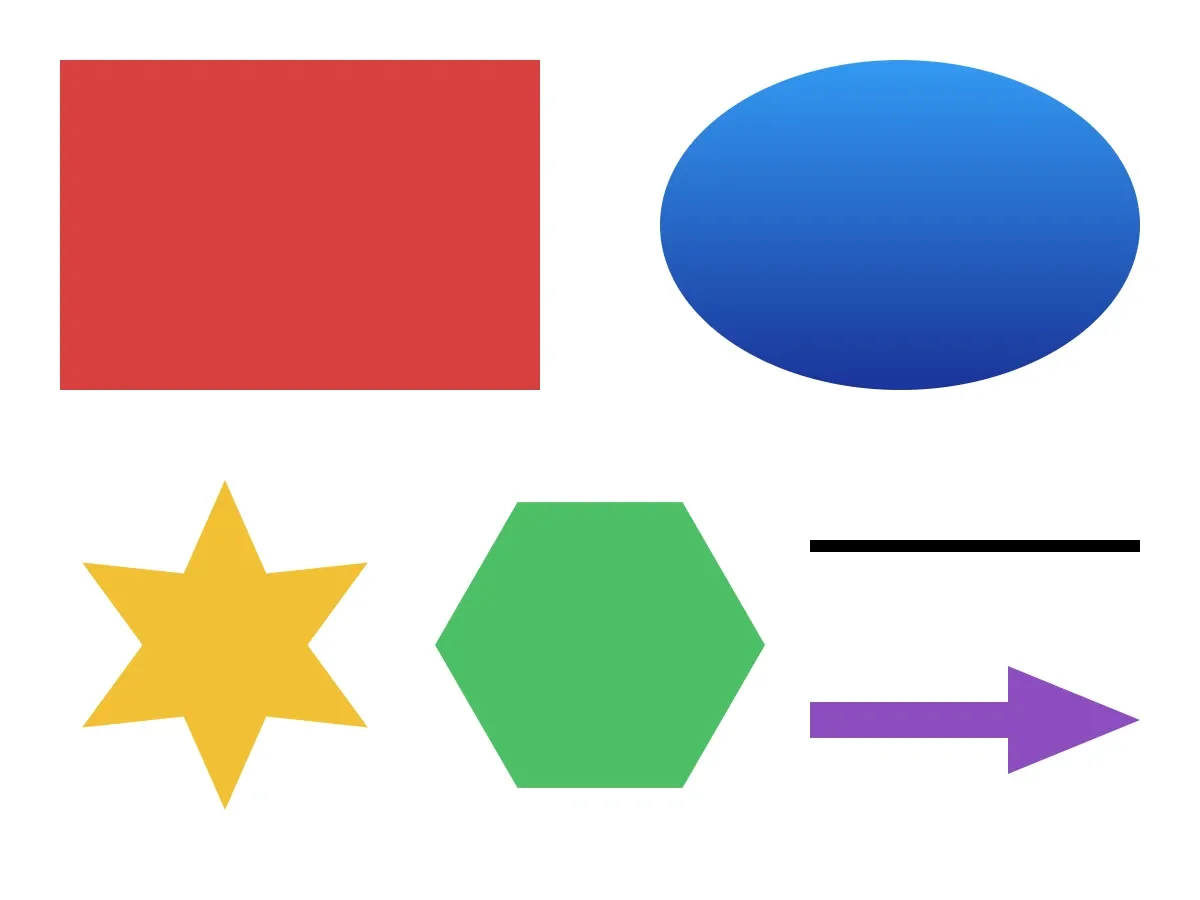
Understanding Shapes and Graphic Blocks#
What Are Shapes?#
Shapes in CE.SDK are geometric definitions — rectangles, ellipses, stars, and other forms — that exist as independent objects until attached to graphic blocks. Create shapes with createShape(_:) using a ShapeType like .rect or .ellipse. Shapes define the geometry and remain invisible until combined with fills.
Shapes and fills are independent. Swap a rectangle for a star while keeping the same fill, or replace a color fill with a gradient while keeping the same shape.
The Graphic Block System#
Graphic blocks are containers that bring shapes and fills together. A new graphic block starts empty — no shape, no fill, and therefore invisible. Apply both a shape and a fill to render it on the canvas.
A graphic block holds:
- Shape: The geometric form (rectangle, ellipse, star, polygon, line, or vector path)
- Fill: The color, gradient, image, or video content that makes the shape visible
- Effects: Optional filters, blur, or shadows applied to the filled shape
- Transform: Position, rotation, and scale properties
Available Shape Types#
CE.SDK provides six built-in shape types, exposed through the ShapeType enum:
- Rectangle (
.rect): Basic rectangular shapes with optional rounded corners - Ellipse (
.ellipse): Circular and oval shapes - Star (
.star): Star shapes with configurable points, radii, roundness and rotation - Polygon (
.polygon): Regular polygons with a configurable number of sides - Line (
.line): Straight lines spanning the block’s dimensions - Vector Path (
.vectorPath): Custom shapes built from SVG path data
Checking Shape Support#
Verify that a block type supports shapes before applying them. Not all block types can hold a shape — graphic blocks support shapes, while text blocks, scenes, and pages do not.
let probeBlock = try engine.block.create(.graphic)print("Graphic supports shape:", try engine.block.supportsShape(probeBlock)) // true
let text = try engine.block.create(.text)print("Text supports shape:", try engine.block.supportsShape(text)) // false
supportsShape(_:) returns true for graphic blocks and false for text blocks. Always check before working with dynamic or unknown block types.
Creating Basic Shapes#
Creating a Rectangle#
Create a graphic block, apply a rectangle shape, and add a color fill to make it visible:
let rectangleBlock = try engine.block.create(.graphic)let rectShape = try engine.block.createShape(.rect)try engine.block.setShape(rectangleBlock, shape: rectShape)
let colorFill = try engine.block.createFill(.color)try engine.block.setColor(  colorFill,  property: "fill/color/value",  color: .rgba(r: 0.85, g: 0.25, b: 0.25),)try engine.block.setFill(rectangleBlock, fill: colorFill)
try engine.block.setWidth(rectangleBlock, value: 320)try engine.block.setHeight(rectangleBlock, value: 220)try engine.block.setPositionX(rectangleBlock, value: 40)try engine.block.setPositionY(rectangleBlock, value: 40)try engine.block.appendChild(to: page, child: rectangleBlock)
The shape defines the geometry; the fill provides the visual content. Both must be set before the block renders.
Creating an Ellipse with a Gradient Fill#
Create an ellipse the same way — only the shape type changes. Pair it with a linear gradient fill for a smooth color transition:
let ellipseBlock = try engine.block.create(.graphic)let ellipseShape = try engine.block.createShape(.ellipse)try engine.block.setShape(ellipseBlock, shape: ellipseShape)
let gradientFill = try engine.block.createFill(.linearGradient)try engine.block.setGradientColorStops(  gradientFill,  property: "fill/gradient/colors",  colors: [    GradientColorStop(color: .rgba(r: 0.2, g: 0.6, b: 0.95), stop: 0),    GradientColorStop(color: .rgba(r: 0.1, g: 0.2, b: 0.6), stop: 1),  ],)try engine.block.setFill(ellipseBlock, fill: gradientFill)
The gradient stops are defined with GradientColorStop(color:stop:) values where stop runs from 0 to 1.
Creating a Star#
A star shape with a configurable number of points:
let starBlock = try engine.block.create(.graphic)let starShape = try engine.block.createShape(.star)try engine.block.setShape(starBlock, shape: starShape)
try engine.block.setInt(starShape, property: "shape/star/points", value: 6)try engine.block.setFloat(starShape, property: "shape/star/innerDiameter", value: 0.5)
let starFill = try engine.block.createFill(.color)try engine.block.setColor(  starFill,  property: "fill/color/value",  color: .rgba(r: 0.95, g: 0.75, b: 0.2),)try engine.block.setFill(starBlock, fill: starFill)
Creating a Polygon#
A regular polygon with a configurable number of sides:
let polygonBlock = try engine.block.create(.graphic)let polygonShape = try engine.block.createShape(.polygon)try engine.block.setShape(polygonBlock, shape: polygonShape)
try engine.block.setInt(polygonShape, property: "shape/polygon/sides", value: 6)
let polygonFill = try engine.block.createFill(.color)try engine.block.setColor(  polygonFill,  property: "fill/color/value",  color: .rgba(r: 0.3, g: 0.75, b: 0.4),)try engine.block.setFill(polygonBlock, fill: polygonFill)
Creating a Line#
Lines span their block’s dimensions. The block’s width and height control the line’s length and stroke thickness:
let lineBlock = try engine.block.create(.graphic)let lineShape = try engine.block.createShape(.line)try engine.block.setShape(lineBlock, shape: lineShape)
let lineFill = try engine.block.createFill(.color)try engine.block.setColor(  lineFill,  property: "fill/color/value",  color: .rgba(r: 0.2, g: 0.2, b: 0.2),)try engine.block.setFill(lineBlock, fill: lineFill)
Creating a Vector Path#
A custom shape built from SVG path data:
let arrowBlock = try engine.block.create(.graphic)let arrowShape = try engine.block.createShape(.vectorPath)try engine.block.setString(  arrowShape,  property: "shape/vector_path/path",  value: "M 0,40 L 60,40 L 60,20 L 100,50 L 60,80 L 60,60 L 0,60 Z",)try engine.block.setShape(arrowBlock, shape: arrowShape)
let arrowFill = try engine.block.createFill(.color)try engine.block.setColor(  arrowFill,  property: "fill/color/value",  color: .rgba(r: 0.55, g: 0.3, b: 0.75),)try engine.block.setFill(arrowBlock, fill: arrowFill)
Configuring Shape Properties#
Discovering Properties#
Each shape type exposes its own set of properties. Use findAllProperties(_:) to list everything you can set on a given shape:
let starProperties = try engine.block.findAllProperties(starShape)print("Star properties:", starProperties)The call returns a list like ["includedInExport", "name", "shape/star/cornerRadius", "shape/star/innerDiameter", "shape/star/points", "type", "uuid"], which you can then pass to the matching setter — setInt for integers, setFloat for floats, setString for strings.
Rectangle: Corner Radius#
Rectangles expose four independent corner radius properties — cornerRadiusTL, cornerRadiusTR, cornerRadiusBL, and cornerRadiusBR — measured in the scene’s design units:
try engine.block.setFloat(rectShape, property: "shape/rect/cornerRadiusTL", value: 20)try engine.block.setFloat(rectShape, property: "shape/rect/cornerRadiusTR", value: 20)try engine.block.setFloat(rectShape, property: "shape/rect/cornerRadiusBL", value: 20)try engine.block.setFloat(rectShape, property: "shape/rect/cornerRadiusBR", value: 20)Set all four to the same value for uniform rounded corners. Mix values to create asymmetric shapes like ticket stubs or chat bubbles.
Star: Points and Inner Diameter#
Star shapes are configured through two properties:
let starBlock = try engine.block.create(.graphic)let starShape = try engine.block.createShape(.star)try engine.block.setShape(starBlock, shape: starShape)
try engine.block.setInt(starShape, property: "shape/star/points", value: 6)try engine.block.setFloat(starShape, property: "shape/star/innerDiameter", value: 0.5)
let starFill = try engine.block.createFill(.color)try engine.block.setColor(  starFill,  property: "fill/color/value",  color: .rgba(r: 0.95, g: 0.75, b: 0.2),)try engine.block.setFill(starBlock, fill: starFill)
shape/star/points (integer, minimum 3) sets the number of star tips. shape/star/innerDiameter is the ratio of the inner radius to the outer radius, so smaller values give sharper tips. Setting it changes the inner radius and keeps the outer radius.
Star: Radii, Roundness and Rotation#
For more control, set the radii, the roundness and the rotation of a star directly:
// Radii are fractions of half the frame size. Roundness goes from 0 to 1.try engine.block.setFloat(starShape, property: "shape/star/outerRadius", value: 0.9)try engine.block.setFloat(starShape, property: "shape/star/innerRadius", value: 0.45)try engine.block.setFloat(starShape, property: "shape/star/outerRoundness", value: 0.3)try engine.block.setFloat(starShape, property: "shape/star/innerRoundness", value: 0.2)// Clockwise, in radians. At .pi / 6 (30°) a six-point star turns by half a tip.try engine.block.setFloat(starShape, property: "shape/star/rotation", value: .pi / 6)
// innerDiameter reports the ratio of the inner to the outer radiusprint(try engine.block.getFloat(starShape, property: "shape/star/innerDiameter")) // 0.5shape/star/outerRadiusis the radius of the tips, andshape/star/innerRadiusis the radius of the valleys between them. Both are fractions of half the frame size. The defaults are 1 and 0.5, so the tips touch the frame.shape/star/outerRoundnessandshape/star/innerRoundnessround the tips and the valleys. They go from 0 for sharp corners, the default, to 1.shape/star/rotationturns the star clockwise about the center of the frame, in radians. At 0, a tip points up.
Polygon: Number of Sides#
Polygons render as regular shapes with all sides equal. shape/polygon/sides (integer, minimum 3) selects between a triangle, square, pentagon, hexagon, and beyond:
let polygonBlock = try engine.block.create(.graphic)let polygonShape = try engine.block.createShape(.polygon)try engine.block.setShape(polygonBlock, shape: polygonShape)
try engine.block.setInt(polygonShape, property: "shape/polygon/sides", value: 6)
let polygonFill = try engine.block.createFill(.color)try engine.block.setColor(  polygonFill,  property: "fill/color/value",  color: .rgba(r: 0.3, g: 0.75, b: 0.4),)try engine.block.setFill(polygonBlock, fill: polygonFill)
Vector Paths: Custom SVG Paths#
Vector paths accept custom SVG path data through the shape/vector_path/path string property:
let arrowBlock = try engine.block.create(.graphic)let arrowShape = try engine.block.createShape(.vectorPath)try engine.block.setString(  arrowShape,  property: "shape/vector_path/path",  value: "M 0,40 L 60,40 L 60,20 L 100,50 L 60,80 L 60,60 L 0,60 Z",)try engine.block.setShape(arrowBlock, shape: arrowShape)
let arrowFill = try engine.block.createFill(.color)try engine.block.setColor(  arrowFill,  property: "fill/color/value",  color: .rgba(r: 0.55, g: 0.3, b: 0.75),)try engine.block.setFill(arrowBlock, fill: arrowFill)
Use standard SVG path commands:
M x,y— move to absolute coordinatesL x,y— line to absolute coordinatesC x1,y1 x2,y2 x,y— cubic Bezier curveQ x1,y1 x,y— quadratic Bezier curveA rx,ry rotation large-arc sweep x,y— arcZ— close path
Vector paths support a single continuous path. Coordinates are interpreted in the path’s own bounding box and scaled to the block’s dimensions. For complex multi-path graphics, use an image fill backed by an SVG file instead.
Combining Shapes with Fills#
Why Fills Matter#
Shapes define geometry but remain invisible without fills. Fills supply the visual content — solid colors, gradients, images, or video — that the engine renders inside the shape’s outline.
Applying an Image Fill#
Apply an image fill the same way as a color fill — only the fill type and properties change. Set the source URI on the fill before attaching it to the block:
let imageBlock = try engine.block.create(.graphic)let imageRect = try engine.block.createShape(.rect)try engine.block.setShape(imageBlock, shape: imageRect)
let imageFill = try engine.block.createFill(.image)try engine.block.setURL(  imageFill,  property: "fill/image/imageFileURI",  value: baseURL.appendingPathComponent("ly.img.image/images/sample_1.jpg"),)try engine.block.setFill(imageBlock, fill: imageFill)
For comprehensive fill system documentation, see Fills Overview.
Shape and Fill Independence#
Shapes and fills operate independently. Replace a shape while keeping the fill, or change the fill while keeping the shape:
let independentBlock = try engine.block.create(.graphic)let initialShape = try engine.block.createShape(.star)try engine.block.setShape(independentBlock, shape: initialShape)
let initialFill = try engine.block.createFill(.color)try engine.block.setColor(  initialFill,  property: "fill/color/value",  color: .rgba(r: 1.0, g: 0.0, b: 0.0),)try engine.block.setFill(independentBlock, fill: initialFill)
// Swap the shape, keep the same fill.let replacementShape = try engine.block.createShape(.rect)try engine.block.destroy(try engine.block.getShape(independentBlock))try engine.block.setShape(independentBlock, shape: replacementShape)
// Swap the fill, keep the rectangular shape.let replacementFill = try engine.block.createFill(.color)try engine.block.setColor(  replacementFill,  property: "fill/color/value",  color: .rgba(r: 0.0, g: 0.0, b: 1.0),)try engine.block.destroy(try engine.block.getFill(independentBlock))try engine.block.setFill(independentBlock, fill: replacementFill)
Destroying the old shape or fill before replacing it prevents memory leaks. The graphic block adopts the new value.
Managing Shapes#
Retrieving the Current Shape#
Read the shape attached to any graphic block with getShape(_:), then identify its type with getType(_:):
let currentShape = try engine.block.getShape(rectangleBlock)let currentShapeType = try engine.block.getType(currentShape)print("Current shape type:", currentShapeType)Use this pattern to inspect and modify existing shapes.
Replacing a Shape#
When swapping shapes, destroy the previous one to release its memory. Blocks automatically destroy their attached shape when the block itself is destroyed, but a manually replaced shape must be cleaned up:
let swapBlock = try engine.block.create(.graphic)let oldShape = try engine.block.createShape(.rect)try engine.block.setShape(swapBlock, shape: oldShape)
let newShape = try engine.block.createShape(.ellipse)try engine.block.destroy(try engine.block.getShape(swapBlock))try engine.block.setShape(swapBlock, shape: newShape)Troubleshooting#
Shape Not Visible#
If the shape doesn’t appear, confirm three conditions:
- A fill is attached. Read
getFill(_:); if it returns an invalidDesignBlockID, attach a fill withcreateFill(.color)andsetFill(_:fill:). - Width and height are non-zero. A block with zero dimensions renders nothing.
- The block is in the scene hierarchy. A graphic block that hasn’t been appended to a page (or other parent) does not render.
Cannot Apply Shape#
Calling setShape(_:shape:) on a block that doesn’t support shapes throws. Always gate the call with supportsShape(_:). Use a graphic block when the target block type doesn’t allow shapes.
Shape Properties Not Changing#
Match the setter method to the property’s value type — setInt for integers, setFloat for floats, and setString for strings. List available properties on the shape with findAllProperties(_:) and use exact property paths from the result. shape/star/points and shape/polygon/sides should be 3 or higher — the setter accepts smaller values without error, but a star or polygon needs at least 3 tips/sides to render as a recognizable shape.
API Reference#
| Method | Description | Returns |
|---|---|---|
block.create(.graphic) |
Create a new graphic block that can hold a shape | DesignBlockID |
block.createShape(_:) |
Create a new shape of the given ShapeType |
DesignBlockID |
block.supportsShape(_:) |
Check whether a block type supports shapes | Bool |
block.setShape(_:shape:) |
Attach a shape to a graphic block | Void |
block.getShape(_:) |
Get the shape currently attached to a graphic block | DesignBlockID |
block.getType(_:) |
Get the type identifier string for any block | String |
block.findAllProperties(_:) |
List every property available on the given block | [String] |
block.setInt(_:property:value:) |
Set an integer property (points, sides) |
Void |
block.setFloat(_:property:value:) |
Set a float property (corner radius, star radii) | Void |
block.getFloat(_:property:) |
Read a float property (star inner diameter) | Float |
block.setString(_:property:value:) |
Set a string property (vector path data) | Void |
block.createFill(_:) |
Create a fill of the given FillType |
DesignBlockID |
block.setFill(_:fill:) |
Attach a fill so the shape becomes visible | Void |
block.setColor(_:property:color:) |
Set a color property to a Color value |
Void |
block.setGradientColorStops(_:property:colors:) |
Set gradient stops for a gradient fill | Void |
block.destroy(_:) |
Destroy a shape, fill, or block and free its memory | Void |
Available shape types (ShapeType):
.rect— Rectangle.ellipse— Ellipse / circle.star— Star.polygon— Polygon.line— Line.vectorPath— Custom vector path
Next Steps#
- Edit Shapes — Modify shape properties and transforms after creation.
- Combine Shapes — Build complex shapes with boolean operations.
- Color Fills — Apply solid colors with RGB, CMYK, and Spot Colors.
- Gradient Fills — Create linear, radial, and conical color transitions.
- Image Fills — Use photos and raster content inside shapes.
- Fills Overview — Tour the full fill system.