Package repeatable editor behavior in a custom iOS plugin that can be composed with any existing editor configuration.
When to Use Plugins#
You usually do not need a plugin for the first version of an editor customization. Start by changing the editor configuration inline where the editor is created. Inline configuration is easier to read, debug, and adapt when the behavior belongs to one editor entry point.
If you want a complete editor surface, start from a Starter Kit.
Bring the Starter Kit into your project, then adapt its configuration inline
until the product behavior is clear. The Configuration guide covers how EditorConfiguration and EngineSettings wire up the editor as a whole.
Create a custom plugin when the same configuration needs to be reused across multiple editors, products, or entry points. A plugin is useful when callbacks, component changes, options, and setup should travel together as one scaffolded unit instead of being copied into every editor setup.
What the Example Does#
CustomFeaturePlugin is applied on top of an existing editor configuration and
adds a reusable feature layer:
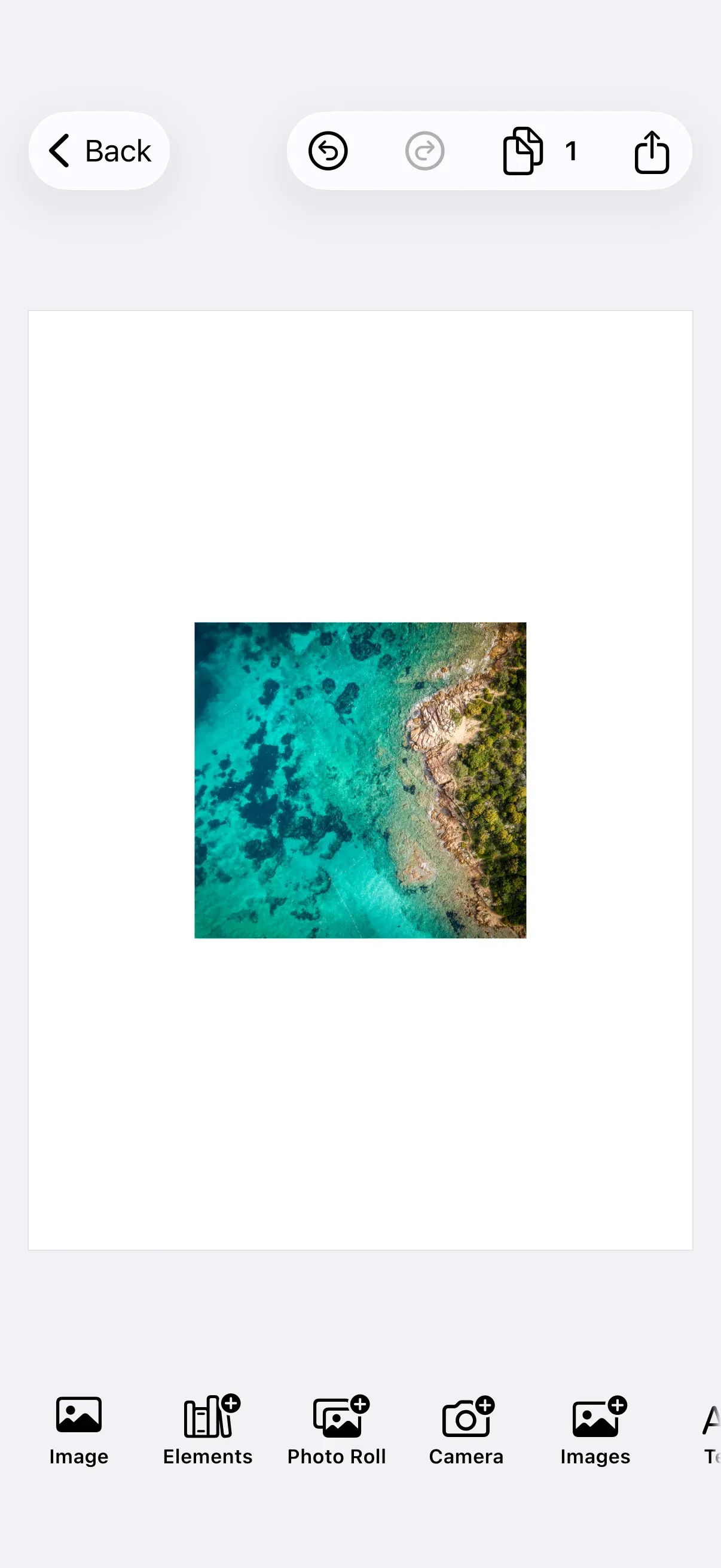
- It prepends one custom image button to the inherited dock.
- It hides the canvas menu completely.
- It leaves the navigation bar and inspector bar unchanged.
- It exposes
imageURLas a plugin option. - It extends
onCreateby running setup before and after the previous configuration. - It replaces
onExportso the plugin owns the export workflow.
Create the Plugin#
On iOS, a custom editor plugin is a class that inherits from
EditorConfiguration. Mark the class @MainActor and final, and define an
initializer that accepts the plugin’s options. Overrideable computed
properties (onCreate, onExport, dock, canvasMenu, etc.) configure
callbacks and editor components in one place.
Apply the Plugin#
Apply the plugin after the base editor configuration. The .imgly.configuration
result builder composes each configuration in order, with each layer’s
callbacks and component modifications chained onto the previous one.
Editor(settings) .imgly.configuration { DesignEditorConfiguration() CustomFeaturePlugin(options: .init(imageURL: Self.imageURL)) }The chain order matters: the base configuration is applied first, then
CustomFeaturePlugin extends or replaces selected parts of that
configuration. The example uses DesignEditorConfiguration as an arbitrary
base — the same plugin works with any configuration your app extends.
Custom Options#
Use a nested Options struct to expose the values that change between editor
entry points. Pass options through the plugin’s initializer and read them from
overridden callbacks and component configurations. This plugin exposes
imageURL — the image the dock button inserts.
struct Options { var imageURL: URL}Options are captured once at plugin construction. To vary options while the editor is open, back them with SwiftUI state on the parent view and construct a new plugin instance when the state changes.
Extend Startup#
onCreate owns scene creation or loading. This plugin extends onCreate by
calling the existing closure between its own pre- and post-setup work.
override var onCreate: OnCreate.Handler? { { _, existing in // Pre-setup work goes here. try await existing() // Post-setup work goes here. }}The handler signature (engine, existing) passes an existing closure that
delegates to the previously-registered onCreate handler. Calling
try await existing() runs the base configuration’s scene creation; skipping
the call replaces the base behavior entirely.
Override Export#
The plugin fully replaces export behavior by not calling existing(). That
makes the plugin responsible for the complete export workflow.
override var onExport: OnExport.Handler? { { engine, eventHandler, _ in let archive = try await engine.scene.saveToArchive() let url = try Self.writeArchiveToTempFile(archive) eventHandler.send(.shareFile(url)) }}This example saves the active scene as an archive and shares the resulting
.scene.zip file through the system share sheet.
private static func writeArchiveToTempFile(_ archive: Blob) throws -> URL { let url = FileManager.default.temporaryDirectory .appendingPathComponent("custom-feature-\(UUID().uuidString)") .appendingPathExtension("scene.zip") try archive.write(to: url, options: [.atomic]) return url}Use replacement when the plugin owns validation, upload, handoff, or storage.
To add behavior around the existing export instead, call try await existing()
before or after the plugin’s work.
Extend the Dock#
Components follow the same extension-or-replacement rule as callbacks. To add
a dock item without replacing the inherited list, use
Dock.Configuration’s modify builder and call items.addFirst { … } or
items.addLast { … } on the passed-in Dock.Modifier.
override var dock: Dock.Configuration? { let imageURL = options.imageURL return Dock.Configuration { builder in builder.modify { _, items in items.addFirst { Dock.Button( id: "com.example.dock.customFeature", action: { context in Task { try? await Self.addImageBlock(engine: context.engine, imageURL: imageURL) } }, label: { _ in Label { Text("Image") } icon: { Image(systemName: "photo") } }, ) } } }}modify runs against the dock items provided by the previous configuration,
so the plugin’s button is inserted alongside the base configuration’s default
buttons rather than replacing them. The button reads imageURL from the
plugin options and passes it to addImageBlock, which inserts the image on
the current page.
private static func addImageBlock(engine: Engine, imageURL: URL) async throws { guard let page = try engine.scene.getCurrentPage() else { return } let block = try engine.block.create(.graphic) let shape = try engine.block.createShape(.rect) let fill = try engine.block.createFill(.image) try engine.block.setShape(block, shape: shape) try engine.block.setURL(fill, property: "fill/image/imageFileURI", value: imageURL) try engine.block.setFill(block, fill: fill) try engine.block.setContentFillMode(block, mode: .cover) try engine.block.setWidthMode(block, mode: .percent) try engine.block.setWidth(block, value: 0.5) try engine.block.appendChild(to: page, child: block) if try engine.block.isAlignable([block]) { try engine.block.alignHorizontally([block], alignment: .center) try engine.block.alignVertically([block], alignment: .center) } try engine.block.setSelected(block, selected: true) try engine.editor.addUndoStep()}addImageBlock sets a rect shape, an image fill, and the
fill/image/imageFileURI property, then sizes the block to half the page
width with SizeMode.percent, centers it with the alignment APIs, and commits
an undo step so the insertion collapses into a single history entry.
Hide the Canvas Menu#
When the plugin should own a component region completely, replace it instead
of modifying the parent component. Return a CanvasMenu.Configuration whose
items closure produces no items to replace the inherited canvas menu with
an empty one — a nil return means “not configured” and leaves the previous
layer’s menu in place.
override var canvasMenu: CanvasMenu.Configuration? { CanvasMenu.Configuration { builder in builder.items { _ in } }}This plugin does not touch the navigation bar or inspector bar, so both continue to come from the base configuration.
API Reference#
Methods#
| API | Purpose |
|---|---|
EditorConfiguration |
Base class for reusable iOS editor configuration plugins. |
EditorConfiguration.onCreate |
Creates or loads the scene during editor startup. |
EditorConfiguration.onExport |
Handles export requests from the editor UI. |
EditorConfiguration.dock |
Configures or extends the dock component. |
EditorConfiguration.canvasMenu |
Configures, replaces, or removes the canvas menu. |
OnCreate.Handler |
Callback signature (engine, existing) that receives an existing closure for chaining. |
OnExport.Handler |
Callback signature (engine, eventHandler, existing) for export handling. |
Dock.Configuration |
Configures the dock, including modify blocks that adjust inherited items. |
CanvasMenu.Configuration |
Configures the canvas menu component. |
Dock.Modifier.addFirst(_:) |
Prepends items to the inherited dock list. |
Dock.Modifier.addLast(_:) |
Appends items to the inherited dock list. |
Dock.Button(id:action:label:) |
Adds a custom button to the dock. |
engine.scene.saveToArchive() |
Saves the current scene and its referenced assets into an archive. |
engine.block.create(_:) |
Creates the graphic block used for the custom image button. |
engine.block.createFill(_:) |
Creates the image fill for the inserted graphic block. |
engine.block.setWidthMode(_:mode:) |
Sizes the inserted block relative to its parent page. |
engine.block.setContentFillMode(_:mode:) |
Controls how the image fills the block. |
engine.block.alignHorizontally(_:alignment:) |
Centers the inserted block horizontally on the page. |
engine.block.alignVertically(_:alignment:) |
Centers the inserted block vertically on the page. |
Troubleshooting#
| Problem | Cause | Fix |
|---|---|---|
| The editor opens without the expected scene | The plugin overrode onCreate and did not call existing() |
Call try await existing() inside the onCreate handler, or create/load a scene inside the plugin. |
| The plugin’s dock button replaces the default buttons | The plugin set items on the dock instead of using modify |
Use Dock.Configuration { $0.modify { _, items in items.addFirst { … } } } to extend the inherited list. |
| The canvas menu still appears | The canvasMenu override returned nil (which means “not configured”) instead of an empty configuration, or another later layer configures canvasMenu again |
Return CanvasMenu.Configuration { $0.items { _ in } } to replace the inherited menu with an empty one, and apply CustomFeaturePlugin after any layer that reconfigures the canvas menu. |
| Export behavior runs twice | The plugin calls existing() and also performs a full export |
Choose either extension or replacement for onExport. |
Next Steps#
- Design Editor Starter Kit — Start from a complete design editor surface.
- Rearrange Buttons — Reorder editor UI components.