This guide shows how to let users add photos, videos, or audio from their device into your CE.SDK app, handle uploads with the onUpload callback, and optionally keep them for future sessions.
What You’ll Learn#
- How to register an asset source so that it has an + Add button
- How to use the
onUploadhandler to process and edit uploaded assets - How to persist uploads so assets reappear the next time the app launches
When to Use This#
- When you want users to add media from the system photo library or Files app.
- When you want uploads to be saved across sessions.
Register an Asset Source to Accept Uploads#
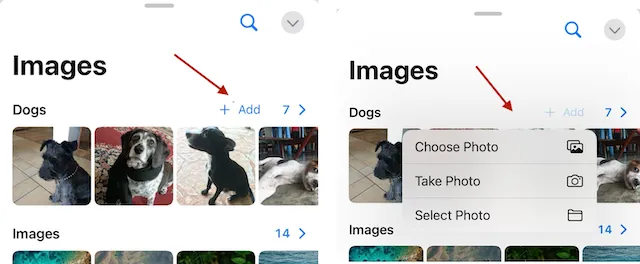
When the user displays the Asset Panel, some sources have a + Add button while others don’t. Tapping that button shows standard system options:
- “Choose Photo”, pick a photo from their photo library
- “Take Photo”, launch the system camera to take a photo
- “Select Photo”, open the files app to select an asset
When registering an Asset Source, either local or remote, you can indicate that users are allowed to add to the source by using the .imageUpload initializer.
.imgly.assetLibrary { // Extend the default asset library DefaultAssetLibrary(tabs: DefaultAssetLibrary.Tab.allCases) .images { // Add your directory asset source as a new tab AssetLibrarySource.imageUpload( .title("Dogs"), source: .init(id: "dogs-images-directory") ) // Include the default images tab DefaultAssetLibrary.images }}In the preceding code, an existing Asset Source with the id of “dogs-images-directory” gets added to the Images tab of a demo editor. To add the same source but restrict uploads, use the .image initializer of AssetLibrarySource.
Use the Photo Roll Asset Source#
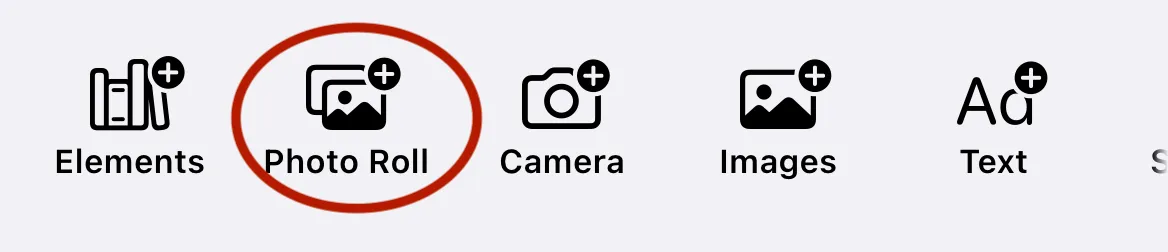
Along with your custom sources, CE.SDK includes a built-in Photo Roll tab. The Photo Roll tab:
- Opens the system picker
- Adds selected items to a special “Photo Roll” source in the Asset Panel.
You don’t need to register this source yourself.
The onUpload Event#
No matter which entry point the user selects (camera, Files, or Photo Roll), CE.SDK calls the imgly.onUpload handler with an asset definition before adding it to the source.
The callback passes three parameters:
enginea reference to the CE.SDKsourceIDan identifier for what Asset Source initiated the captureassetanAssetDefinitionfor the asset
If your app doesn’t have any code in the .onUpload callback, the default behavior is:
- The
assetgets added to the Asset Source with thesourceID. - The
assetalso gets added as a block to the main canvas of the app.
When the app restarts, since the asset is only part of the Asset Source at runtime:
- It no longer appears as part of the source.
- The underlying asset file may still be in the app’s temporary storage.
JSON for an example asset definition could have this format:
id: "string",groups: nil,meta: [ "blockType": "//ly.img.ubq/graphic", "width": "3024", "thumbUri": "file:///long/file/url/to/the/Caches/directory/filename.jpg", "height": "4032", "fillType": "//ly.img.ubq/fill/image", "kind": "image", "uri": "file:///long/file/url/to/the/Caches/directory/filename.jpg"],payload: nillabels: niltags: nilThe sample above is a definition for an image. Your app can modify the definition before passing it along. Some of the modifications might be:
- Adding values for the
labelsandtagsfields, either automatically or from an extra form dialog. - Generating an actual
thumbnailUriat a thumbnail size instead of using the full size image. - Adding the asset to the local or remote source, so that it will persist in future app launches.
Here is a minimal example that adds values for labels and tags.
.imgly.onUpload { engine, sourceID, asset in var updated = asset // Add metadata to make assets searchable later updated.labels = ["en" : "User Upload"] if sourceID == "dogs-upload" { updated.tags = ["en" : ["custom", "dog"]] } else {} updated.tags = ["en" : ["custom", "session"]] } return updated}Use the sourceID to determine how to process an asset so that it aligns with the other assets in that source.
After any modifications, the .onUpload handler should finish by returning an AssetDefinition, either the original one or a modified one.
Persisting Uploads Across App Launches#
To make uploads reappear next time the user opens the app, you need to:
- Copy the file into persistent local storage or upload it to your server.
- Store the definition metadata alongside the file, in UserDefaults, CoreData, or your backend server.
- Re-register the asset with the asset source on startup.
To keep your app performant, a good practice is to make any saves or uploads as a background task and make minimal changes to the AssetDefinition returned from .onUpload.
Troubleshooting#
❌ App crashes when using “Take Photo”
- Add
NSCameraUsageDescriptionto Info.plist. Without it, iOS will terminate your app.
❌ Assets disappear after relaunch
- Save files to your app’s Documents or Library directory,or your backend and re-register them at startup. Assets in Caches are temporary.
❌ File picker shows unsupported types
- Validate
asset.meta["kind"]in.onUpload.Reject or filter out anything other than image, video, or audio.
❌ Large or iCloud-backed photos load slowly
- Some files may download from iCloud. Show a loading indicator, and consider downscaling or compressing before registering.
❌ Images appear rotated
- Normalize EXIF orientation in
.onUploadbefore generating thumbnails or inserting blocks.
❌ Duplicate uploads clutter the panel
- Hash the file (e.g., MD5 or SHA256) and check against existing asset definitions before registering.
- Ensure that you are generating unique
idvalues in theAssetDefinition
Next Steps#
Now that you can let the user add to the asset sources you may want to explore these topics:
- Import media from remote source