Dual Camera Mode lets your users record with both the front and back cameras simultaneously. This is ideal for vlogging, interviews, and live reactions where you want to capture the subject and the user’s perspective at the same time. The result is one or more recordings containing synchronized tracks from each camera that you can bring into the editor and arrange in layouts like split-screen or picture-in-picture.
What You’ll Learn#
- How Dual Camera Mode differs from Standard and Reaction modes.
- How to launch the CE.SDK camera in Dual Camera mode with a layout.
- How to record with both cameras at once.
- How to retrieve the dual-camera recordings and access their video URLs.
When to Use It#
Choose Dual Camera when you want to capture two perspectives at once:
- Interviews, conversations, or podcasts where both participants should be visible.
- Reactions during events (e.g., filming a concert while capturing the audience’s response).
- Vlogging and storytelling that show both the subject and the narrator.
- Any scenario where capturing both front and back cameras adds context.
Not appropriate when:
- You only need a single selfie or back-camera video → use Standard mode
- You want to play back a base video while recording → use Reaction mode
- You expect an auto-composited video (e.g., side-by-side output) — Dual Camera returns two video assets; you assemble them in the editor.
Understanding Dual Camera Mode#
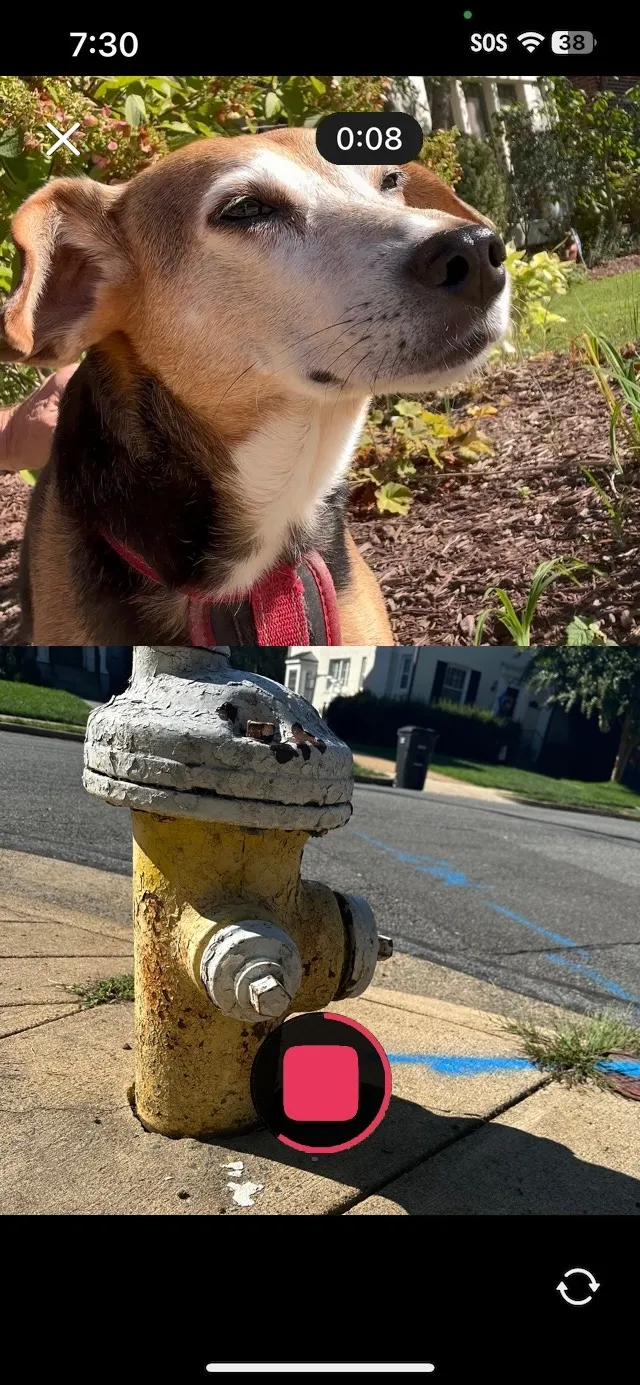
Initialize the IMGLYCamera in Dual Camera mode with:
Camera(engineSettings, mode: .dualCamera(.vertical)) { result in // Handle results here}.vertical(or.horizontal) — defines how the preview windows are arranged during capture.- The recording
resultreturns synchronized clips for both cameras. - When the recording finishes, you receive a .recording([Recording]) result containing both the front and back camera recordings.
Here is a minimal code example that extracts the URL for each recording:
Camera(engineSettings, mode: .dualCamera(.vertical)) { result in  switch result {    case let .success(.recording(recordings)):      let urls = recordings.flatMap { $0.videos.map(\.url) }      print("Recorded videos:", urls)
    case let .failure(error):      print("Error:", error.localizedDescription)
    default:      break  }}
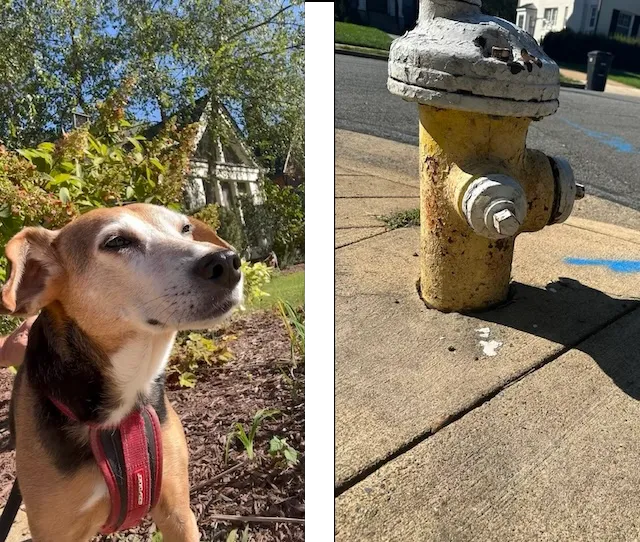
You can learn more about the Recording struct in the Access Recordings guide. Each returned Recording corresponds to a camera feed. The videos property contains the captured media tracks and their URLs.
The video previews are cropped to fit the screen, but the Recording struct contains full-screen data. All returned videos are time-synced so that they align correctly in the editor.
Troubleshooting#
❌ Only one video returned
Be sure you’re using a device that supports simultaneous front-and-back capture. Some older iPhones only support one active camera.
❌ Videos out of sync
All returned recordings are time-aligned. If playback appears unsynced, check how you’re handling the array of recordings — don’t manually offset them.
❌ Performance issues
Capturing from two cameras at once can be demanding. Test on a range of devices and consider limiting resolution for smoother performance.
Next Steps#
Dual Camera Mode is a powerful way to capture two perspectives at once. By recording both front and back cameras together, your users can create richer, more engaging stories. Continue exploring with these guides:
- Learn how to integrate the IMGLY Camera into your project.
- Configure the UI and other properties of the camera.
- Learn how to retrieve and manage recordings.