Serve images from a custom asset source and keep the asset library in step with the source’s contents. When the source’s backing store changes—through a custom CMS, cloud storage, or upload service—call assetSourceContentsChanged(sourceID:) and the open library re-queries the source and updates in place.
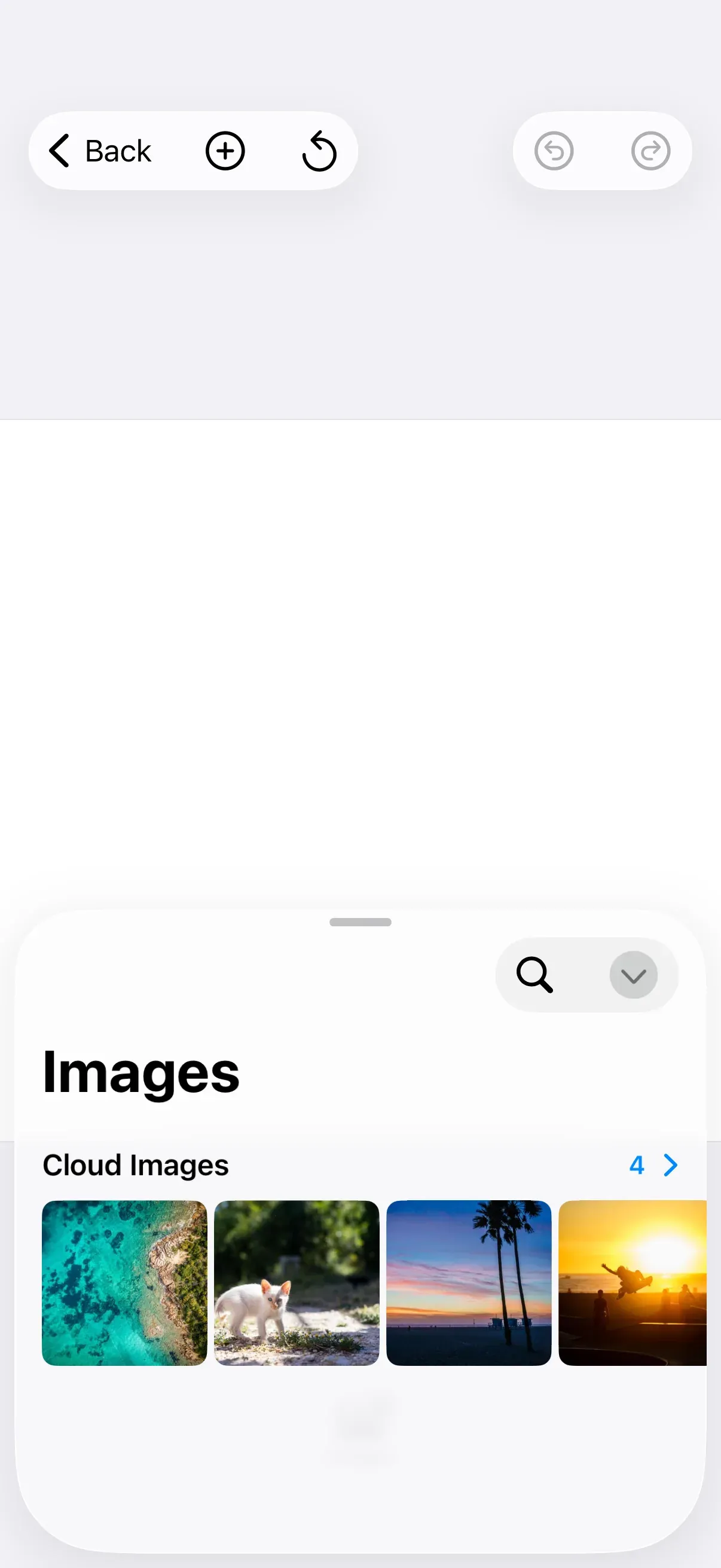
This guide registers a custom asset source backed by an external store, surfaces it in the asset library, and refreshes the library live when the store changes. It builds on the asset source, asset library, and dock setup introduced in the Asset Library Basics guide, on top of the editor configuration covered by the Configuration guide.
The example wraps the editor in GuideEditorConfiguration, a small helper class the iOS guides repository ships as a minimal baseline. Substitute your own editor configuration class—the onCreate, navigationBar, assetLibrary, and dock builders are available on every configuration, so the rest of the calls stay the same.
When to Use Asset Refresh#
CE.SDK refreshes the asset library on its own for changes the engine makes. You only call assetSourceContentsChanged(sourceID:) when a source’s contents change outside the engine’s knowledge.
Automatic refresh (no action needed):
- Uploads through the built-in upload flow—
engine.asset.addAsset(to:asset:)reports the change internally, so the library shows new uploads without any extra call. - Additions from the Photo Roll asset source.
- Any add or remove made through the engine’s asset APIs (
addAsset,removeAsset).
Manual refresh required—call assetSourceContentsChanged(sourceID:) after:
- A backend or CMS updates the content a custom source serves.
- A sync with external cloud storage adds, replaces, or removes files.
- A background task pulls new assets into the store behind a custom source.
- Real-time collaboration, when another client changes a shared source’s contents.
Registering a Custom Asset Source#
A source that serves content from an external system implements the AssetSource protocol. Its findAssets(queryData:) method reads the store’s current contents on each call, so every query returns up-to-date results. Here the store is a small actor standing in for a backend; in your app it would talk to a server.
/// One record in a simulated external store (a CMS, cloud storage, or upload/// service).struct CloudImage {  let id: String  let fileName: String  let name: String  let width: String  let height: String}
/// The external store, standing in for a backend whose contents change while/// the app runs. Modeled as an `actor` because the asset source reads it from a/// background task while the UI mutates it from the main actor. Here it simply/// publishes more of a fixed catalog on demand; a real store would talk to a/// server.actor CloudImageStore {  private let catalog: [CloudImage]  private var publishedCount = 1
  init(catalog: [CloudImage]) {    self.catalog = catalog  }
  /// The images the store currently serves.  var publishedImages: [CloudImage] {    Array(catalog.prefix(publishedCount))  }
  /// Publishes one more image from the catalog. Returns `true` if the published  /// set actually changed.  func publishNextImage() -> Bool {    guard publishedCount < catalog.count else { return false }    publishedCount += 1    return true  }
  /// Resets the store to its initial single image. Returns `true` if anything  /// changed.  func reset() -> Bool {    guard publishedCount > 1 else { return false }    publishedCount = 1    return true  }}
/// A custom asset source that serves the store's images. The asset library/// calls `findAssets` whenever it queries the source, so it always reflects the/// store's current contents.final class CloudImageAssetSource: NSObject, AssetSource {  static let sourceID = "cloud-images"
  private let store: CloudImageStore  private let baseURL: String
  init(store: CloudImageStore, baseURL: String) {    self.store = store    self.baseURL = baseURL    super.init()  }
  var id: String {    Self.sourceID  }
  var supportedMIMETypes: [String]? {    ["image/jpeg"]  }
  var credits: AssetCredits? {    nil  }
  var license: AssetLicense? {    nil  }
  func findAssets(queryData: AssetQueryData) async throws -> AssetQueryResult {    let needle = queryData.query?.lowercased()    let matches = await store.publishedImages.filter { image in      guard let needle, !needle.isEmpty else { return true }      return image.name.lowercased().contains(needle)    }
    let assets = matches.map { image in      AssetResult(        id: image.id,        label: image.name,        meta: [          "uri": "\(baseURL)/ly.img.image/images/\(image.fileName)",          "thumbUri": "\(baseURL)/ly.img.image/thumbnails/\(image.fileName)",          // `fillType` makes the inserted block an image fill (the engine would          // otherwise default to a solid color); `width`/`height` set the aspect          // ratio before the image finishes loading.          "fillType": "//ly.img.ubq/fill/image",          "width": image.width,          "height": image.height,        ],        context: .init(sourceID: id),      )    }
    return AssetQueryResult(assets: assets, currentPage: queryData.page, total: assets.count)  }}
Register the source on the engine with engine.asset.addSource(_:). Do this in the configuration’s onCreate callback, where the engine is available before the editor presents its UI. The source’s image URLs resolve against the engine’s basePath setting—initialized from EngineSettings(baseURL:)—so they follow whatever asset host you configure. For more on asset sources and the asset metadata schema, see Asset Concepts.
// Wrap the store in an asset source and register it. The source's// image URLs resolve against the engine's `basePath`// setting—initialized from `EngineSettings(baseURL:)`.let source = CloudImageAssetSource( store: store, baseURL: try engine.editor.getSettingString("basePath"),)try engine.asset.addSource(source)Refreshing the Library on Source Changes#
When the store changes, call engine.asset.assetSourceContentsChanged(sourceID:). This emits the source’s onAssetSourceUpdated event, which the editor observes and turns into a refresh of any open library showing that source—the library re-queries findAssets and updates in place, no reopen required.
The example wires two navigation-bar buttons that mutate the store and fire that event. Because the library opens at a medium detent (see below), the navigation bar stays tappable while the library is visible, so you can watch it update live.
builder.navigationBar { navigationBar in navigationBar.modify { _, items in items.addLast(placement: .topBarLeading) { // Publishes another image to the store, then tells the engine // the source changed. The editor forwards that to the open // library, which re-queries and shows the new image right away. NavigationBar.Button(id: "ly.img.guide.navigationBar.button.addCloudImage") { context in let engine = context.engine Task { guard await store.publishNextImage(), let engine else { return } try? engine.asset.assetSourceContentsChanged(sourceID: CloudImageAssetSource.sourceID) } } label: { _ in Label("Add Image", systemImage: "plus.circle") } // Resets the store to its single starting image and refreshes. NavigationBar.Button(id: "ly.img.guide.navigationBar.button.resetCloudImages") { context in let engine = context.engine Task { guard await store.reset(), let engine else { return } try? engine.asset.assetSourceContentsChanged(sourceID: CloudImageAssetSource.sourceID) } } label: { _ in Label("Reset", systemImage: "arrow.counterclockwise") } } }}To run your own logic when a source changes—updating a badge, refreshing a view you built yourself—observe engine.asset.onAssetSourceUpdated directly; it emits the changed source’s ID. The editor already observes it to refresh the built-in library.
Displaying the Source in the Library#
Surface the source as a library category so users can browse it, and add a dock button to open it. Using AssetLibraryCategory.ID.images as the category ID ties it to the images dock button.
builder.assetLibrary { assetLibrary in assetLibrary.categories([ .init( id: AssetLibraryCategory.ID.images, title: .imgly.localized("ly_img_editor_asset_library_title_images"), icon: Image(systemName: "photo"), sections: [ .image(id: "cloud-images", title: "Cloud Images", source: .init(id: CloudImageAssetSource.sourceID)), ], ), ])}Open the images library at a medium detent by passing SheetStyle.addAsset(detent: .imgly.medium) to the sheet the dock button presents. A medium detent leaves the top of the editor—including the navigation bar—visible and interactive, so the buttons above can drive the library while it is open.
builder.dock { dock in dock.items { _ in // Open the images library at a medium detent so the navigation // bar stays visible and tappable while the library is open. Dock.Buttons.imagesLibrary(action: { context in context.eventHandler.send(.openSheet(type: .libraryAdd(style: .addAsset(detent: .imgly.medium)) { context.assetLibrary.imagesTab })) }) }}Troubleshooting#
Assets not appearing:
Verify the source ID in the library section matches the ID you register with addSource(_:), and that findAssets(queryData:) returns results for the query. Source IDs are case-sensitive.
Library not refreshing after a change:
Confirm you call assetSourceContentsChanged(sourceID:) with the same source ID after mutating the store, and that findAssets(queryData:) reflects the change. The refresh only reaches libraries that are currently showing that source.
Thumbnails not loading:
Confirm thumbUri points at a reachable image. Here it resolves against the engine’s basePath; the built-in ly.img.image source ships thumbnails under ly.img.image/thumbnails/.
API Reference#
Methods#
| Method | Description |
|---|---|
engine.asset.addSource(_:) |
Register a custom AssetSource with the engine. |
AssetSource.findAssets(queryData:) |
Protocol method returning the source’s current assets for a query; the library calls it each time it queries the source. |
engine.asset.assetSourceContentsChanged(sourceID:) |
Signal that a source’s contents changed; refreshes any open library showing that source and emits onAssetSourceUpdated. |
engine.asset.onAssetSourceUpdated |
An AsyncStream that emits a source ID whenever that source’s contents change. |
assetLibrary.categories([…]) |
Define the library’s categories (replaces the editor defaults). |
AssetLibrarySection.image(id:title:source:) |
A titled image section backed by an asset source ID. |
NavigationBar.Button(id:action:label:) |
A custom navigation-bar button; action receives the editor context and its engine. |
Dock.Buttons.imagesLibrary(action:) |
Predefined dock button that opens the images tab of the asset library. |
SheetStyle.addAsset(detent:detents:) |
Sheet style for the asset library; set detent to .imgly.medium to keep the navigation bar interactive. |
Next Steps#
- Asset Library Basics — Register sources, configure categories, and add library dock buttons.
- Asset Concepts — Create and configure engine-level asset sources.
- Import Remote Assets — Load asset definitions from remote JSON manifests hosted on a CDN or server.