Learn how to programmatically and interactively rotate videos in your iOS app using CE.SDK. This guide walks you through rotating video blocks in an editor, using Swift to rotate, and giving your users intuitive controls and ensuring predictable editing behavior.
What you’ll learn#
- How to rotate a video as a user using the handles
- Rotate a video block by a specific angle
- How to lock video rotation
- How to rotate multiple images as a group
Rotating a Video Using the UI#
By default selecting a block will show handles for resizing. You can freeform rotate a block using a standard two-finger rotation gesture. To give the user the rotation handles, set the editor configuration setting.
try engine.editor.setSettingBool("controlGizmo/showRotateHandles", value: true)When working with an editor, it’s best to modify settings in the imgly.onCreate{} callback. When working with the engine directly, they can be set at any time.
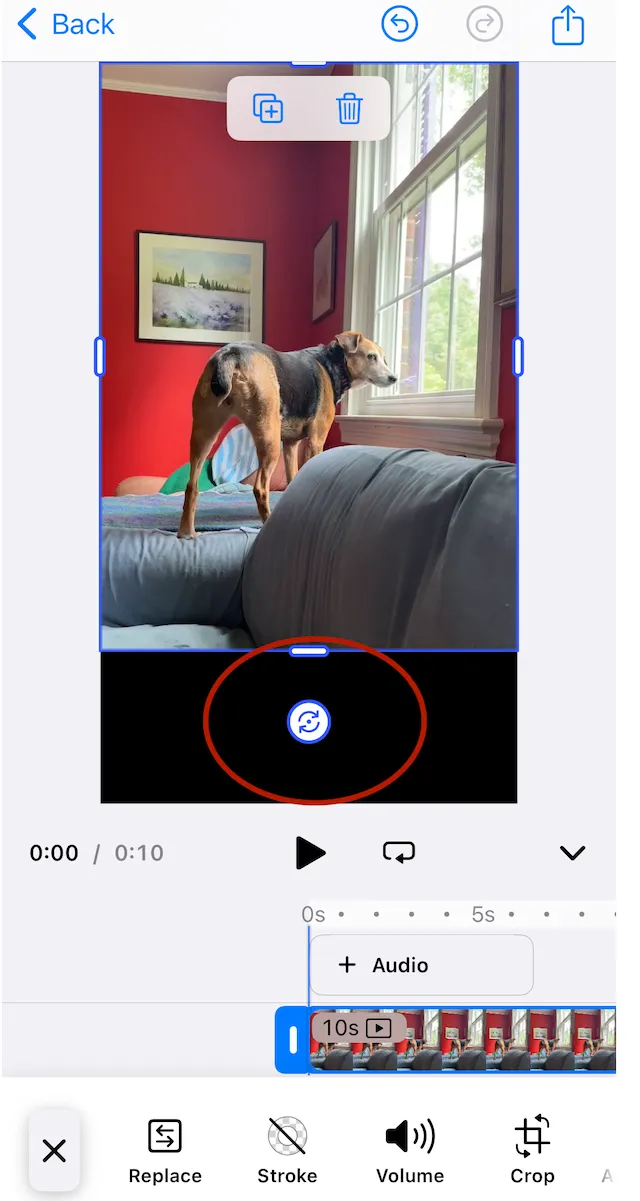
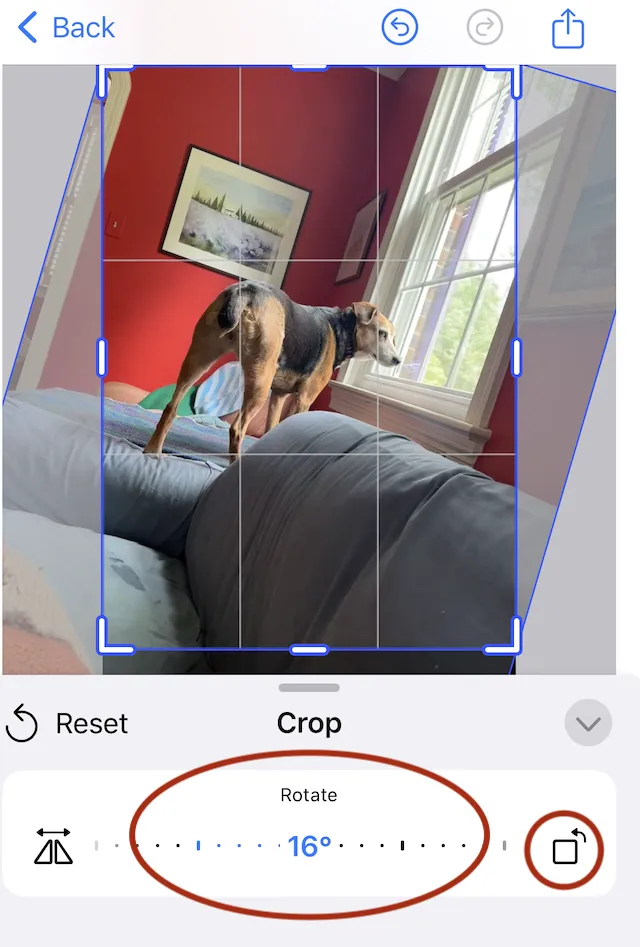
Use the Crop tab to rotate a video up to 45 degrees using the sliding control and in 90 degree increments using the rotation button.
Rotating a view using code#
You can rotate a video block using the setRotation function. It takes the id of the block and a rotation amount in radians. Positive rotation values rotate counterclockwise.
try engine.block.setRotation(videoBlock, radians: .pi / 4)If you need to convert between radians and degrees, multiply the number in degrees by pi and divide by 180.
let angleInRadians: Double = angleInDegrees * Double.pi / 180
let angleInDegrees: Double = angleInRadians * 180 / Double.pi
You can discover the current rotation of a block using the getRotation function.
let rotationOfClip= try engine.block.getRotation(videoBlock)Rotating as a group#
To rotate multiple elements together, first add them to a group and then rotate the group.
let groupId = try engine.block.group([videoBlock, textBlock])engine.block.setRotation(groupId, radians: pi / 2)Locking rotation#
You can remove the rotation handle from the UI by changing the setting for the engine. This will affect all blocks.
try engine.editor.setSettingBool("controlGizmo/showRotateHandles", value: false)Though the handle is gone, the user can still use the two finger rotation gesture on a touch device. You can disable that gesture with the following setting.
try engine.editor.setSettingBool("touch/rotateAction", value: false)When you want to lock only certain blocks, you can toggle the transform lock property. This will apply to all transformations for the block.
try engine.block.setTransformLocked(videoBlock, locked: true)When working with templates, you can lock a block from rotating by setting its scope. Remember that the global layer has to defer to the blocks using setGlobalScope.
try engine.block.setScopeEnabled(imageBlock, key: "layer/rotate", enabled: false)Troubleshooting#
Troubleshooting
| Issue | Solution |
|---|---|
| Video appears offset after rotation | Make sure the pivot point is centered (default is center). |
| Rotation not applying | Confirm that the video block is inserted and rendered before applying rotation. |
| Rotation handle not visible | Check that interactive UI controls are enabled in the settings. |