Transforms control where a video block sits in the composition and how its content is framed. In CE.SDK, there are two families of transforms:
- Block-level transforms change the block container (position, rotation, size, flip).
- Content-level transforms (the
crop*family) control how the video fills that container (pan, zoom, and content rotation).
This overview explains the mental model and points you to focused sub‑guides for implementation details.
What you’ll learn#
- The difference between block and content (crop) transforms.
- Coordinate systems, anchor points, and units used in transforms.
- Essential APIs & UI toggles for transform workflows.
- How to restrict or lock transformations in templates.
- Troubleshooting common issues.
Understanding Transform Layers#
Each block in a scene has a transform that determines within the page:
- The block’s position
- Its rotation
- Its scale
Changing these values moves or rotates the block relative to its parent.
When the block has a video fill, a second, content-level transform applies to the media inside the block. Use it to crop, pan, and zoom without changing the block’s geometry.
In CE.SDK, all properties and methods beginning with crop belong to the content-level transform, such as:
setCropScaleX,setCropScaleYsetCropRotationsetCropTranslationX,setCropTranslationY
These control how the video fills the block’s frame rather than altering the block’s geometry itself.
Use crop methods for these actions within a clip:
- Reframing
- Punch-in
Use block transforms to apply actions within a scene:
- Moving
- Rotating
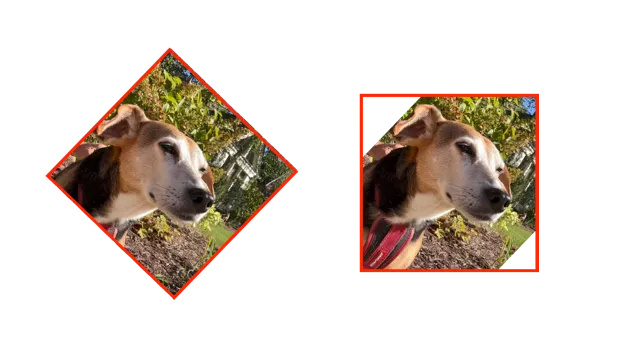
The preceding diagram compares block-level and content-level transforms:
- The left frame shows a block rotated.
- The right frame shows crop rotation of the video within its block frame.
Coordinate Systems and Units#
- Position: absolute or percentage modes.
- Rotation: radians (positive = counterclockwise).
- Scale: uniform; optional anchor in normalized 0–1 space (0=left/top, 0.5=center, 1=right/bottom).
- Crop translation/scale: normalized so pan/zoom behave consistently across resolutions.
- UI vs API spaces: gizmo movements operate in canvas/screen space, while API values are normalized or scene‑space; always verify the mode before mixing.
Built-in Transform UI#
The editor provides optional gizmos and gestures for direct manipulation:
- Handles:
controlGizmo/showRotateHandles,/showResizeHandles,/showMoveHandles,/showScaleHandles,/showCropHandles. - Gestures:
touch/rotateAction,touch/pinchAction. - Limits:
controlGizmo/blockScaleDownLimitprevents accidental shrinking to zero size.
These can be read or set using:
try engine.editor.setSettingBool(key: "controlGizmo/showRotateHandles", value: true)try engine.editor.setSettingFloat(key: "controlGizmo/blockScaleDownLimit", value: 0.4)Defaults: If not configured, the editor exposes a safe, minimal set of handles; crop handles only appear when the selected block is croppable.
Transform API Map (Quick Reference)#
| Action | Methods |
|---|---|
| Move | setPositionX, setPositionY, setPositionXMode, setPositionYmode |
| Rotate | setRotation |
| Flip | setFlipHorizontal, setFlipVertical |
| Scale | scale |
| Resize | setWidth, setHeight, setWidthMode, setHeightMode |
| Crop | setCropRotation, setCropScaleRatio, setCropTranslationX/Y, adjustCropToFillFrame, resetCrop |
See the dedicated sub‑guides for full examples and edge cases.
Animated Transforms#
All transform properties in CE.SDK can be animated over time in video scenes. You can keyframe changes to create:
-
Movement
-
Zooms
-
Transitions
-
Keyframes live on the timeline associated with each block.
-
Interpolation curves (easing) control how values change between keys.
-
Programmatic animation uses standard transform methods but attached to timeline events.
-
Crop UI gating: Crop handles appear only when a selected block is croppable (e.g., a
.videofill). -
Performance: Transforms are GPU‑accelerated at playback; avoid heavy, stacked effects ahead of transform‑driven motion.
The Animation guide shows how to add keyframes, adjust easing, and preview animations.
Permissions and Locking#
You can restrict or disable transforms in templates to prevent accidental edits:
try engine.block.setScopeEnabled(blockID, key: "layer/rotate", enabled: false)try engine.block.setTransformLocked(blockID, locked: true)These controls affect both UI gestures and API calls.
Troubleshooting#
| Issue | Possible Cause |
|---|---|
| Rotation appears wrong | Check radians vs degrees |
| Block not responding | Transform locked or scope disabled |
| Crop handles missing | Ensure block fill is croppable (e.g., .video) |
| Unexpected scaling | Verify anchor and percentage mode |
| Transforming group has no effect | Ensure blocks are grouped correctly |
Next Steps#
Learn specific transformation APIs:
Related: