Add text and image watermarks to video content for copyright protection, branding, and content attribution using CE.SDK’s time-aware block system.
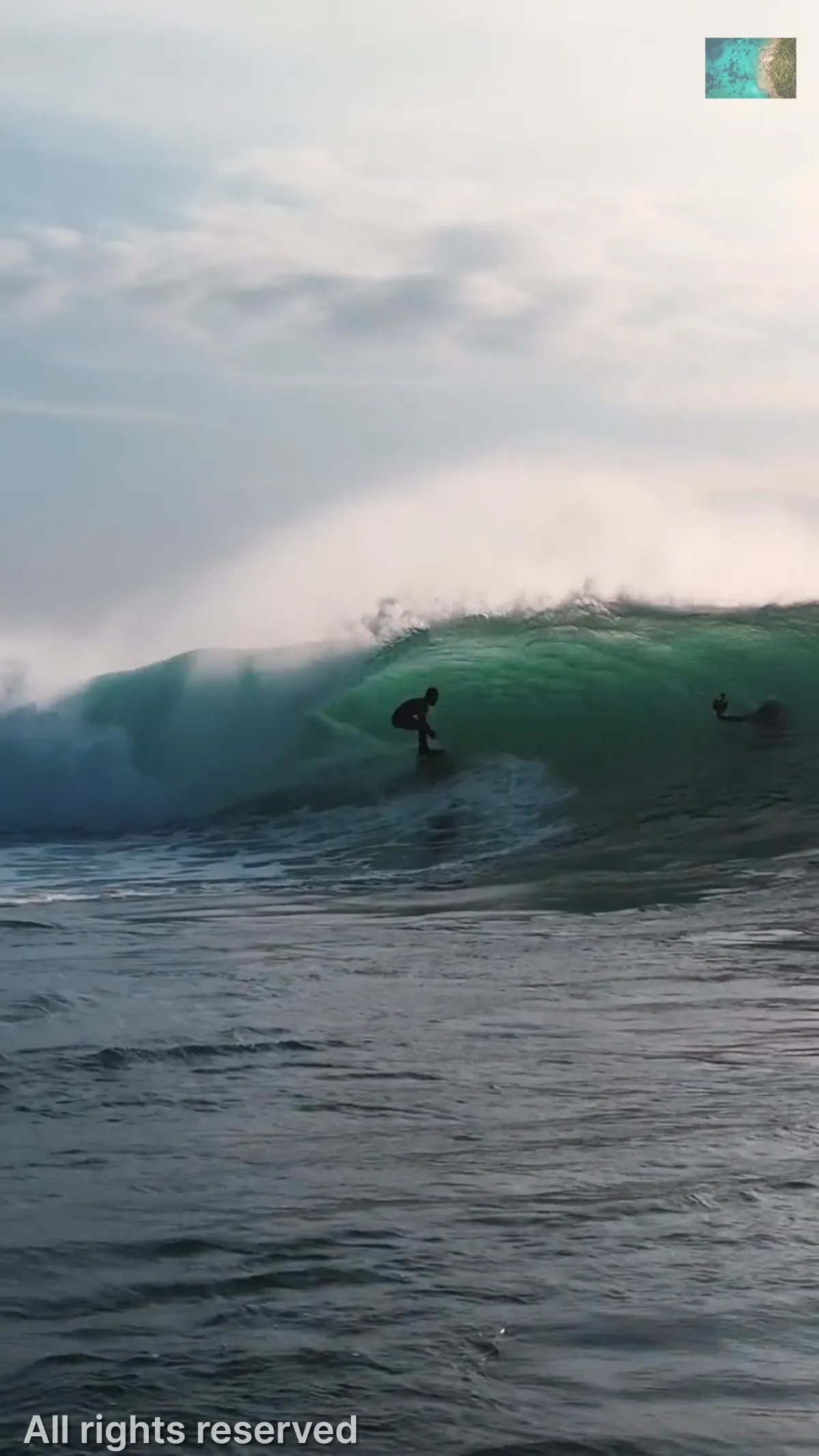
Video watermarks in CE.SDK are design blocks placed over the video page. A text watermark is a regular text block; an image watermark is a graphic block with an image fill. Both blocks carry a duration and timeOffset, so the same time-aware properties that drive the video timeline keep watermarks visible for as long as you want.
This guide creates one text watermark and one image watermark, positions and styles them for a representative video page, and sets their timeline so they remain visible across the entire clip.
Creating the Scene#
Start from a video scene and read the page dimensions and duration. The dimensions drive the placement math, and the duration is reused for each watermark block so it stays visible from the first frame to the last.
let videoURL = baseURL.appendingPathComponent(  "ly.img.video/videos/pexels-drone-footage-of-a-surfer-barrelling-a-wave-12715991.mp4",)try await engine.scene.create(fromVideo: videoURL)
guard let page = try engine.scene.getCurrentPage() else {  fatalError("Expected create(fromVideo:) to create a page.")}let pageWidth = try engine.block.getWidth(page)let pageHeight = try engine.block.getHeight(page)let videoDuration = try engine.block.getDuration(page)
scene.create(fromVideo:) creates a scene whose current page is sized to the source video and whose duration matches the clip length. getCurrentPage() returns the page that was created for the scene.
Creating a Text Watermark#
Text watermarks are text blocks. Create one, let it size itself to its content, and position it near the bottom-left corner with some padding from the page edges.
let textWatermark = try engine.block.create(.text)
try engine.block.setWidthMode(textWatermark, mode: .auto)try engine.block.setHeightMode(textWatermark, mode: .auto)try engine.block.replaceText(textWatermark, text: "All rights reserved")
let textPadding: Float = 20try engine.block.setPositionX(textWatermark, value: textPadding)try engine.block.setPositionY(textWatermark, value: pageHeight - textPadding - 24)
SizeMode.auto keeps the block’s frame tied to its rendered text, so only the position needs to be set explicitly. The example values are tuned for the sample video page — scale textPadding, the Y-offset, and the font size below in proportion to your own page dimensions.
Styling Text Watermarks#
Style the text for readability across changing video frames.
try engine.block.setTextFontSize(textWatermark, fontSize: 8)try engine.block.setTextColor(textWatermark, color: .rgba(r: 1, g: 1, b: 1, a: 1))try engine.block.setTextHorizontalAlignment(textWatermark, alignment: .left)try engine.block.setOpacity(textWatermark, value: 0.7)White text with 70% opacity stays visible without obscuring the underlying video.
Adding Drop Shadow for Visibility#
Drop shadows help the text stay legible when the underlying video frame is bright or busy.
try engine.block.setDropShadowEnabled(textWatermark, enabled: true)try engine.block.setDropShadowColor(textWatermark, color: .rgba(r: 0, g: 0, b: 0, a: 0.8))try engine.block.setDropShadowOffsetX(textWatermark, offsetX: 2)try engine.block.setDropShadowOffsetY(textWatermark, offsetY: 2)try engine.block.setDropShadowBlurRadiusX(textWatermark, blurRadiusX: 4)try engine.block.setDropShadowBlurRadiusY(textWatermark, blurRadiusY: 4)A black shadow at 80% alpha with small offsets and blur radii adds contrast without making the watermark dominate the frame.
Setting Text Watermark Duration#
Match the block’s duration to the page duration and start it at the beginning of the timeline.
try engine.block.setDuration(textWatermark, duration: videoDuration)try engine.block.setTimeOffset(textWatermark, offset: 0)try engine.block.appendChild(to: page, child: textWatermark)setDuration(_:duration:) controls how long the block is active during playback. setTimeOffset(_:offset:) sets when in the timeline it first appears, and appendChild(to:child:) adds it above the video content on the page.
Creating an Image Watermark#
Image watermarks are graphic blocks with a rectangular shape and an image fill.
let logoWatermark = try engine.block.create(.graphic)let rectShape = try engine.block.createShape(.rect)try engine.block.setShape(logoWatermark, shape: rectShape)
let imageFill = try engine.block.createFill(.image)let logoURL = baseURL.appendingPathComponent("ly.img.image/images/sample_1.jpg")try engine.block.setURL(imageFill, property: "fill/image/imageFileURI", value: logoURL)try engine.block.setFill(logoWatermark, fill: imageFill)try engine.block.setContentFillMode(logoWatermark, mode: .contain)
The image URL is assigned to the fill through the fill/image/imageFileURI property. ContentFillMode.contain keeps the logo inside its frame without cropping; switch to .cover if you would rather have the image fill the frame and crop excess.
Positioning Image Watermarks#
Place the logo where it does not cover important video content.
let logoSize: Float = 80let logoPadding: Float = 20try engine.block.setWidth(logoWatermark, value: logoSize)try engine.block.setHeight(logoWatermark, value: logoSize)try engine.block.setPositionX(logoWatermark, value: pageWidth - logoSize - logoPadding)try engine.block.setPositionY(logoWatermark, value: logoPadding)The logo is sized to 80×80 design units and placed in the top-right corner with 20 units of padding. Subtract the logo size and padding from pageWidth to right-align the block.
Configuring Opacity and Blend Mode#
Control how the logo composites with the underlying video frame.
try engine.block.setOpacity(logoWatermark, value: 0.6)try engine.block.setBlendMode(logoWatermark, mode: .normal)60% opacity keeps the logo visible while letting the video show through. BlendMode.normal displays the logo without additional compositing — pick .multiply or .screen if you want the logo’s colors to interact with the underlying video.
Setting Image Watermark Duration#
Image watermarks need the same timeline configuration as text watermarks.
try engine.block.setDuration(logoWatermark, duration: videoDuration)try engine.block.setTimeOffset(logoWatermark, offset: 0)try engine.block.appendChild(to: page, child: logoWatermark)Matching the page duration keeps the logo visible for the full video; a zero timeOffset starts it with the first frame.
Watermark Positioning Strategies#
Choose positions based on the watermark purpose:
- Bottom-right corner: common for copyright notices and unobtrusive branding.
- Top-right corner: useful for logos that should stay visible above lower-third content.
- Bottom-left corner: a good alternative for text when the opposite corner contains important content.
- Center: strongest protection for drafts or previews, at the cost of obscuring the video.
Calculate positions from getWidth(_:) and getHeight(_:) on the page so the same code works across video aspect ratios.
Best Practices#
Visibility#
- Use drop shadows on text watermarks to keep them legible across changing video frames.
- Keep opacity between 50-70% for visible but unobtrusive branding.
- Test watermark placement against representative frames from the source video, not only the first frame.
Time Management#
- Match watermark duration to the page duration for full-video coverage.
- Use a zero
timeOffsetfor watermarks that should appear from the start. - For time-based variations, create separate watermark blocks with different offsets and durations.
API Reference#
| Method | Purpose |
|---|---|
engine.scene.create(fromVideo:) |
Create a video scene from a remote URL |
engine.scene.getCurrentPage() |
Get the page created for the video scene |
engine.block.getWidth(_:) |
Read the page width for placement math |
engine.block.getHeight(_:) |
Read the page height for placement math |
engine.block.getDuration(_:) |
Read the page or watermark duration in seconds |
engine.block.create(.text) |
Create a text watermark block |
engine.block.setWidthMode(_:mode:) |
Let a text block size itself to its content with .auto |
engine.block.setHeightMode(_:mode:) |
Let a text block size itself to its content with .auto |
engine.block.replaceText(_:text:) |
Set the text watermark content |
engine.block.setTextFontSize(_:fontSize:) |
Set text size |
engine.block.setTextColor(_:color:) |
Set text color |
engine.block.setTextHorizontalAlignment(_:alignment:) |
Set paragraph alignment |
engine.block.setDropShadowEnabled(_:enabled:) |
Enable or disable drop shadow |
engine.block.setDropShadowColor(_:color:) |
Set shadow color and alpha |
engine.block.setDropShadowOffsetX(_:offsetX:) |
Set horizontal shadow offset |
engine.block.setDropShadowOffsetY(_:offsetY:) |
Set vertical shadow offset |
engine.block.setDropShadowBlurRadiusX(_:blurRadiusX:) |
Set horizontal shadow blur |
engine.block.setDropShadowBlurRadiusY(_:blurRadiusY:) |
Set vertical shadow blur |
engine.block.create(.graphic) |
Create an image watermark block |
engine.block.createShape(.rect) |
Create a rectangular shape for the graphic block |
engine.block.setShape(_:shape:) |
Apply the rectangular shape to the graphic block |
engine.block.createFill(.image) |
Create an image fill for a logo |
engine.block.setString(_:property:value:) |
Set the logo image URL via the fill/image/imageFileURI property |
engine.block.setFill(_:fill:) |
Apply the image fill to the graphic block |
engine.block.setContentFillMode(_:mode:) |
Fit the logo inside its frame with .contain |
engine.block.setWidth(_:value:) |
Set watermark width |
engine.block.setHeight(_:value:) |
Set watermark height |
engine.block.setPositionX(_:value:) |
Set horizontal position |
engine.block.setPositionY(_:value:) |
Set vertical position |
engine.block.setOpacity(_:value:) |
Set watermark transparency |
engine.block.setBlendMode(_:mode:) |
Set image watermark blend mode |
engine.block.setDuration(_:duration:) |
Set timeline duration in seconds |
engine.block.setTimeOffset(_:offset:) |
Set timeline start time in seconds |
engine.block.appendChild(to:child:) |
Add the watermark to the page |
Next Steps#
- Lock the Template — Lock watermark elements in templates so adopters cannot modify them
- To MP4 — Export watermarked videos with configurable encoding options
- Timeline Editor — Use the timeline editor to arrange video clips and overlays
- Text Styling — Apply fonts, colors, alignment, and other styling options to customize text appearance