Understand every way files move in and out of CE.SDK—importing media and design files, loading and saving native scenes, and exporting finished output.
When developers ask whether CE.SDK “supports” a file format, the answer depends on which workflow they mean. Importing an image as content, converting a Photoshop file into an editable design, and rendering a finished PDF are three different operations with different format support. This page maps every way files come in and go out, and links to the guide for each workflow.
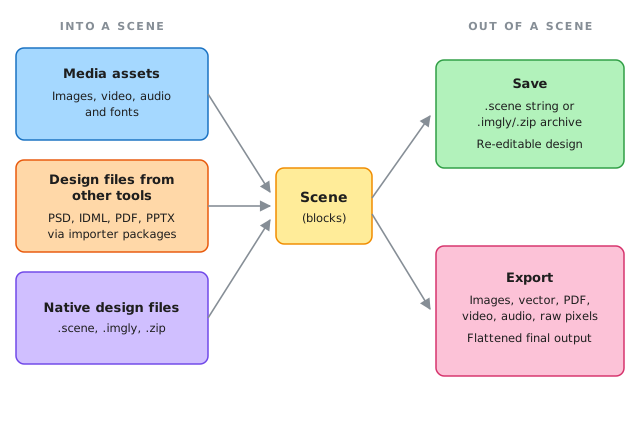
Everything in CE.SDK revolves around the scene—the block hierarchy that describes a design. Files coming in either add content to a scene or become a scene; files going out either preserve the scene for later editing or render it into final output. In Flutter, the CE.SDK plugin embeds the native mobile editors, so these workflows behave the same as in native Android and iOS apps.
Three Ways Files Come In#
Media Assets#
Media assets are content placed inside a design: images, videos, audio clips and fonts. Users add them through the asset library, the device’s photo library or the camera, and you provide them programmatically through the asset and block APIs.
Media assets don’t change the structure of a scene—they fill blocks with content. See the Import Media section for upload workflows and the asset library, Asset Concepts for the underlying architecture, and File Format Support for the exact format list.
Native Design Files#
CE.SDK persists designs in its own format, which loads back with full editability. Native files come in two variants:
- Scene string (
.scene) — A serialized description of the block hierarchy. Assets are referenced by URL, not embedded, so the file is lightweight but depends on those URLs staying reachable. - Archive (
.zip) — A self-contained bundle of the scene file plus every referenced asset. Larger, but portable and usable offline.
The .imgly extension is used for both variants; the engine detects the format automatically when loading. In a Flutter app you typically pass the scene or archive to the editor when opening it, or load it through the engine’s scene.load() and archive-loading APIs. See Load a Scene and Import a Design.
Design Files From Other Tools#
Files created in other design applications—Photoshop, InDesign, PowerPoint or PDF-producing tools—are not media assets and can’t be added like an image. Instead, dedicated importer packages convert them into native CE.SDK scenes, preserving text, images, vector paths, positioning and colors as editable blocks:
| Source format | Package |
|---|---|
Photoshop (.psd) |
@imgly/psd-importer |
InDesign (.idml) |
@imgly/idml-importer |
PDF (.pdf) |
@imgly/pdf-importer |
PowerPoint (.pptx) |
@imgly/pptx-importer |
The importers are JavaScript packages and don’t run inside the Flutter plugin. The typical workflow converts files on your server with Node.js, then loads the resulting scene or archive in your app. See From InDesign and From Photoshop for this workflow.
Importer Features and Limitations#
Each importer translates a subset of its source format, so review converted scenes—especially complex documents—before publishing. Where a feature can’t be mapped one-to-one, the importers degrade gracefully. Typical examples:
- Linked, non-embedded images aren’t resolved and import as placeholders (IDML, PDF).
- Mixing multiple fonts or font sizes within a single Photoshop text layer isn’t supported, and unavailable fonts are substituted depending on the configured font strategy.
- PowerPoint tables, charts, SmartArt, animations and slide masters are skipped.
The npm page of each package maintains the up-to-date list of supported features and limitations: @imgly/psd-importer, @imgly/idml-importer, @imgly/pdf-importer and @imgly/pptx-importer.
For any format without a ready-made importer, you can build your own converter with the scene and block APIs—see Create From Scratch for building a design programmatically.
Two Ways Files Go Out#
Saving a Design#
Saving preserves the scene for later editing. engine.scene.saveToString() produces a scene string with assets referenced by URL; engine.scene.saveToArchive() produces a self-contained archive with assets embedded. Both round-trip losslessly—loading a saved file restores the design exactly, with full editability.
A saved file is not viewable output: it only renders inside CE.SDK. To show a preview of a saved design elsewhere, export a thumbnail alongside it. See Save and Create Thumbnail.
Exporting Final Output#
Exporting renders the scene into a finished file for use outside CE.SDK. The editor’s export callback receives the rendered result, and programmatically you can export the whole scene, a single page or any individual block with engine.block.export(). Output covers images, vector graphics, print-ready PDF, video and audio ( audio formats), and raw pixel data— File Format Support lists the exact formats.
Exports are flattened: text becomes pixels or paths, and the block structure is gone. An exported file can’t be turned back into the original editable design. See Export Options for configuration.
Save vs. Export#
The most common point of confusion is the difference between saving and exporting:
| Save | Export | |
|---|---|---|
| Purpose | Continue editing later | Use the result outside CE.SDK |
| Output | .scene string, .imgly/.zip archive |
Rendered files (PNG, PDF, MP4, …) |
| Re-editable | Yes, losslessly | No—content is flattened |
| Assets | Referenced by URL or embedded | Rendered into the output |
| Viewable outside CE.SDK | No | Yes |
A typical integration uses both: save the scene to your backend so users can keep editing, and export when they download or publish the result.
Common Questions#
- Can users add a PDF or Photoshop file like an image? Not as a media asset—the media path accepts images, video and audio only. PDF, PSD, IDML and PPTX files go through the importer packages, which convert them into editable scenes upstream of your app.
- Why isn’t my exported PDF editable when I import it back? Exporting flattens the design. The PDF importer reconstructs an editable scene from any PDF, but it’s a conversion, not a lossless round trip. To preserve editability, save the scene alongside the export.
- What’s the difference between
.scene,.imglyand.zip?.sceneis always a scene string,.zipis always an archive, and.imglyis the recommended extension for either—the engine detects which one it is when loading. - Does a saved scene contain its images? A scene string references assets by URL, so the design breaks if those URLs go away. An archive embeds all assets and is fully self-contained.
Format Support Reference#
For the authoritative format tables—including codec details, size limits and known limitations—see File Format Support.
API Reference#
| Method | Category | Purpose |
|---|---|---|
engine.scene.load() |
Import | Load a scene string, with automatic format detection |
engine.scene.saveToString() |
Save | Serialize the scene to a string with assets referenced by URL |
engine.scene.saveToArchive() |
Save | Bundle the scene and all assets into a self-contained archive |
engine.block.export() |
Export | Render a block, page or scene to a final output format |
Next Steps#
- Import Media — Bring images, video, audio and fonts into designs
- Import a Design — Load saved scenes and archives
- Save — Persist designs for later editing
- Export Options — Configure output formats and quality