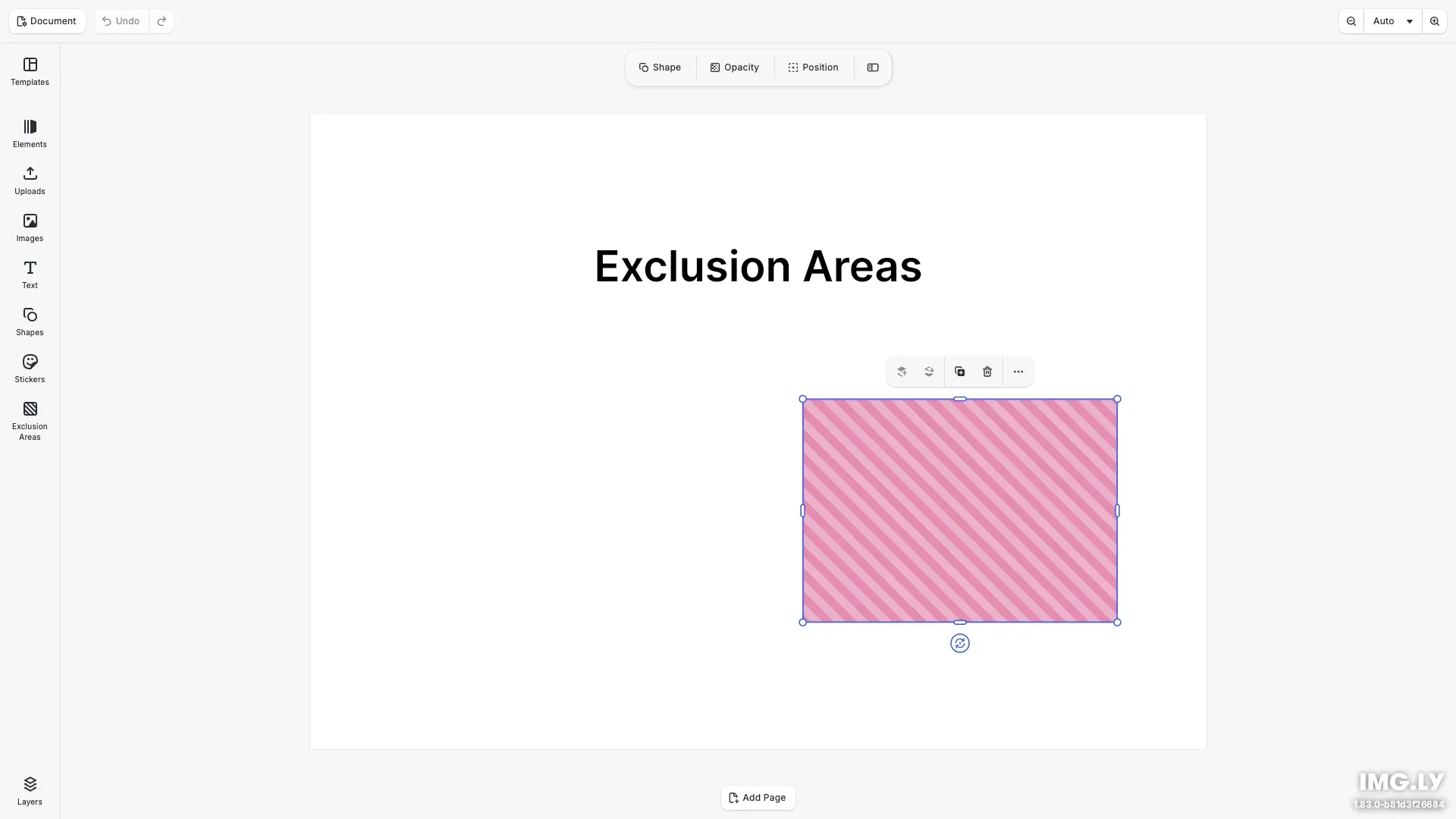
An exclusion area marks a region of a page that content must stay out of: a window on an envelope, a spine on a book cover, an address panel on a mailer. This guide covers building an exclusion area from code, then putting its controls in your editor — the feature key, the asset source your customers pick areas from, and the dock button that opens it.
This guide focuses on the editor UI around exclusion areas. If you’d like to know more about what one is and how it behaves at export, have a look at the Exclusion Areas concept guide.
Area Properties#
To build and configure an exclusion area from code, use these block properties and editor settings. Each mirrors a section of the Exclusion Areas concept guide. The sections after this one put the same state behind controls your customers use.
Create an exclusion area and place it on a page. pageWidth and pageHeight come from getWidth and getHeight on that page, so the area keeps its proportions on any page size:
// A zone hangs under the page it constrains.const zone = engine.block.create('exclusionArea');engine.block.appendChild(page, zone);engine.block.setPositionX(zone, pageWidth * 0.55);engine.block.setPositionY(zone, pageHeight * 0.45);engine.block.setWidth(zone, pageWidth * 0.35);engine.block.setHeight(zone, pageHeight * 0.35);Put the artwork of the obstruction into it:
const fill = engine.block.createFill('image');engine.block.setString( fill, 'fill/image/imageFileURI', 'https://img.ly/static/ubq_samples/sample_1.jpg');engine.block.setFill(zone, fill);Give it the outline of the obstruction:
engine.block.setShape(zone, engine.block.createShape('ellipse'));Recolor the wash:
engine.editor.setSettingColor('page/exclusionAreaFillColor', { r: 0.79, g: 0.12, b: 0.4, a: 0.35});Hold content out of the region:
// A zone holds other blocks out of itself only once this is on.engine.block.setBool(zone, 'exclusionArea/constrains', true);Put the area’s artwork into the export:
engine.block.setIncludedInExport(zone, true);Cut the area out of the export instead, so a die cut window becomes a window in the file:
engine.block.setBool(zone, 'exclusionArea/punchOut', true);Take the area out of reach in every role:
engine.editor.setSelectionEnabled(zone, false);Ask which blocks currently overlap an exclusion area:
const offending = engine.block.findAllInExclusionAreas();Enable the Controls#
To give your customers the Exclusion Area Settings panel, enable this feature key in your application. The panel has two controls: whether the area holds other blocks out of itself, and whether it cuts its region out of the export.
// The zone controls sit behind this key. Enabling `ly.img.page` switches on// every page child, including this one.cesdk.feature.enable(['ly.img.page.printMarks.exclusionArea']);Add an Asset Source#
To give your customers exclusion areas to pick from, create an asset source and add it to your application. SOURCE_ID is ly.img.exclusionArea, and THUMBNAIL_BASE_URL is where you serve the images the library cards show.
engine.asset.addLocalSource(SOURCE_ID);
engine.asset.addAssetToSource(SOURCE_ID, {  id: 'ly.img.exclusionArea.rectangle',  meta: {    thumbUri: `${THUMBNAIL_BASE_URL}/exclusion-area-rectangle.png`,    blockType: '//ly.img.ubq/exclusionArea',    shapeType: '//ly.img.ubq/shape/vector_path',    vectorPath: 'M0 0 H50 V50 H0 Z',    width: 50,    height: 50  }});engine.asset.addAssetToSource(SOURCE_ID, {  id: 'ly.img.exclusionArea.circle',  meta: {    thumbUri: `${THUMBNAIL_BASE_URL}/exclusion-area-circle.png`,    blockType: '//ly.img.ubq/exclusionArea',    shapeType: '//ly.img.ubq/shape/vector_path',    vectorPath: 'M 0,25 a 25,25 0 1,1 50,0 a 25,25 0 1,1 -50,0 Z',    width: 50,    height: 50  }});
Show It in the Dock#
To show the source to your customers, add an asset library entry and a dock button that opens it.
cesdk.ui.addAssetLibraryEntry({ id: SOURCE_ID, sourceIds: [SOURCE_ID], previewLength: 3, gridColumns: 2, gridItemHeight: 'square', cardBackgroundPreferences: [{ path: 'meta.thumbUri', type: 'image' }]});Then add the dock button that opens it:
// The spacer takes the leftover room, so everything after it sits at the// bottom of the dock. The entry goes in front of it, with the other// libraries, rather than below the layer list.const dock = cesdk.ui.getComponentOrder({ in: 'ly.img.dock' });const spacer = dock.findIndex( (component) => typeof component !== 'string' && component.id === 'ly.img.spacer');cesdk.ui.setComponentOrder({ in: 'ly.img.dock' }, [ ...dock.slice(0, spacer), { id: 'ly.img.assetLibrary.dock', key: SOURCE_ID, icon: '@imgly/ForbiddenZone', label: 'libraries.ly.img.exclusionArea.label', entries: [SOURCE_ID] }, ...dock.slice(spacer)]);Add the entry and the button together.
Change the Labels#
To change the labels, set your own translations for these keys:
cesdk.i18n.setTranslations({ en: { 'libraries.ly.img.exclusionArea.label': 'No-Print Areas' }});API Reference#
| API | Description |
|---|---|
ly.img.page.printMarks.exclusionArea |
Feature key gating the Exclusion Area Settings panel |
exclusionArea/constrains |
Block property. true holds other blocks out of the zone while they are dragged or resized. Off by default |
exclusionArea/punchOut |
Block property. true cuts the zone’s region out of an export. Off by default |
includedInExport |
Block property, via setIncludedInExport. false for a new zone, so a zone stays out of the file |
page/exclusionAreaFillColor |
Editor setting for the wash and the stripes. A transparent color hides both |
page/exclusionAreaFrameColor |
Editor setting for the frame. A transparent color hides it |
libraries.ly.img.exclusionArea.label |
Translation key for the dock button and the library title |
Next Steps#
- Exclusion Areas — what a zone is, and how it behaves at export.
- Disable or Enable Features — the full feature key table.
- Dock — dock positioning and the asset source relationship.