Automate template workflows with CE.SDK’s engine APIs for batch processing, personalization, and headless design generation.
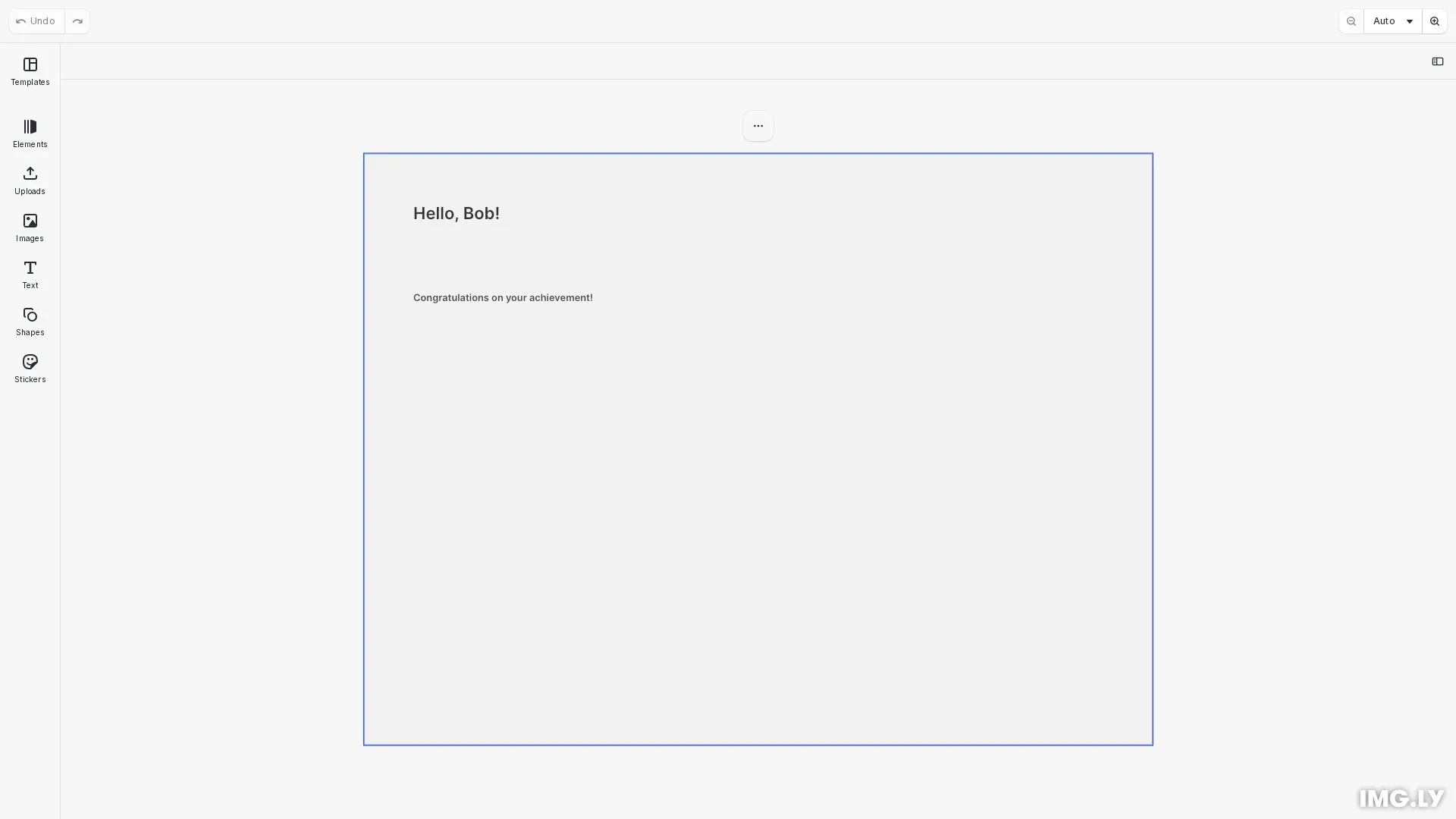
Templates are scenes with predefined structures that support dynamic content through variables. This guide shows you how to work with templates programmatically using CE.SDK’s engine APIs—without requiring user interface interactions.
This guide covers creating templates from scratch, configuring text variables, populating templates with data, implementing batch processing workflows, and exporting personalized designs.
Initialize CE.SDK#
We start by initializing CE.SDK and creating a design scene. This provides the foundation for programmatic template operations.
await cesdk.addPlugin(new DesignEditorConfig());
// Add asset source pluginsawait cesdk.addPlugin(new BlurAssetSource());await cesdk.addPlugin(new ColorPaletteAssetSource());await cesdk.addPlugin(new CropPresetsAssetSource());await cesdk.addPlugin(new UploadAssetSources({ include: ['ly.img.image.upload'] }));await cesdk.addPlugin(  new DemoAssetSources({    include: [      'ly.img.templates.blank.*',      'ly.img.templates.presentation.*',      'ly.img.templates.print.*',      'ly.img.templates.social.*',      'ly.img.image.*'    ]  }));await cesdk.addPlugin(new EffectsAssetSource());await cesdk.addPlugin(new FiltersAssetSource());await cesdk.addPlugin(new PagePresetsAssetSource());await cesdk.addPlugin(new StickerAssetSource());await cesdk.addPlugin(new TextAssetSource());await cesdk.addPlugin(new TextComponentAssetSource());await cesdk.addPlugin(new TypefaceAssetSource());await cesdk.addPlugin(new VectorShapeAssetSource());
await cesdk.actions.run('scene.create', { page: { width: 800, height: 600, unit: 'Pixel' } });
const engine = cesdk.engine;const pages = engine.block.findByType('page');const page = pages[0];if (!page) {  throw new Error('No page found');}
// Set page backgroundconst pageFill = engine.block.getFill(page);engine.block.setColor(pageFill, 'fill/color/value', {  r: 0.95,  g: 0.95,  b: 0.95,  a: 1.0});
We create a page with specific dimensions and set a light gray background. This serves as the canvas for our template structure.
Creating Templates from Scratch#
We build templates programmatically by creating and arranging blocks with engine.block.create() and engine.block.appendChild().
// Create a greeting card template from scratch// This template will have placeholders for customization
// Set up text variables FIRST so they're available when text is createdengine.variable.setString('recipientName', 'Alice');engine.variable.setString('customMessage', 'Wishing you a wonderful day!');
// Add a title text block with variable placeholderconst titleBlock = engine.block.create('text');engine.block.setName(titleBlock, 'title');engine.block.appendChild(page, titleBlock);engine.block.setPositionX(titleBlock, 50);engine.block.setPositionY(titleBlock, 50);engine.block.setWidth(titleBlock, 700);engine.block.setHeight(titleBlock, 80);
// Set text with variable syntax for dynamic replacementengine.block.replaceText(titleBlock, 'Hello, {{recipientName}}!');engine.block.setTextColor(titleBlock, {  r: 0.2,  g: 0.2,  b: 0.2,  a: 1.0});
// Set font size and weight for better visibilityengine.block.setFloat(titleBlock, 'text/fontSize', 48);
// Add a message text block with variableconst messageBlock = engine.block.create('text');engine.block.setName(messageBlock, 'message');engine.block.appendChild(page, messageBlock);engine.block.setPositionX(messageBlock, 50);engine.block.setPositionY(messageBlock, 140);engine.block.setWidth(messageBlock, 700);engine.block.setHeight(messageBlock, 120);
engine.block.replaceText(messageBlock, '{{customMessage}}');engine.block.setTextColor(messageBlock, {  r: 0.3,  g: 0.3,  b: 0.3,  a: 1.0});
engine.block.setFloat(messageBlock, 'text/fontSize', 28);
We create a greeting card template with two text blocks. The title block contains {{recipientName}} and the message block contains {{customMessage}}—these double-brace syntax markers define where variables will be replaced. We position each block precisely and configure text properties like font size and color.
Text Variables for Dynamic Content#
Variables enable text replacement throughout templates. We set variable values with engine.variable.setString(), which automatically updates any text containing {{variableName}} syntax.
// Variables have already been set earlier in the template creation// You can retrieve variable values at any timeconst recipientName = engine.variable.getString('recipientName');console.log('Current recipient:', recipientName);
// List all variables in the sceneconst allVariables = engine.variable.findAll();console.log('All variables:', allVariables);
We initialize variables for recipientName and customMessage. The engine.variable.getString() method retrieves current values, and engine.variable.findAll() lists all variables in the scene. Variables persist with the scene and automatically update text content whenever changed.
Populating Template Content#
We populate templates by updating variables with new data. This enables data-driven design generation.
// Demonstrate populating the template with different data// In a real application, you would iterate through data records
// Example: Update variables to populate template with new datasetTimeout(() => {  engine.variable.setString('recipientName', 'Bob');  engine.variable.setString(    'customMessage',    'Congratulations on your achievement!'  );  console.log('Variables updated to new values');}, 2000);
We update variables to change text content using engine.variable.setString(). When variables are updated, all text blocks containing those variable references automatically display the new values. This approach enables efficient template population without manually finding and updating individual blocks.
Saving and Exporting Templates#
Templates can be serialized for storage and reuse. We use engine.scene.saveToString() to create portable template files.
// Demonstrate saving and exporting the templatesetTimeout(async () => {  // Save the entire scene to a string for later reuse  const sceneString = await engine.scene.saveToString();  console.log('Template saved, length:', sceneString.length);
  // You can export the current view as an image  const blob = await engine.block.export(page, 'image/png', {    targetWidth: 800,    targetHeight: 600  });  console.log('Exported as PNG, size:', blob.size, 'bytes');
  // Create a download link for the export (demonstration purposes)  const url = URL.createObjectURL(blob);  const link = document.createElement('a');  link.href = url;  link.download = 'greeting-card.png';  console.log('Export ready for download');  // Uncomment to trigger automatic download:  // link.click();}, 4000);
The saveToString() method returns a base64-encoded string containing the complete scene, including all blocks, properties, and variable definitions. This string can be stored in databases, file systems, or transmitted over networks.
For generating final outputs, engine.block.export() renders blocks to images. The targetWidth and targetHeight options control output resolution. The method returns a Blob that can be downloaded, uploaded, or further processed.
Data-Driven Workflows#
Batch processing combines template creation, data population, and export operations. A common pattern loads a template once, then iterates through data records:
const templateString = await engine.scene.saveToString();
for (const record of dataRecords) {  await engine.scene.loadFromString(templateString);  engine.variable.setString('name', record.name);  engine.variable.setString('title', record.title);
  const page = engine.block.findByType('page')[0];  const blob = await engine.block.export(page, 'image/png');  // Process or save the blob}
This pattern works for generating personalized certificates, greeting cards, social media graphics, or any scenario requiring multiple customized outputs from a single template.
Loading Existing Templates#
Templates can be loaded from various sources. Use engine.scene.loadFromURL() to fetch remote templates:
await engine.scene.loadFromURL( 'https://cdn.img.ly/assets/demo/v3/ly.img.template/templates/cesdk_postcard_1.scene');For templates with embedded assets, engine.scene.loadFromArchiveURL() loads the complete package including all resources.
The engine.scene.applyTemplateFromString() and engine.scene.applyTemplateFromURL() methods merge template content into existing scenes without replacing everything—useful for adding template sections to ongoing designs.
Managing Variables#
Variables integrate with text blocks automatically. When you set a variable value, CE.SDK updates all text containing that variable immediately:
engine.variable.setString('userName', 'Alice');// All text with {{userName}} now displays 'Alice'
engine.variable.setString('userName', 'Bob');// Same text now displays 'Bob'
Remove variables with engine.variable.remove() when they’re no longer needed. This doesn’t affect existing text—the variable syntax remains as literal text.
API Reference#
| Method | Description |
|---|---|
engine.block.create() | Create a new design block |
engine.block.appendChild() | Add a block to the scene hierarchy |
engine.block.setPositionX() | Set block horizontal position |
engine.block.setPositionY() | Set block vertical position |
engine.block.setWidth() | Set block width |
engine.block.setHeight() | Set block height |
engine.block.replaceText() | Set text content (supports variable tokens) |
engine.variable.setString() | Create or update a text variable |
engine.variable.getString() | Read the current value of a variable |
engine.variable.findAll() | Get array of all variable keys in the scene |
engine.variable.remove() | Delete a variable from the scene |
engine.scene.saveToString() | Serialize scene to portable string |
engine.scene.loadFromString() | Load scene from serialized string |
engine.scene.loadFromURL() | Load scene from remote URL |
engine.block.export() | Export block to image blob |
Troubleshooting#
Template loading failures: Verify scene strings are properly encoded and URLs are accessible. Use try-catch blocks around loading operations to handle network or parsing errors.
Variables not replacing text: Variable names in text (within {{}}) must exactly match keys passed to engine.variable.setString(). Variables are case-sensitive.
Export issues: Validate that all required assets are accessible before exporting. Missing images or fonts can cause export failures. Check block hierarchy structure—orphaned blocks (not connected to the page tree) won’t appear in exports.