Apply template content to an existing scene while preserving your canvas dimensions and design unit.
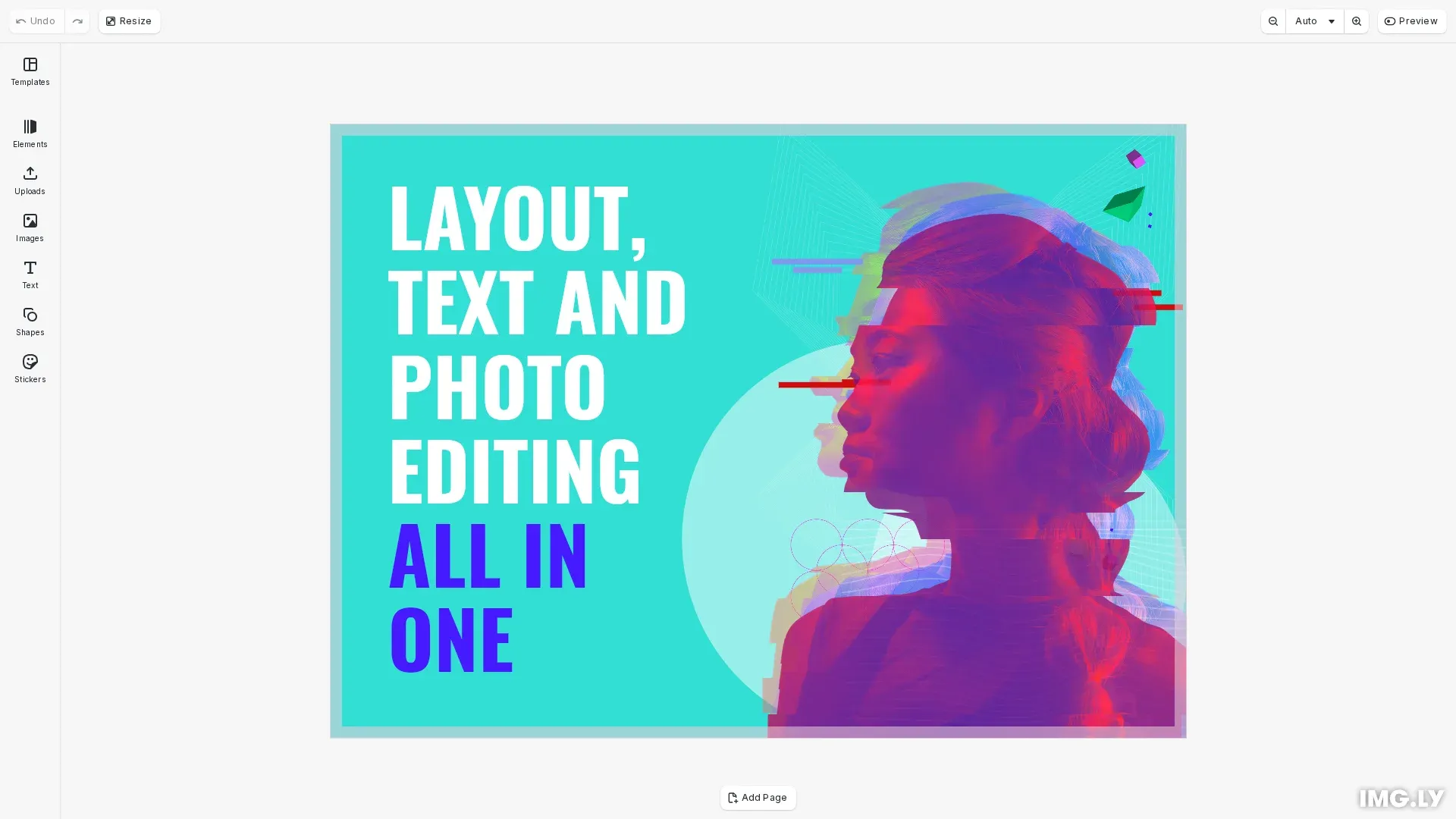
Unlike loading a scene which replaces everything, applying a template merges template content into your current scene. CE.SDK preserves the current page dimensions and design unit while automatically adjusting template content to fit. This approach is ideal for template switching workflows where users explore different layouts without changing canvas dimensions, or for automation pipelines that standardize output sizes across varying template sources.
This guide covers how to apply templates from URLs and strings while preserving page dimensions, and how to implement template switching functionality.
When to Use Apply vs Load#
Use applyTemplateFromURL() or applyTemplateFromString() when you want to:
- Switch templates: Let users preview different templates while keeping a consistent canvas size
- Standardize output dimensions: Generate content with fixed sizes (e.g., social media formats, print sizes)
- Batch process with templates: Apply various templates to a pre-configured scene without dimension drift
Use loadFromString() or loadFromURL() when you need the template’s original dimensions.
Key distinction: Loading replaces everything; applying preserves dimensions and merges content.
Apply a Template from URL#
We first create a scene with specific dimensions. These dimensions will be preserved when we apply the template.
await cesdk.addPlugin(new DesignEditorConfig());
// Add asset source pluginsawait cesdk.addPlugin(new BlurAssetSource());await cesdk.addPlugin(new ColorPaletteAssetSource());await cesdk.addPlugin(new CropPresetsAssetSource());await cesdk.addPlugin(new UploadAssetSources({ include: ['ly.img.image.upload'] }));await cesdk.addPlugin(  new DemoAssetSources({    include: [      'ly.img.templates.blank.*',      'ly.img.templates.presentation.*',      'ly.img.templates.print.*',      'ly.img.templates.social.*',      'ly.img.image.*'    ]  }));await cesdk.addPlugin(new EffectsAssetSource());await cesdk.addPlugin(new FiltersAssetSource());await cesdk.addPlugin(new PagePresetsAssetSource());await cesdk.addPlugin(new StickerAssetSource());await cesdk.addPlugin(new TextAssetSource());await cesdk.addPlugin(new TextComponentAssetSource());await cesdk.addPlugin(new TypefaceAssetSource());await cesdk.addPlugin(new VectorShapeAssetSource());
await cesdk.actions.run('scene.create', { page: { width: 1080, height: 1920, unit: 'Pixel' } });
const engine = cesdk.engine;const page = engine.block.findByType('page')[0];if (!page) {  throw new Error('No page found');}
// Set custom page dimensions - these will be preserved when applying templates
To apply a template from a URL, call engine.scene.applyTemplateFromURL() with the template URL. The template content adjusts automatically to fit the current page dimensions.
// Apply a template from URL - content adjusts to fit current page dimensionsconst templateUrl =  'https://cdn.img.ly/assets/demo/v3/ly.img.template/templates/cesdk_postcard_1.scene';
await engine.scene.applyTemplateFromURL(templateUrl);
// Auto-fit zoom to pageawait cesdk.actions.run('zoom.toPage', { autoFit: true });
console.log('Template applied from URL');
Verify Preserved Dimensions#
After applying the template, the page dimensions remain unchanged. You can verify this by checking the width and height of the page.
// Verify that page dimensions are preserved after applying templateconst width = engine.block.getWidth(page);const height = engine.block.getHeight(page);console.log(`Page dimensions preserved: ${width}x${height}`);Template Switching#
You can apply multiple templates to the same scene. Each application replaces the content while preserving the page setup. This enables “preview” functionality where users explore different templates without affecting their canvas dimensions.
// Demonstrate template switching - apply a different template// The page dimensions remain the same while content changesconst alternativeTemplateUrl =  'https://cdn.img.ly/assets/demo/v3/ly.img.template/templates/cesdk_postcard_2.scene';
// Uncomment to switch templates:// await engine.scene.applyTemplateFromURL(alternativeTemplateUrl);// console.log('Switched to alternative template');
// Store for potential useconsole.log('Alternative template URL:', alternativeTemplateUrl);
Apply a Template from String#
For templates stored in databases or received from APIs, use engine.scene.applyTemplateFromString() with a base64-encoded scene string:
// Scene string typically retrieved from storage or APIconst templateString = 'UBQ1ewoiZm9ybWF0Ij...';
// Apply template content to current sceneawait engine.scene.applyTemplateFromString(templateString);Troubleshooting#
No Scene Loaded#
applyTemplateFromString() and applyTemplateFromURL() require an existing scene. Create one first with cesdk.actions.run('scene.create') or engine.scene.create().
Template URL Not Accessible#
Verify CORS configuration allows fetching from the template URL. Check network connectivity and URL validity.
Content Not Scaling as Expected#
Template content scales to fit the current page dimensions. Verify page dimensions are set before applying the template.
Related Guides#
- Use Templates Programmatically — Comprehensive programmatic template workflows
- Templates Overview — Understanding templates in CE.SDK
- Headless Mode — Server-side template processing