Load previously saved scenes to resume editing or modify existing designs.
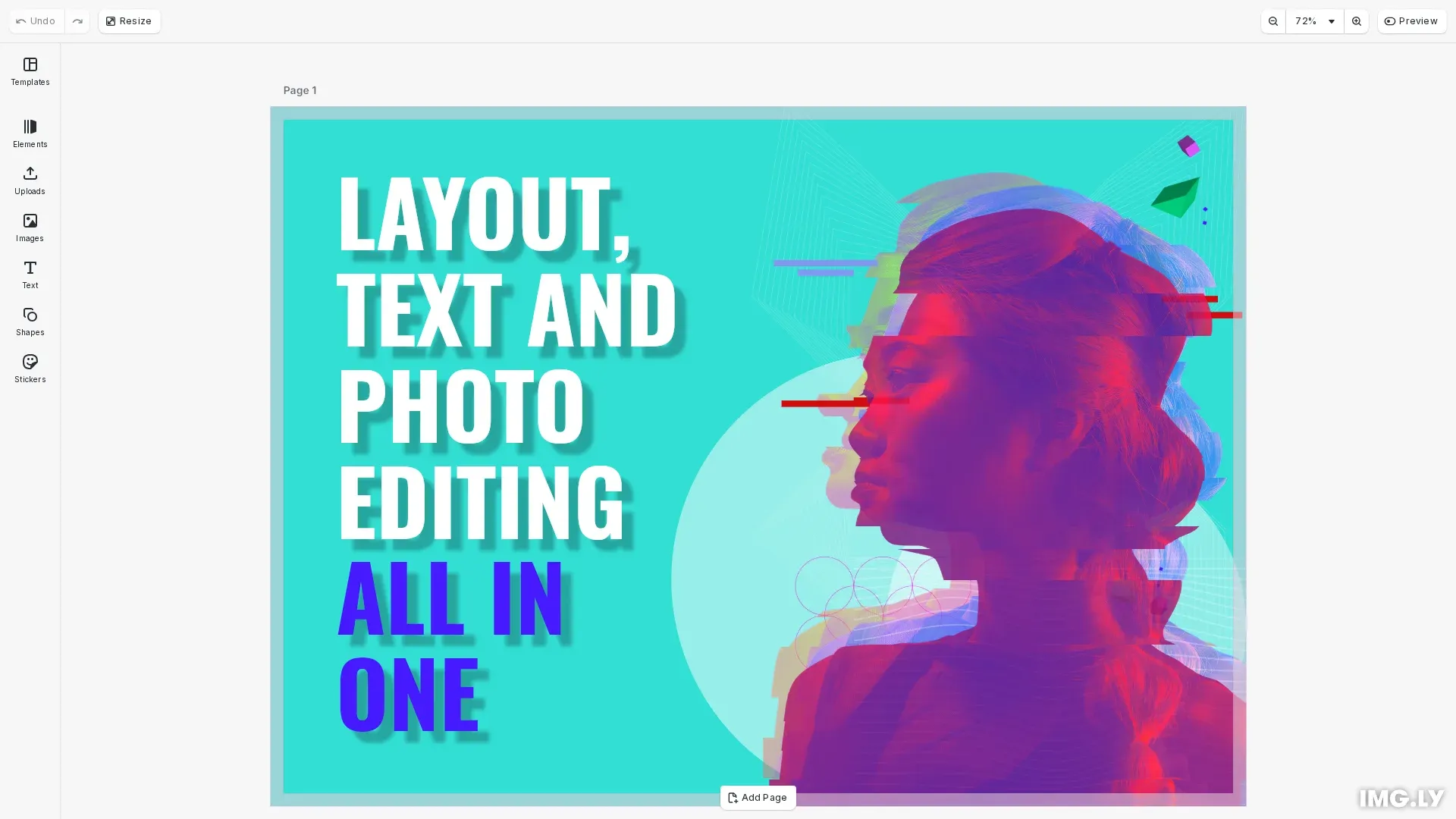
Scene files contain layout, properties, and asset references but not the assets themselves. When loading a scene, ensure referenced asset URLs remain accessible. For self-contained packages with bundled assets, use archives instead.
This guide covers how to load scenes from URLs, strings, and blobs, and how to modify loaded scenes.
Load a Scene from URL#
The most common approach is loading scenes from a remote URL. The engine replaces any existing scene with the loaded one.
const sceneUrl = 'https://cdn.img.ly/assets/demo/v3/ly.img.template/templates/cesdk_postcard_1.scene';await engine.scene.load(sceneUrl);The URL should point to a valid scene file hosted on a server with appropriate CORS headers. Scene files use the .imgly extension; .scene and .zip files also load. engine.scene.load() detects the file kind automatically from its content, so the same call opens plain scenes and archives alike. This method is ideal for loading scenes from a CDN or your backend API.
Load a Scene from String#
When scenes are stored in a database or retrieved from local storage, use engine.scene.load(). This accepts the scene data as a string, typically from a previous engine.scene.saveToString() call.
const sceneContent = await fetchFromDatabase();await engine.scene.load(sceneContent);This approach is useful for restoring saved user designs, loading scenes from your backend API, or working with scenes stored in databases.
Load a Scene from Blob#
For file uploads or blob storage, convert the blob to a string first, then load with engine.scene.load(). Use the blob’s text() method to extract the scene content.
const sceneBlob = fileInput.files[0];const sceneContent = await sceneBlob.text();await engine.scene.load(sceneContent);Modify a Loaded Scene#
After loading, the scene is immediately editable. Use engine.block.findByType() or engine.block.findByKind() to locate elements, then modify them with block APIs.
const textBlocks = engine.block.findByType('text');if (textBlocks.length > 0) { engine.block.setDropShadowEnabled(textBlocks[0], true);}Common modifications include updating text content, swapping images, and adjusting visual properties like drop shadows.
Cancel a Load#
Pass an abortSignal to stop a load that no longer matters, for example when the user picks another design. An abort stops the download at once and rejects the promise with AbortSignal received. The current scene stays.
const controller = new AbortController();// Call controller.abort() when the scene is no longer needed.try { await engine.scene.load(sceneUrl, { abortSignal: controller.signal });} catch (error) { if (!controller.signal.aborted) { throw error; }}Check aborted on the signal to tell a cancel from a failed load, and throw every other error again.
AbortSignal.timeout(10_000) gives the load a deadline instead. The other calls that download a file, such as engine.block.loadFromURL() and engine.scene.applyTemplateFromURL(), take the same option.
Scene Files vs Archives#
Plain scene files are lightweight and store only references to assets. If asset URLs become unavailable, the scene won’t display correctly. For self-contained packages with bundled assets, use archives. Both kinds share the .imgly extension (.scene and .zip files also load), and the same engine.scene.load() call opens either kind — the format is detected automatically from the content. See the Import from Archive guide for details.
Troubleshooting#
Scene Fails to Load#
- Verify the URL is accessible and returns a valid scene file
- Check CORS headers allow fetching from the scene source
- Ensure the scene format is compatible with your CE.SDK version
Assets Not Displaying After Load#
- Scene files store asset references as URLs; ensure those URLs remain accessible
- Use archives for self-contained scenes with bundled assets
- Configure a URI resolver if assets are hosted on different servers
String Content Is Invalid#
- Ensure the string is the exact output from
engine.scene.saveToString() - Verify the string wasn’t modified or truncated during storage
API Reference#
| Method | Description |
|---|---|
engine.scene.load() |
Load a scene or archive from a URL or string |
engine.scene.saveToString() |
Save scene to string for storage |
engine.block.findByType() |
Find blocks by type |
engine.block.findByKind() |
Find blocks by kind |
engine.block.setDropShadowEnabled() |
Enable or disable drop shadow on a block |