Compression reduces file sizes during export while maintaining visual quality. With CE.SDK you can fine-tune compression settings for both images and videos, allowing your app to manage performance, quality, and storage efficiency.
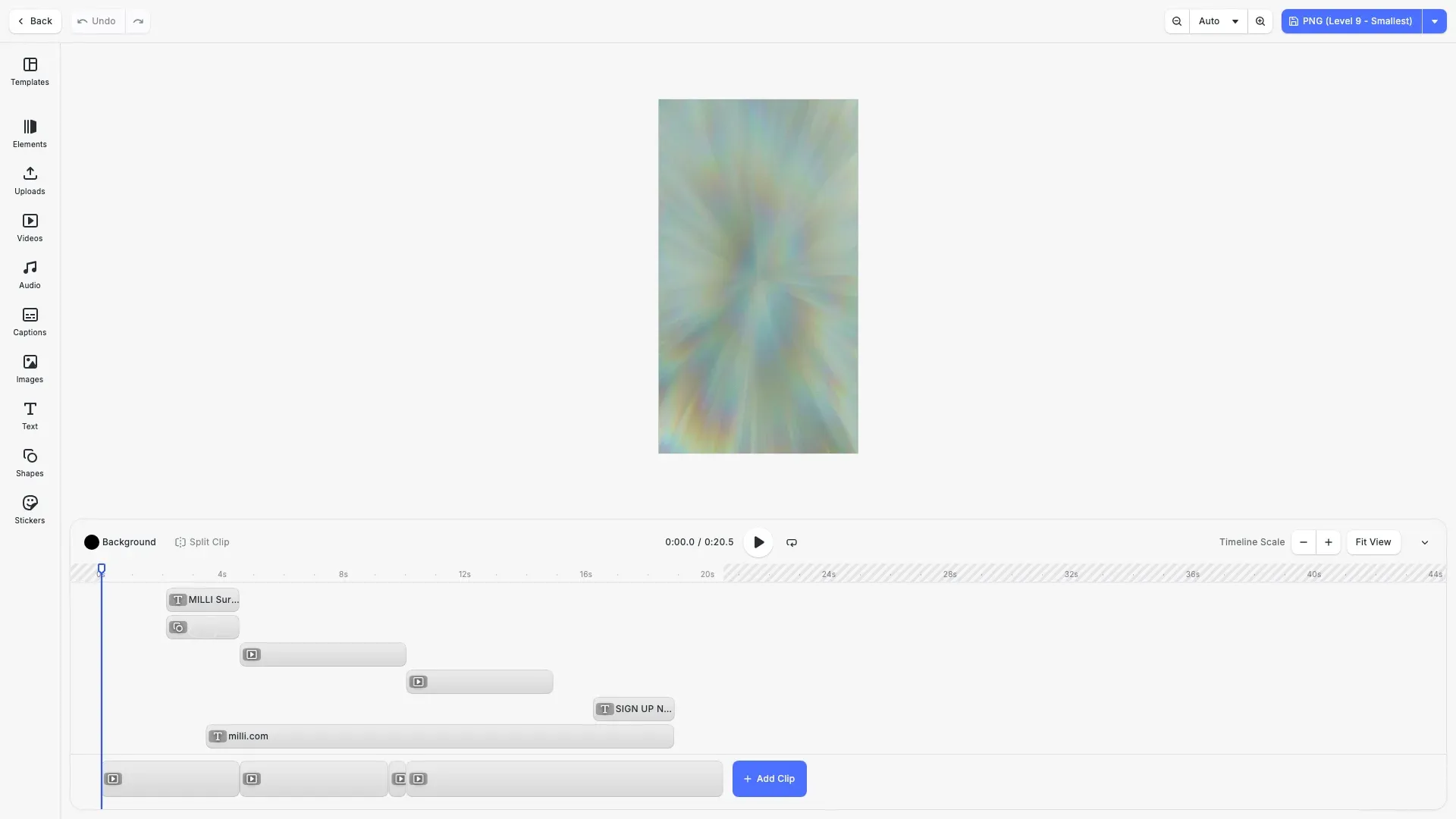
Image compression reduces file sizes while maintaining acceptable visual quality. CE.SDK supports format-specific compression controls: lossless compression for PNG, lossy quality settings for JPEG, and both modes for WebP. The example includes a navigation bar dropdown menu with export options for comparing different formats and compression levels.
This guide covers exporting with compression settings, configuring quality levels, controlling output dimensions, and video compression options.
Compression Options by Format#
To compress assets, use engine.block.export with format-specific options. Each format supports different parameters for balancing speed, file size, and quality.
| Format | Parameter | Type | Effect | Default |
|---|---|---|---|---|
| PNG | pngCompressionLevel | 0–9 | Higher = smaller, slower (lossless) | 5 |
| JPEG | jpegQuality | 0.0–1.0 | Lower = smaller, lower quality | 0.9 |
| WebP | webpQuality | 0.0–1.0 | 1.0 = lossless, below 1.0 = lossy | 1.0 |
| MP4 | videoBitrate, audioBitrate | bits/sec | Higher = larger, higher quality | 0 (auto) |
Export with Compression#
Call engine.block.export() with format-specific compression options. Each format uses different parameters to control file size and quality.
PNG Compression#
PNG uses lossless compression controlled by pngCompressionLevel (0-9). Higher values produce smaller files but take longer to encode. Quality remains identical at all levels.
// PNG uses lossless compression - level 0-9// Higher levels = smaller files, slower encoding// Quality is identical at all levelsconst exportPngLevel9 = async () => { const blob = await engine.block.export(page, { mimeType: 'image/png', pngCompressionLevel: 9 }); downloadBlob(blob, 'export-png-level9.png'); cesdk.ui.showNotification({ message: `PNG Level 9: ${(blob.size / 1024).toFixed(0)} KB`, type: 'success' });};Use level 5-6 for balanced results, or level 9 when file size is critical and encoding time is acceptable.
JPEG Quality#
JPEG uses lossy compression controlled by jpegQuality (0-1). Lower values produce smaller files with more visible artifacts.
// JPEG uses lossy compression - quality 0-1// Lower values = smaller files, more artifactsconst exportJpeg90 = async () => { const blob = await engine.block.export(page, { mimeType: 'image/jpeg', jpegQuality: 0.9 }); downloadBlob(blob, 'export-jpeg-90.jpg'); cesdk.ui.showNotification({ message: `JPEG 90%: ${(blob.size / 1024).toFixed(0)} KB`, type: 'success' });};Quality 0.8 provides a good balance for web delivery. Use 0.9+ for archival or print workflows.
WebP Quality#
WebP supports both lossless and lossy modes via webpQuality (0-1). At 1.0, WebP uses lossless encoding. Values below 1.0 enable lossy compression.
// WebP supports both lossless (1.0) and lossy (<1.0) modes// Typically 20-30% smaller than JPEG at equivalent qualityconst exportWebp90 = async () => { const blob = await engine.block.export(page, { mimeType: 'image/webp', webpQuality: 0.9 }); downloadBlob(blob, 'export-webp-90.webp'); cesdk.ui.showNotification({ message: `WebP 90%: ${(blob.size / 1024).toFixed(0)} KB`, type: 'success' });};WebP typically produces 20-30% smaller files than JPEG at equivalent quality, with optional transparency support.
Target Dimensions#
Use targetWidth and targetHeight together to export at specific dimensions. The block renders large enough to fill the target size while maintaining aspect ratio.
// Combine compression with dimension scaling// Useful for creating thumbnails or social media previewsconst exportScaled = async () => { const blob = await engine.block.export(page, { mimeType: 'image/png', pngCompressionLevel: 6, targetWidth: 1200, targetHeight: 630 }); downloadBlob(blob, 'export-scaled-1200x630.png'); cesdk.ui.showNotification({ message: `Scaled 1200×630: ${(blob.size / 1024).toFixed(0)} KB`, type: 'success' });};Combining dimension scaling with compression produces smaller files suitable for specific platforms like social media thumbnails.
Navigation Bar Export Menu#
The example demonstrates configuring the CE.SDK navigation bar with a dropdown menu containing all export options. This approach integrates naturally with the editor UI.
// Configure navigation bar with export dropdowncesdk.ui.setComponentOrder({ in: 'ly.img.navigation.bar' }, [ 'ly.img.back.navigationBar', 'ly.img.undoRedo.navigationBar', 'ly.img.spacer', 'ly.img.zoom.navigationBar', // Actions dropdown with all export options { id: 'ly.img.actions.navigationBar', children: [ // PNG exports { id: 'ly.img.action.navigationBar', key: 'export-png-9', label: 'PNG (Level 9 - Smallest)', icon: '@imgly/Save', onClick: exportPngLevel9 }, { id: 'ly.img.action.navigationBar', key: 'export-png-5', label: 'PNG (Level 5 - Balanced)', icon: '@imgly/Save', onClick: exportPngLevel5 }, // JPEG exports { id: 'ly.img.action.navigationBar', key: 'export-jpeg-90', label: 'JPEG (90% Quality)', icon: '@imgly/Save', onClick: exportJpeg90 }, { id: 'ly.img.action.navigationBar', key: 'export-jpeg-60', label: 'JPEG (60% Quality)', icon: '@imgly/Save', onClick: exportJpeg60 }, // WebP exports { id: 'ly.img.action.navigationBar', key: 'export-webp-90', label: 'WebP (90% Quality)', icon: '@imgly/Save', onClick: exportWebp90 }, { id: 'ly.img.action.navigationBar', key: 'export-webp-60', label: 'WebP (60% Quality)', icon: '@imgly/Save', onClick: exportWebp60 }, // Scaled export { id: 'ly.img.action.navigationBar', key: 'export-scaled', label: 'Scaled (1200×630)', icon: '@imgly/Save', onClick: exportScaled }, // Video exports { id: 'ly.img.action.navigationBar', key: 'export-video-web', label: 'Video 720p (2 Mbps)', icon: '@imgly/Video', onClick: exportVideoWeb }, { id: 'ly.img.action.navigationBar', key: 'export-video-hd', label: 'Video 1080p (8 Mbps)', icon: '@imgly/Video', onClick: exportVideoHD } ] }]);Each menu item triggers an export with specific compression options and displays the resulting file size via a notification.
Compress Videos#
To compress video, use the VideoExportOptions structure in the export workflow. You can specify:
- Bitrate: Mbps for video, kbps for audio
- Frame rate: fps (frames per second)
- H.264 profile: Compatibility and feature level
- Target resolution: Output dimensions in pixels
The example includes video export options in the dropdown menu. CE.SDK automatically displays a progress modal during video encoding.
// Video export with web-optimized bitrate (720p, 2 Mbps)const exportVideoWeb = async () => {  const blob = await engine.block.exportVideo(page, {    mimeType: 'video/mp4',    videoBitrate: 2_000_000,    audioBitrate: 128_000,    framerate: 30,    targetWidth: 1280,    targetHeight: 720  });  downloadBlob(blob, 'export-web-720p.mp4');  cesdk.ui.showNotification({    message: `Video 720p: ${(blob.size / (1024 * 1024)).toFixed(1)} MB`,    type: 'success'  });};
// Video export with HD bitrate (1080p, 8 Mbps)const exportVideoHD = async () => {  const blob = await engine.block.exportVideo(page, {    mimeType: 'video/mp4',    videoBitrate: 8_000_000,    audioBitrate: 192_000,    framerate: 30,    targetWidth: 1920,    targetHeight: 1080  });  downloadBlob(blob, 'export-hd-1080p.mp4');  cesdk.ui.showNotification({    message: `Video 1080p: ${(blob.size / (1024 * 1024)).toFixed(1)} MB`,    type: 'success'  });};
Choose Bitrate Values#
Adjust bitrate according to your use case:
- Web/social media clips: 1–2 Mbps
- Downloadable HD video: 8–12 Mbps
- Automatic optimization: Set
videoBitrateto0to let CE.SDK choose based on resolution and frame rate
H.264 Profile Selection#
The H.264 profile and level determine encoder compatibility and features:
- Baseline: Mobile-friendly playback
- Main: Standard HD
- High: Highest quality (desktop/professional workflows)
Performance and Trade-Offs#
Higher compression produces smaller files but has trade-offs:
- Slower export speeds with higher compression levels
- JPEG and WebP are faster but can introduce visible artifacts (blurring, color banding)
- Video exports are resource-consuming and depend on device CPU/GPU performance
Check Export Limits#
The EditorAPI provides options to check available export limits before encoding:
const maxSize = engine.editor.getMaxExportSize();const availableMemory = engine.editor.getAvailableMemory();console.log("Max export size:", maxSize, "Memory:", availableMemory);Real-World Compression Comparison (1080×1080)#
| Format | Setting | Avg. File Size | Encode Time | PSNR | Notes |
|---|---|---|---|---|---|
| PNG | Level 0 | ~1,450 KB | ~44 ms | ∞ (lossless) | Fastest, largest |
| PNG | Level 5 | ~1,260 KB | ~61 ms | ∞ | Balanced speed and size |
| PNG | Level 9 | ~1,080 KB | ~88 ms | ∞ | Smallest, slowest |
| JPEG | Quality 95 | ~640 KB | ~24 ms | 43 dB | Near-lossless |
| JPEG | Quality 80 | ~420 KB | ~20 ms | 39 dB | Good default for photos |
| JPEG | Quality 60 | ~290 KB | ~17 ms | 35 dB | Some artifacts visible |
| WebP | Quality 95 | ~510 KB | ~27 ms | 44 dB | Smaller than JPEG |
| WebP | Quality 80 | ~350 KB | ~23 ms | 39 dB | Good web balance |
| WebP | Lossless | ~830 KB | ~33 ms | ∞ | Smaller than PNG, keeps alpha |
PSNR > 40 dB ≈ visually lossless; 30–35 dB shows mild artifacts.
Key Takeaways:
- WebP achieves 70–85% smaller files than PNG with high quality around 0.8
- JPEG performs well for photographs; use 0.8–0.9 for web/print, 0.6 for compact exports
- PNG is essential for transparency; higher levels reduce size modestly at the cost of speed
Practical Presets#
| Use Case | Format | Settings | Notes |
|---|---|---|---|
| Web/Social Sharing | JPEG/WebP | jpegQuality: 0.8 | Balanced quality and size |
| Transparent Assets | PNG/WebP | pngCompressionLevel: 6 | Maintains transparency |
| Print/Archival | PNG | pngCompressionLevel: 9 | Best fidelity, large files |
| Video for Web | MP4 | videoBitrate: 2_000_000 | Smooth playback, small file |
| Video HD Download | MP4 | videoBitrate: 8_000_000 | Full HD quality |
Troubleshooting#
| Issue | Solution |
|---|---|
| File size not reduced | Use the correct option name (jpegQuality, webpQuality) |
| JPEG quality too low | Raise quality to 0.9 or switch to PNG/WebP lossless |
| Slow export | Lower the compression level—PNG level 5–6 is a good target |
| Video not compressing | Set videoBitrate to a reasonable non-zero value |
API Reference#
| Method | Description |
|---|---|
engine.block.export(blockId, options) | Export a block with compression and format options |
engine.block.exportVideo(blockId, options) | Export a video with compression settings |
engine.editor.getMaxExportSize() | Get maximum export dimensions |
engine.editor.getAvailableMemory() | Get available memory for export |
Next Steps#
- Export Overview - Compare all supported export formats
- Export to PNG - Full PNG export options and transparency handling
- Export to JPEG - JPEG-specific options for photographs
- Export to WebP - WebP format with lossless and lossy modes
- Batch Processing - Apply compression consistently in automated exports