Play, pause, seek, and preview audio and video content programmatically using CE.SDK’s playback control APIs.
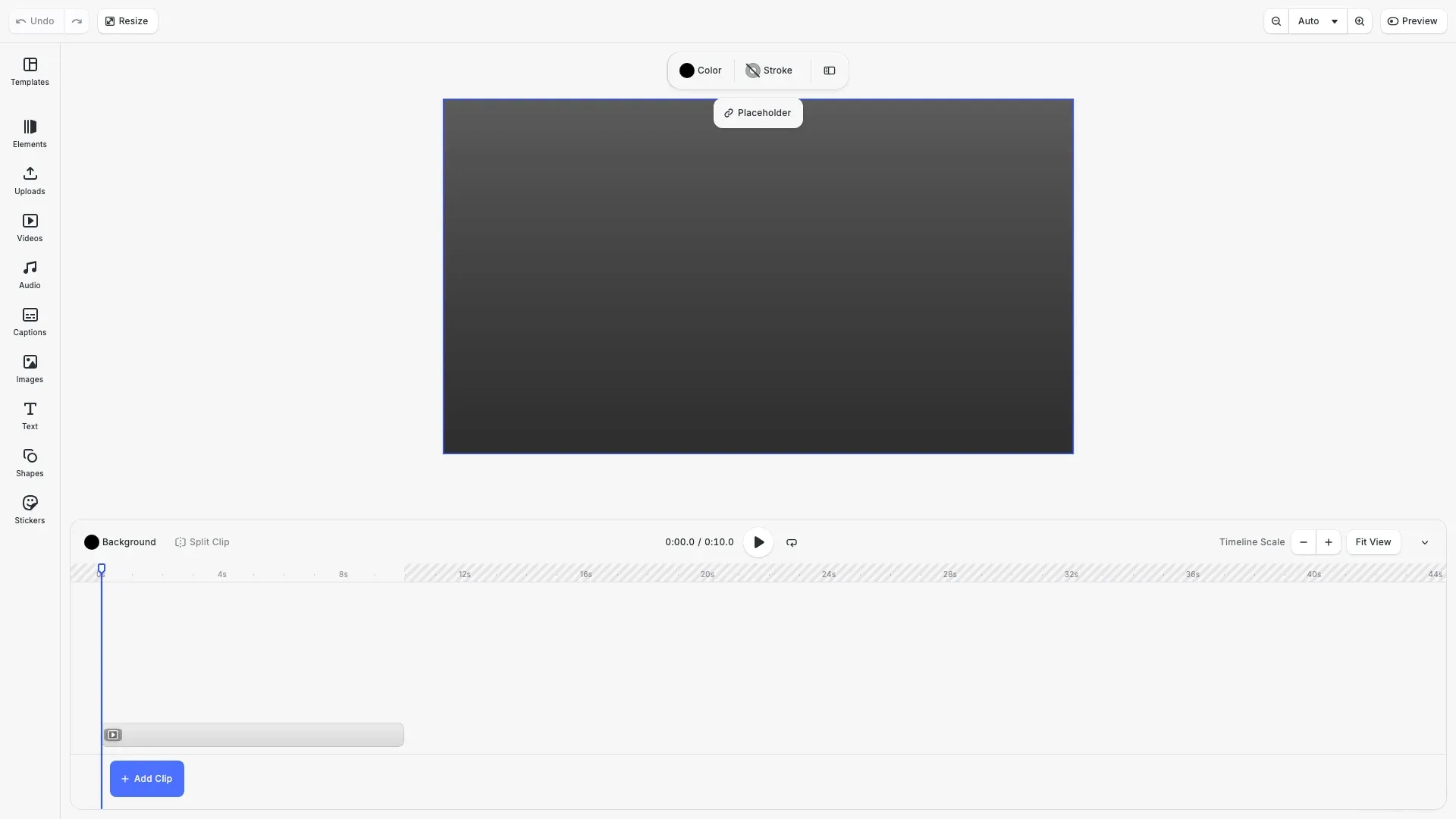
CE.SDK provides playback control for audio and video through the Block API. Playback state, seeking, and solo preview are controlled programmatically. Resources must be loaded before accessing metadata like duration and dimensions.
This guide covers how to play and pause media, seek to specific positions, preview individual blocks with solo mode, check visibility at playback time, and access video resource metadata.
Force Loading Resources#
Media resource metadata is unavailable until the resource is loaded. Call forceLoadAVResource on the video fill to ensure dimensions and duration are accessible.
await engine.block.forceLoadAVResource(videoFill);Without loading the resource first, accessing properties like duration or dimensions throws an error.
Getting Video Metadata#
Once the resource is loaded, query the video dimensions and total duration.
const videoWidth = engine.block.getVideoWidth(videoFill);const videoHeight = engine.block.getVideoHeight(videoFill);const totalDuration = engine.block.getAVResourceTotalDuration(videoFill);The getVideoWidth and getVideoHeight methods return the original video dimensions in pixels. The getAVResourceTotalDuration method returns the full duration of the source media in seconds.
Playing and Pausing#
Check if the block supports playback control using supportsPlaybackControl, then start or stop playback with setPlaying.
if (engine.block.supportsPlaybackControl(page)) { console.log(`Is playing: ${engine.block.isPlaying(page)}`); engine.block.setPlaying(page, true);}The isPlaying method returns the current playback state.
Seeking#
To jump to a specific position in the timeline, use setPlaybackTime. First, check if the block supports playback time with supportsPlaybackTime.
if (engine.block.supportsPlaybackTime(page)) { engine.block.setPlaybackTime(page, 1.0); console.log(`Playback time: ${engine.block.getPlaybackTime(page)}s`);}Playback time is specified in seconds. The getPlaybackTime method returns the current position.
Visibility at Current Time#
Check if a block is visible at the current playback position using isVisibleAtCurrentPlaybackTime. This is useful when blocks have different time offsets or durations.
console.log( `Visible at current time: ${engine.block.isVisibleAtCurrentPlaybackTime( videoBlock )}`);Solo Playback#
Solo playback allows you to preview an individual block while the rest of the scene stays frozen. Enable it on a video fill or audio block with setSoloPlaybackEnabled.
engine.block.setSoloPlaybackEnabled(videoFill, true);console.log( `Solo enabled: ${engine.block.isSoloPlaybackEnabled(videoFill)}`);engine.block.setSoloPlaybackEnabled(videoFill, false);Enabling solo on one block automatically disables it on all others. This is useful for previewing a specific clip without affecting the overall scene playback.
Troubleshooting#
Properties Unavailable Before Resource Load#
Symptom: Accessing duration, dimensions, or trim values throws an error.
Cause: Media resource not yet loaded.
Solution: Always await engine.block.forceLoadAVResource() before accessing these properties.
Block Not Playing#
Symptom: Calling setPlaying(true) has no effect.
Cause: Block doesn’t support playback control or scene not in playback mode.
Solution: Check supportsPlaybackControl() returns true; ensure scene playback is active.
Solo Playback Not Working#
Symptom: Enabling solo doesn’t isolate the block.
Cause: Solo applied to wrong block type or block not visible.
Solution: Apply solo to video fills or audio blocks, ensure block is at current playback time.
Next Steps#
- Trim Video and Audio - Control which portion of source media plays
- Loop Audio - Enable repeating playback for audio blocks
- Adjust Volume - Control audio volume and muting
- Adjust Speed - Change playback speed for audio
- Video Timeline Overview - Timeline editing system