Blend adjacent video clips into each other with clip-to-clip transitions such as cross-fades, pushes, and wipes using CE.SDK’s transitions API.
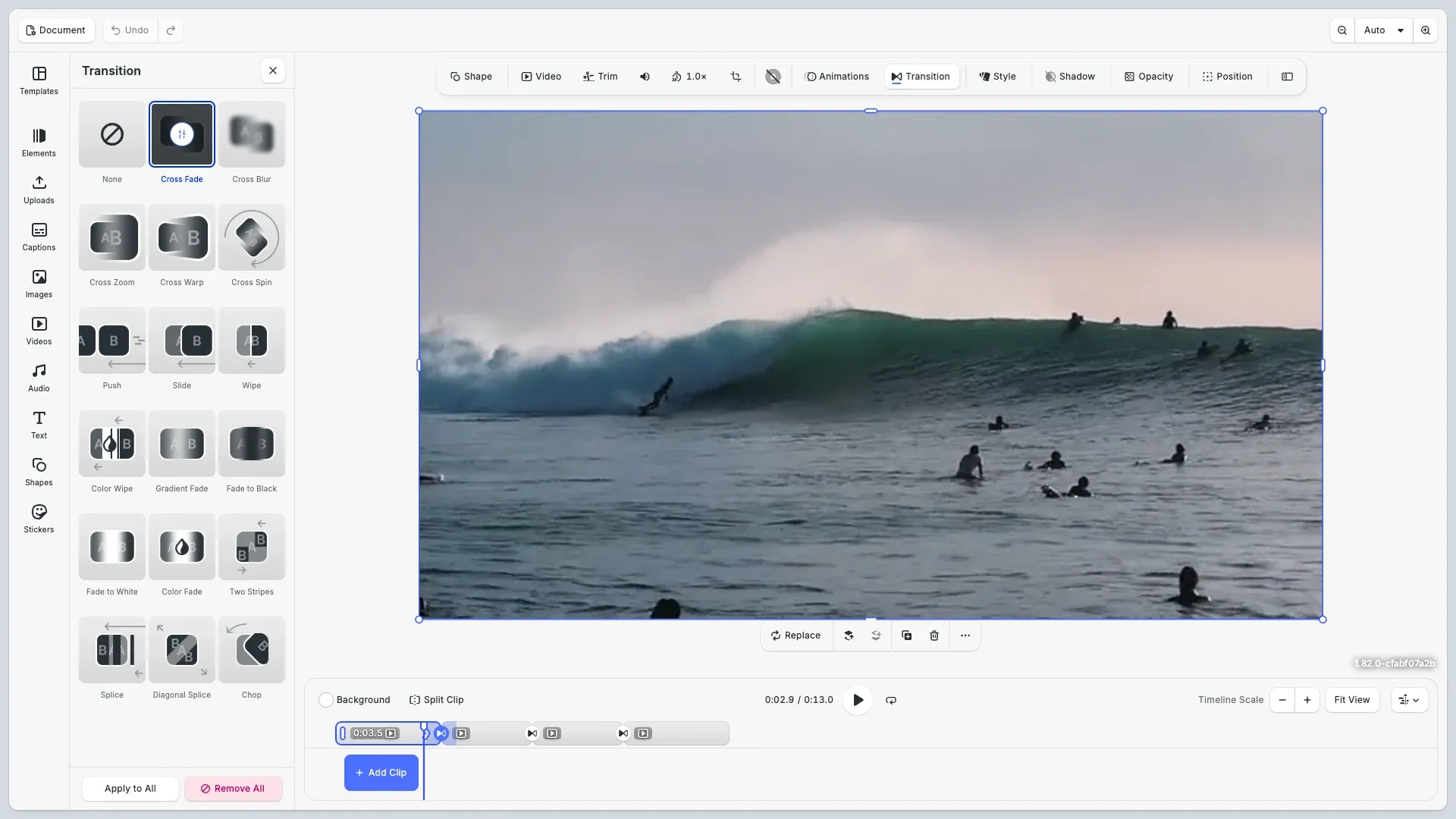
A transition belongs to the outgoing clip and blends it into the following clip on the same track. When you assign one, the engine overlaps the two clips for the transition duration: the incoming clip—and every clip after it—moves earlier on the timeline, and audio cross-fades linearly over the same window.
Transitions are blocks. You create one with createTransition, attach it to a clip with setTransition, and configure it through the same generic setters you use for other blocks. Once assigned, the transition is owned by its clip: it is destroyed together with the clip, and the engine also destroys it automatically when the two clips stop being timeline-adjacent.
Transitions are available two ways: from the editor’s timeline UI and through the engine API. This guide covers both — the built-in Transitions panel first, then how to check transition support, create and assign transitions between clips, understand the timeline overlap they introduce, configure per-type properties, and replace or remove them programmatically.
Using the Built-in Transitions UI#
In the video editor, transitions are added from the timeline or from the selected clip’s inspector. Hover the seam between two adjacent clips and a round control appears, or select a clip and use the Transitions entry in the inspector bar or inspector panel — either opens the same Transitions panel, targeting the transition on the selected clip’s trailing edge. No code is required:
- Transitions library — a grid of presets (Cross Fade, Cross Blur, Cross Zoom, Push, Slide, Wipe, Color Wipe, the Fades, and more, plus None to remove a transition). Selecting one drops it on the seam and plays a live preview on the canvas.
- Per-type settings — each preset exposes its own controls in the panel — duration, direction, color, morph, and so on — and the canvas re-previews as you adjust them. The duration is clamped to half of the shorter neighboring clip.
- Apply to All / Remove All — the panel footer copies the current transition, with its settings, to every eligible clip on the track, or clears every transition on the track at once.
The controls only appear where a transition is valid: both the outgoing and the incoming clip must support one, so they never show on the track’s last clip or into a group, caption, or cutout clip. The timeline control additionally hides across a real gap, while the inspector entry follows clip order and stays available. Selecting a clip without an eligible cut — or deselecting — closes the panel; closing the panel keeps the clip selected. The feature lives in video mode and is gated by the ly.img.transitions flag (see Configuring Availability below).
Creating the Video Timeline#
Transitions need a video scene with at least two adjacent clips on a track. We create the scene first.
await cesdk.actions.run('scene.create', {  layout: 'DepthStack',  page: { width: 1280, height: 720, unit: 'Pixel' }});
const engine = cesdk.engine;const page = engine.block.findByType('page')[0];
Next, we build a sequence of four clips. The addVideo helper creates a graphic block with a video fill and loads the video metadata; appending the clips to a track makes them play one after another.
// Build a sequence of four clips on a single trackconst videoUrls = [  'https://cdn.img.ly/assets/demo/v3/ly.img.video/videos/pexels-drone-footage-of-a-surfer-barrelling-a-wave-12715991.mp4',  'https://cdn.img.ly/assets/demo/v3/ly.img.video/videos/pexels-tony-schnagl-5528015.mp4',  'https://cdn.img.ly/assets/demo/v3/ly.img.video/videos/pexels-taryn-elliott-8713114.mp4',  'https://cdn.img.ly/assets/demo/v3/ly.img.video/videos/pexels-taryn-elliott-7108801.mp4'];
const track = engine.block.create('track');engine.block.appendChild(page, track);
const clips: number[] = [];for (const url of videoUrls) {  const clip = await engine.block.addVideo(url, 1280, 720, {    timeline: { duration: 4 }  });  engine.block.appendChild(track, clip);  clips.push(clip);}engine.block.fillParent(track);
const [clipA, clipB, clipC] = clips;
Each clip plays for 4 seconds, so the clips initially start at 0, 4, 8, and 12 seconds.
Checking Transition Support#
Before assigning a transition, we verify that both the outgoing and the incoming clip support one. Any individual clip placed directly in a video track qualifies, no matter whether it shows a video, an image, a shape, a sticker or text. Audio, group, caption, and cutout blocks report false, as do blocks outside a video track.
// Individual clips placed directly in a video track support transitions,// regardless of content (video, image, shape, sticker, or text).// Audio, group, caption, and cutout blocks report false.const canTransition = engine.block.supportsTransition(clipA) && engine.block.supportsTransition(clipB);console.log('Clips support transitions:', canTransition);setTransition throws when either clip fails this check, so testing upfront lets you disable the option instead of handling an error later.
Creating and Assigning a Transition#
We create a cross-fade and give it a duration. The duration defines how long the two clips overlap.
// Create a transition block and set how long the blend should lastconst crossFade = engine.block.createTransition('cross-fade');engine.block.setDuration(crossFade, 1);The new block is standalone until we assign it. Assigning it to the first clip blends that clip into the one that follows it on the track.
// Assign the transition to the outgoing clip. It blends this clip// into the next clip on the same track.engine.block.setTransition(clipA, crossFade);A transition block can only be assigned to one clip. Assigning a different transition to a clip that already has one detaches the previous block without destroying it.
Understanding the Timeline Overlap#
Assigning a transition reflows the timeline. The incoming clip moves earlier by the transition duration so the two clips overlap, and all downstream clips shift with it.
// Assigning a transition overlaps the two clips: the incoming clip and// everything after it move earlier by the transition duration.console.log( 'Clip B now starts at:', engine.block.getTimeOffset(clipB), 'seconds (was 4)');With a 1-second cross-fade on the first clip, the second clip’s time offset changes from 4 to 3 seconds. The effective overlap is clamped: it never exceeds half of either neighboring clip’s duration, so a long transition between short clips plays shorter than requested. Removing the transition restores the original offsets.
Configuring Transition Properties#
Each transition type exposes its own properties under transition/{type}/{property} keys, which you set through the generic block setters. Use findAllProperties to discover what a specific type offers.
// Per-type properties use the generic block setters with// 'transition/{type}/{property}' keys. Discover what a type// exposes with findAllProperties.const push = engine.block.createTransition('push');engine.block.setDuration(push, 1);engine.block.setTransition(clipB, push);console.log('Push properties:', engine.block.findAllProperties(push));
engine.block.setEnum(push, 'transition/push/direction', 'Left');
Directional types such as push, slide, wipe, and color-wipe expose a direction enum. Others expose numeric controls, for example transition/cross-spin/intensity or transition/cross-warp/zoom, and color-wipe exposes a transition/color-wipe/color color property.
Morphing Between Clips#
Most transition types expose a morph flag—only clock-wipe and cross-spin don’t. When enabled, the engine interpolates position, rotation, scale, and shape between the outgoing and incoming clip during the transition.
// With morph enabled, position, rotation, scale, and shape are// interpolated between the outgoing and incoming clip.engine.block.setBool(push, 'transition/push/morph', true);Morphing is most visible when the two clips differ in framing—for example when one clip is scaled or rotated relative to the other.
Reading Back a Transition#
getTransition returns the transition assigned to a clip, or an invalid block when the clip has none. Check the result with isValid before using it.
// Read back the assigned transition. An unset relation returns an// invalid block, so check the result with isValid.const assigned = engine.block.getTransition(clipA);if (engine.block.isValid(assigned)) { console.log('Clip A transitions with:', engine.block.getType(assigned));}Replacing or Removing a Transition#
removeTransition detaches a clip’s transition and restores the original clip timing, but does not destroy the detached block. Destroy it yourself when you no longer need it, then assign a replacement.
// Replace a transition: detach the old block, destroy it to avoid// leaks, then assign the new one. removeTransition alone restores// the original clip timing.const fadeToBlack = engine.block.createTransition('fade-to-black');engine.block.setDuration(fadeToBlack, 1);engine.block.setTransition(clipC, fadeToBlack);
engine.block.removeTransition(clipC);engine.block.destroy(fadeToBlack);
const colorWipe = engine.block.createTransition('color-wipe');engine.block.setDuration(colorWipe, 1);engine.block.setTransition(clipC, colorWipe);engine.block.setEnum(colorWipe, 'transition/color-wipe/direction', 'Up');engine.block.setColor(colorWipe, 'transition/color-wipe/color', {  r: 1,  g: 1,  b: 1,  a: 1});
Removing from a clip without an assigned transition is a no-op.
Transition Types#
createTransition accepts shorthand type IDs (or the longhand //ly.img.ubq/transition/{type} form):
- Blends:
cross-fade,cross-blur,cross-spin,cross-zoom,cross-warp - Movement:
push,slide,stack,splice,diagonal-splice - Fades:
fade,fade-to-black,fade-to-white,gradient-fade - Wipes:
wipe,line-wipe,clock-wipe,color-wipe - Patterns:
chop,two-stripes - None:
none
Configuring Availability#
Use the Feature API to hide the transitions UI. Disabling ly.img.transitions removes the seam control, the inspector bar and inspector panel entries, and the Transitions panel; the feature is available in video mode only. See Disable or Enable Features.
The inspector bar entry is the 'ly.img.transitions.inspectorBar' component. The prebuilt video-editor configurations list it after Animations; a custom inspector bar order can place it the same way (see Component Reference).
// Hide the transitions UIcesdk.feature.disable('ly.img.transitions');ly.img.transitions— whether the transitions UI appears at all (video mode only)
Troubleshooting#
Transition Has No Visible Effect#
Check that both clips sit next to each other on the same track and that the playhead is inside the overlap window. The overlap starts at the incoming clip’s time offset and ends at the outgoing clip’s end.
setTransition Throws#
Verify supportsTransition returns true for both the outgoing and the incoming clip, and that the transition block isn’t already assigned to another clip.
Transition Disappeared#
The engine destroys an assigned transition when the two clips stop being timeline-adjacent—for example after a gap is introduced between them—or when the owning clip is destroyed.
Transition Plays Shorter Than Requested#
The effective duration is clamped to half of either neighboring clip’s duration. Shorten the transition or lengthen the clips.
API Reference#
| Method | Description | Parameters | Returns |
|---|---|---|---|
block.createTransition(type) |
Create a standalone transition block | type: TransitionType |
DesignBlockId |
block.supportsTransition(id) |
Check whether a clip can own an outgoing transition | id: DesignBlockId |
boolean |
block.setTransition(id, transition) |
Assign the outgoing transition of a clip | id: DesignBlockId, transition: DesignBlockId |
void |
block.getTransition(id) |
Get the assigned transition (invalid block if unset) | id: DesignBlockId |
DesignBlockId |
block.removeTransition(id) |
Detach the outgoing transition of a clip | id: DesignBlockId |
void |
block.setDuration(id, duration) |
Set clip or transition duration in seconds | id: DesignBlockId, duration: number |
void |
block.getTimeOffset(id) |
Get a clip’s timeline start | id: DesignBlockId |
number |
block.findAllProperties(id) |
List the properties a transition exposes | id: DesignBlockId |
string[] |
block.isValid(id) |
Check a getTransition result |
id: DesignBlockId |
boolean |
block.destroy(id) |
Destroy a detached transition block | id: DesignBlockId |
void |
cesdk.feature.disable(key) |
Hide the transitions UI | key: 'ly.img.transitions' |
void |
cesdk.feature.enable(key) |
Show the transitions UI | key: 'ly.img.transitions' |
void |
Next Steps#
- Join and Arrange Video Clips - Build the clip sequence transitions operate on
- Trim Video Clips - Control which portion of media plays back
- Create Animations - Entrance and exit effects for individual blocks
- Disable or Enable Features - Gate the transitions feature with the Feature API