Create multi-page designs in CE.SDK for brochures, presentations, catalogs, and other documents requiring multiple pages within a single scene.
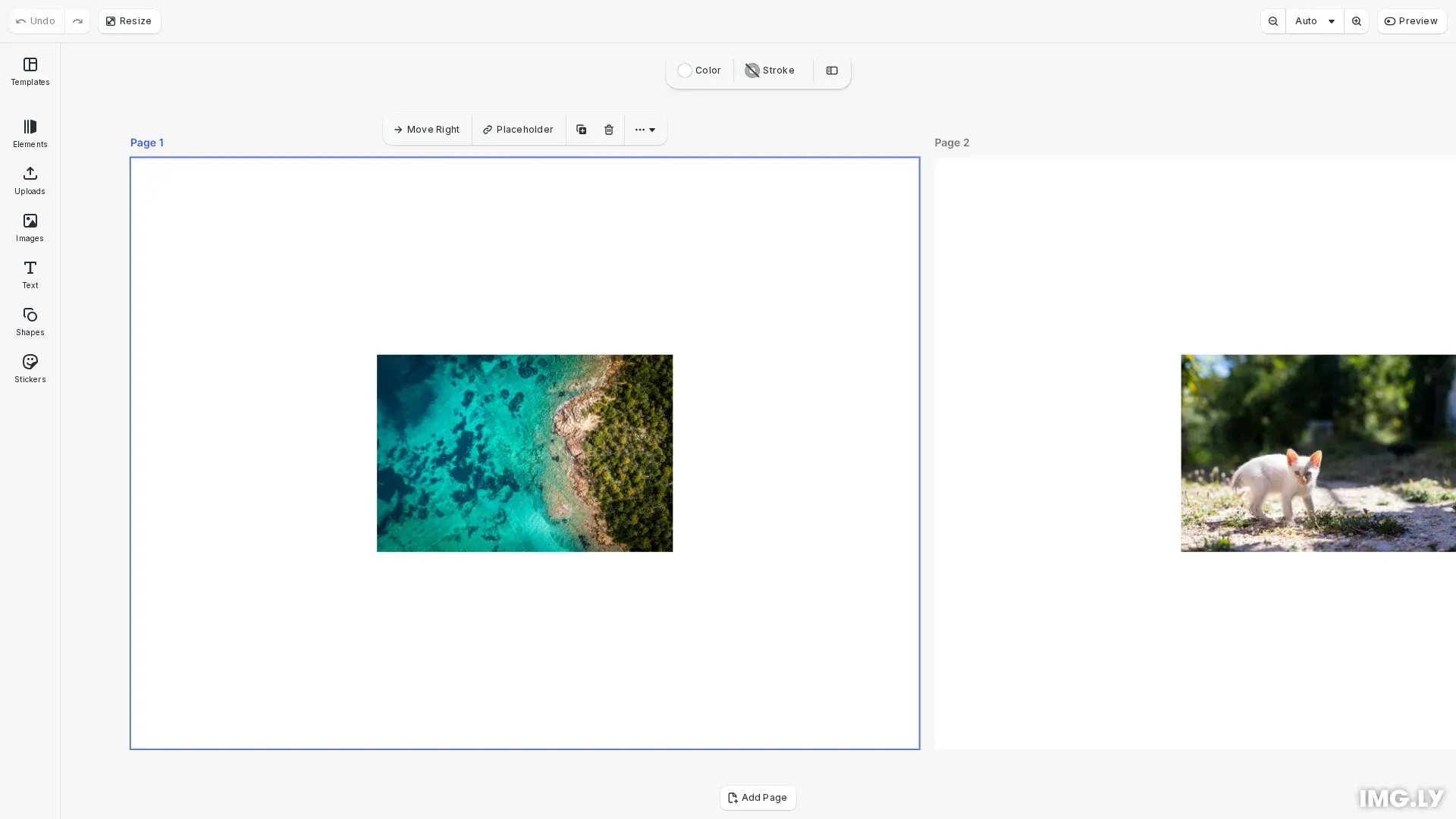
Multi-page layouts allow you to create documents with multiple artboards within a single scene. Each page operates as an independent canvas that can contain different content while sharing the same scene context. CE.SDK provides scene layout modes that automatically arrange pages vertically, horizontally, or in a free-form canvas.
This guide covers how to create multi-page scenes, add pages, and configure spacing between pages.
Using the Built-in Page Management UI#
The CE.SDK editor provides built-in UI controls for managing pages. Users can interact with the page panel to add new pages, duplicate existing ones, reorder them with drag-and-drop, delete pages, and navigate between pages by clicking.
The page panel displays thumbnails of all pages in the scene, making it easy to understand the document structure at a glance. When you click a page thumbnail, the viewport automatically zooms to that page.
Creating Multi-Page Scenes Programmatically#
We can create scenes with multiple pages using the engine API. The scene acts as a container for pages, and each page can hold any number of content blocks.
Creating a Scene with Pages#
We create a new scene using engine.scene.create() and specify the layout type. The layout type determines how pages are arranged in the viewport. After creating the scene, we get the stack container and create pages within it.
// Create a scene with HorizontalStack layoutengine.scene.create('HorizontalStack');
// Get the stack containerconst [stack] = engine.block.findByType('stack');
// Add spacing between pages (20 pixels in screen space)engine.block.setFloat(stack, 'stack/spacing', 20);engine.block.setBool(stack, 'stack/spacingInScreenspace', true);
// Create the first pageconst firstPage = engine.block.create('page');engine.block.setWidth(firstPage, 800);engine.block.setHeight(firstPage, 600);engine.block.appendChild(stack, firstPage);
The scene is created with a HorizontalStack layout, meaning pages are arranged side by side from left to right. We then create a page, set its dimensions, and append it to the stack container.
Configuring Page Spacing#
We can add spacing between pages in a stack layout using the stack/spacing property. This creates visual separation between pages.
// Add spacing between pages (20 pixels in screen space)engine.block.setFloat(stack, 'stack/spacing', 20);engine.block.setBool(stack, 'stack/spacingInScreenspace', true);Setting stack/spacingInScreenspace to true means the spacing value is interpreted as screen pixels, maintaining consistent visual spacing regardless of zoom level.
Adding More Pages#
To add additional pages, we create new page blocks, set their dimensions, and append them to the stack container.
// Create a second page with different contentconst secondPage = engine.block.create('page');engine.block.setWidth(secondPage, 800);engine.block.setHeight(secondPage, 600);engine.block.appendChild(stack, secondPage);
// Add a different image to the second pageconst imageBlock2 = await engine.block.addImage(  'https://img.ly/static/ubq_samples/sample_2.jpg',  { size: { width: 300, height: 200 } });engine.block.setPositionX(imageBlock2, 250);engine.block.setPositionY(imageBlock2, 200);engine.block.appendChild(secondPage, imageBlock2);
Each page can contain different content. Here we add different images to each page to demonstrate independent page content.
Scene Layout Types#
CE.SDK supports different layout modes that control how pages are arranged on the canvas. You specify the layout type when creating the scene with engine.scene.create().
Free Layout is the default where pages can be positioned anywhere on the canvas. This provides complete control over page placement.
VerticalStack Layout arranges pages automatically in a vertical stack from top to bottom. This is useful for scroll-based document previews.
HorizontalStack Layout arranges pages side by side from left to right. This is useful for carousel-style presentations or side-by-side comparisons.
Setting the Zoom Level#
We can control the viewport zoom level using engine.scene.setZoomLevel(). A value of 1.0 represents 100% zoom.
engine.block.select(firstPage);engine.scene.enableZoomAutoFit(firstPage, 'Both');Troubleshooting#
Page not visible after creation: Ensure the page is attached to the stack with appendChild() and has valid dimensions set with setWidth() and setHeight().
Cannot add content to page: Verify you’re appending blocks to the page block, not the scene directly. Content blocks should be children of pages.
Pages overlapping: When using stack layouts, make sure pages are appended to the stack container (found via findByType('stack')), not directly to the scene.
Spacing not visible: Check that stack/spacing is set to a positive value and that you’re using a stack layout (HorizontalStack or VerticalStack).