Add background music and audio tracks to video projects using CE.SDK’s audio block system for rich multimedia experiences.
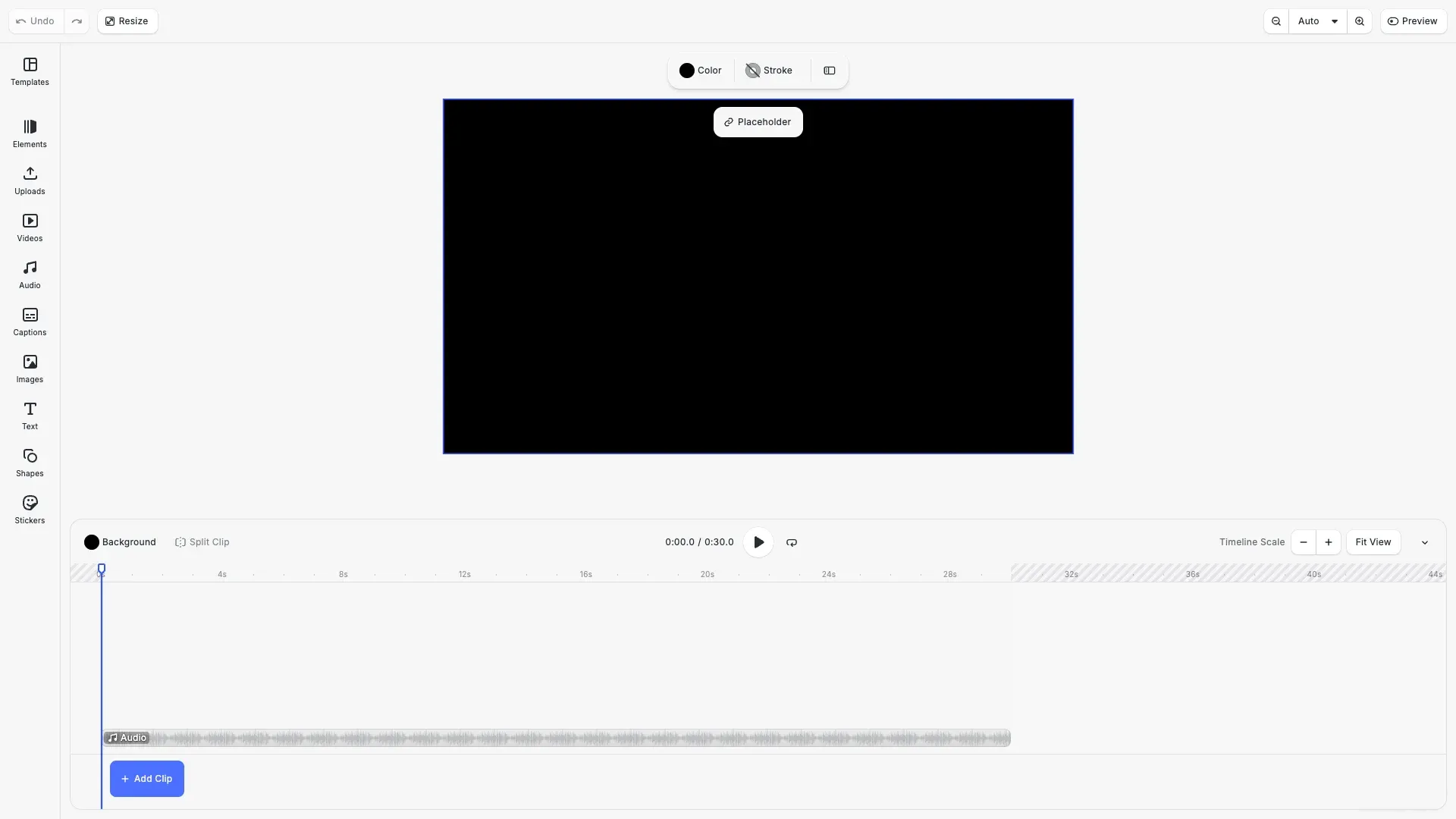
Audio blocks are standalone timeline elements that play alongside video content, independent of video fills. You can add music from the built-in asset library or from custom URLs, position tracks on the timeline, configure volume levels, and layer multiple audio tracks for complex soundscapes.
This guide covers how to add music using the built-in audio UI and how to create and configure audio blocks programmatically using the Block API.
Using the Built-in Audio UI#
Enable Audio Features#
Audio blocks require Video mode with timeline support. Enable the audio and timeline features to give users access to audio capabilities through the UI.
// Enable audio and timeline features for the UIcesdk.feature.enable('ly.img.video.timeline');cesdk.feature.enable('ly.img.video.audio');cesdk.feature.enable('ly.img.video.controls.playback');These features control:
ly.img.video.timeline- Shows the timeline for positioning audio tracksly.img.video.audio- Enables the audio library in the dockly.img.video.controls.playback- Adds playback controls for previewing audio
User Workflow#
With audio features enabled, users can add music through the interface:
- Open the dock - Access the asset library panel
- Select audio category - Browse available music tracks
- Preview tracks - Listen to audio before adding
- Drag to timeline - Add audio to the project
- Position on timeline - Adjust when audio starts and ends
- Adjust volume - Use the inspector to set volume levels
Programmatic Audio Creation#
Create Audio Block#
We create audio blocks using engine.block.create('audio') and set the source file using the audio/fileURI property. The audio block must be appended to a page to become part of the timeline.
// Create an audio block for background musicconst audioBlock = engine.block.create('audio');
// Set the audio source fileconst audioUri =  'https://cdn.img.ly/assets/demo/v3/ly.img.audio/audios/far_from_home.m4a';engine.block.setString(audioBlock, 'audio/fileURI', audioUri);
// Append audio to the page (makes it part of the timeline)engine.block.appendChild(page, audioBlock);
Audio blocks support common formats including M4A, MP3, and WAV. The source URI can point to any accessible URL or local file.
Configure Timeline Position#
Audio blocks have timeline properties that control when and how long they play. We use setTimeOffset() to set the start time and setDuration() to control playback length.
// Wait for audio to load to get durationawait engine.block.forceLoadAVResource(audioBlock);
// Get the total duration of the audio fileconst totalDuration = engine.block.getAVResourceTotalDuration(audioBlock);console.log('Audio total duration:', totalDuration, 'seconds');
// Set when the audio starts on the timeline (0 = beginning)engine.block.setTimeOffset(audioBlock, 0);
// Set how long the audio plays (use full duration or page duration)const playbackDuration = Math.min(totalDuration, 30);engine.block.setDuration(audioBlock, playbackDuration);
The forceLoadAVResource() method ensures the audio file is loaded before we access its duration. This is important when you need to know the total length of the audio file for timeline calculations.
Configure Volume#
Volume is set using setVolume() with values from 0.0 (mute) to 1.0 (full volume). This volume level is applied during export and affects the final rendered output.
// Set the audio volume (0.0 = mute, 1.0 = full volume)engine.block.setVolume(audioBlock, 0.8);
// Get current volumeconst currentVolume = engine.block.getVolume(audioBlock);console.log('Audio volume:', currentVolume);
Working with Audio Assets#
Query Audio Library#
CE.SDK provides a demo audio library that you can query using the Asset API. This allows you to build custom audio selection interfaces or programmatically add tracks based on metadata.
// Query available audio tracks from the asset libraryconst audioAssets = await engine.asset.findAssets('ly.img.audio', {  page: 0,  perPage: 10});
console.log('Available audio assets:', audioAssets.assets.length);
// Log metadata for each audio assetaudioAssets.assets.forEach((asset) => {  console.log('Audio asset:', {    id: asset.id,    label: asset.label,    duration: asset.meta?.duration,    uri: asset.meta?.uri  });});
Each asset includes metadata such as duration, file URI, and thumbnail URL, which you can use to display track information or make programmatic selections.
Managing Audio Blocks#
List Audio Blocks#
Use findByType('audio') to retrieve all audio blocks in the scene. This is useful for building audio management interfaces or batch operations.
// Find all audio blocks in the sceneconst allAudioBlocks = engine.block.findByType('audio');console.log('Total audio blocks:', allAudioBlocks.length);
// Get information about each audio blockallAudioBlocks.forEach((block, index) => {  const uri = engine.block.getString(block, 'audio/fileURI');  const timeOffset = engine.block.getTimeOffset(block);  const duration = engine.block.getDuration(block);  const volume = engine.block.getVolume(block);
  console.log(`Audio block ${index + 1}:`, {    uri: uri.split('/').pop(), // Just filename    timeOffset: `${timeOffset}s`,    duration: `${duration}s`,    volume: `${(volume * 100).toFixed(0)}%`  });});
Remove Audio#
To remove an audio block, call destroy() which removes it from the scene and frees its resources.
// Example: Remove the second audio block if it existsif (allAudioBlocks.length > 1) {  const blockToRemove = allAudioBlocks[1];
  // Destroy the block to remove it and free resources  engine.block.destroy(blockToRemove);
  console.log('Removed second audio block');}
Always destroy blocks that are no longer needed to prevent memory leaks, especially when working with multiple audio files.
API Reference#
| Method | Description |
|---|---|
feature.enable('ly.img.video.timeline') | Show timeline for audio positioning |
feature.enable('ly.img.video.audio') | Enable audio library in dock |
feature.enable('ly.img.video.controls.playback') | Add playback controls |
block.create('audio') | Create a new audio block |
block.setString(id, 'audio/fileURI', uri) | Set the audio source file |
block.setTimeOffset(id, seconds) | Set when audio starts on timeline |
block.setDuration(id, seconds) | Set audio playback duration |
block.setVolume(id, volume) | Set volume (0.0 to 1.0) |
block.getVolume(id) | Get current volume level |
block.getAVResourceTotalDuration(id) | Get total audio file duration |
block.forceLoadAVResource(id) | Force load audio resource |
block.findByType('audio') | Find all audio blocks in scene |
asset.findAssets(sourceId, query) | Query audio assets |
Audio Type#
A block for playing audio content.
This section describes the properties available for the Audio Type (//ly.img.ubq/audio) block type.
| Property | Type | Default | Description |
|---|---|---|---|
audio/fileURI | String | "" | A URI referencing an audio file. |
audio/totalDuration | Double | "-" | The total duration of the audio file., (read-only) |
contentFill/mode | Enum | "Cover" | Defines how content should be resized to fit its container (e.g., Crop, Cover, Contain)., Possible values: "Crop", "Cover", "Contain" |
playback/duration | Double | null | The duration in seconds for which this block should be visible. |
playback/looping | Bool | false | Whether the medium should start from the beginning again or should stop. |
playback/muted | Bool | false | Whether the audio is muted. |
playback/playing | Bool | false | A tag that can be set on elements for their playback time to be progressed. |
playback/soloPlaybackEnabled | Bool | false | A tag for blocks where playback should progress while the scene is paused. |
playback/speed | Float | 1 | The playback speed multiplier. |
playback/time | Double | 0 | The current playback time of the block contents in seconds. |
playback/timeOffset | Double | 0 | The time in seconds relative to its parent at which this block should first appear. |
playback/trimLength | Double | "-" | The relative duration of the clip for playback. |
playback/trimOffset | Double | "-" | The time within the clip at which playback should begin, in seconds. |
playback/volume | Float | 1 | Audio volume with a range of [0, 1]. |
selected | Bool | false | Indicates if the block is currently selected. |