Editor state determines how users interact with content on the canvas by controlling which editing mode is active and tracking cursor behavior. This guide covers edit modes, state change subscriptions, cursor state, and interaction detection.
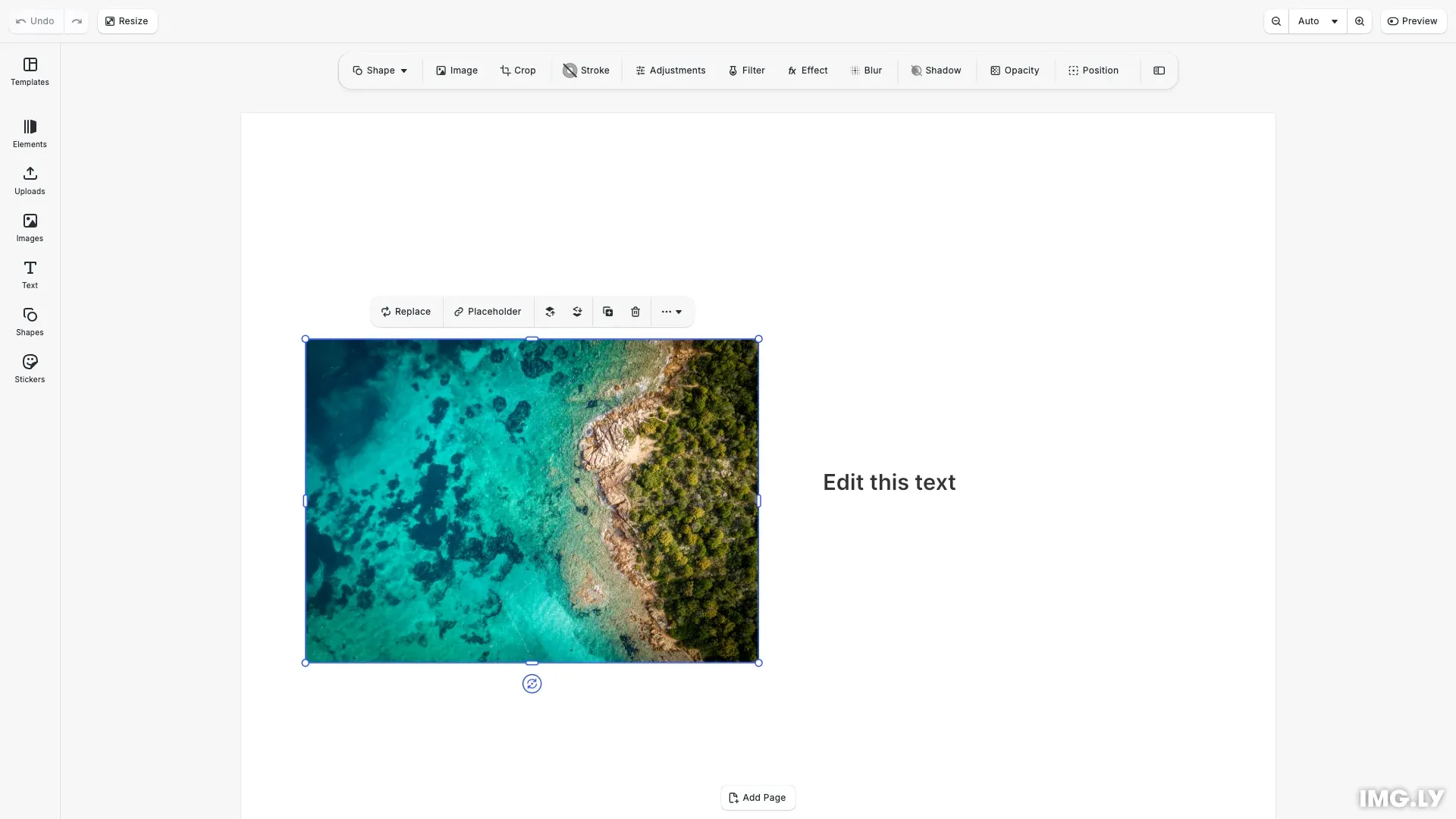
Edit modes define what type of content users can currently modify. Each mode enables different interaction behaviors—Transform mode for moving and resizing, Crop mode for adjusting content within frames, Text mode for inline text editing, and so on. The engine maintains the current edit mode as part of its state and notifies subscribers when it changes.
This guide covers:
- Understanding the five built-in edit modes (Transform, Crop, Text, Trim, Playback)
- Switching edit modes programmatically
- Creating custom edit modes that inherit from built-in modes
- Subscribing to state changes for UI synchronization
- Reading cursor type and rotation for custom cursors
- Tracking text cursor position for overlays
- Detecting active user interactions
Edit Modes#
CE.SDK supports five built-in edit modes, each designed for a specific type of interaction with canvas content.
Transform Mode#
Transform is the default mode that allows users to move, resize, and rotate blocks on the canvas. When a block is selected in Transform mode, control handles appear for manipulation.
// Get the current edit mode (default is Transform)const initialMode = engine.editor.getEditMode();console.log('Initial edit mode:', initialMode);Query the current mode using engine.editor.getEditMode(). The initial mode is always 'Transform'.
Switching Edit Modes#
Use engine.editor.setEditMode() to change the current editing mode. The mode determines what interactions are available on selected blocks.
// Select the image block and switch to Crop modeengine.block.select(imageBlock);engine.editor.setEditMode('Crop');console.log('Switched to Crop mode on image block');
// After a moment, switch to Transform modeengine.editor.setEditMode('Transform');console.log('Switched back to Transform mode');
Available modes include:
- Transform: Move, resize, and rotate blocks (default)
- Crop: Adjust media content within block frames
- Text: Edit text content inline
- Trim: Adjust clip start and end points (video scenes)
- Playback: Play video or audio content (limited interactions)
Custom Edit Modes#
You can create custom modes that inherit behavior from a built-in base mode. Pass an optional second parameter to setEditMode() specifying the base mode.
// Create a custom edit mode that inherits from Crop behaviorengine.editor.setEditMode('MyCustomCropMode', 'Crop');console.log(  'Created custom mode based on Crop:',  engine.editor.getEditMode());
// Switch back to Transform for the demoengine.editor.setEditMode('Transform');
Custom modes are useful when you need to track application-specific states while maintaining standard editing behavior. For example, you might use a custom mode to indicate that a specific tool is active in your UI while still allowing Transform interactions.
Subscribing to State Changes#
The engine notifies subscribers whenever the editor state changes, including mode switches and cursor updates.
Using onStateChanged#
Subscribe to state changes using engine.editor.onStateChanged(). The callback fires at the end of each engine update where state changed. The subscription returns an unsubscribe function for cleanup.
// Subscribe to state changes to track mode transitions// The returned function can be called to unsubscribe when no longer neededconst unsubscribeFromStateChanges = engine.editor.onStateChanged(() => {  const currentMode = engine.editor.getEditMode();  console.log('Edit mode changed to:', currentMode);
  // Also log cursor state when state changes  const cursorType = engine.editor.getCursorType();  console.log('Current cursor type:', cursorType);});
console.log('State change subscription active');
// Example: Unsubscribe after a delay (in a real app, call when component unmounts)setTimeout(() => {  unsubscribeFromStateChanges();  console.log('Unsubscribed from state changes');}, 10000);
Common use cases include:
- Updating toolbar UI to reflect the current mode
- Showing mode-specific panels or controls
- Disabling certain actions during Playback mode
- Logging state transitions for analytics
Always call the unsubscribe function when your component unmounts or when you no longer need updates. This prevents memory leaks and unnecessary callback invocations.
Cursor State#
The engine tracks what cursor type should be displayed based on the current context and hovered element. Use this information to display the appropriate mouse cursor in your custom UI.
Reading Cursor Type#
Use engine.editor.getCursorType() to get the cursor type to display.
// Get the cursor type to display the appropriate mouse cursorconst cursorType = engine.editor.getCursorType();console.log('Cursor type:', cursorType);// Returns: 'Arrow', 'Move', 'MoveNotPermitted', 'Resize', 'Rotate', or 'Text'The method returns one of these values:
- Arrow: Default pointer cursor
- Move: Indicates the element can be moved
- MoveNotPermitted: Element cannot be moved in the current context
- Resize: Resize handle is hovered
- Rotate: Rotation handle is hovered
- Text: Text editing cursor
Reading Cursor Rotation#
For directional cursors like resize handles, use engine.editor.getCursorRotation() to get the rotation angle in radians.
// Get cursor rotation for directional cursors like resize handlesconst cursorRotation = engine.editor.getCursorRotation();console.log('Cursor rotation (radians):', cursorRotation);// Apply to cursor element: transform: rotate(${cursorRotation}rad)Apply this rotation to your cursor image for correct visual feedback. For example, when hovering over a corner resize handle at 45 degrees, the rotation value reflects that angle so your cursor points in the correct direction.
Text Cursor Position#
When in Text edit mode, you can track the text cursor (caret) position for rendering custom overlays or toolbars near the insertion point.
Screen Space Coordinates#
Use engine.editor.getTextCursorPositionInScreenSpaceX() and engine.editor.getTextCursorPositionInScreenSpaceY() to get the cursor position in screen pixels.
// Select the text block and switch to Text mode to get cursor positionengine.block.select(textBlock);engine.editor.setEditMode('Text');
// Get text cursor position in screen spaceconst textCursorX = engine.editor.getTextCursorPositionInScreenSpaceX();const textCursorY = engine.editor.getTextCursorPositionInScreenSpaceY();console.log('Text cursor position:', { x: textCursorX, y: textCursorY });// Use these coordinates to position a floating toolbar near the text cursor
These values update as the user moves through text. Use them to position floating toolbars, formatting menus, or other UI elements relative to where the user is editing.
Detecting Active Interactions#
Determine whether the user is currently in the middle of an interaction like dragging or resizing.
Using unstable_isInteractionHappening#
Call engine.editor.unstable_isInteractionHappening() to check if a user interaction is in progress.
// Check if a user interaction is currently in progressconst isInteracting = engine.editor.unstable_isInteractionHappening();console.log('Is interaction happening:', isInteracting);// Use this to defer expensive operations during drag/resize operationsif (!isInteracting) { console.log('Safe to perform heavy updates');}This is useful for:
- Deferring expensive operations until after the interaction completes
- Showing different UI states during drag operations
- Optimizing performance by batching updates
Note that this API is marked unstable and may change in future releases.
Troubleshooting#
Mode Doesn’t Change Visually#
Ensure a block is selected that supports the target mode. For example, switching to Crop mode requires an image or video block to be selected. Switching to Text mode requires a text block.
State Change Callback Not Firing#
Verify the subscription is active before the operation that changes state. If you subscribe after the state change occurs, you won’t receive the initial notification.
Cursor Type Always Arrow#
Check that the mouse is over an interactive element and the element supports the current edit mode. The cursor type only changes when hovering over actionable areas like handles or selectable content.
Text Cursor Position is 0,0#
Confirm the editor is in Text mode with an active text selection. The text cursor position is only valid when actively editing text content.