We add AI-powered text generation to CE.SDK applications for creating headlines, descriptions, captions, and marketing content.
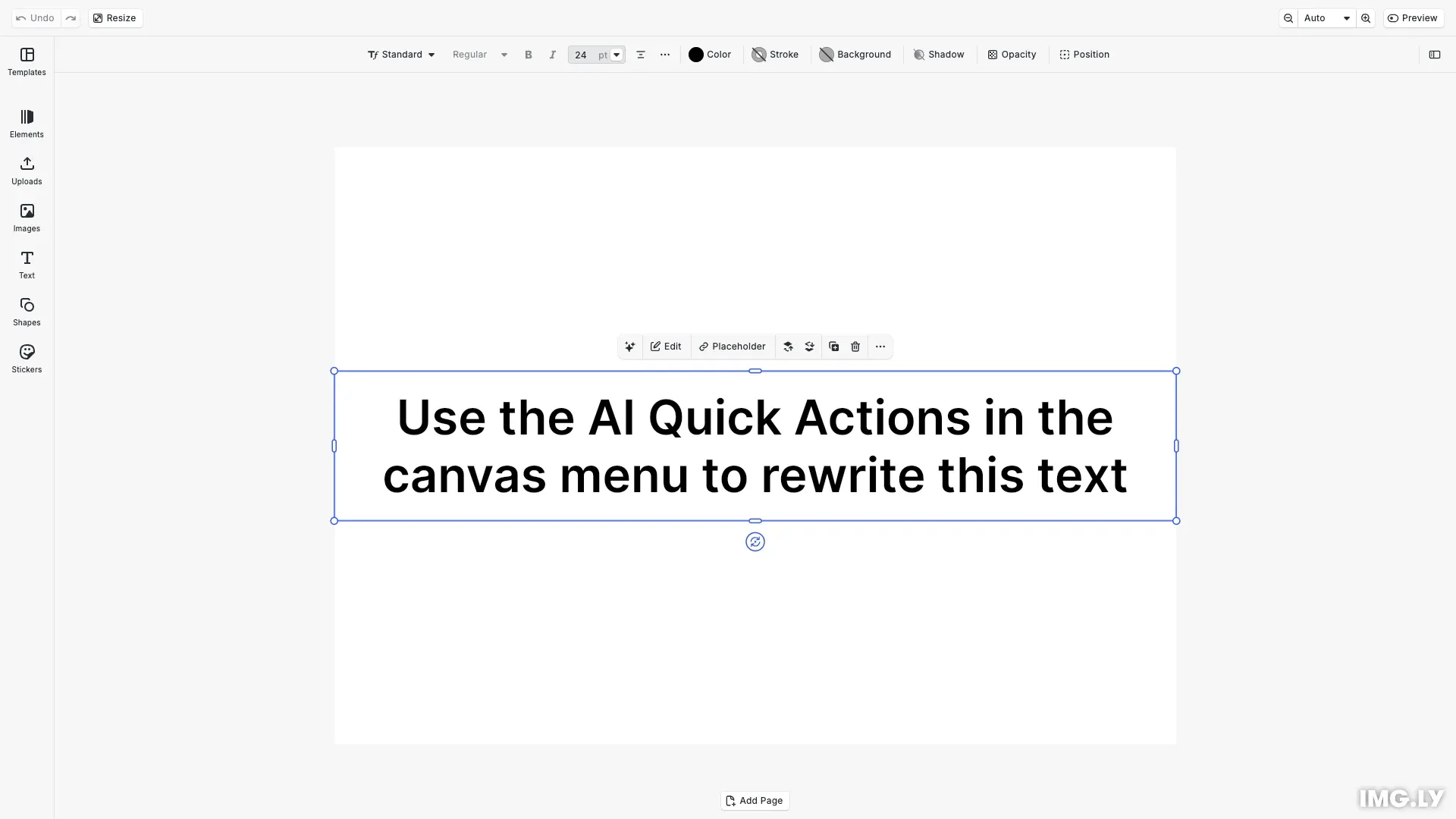
The text generation plugin provides quick actions for improving writing, fixing spelling and grammar, shortening or lengthening text, changing tone, and translating to different languages.
This guide covers installing the plugin, configuring AI providers, setting up quick actions, customizing parameters, and testing with dry-run mode.
Installation#
Import the plugin and provider modules from the text generation package.
import AiApps from '@imgly/plugin-ai-apps-web';import Anthropic from '@imgly/plugin-ai-text-generation-web/anthropic';import OpenAI from '@imgly/plugin-ai-text-generation-web/open-ai';Install @imgly/plugin-ai-text-generation-web to access the TextGeneration plugin, Anthropic provider, and OpenAI provider modules:
npm install @imgly/plugin-ai-text-generation-webyarn add @imgly/plugin-ai-text-generation-webpnpm add @imgly/plugin-ai-text-generation-webConfiguration#
Configure the plugin with an Anthropic or OpenAI provider. The provider requires a proxy URL that forwards requests to the AI service with your API key.
For available models, see the provider documentation:
await cesdk.addPlugin( AiApps({ providers: { text2text: [ Anthropic.AnthropicProvider({ proxyUrl, model: 'claude-sonnet-4-5-20250929', properties: { temperature: { default: 0.7 }, max_tokens: { default: 500 } } }) as any ] }, dryRun: true }));We configure the Anthropic provider with Claude Sonnet 4.5, set generation parameters like temperature and max tokens, and enable dry-run mode for testing without API calls.
Canvas Menu Setup#
Add the text generation quick actions to the canvas menu so users can access them when editing text blocks.
// Configure canvas menu to show AI text quick actionscesdk.ui.setComponentOrder({ in: 'ly.img.canvas.menu' }, [ 'ly.img.ai.text.canvasMenu', ...cesdk.ui.getComponentOrder({ in: 'ly.img.canvas.menu' })]);We prepend ly.img.ai.text.canvasMenu to the existing canvas menu order, making text quick actions appear first when users select text blocks.
Proxy Server#
A proxy server protects your API keys by forwarding requests server-side. See the Proxy Server guide for implementation details and examples.
Generation Parameters#
Customize generation behavior with properties configuration. Control creativity level with temperature (0.0-1.0 for Claude, 0.0-2.0 for GPT) and response length with max_tokens.
TextGeneration({ provider: Anthropic.AnthropicProvider({ proxyUrl: 'https://your-proxy.com/api/anthropic', properties: { temperature: { default: 0.7 }, max_tokens: { default: 500 }, }, }),})Higher temperature values produce more creative output, while lower values generate more focused and deterministic text.
Quick Actions#
Quick actions provide preset text transformations accessible from the canvas menu. Users can improve writing quality, fix spelling and grammar, make text shorter or longer, change tone (professional, casual, friendly), and translate to various languages.
The plugin includes these quick actions by default:
- Improve - Enhance clarity and flow
- Fix - Correct spelling and grammar
- Shorter - Reduce text length
- Longer - Expand text content
- Tone - Change style (professional, casual, friendly, empathetic, confident)
- Translate - Convert to different languages
Multiple Providers#
Configure multiple providers to give users choice between different AI models.
TextGeneration({ provider: [ Anthropic.AnthropicProvider({ model: 'claude-3-7-sonnet-20250219', proxyUrl: 'https://your-proxy.com/api/anthropic', }), OpenAIText.OpenAIProvider({ model: 'gpt-4o-mini', proxyUrl: 'https://your-proxy.com/api/openai', }), ],})Multiple providers trigger automatic provider selection in the UI.
Feature Visibility#
Control which features appear in the UI using the Feature API.
// Disable provider selectioncesdk.feature.enable('ly.img.plugin-ai-text-generation-web.providerSelect', false);
// Disable all quick actionscesdk.feature.enable('ly.img.plugin-ai-text-generation-web.quickAction', false);
// Disable specific quick actionscesdk.feature.enable('ly.img.plugin-ai-text-generation-web.quickAction.translate', false);
This restricts user choices when you want to enforce specific models or limit available transformations.
Custom Labels#
Customize UI text using the i18n system. Replace default labels with custom text or add translations for multiple languages.
// Customize UI labels for AI text generation features// This demonstrates how to customize the i18n systemcesdk.i18n.setTranslations({ en: { 'ly.img.plugin-ai-text-generation-web.anthropic.quickAction.improve': '✨ Enhance Text', 'ly.img.plugin-ai-text-generation-web.anthropic.property.prompt': 'Your Custom Instructions' }});The example demonstrates customizing the “Improve” quick action label and the prompt input placeholder. Use provider-specific keys for Anthropic or OpenAI, or generic keys to apply across all providers. You can also add translations for multiple languages by including additional language codes like es, de, or fr.
Middleware#
Intercept generation requests and responses with middleware functions. Use middleware for logging, rate limiting, or custom error handling.
import { loggingMiddleware, rateLimitMiddleware } from '@imgly/plugin-ai-generation-web';
const logging = loggingMiddleware();const rateLimit = rateLimitMiddleware({ maxRequests: 10, windowMs: 60000 });
await cesdk.addPlugin(  TextGeneration({    provider: Anthropic.AnthropicProvider({ proxyUrl: '...' }),    middleware: [logging, rateLimit],  }));
Middleware receives input, options, and a next callback. Call next to continue the chain or return early to intercept.
Dry-Run Mode#
Test the plugin without making actual API calls using dry-run mode. This simulates generation and returns placeholder text.
await cesdk.addPlugin( TextGeneration({ provider: Anthropic.AnthropicProvider({ proxyUrl: 'https://your-proxy.com/api/anthropic' }) as any, dryRun: true // Simulate generation without API calls } as any));Dry-run mode helps during development and testing by avoiding API costs while verifying integration.
Accessing Generated Text#
Generated text appears automatically in text blocks. Access it using the Block API for further manipulation or retrieval.
const textBlocks = engine.block.findByType('text');textBlocks.forEach(block => {  const content = engine.block.getString(block, 'text/text');  console.log('Text content:', content);});
// Modify text programmaticallyengine.block.setString(textBlock, 'text/text', 'New content');
The Block API provides full control over text content after generation.
Troubleshooting#
Common issues when configuring the plugin:
Plugin not appearing in UI - Verify plugin installation and addPlugin() call completed successfully.
Quick actions not showing - Check canvas menu order includes ly.img.ai.text.canvasMenu.
Proxy errors - Verify proxy URL is accessible and CORS is configured correctly.
Generation failures - Confirm API key is valid and proxy forwards requests properly.
Provider selection not showing - Multiple providers must be configured in an array.
Custom translations not applying - Check translation key format matches the i18n documentation.
Middleware not executing - Verify middleware array is passed correctly to the plugin configuration.
Generated text not appearing - Ensure text blocks are selected and quick actions are triggered.
Wrong model being used - Verify the model parameter in provider configuration matches your intent.
API Reference#
| Method | Category | Purpose |
|---|---|---|
cesdk.addPlugin() | Plugin | Register and initialize the Text Generation plugin |
TextGeneration() | Plugin | Create plugin instance with provider configuration |
Anthropic.AnthropicProvider() | Provider | Configure Claude text generation |
OpenAIText.OpenAIProvider() | Provider | Configure GPT text generation |
cesdk.feature.enable() | Feature | Control visibility of plugin features |
cesdk.i18n.setTranslations() | I18n | Customize UI labels and translations |
cesdk.ui.setComponentOrder({ in: 'ly.img.canvas.menu' }, order) | UI | Configure canvas menu order for quick actions |
engine.block.getString() | Block | Access generated text content |
engine.block.setString() | Block | Modify text block content |
Next Steps#
- Proxy Server — Set up secure API communication
- Custom Provider — Create custom AI providers
- Integrate AI Features — Overview of AI integration
- Audio Generation — AI-powered audio generation
- Image Generation — AI-powered image generation