Load pre-designed templates to give users a professional starting point instead of a blank canvas.
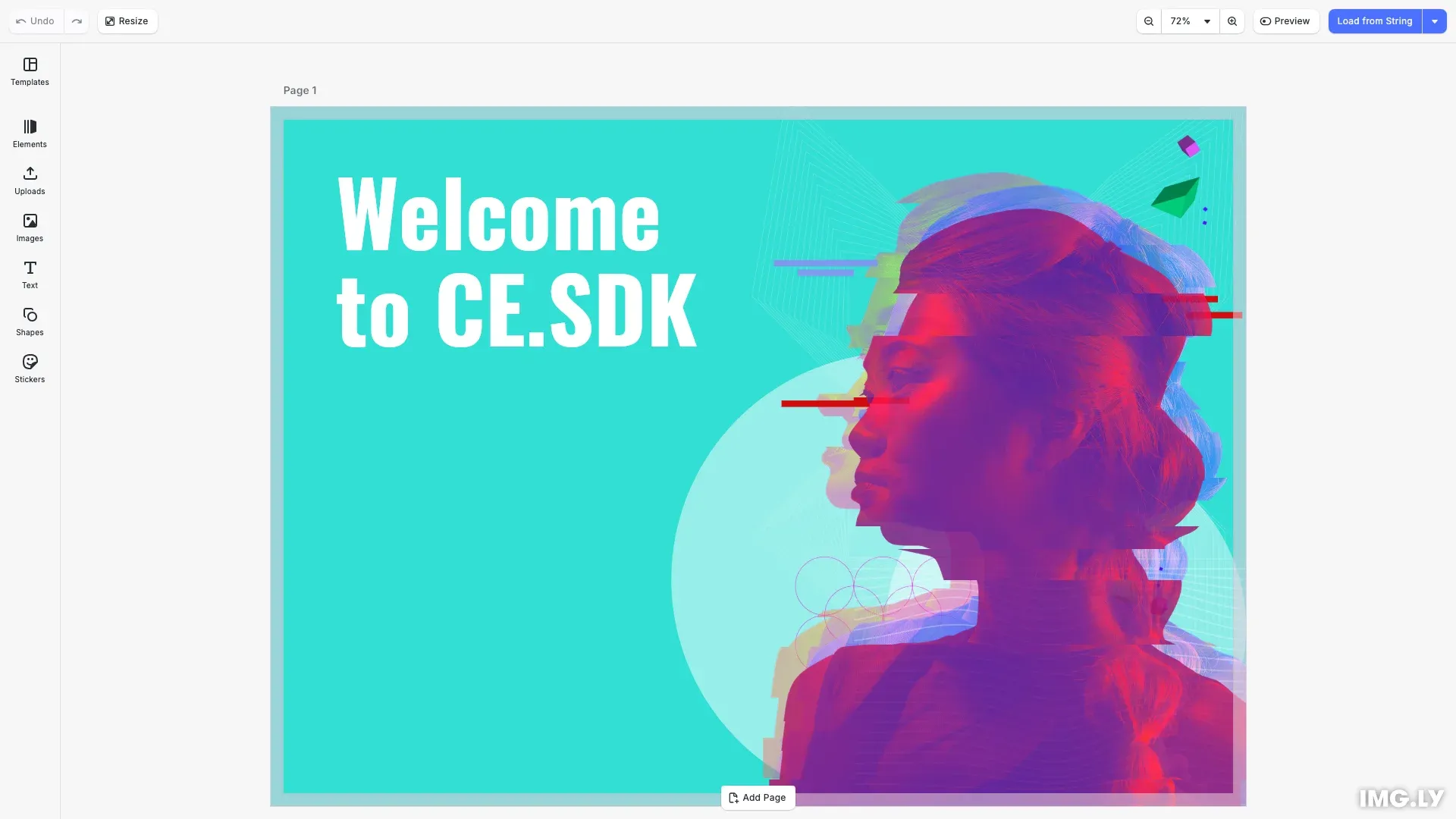
Templates provide consistent layouts and styling that users can customize for their needs. CE.SDK supports loading templates from remote URLs, local strings, and applying template content to existing scenes while preserving page dimensions.
This guide covers how to load templates from URLs and strings, and how to apply templates to existing scenes.
Load a Template from URL#
The most common approach is loading templates from a remote URL. The engine replaces any existing scene with the loaded template.
const templateUrl = 'https://cdn.img.ly/assets/demo/v3/ly.img.template/templates/cesdk_postcard_1.scene';await engine.scene.loadFromURL(templateUrl);The template URL should point to a valid .scene file hosted on a server with appropriate CORS headers.
Load a Template from String#
When templates are stored in a database or retrieved from custom storage, use engine.scene.loadFromString(). This accepts the scene data as a string, typically from a previous engine.scene.saveToString() call.
await engine.scene.loadFromString(businessCardSceneString);This approach is useful for loading templates from your backend API, restoring saved user designs, or working with templates stored in databases.
Apply a Template to an Existing Scene#
To apply template content while preserving the current page dimensions, use engine.scene.applyTemplateFromURL(). The template content automatically adjusts to fit the existing page size.
await engine.scene.applyTemplateFromURL(applyTemplateUrl);This is useful when users have already set up a canvas size and you want to populate it with template content without changing the dimensions.
Modify Template Content#
After loading a template, customize the content using block APIs. Find elements and modify them as needed.
const textBlocks = engine.block.findByType('text');if (textBlocks.length > 0) { engine.block.replaceText(textBlocks[0], 'Welcome to CE.SDK');}Common modifications include:
- Updating text content:
engine.block.replaceText(blockId, 'New text') - Swapping images:
engine.block.setString(fill, 'fill/image/imageFileURI', newUrl) - Adjusting colors:
engine.block.setColor(blockId, 'fill/solid/color', newColor)
Troubleshooting#
Template Fails to Load#
- Verify the template URL is accessible and returns a valid scene file
- Check CORS headers allow fetching from the template source
- Ensure the template format is compatible with your CE.SDK version
Assets Not Displaying After Load#
- Template scene files store asset references as URLs; ensure those URLs remain accessible
- Use archives (
.zip) for self-contained templates with bundled assets - Configure a URI resolver if assets are hosted on different servers
API Reference#
| Method | Description |
|---|---|
engine.scene.loadFromURL() | Load a scene from a remote URL |
engine.scene.loadFromString() | Load a scene from a string |
engine.scene.applyTemplateFromURL() | Apply template to existing scene from URL |
engine.scene.applyTemplateFromString() | Apply template to existing scene from string |
engine.block.findByType() | Find blocks by type |
engine.block.findByKind() | Find blocks by kind |
engine.block.replaceText() | Replace text content in a text block |
Next Steps#
- Load a Scene - Load saved scenes from various sources
- Save a Design - Save your customized template
- Import a Design - Import designs from archives or other formats