Add vector shapes and pre-made stickers to your designs using CE.SDK’s block API. Shapes require fills to be visible and offer type-specific properties like corner radius and star points.
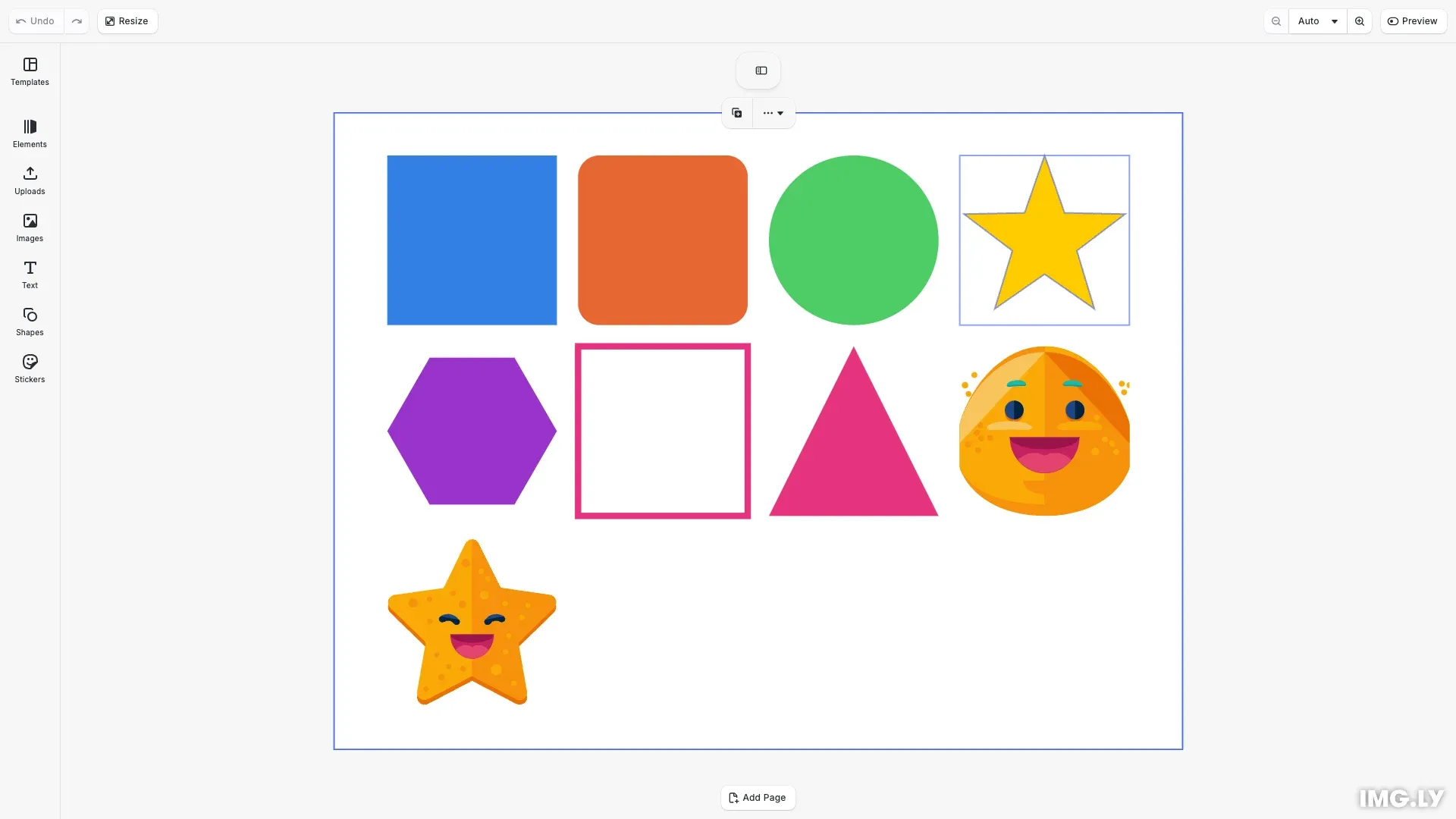
Shapes are vector graphics created with engine.block.createShape() and attached to graphic blocks. CE.SDK supports six shape types: rect, ellipse, star, polygon, line, and vector_path. Stickers are pre-made graphic assets from sources like ly.img.sticker. Both require fills or strokes to be visible on the canvas.
This guide covers using the built-in shapes panel for interactive editing and inserting shapes and stickers programmatically using the block API.
Using the Built-in UI#
Shapes Panel#
Users access shapes through the asset library panel. The shapes panel displays available shape types that can be placed onto the canvas with a single click.
Once placed, shapes can be:
- Resized by dragging corner handles
- Rotated using the rotation handle
- Styled through the inspector panel (fills, strokes, opacity)
- Positioned by dragging or using alignment tools
Stickers Panel#
Stickers appear in the asset library under their categories. Users browse available stickers and add them to the canvas with a single click. Stickers maintain their aspect ratio when resized.
Programmatic Shape Creation#
Initialize CE.SDK#
Set up CE.SDK with Design mode and configure the scene dimensions for your shapes.
await cesdk.addPlugin(new DesignEditorConfig());
// Add asset source pluginsawait cesdk.addPlugin(new BlurAssetSource());await cesdk.addPlugin(new ColorPaletteAssetSource());await cesdk.addPlugin(new CropPresetsAssetSource());await cesdk.addPlugin(new UploadAssetSources({ include: ['ly.img.image.upload'] }));await cesdk.addPlugin(  new DemoAssetSources({    include: [      'ly.img.templates.blank.*',      'ly.img.templates.presentation.*',      'ly.img.templates.print.*',      'ly.img.templates.social.*',      'ly.img.image.*'    ]  }));await cesdk.addPlugin(new EffectsAssetSource());await cesdk.addPlugin(new FiltersAssetSource());await cesdk.addPlugin(new PagePresetsAssetSource());await cesdk.addPlugin(new StickerAssetSource());await cesdk.addPlugin(new TextAssetSource());await cesdk.addPlugin(new TextComponentAssetSource());await cesdk.addPlugin(new TypefaceAssetSource());await cesdk.addPlugin(new VectorShapeAssetSource());
await cesdk.actions.run('scene.create', {  page: { width: 800, height: 600, unit: 'Pixel' }});
const engine = cesdk.engine;const page = engine.block.findByType('page')[0];if (!engine.block.isValid(page)) {  throw new Error('No page found');}
const pageWidth = engine.block.getWidth(page);const pageHeight = engine.block.getHeight(page);
Check Shape Support#
Before attaching a shape to a block, verify it supports shapes using supportsShape(). Graphic blocks support shapes while text blocks do not.
// Check if a block supports shapes before attaching oneconst testBlock = engine.block.create('graphic');const supportsShape = engine.block.supportsShape(testBlock);console.log('Graphic block supports shapes:', supportsShape); // true
// Text blocks do not support shapesconst textBlock = engine.block.create('text');const textSupportsShape = engine.block.supportsShape(textBlock);console.log('Text block supports shapes:', textSupportsShape); // falseengine.block.destroy(textBlock);engine.block.destroy(testBlock);
Create Rectangle#
Create rectangles with createShape('rect') and attach them to a graphic block with setShape(). Apply a fill to make the shape visible.
// Create a rectangle with a solid color fillconst rectBlock = engine.block.create('graphic');const rectShape = engine.block.createShape('rect');engine.block.setShape(rectBlock, rectShape);
// Apply a solid color fill to make the shape visibleconst rectFill = engine.block.createFill('color');engine.block.setColor(rectFill, 'fill/color/value', {  r: 0.2,  g: 0.5,  b: 0.9,  a: 1.0});engine.block.setFill(rectBlock, rectFill);
engine.block.setWidth(rectBlock, blockWidth);engine.block.setHeight(rectBlock, blockHeight);engine.block.appendChild(page, rectBlock);allBlocks.push(rectBlock);
Create Rounded Rectangle#
Rectangles support corner radius properties for rounded corners. Set each corner individually using shape/rect/cornerRadiusTL, cornerRadiusTR, cornerRadiusBL, and cornerRadiusBR.
// Create a rounded rectangle with corner radiusconst roundedRectBlock = engine.block.create('graphic');const roundedRectShape = engine.block.createShape('rect');engine.block.setShape(roundedRectBlock, roundedRectShape);
// Set corner radius for rounded cornersengine.block.setFloat(roundedRectShape, 'shape/rect/cornerRadiusTL', 20);engine.block.setFloat(roundedRectShape, 'shape/rect/cornerRadiusTR', 20);engine.block.setFloat(roundedRectShape, 'shape/rect/cornerRadiusBL', 20);engine.block.setFloat(roundedRectShape, 'shape/rect/cornerRadiusBR', 20);
const roundedRectFill = engine.block.createFill('color');engine.block.setColor(roundedRectFill, 'fill/color/value', {  r: 0.9,  g: 0.4,  b: 0.2,  a: 1.0});engine.block.setFill(roundedRectBlock, roundedRectFill);
engine.block.setWidth(roundedRectBlock, blockWidth);engine.block.setHeight(roundedRectBlock, blockHeight);engine.block.appendChild(page, roundedRectBlock);allBlocks.push(roundedRectBlock);
Create Ellipse#
Create circles and ovals with createShape('ellipse'). The block’s aspect ratio determines whether it appears as a circle (equal width and height) or an oval.
// Create an ellipse (circle when width equals height)const ellipseBlock = engine.block.create('graphic');const ellipseShape = engine.block.createShape('ellipse');engine.block.setShape(ellipseBlock, ellipseShape);
const ellipseFill = engine.block.createFill('color');engine.block.setColor(ellipseFill, 'fill/color/value', {  r: 0.3,  g: 0.8,  b: 0.4,  a: 1.0});engine.block.setFill(ellipseBlock, ellipseFill);
engine.block.setWidth(ellipseBlock, blockWidth);engine.block.setHeight(ellipseBlock, blockHeight);engine.block.appendChild(page, ellipseBlock);allBlocks.push(ellipseBlock);
Create Star#
Create stars with createShape('star'). Configure the number of points with shape/star/points and control the inner diameter with shape/star/innerDiameter (0.0 to 1.0).
// Create a star with custom points and inner diameterconst starBlock = engine.block.create('graphic');const starShape = engine.block.createShape('star');engine.block.setShape(starBlock, starShape);
// Configure star propertiesengine.block.setInt(starShape, 'shape/star/points', 5);engine.block.setFloat(starShape, 'shape/star/innerDiameter', 0.4);
const starFill = engine.block.createFill('color');engine.block.setColor(starFill, 'fill/color/value', {  r: 1.0,  g: 0.8,  b: 0.0,  a: 1.0});engine.block.setFill(starBlock, starFill);
engine.block.setWidth(starBlock, blockWidth);engine.block.setHeight(starBlock, blockHeight);engine.block.appendChild(page, starBlock);allBlocks.push(starBlock);
Create Polygon#
Create regular polygons with createShape('polygon'). Set the number of sides with shape/polygon/sides to create triangles (3), pentagons (5), hexagons (6), and more.
// Create a polygon (hexagon with 6 sides)const polygonBlock = engine.block.create('graphic');const polygonShape = engine.block.createShape('polygon');engine.block.setShape(polygonBlock, polygonShape);
// Set number of sides for the polygonengine.block.setInt(polygonShape, 'shape/polygon/sides', 6);
const polygonFill = engine.block.createFill('color');engine.block.setColor(polygonFill, 'fill/color/value', {  r: 0.6,  g: 0.2,  b: 0.8,  a: 1.0});engine.block.setFill(polygonBlock, polygonFill);
engine.block.setWidth(polygonBlock, blockWidth);engine.block.setHeight(polygonBlock, blockHeight);engine.block.appendChild(page, polygonBlock);allBlocks.push(polygonBlock);
Create Line#
Create lines with createShape('line'). Lines are typically styled with strokes rather than fills using setStrokeEnabled() and setStrokeWidth().
// Create a line shapeconst lineBlock = engine.block.create('graphic');const lineShape = engine.block.createShape('line');engine.block.setShape(lineBlock, lineShape);
// Lines typically use strokes instead of fillsengine.block.setStrokeEnabled(lineBlock, true);engine.block.setStrokeWidth(lineBlock, 6);engine.block.setStrokeColor(lineBlock, {  r: 0.9,  g: 0.2,  b: 0.5,  a: 1.0});
engine.block.setWidth(lineBlock, blockWidth);engine.block.setHeight(lineBlock, blockHeight);engine.block.appendChild(page, lineBlock);allBlocks.push(lineBlock);
Create Vector Path#
Create custom shapes with createShape('vector_path'). Define the path using SVG path syntax with shape/vector_path/path. The path coordinates scale proportionally with the block dimensions.
// Create a custom triangle using vector pathconst vectorPathBlock = engine.block.create('graphic');const vectorPathShape = engine.block.createShape('vector_path');engine.block.setShape(vectorPathBlock, vectorPathShape);
// Define a triangle using SVG path syntax (coordinates scale with block size)const trianglePath = 'M 50,0 L 100,100 L 0,100 Z';engine.block.setString(  vectorPathShape,  'shape/vector_path/path',  trianglePath);
const vectorPathFill = engine.block.createFill('color');engine.block.setColor(vectorPathFill, 'fill/color/value', {  r: 0.9,  g: 0.2,  b: 0.5,  a: 1.0});engine.block.setFill(vectorPathBlock, vectorPathFill);
engine.block.setWidth(vectorPathBlock, blockWidth);engine.block.setHeight(vectorPathBlock, blockHeight);engine.block.appendChild(page, vectorPathBlock);allBlocks.push(vectorPathBlock);
Discover Shape Properties#
Use findAllProperties() to discover available configuration options for any shape type.
// Discover available properties for a shapeconst shapeProperties = engine.block.findAllProperties(starShape);console.log('Star shape properties:', shapeProperties);Each shape type has specific properties:
- Rectangle:
shape/rect/cornerRadiusTL,cornerRadiusTR,cornerRadiusBL,cornerRadiusBR - Star:
shape/star/points,shape/star/innerDiameter - Polygon:
shape/polygon/sides - Vector Path:
shape/vector_path/path
Programmatic Sticker Insertion#
Using the Convenience API#
The simplest way to add stickers is with engine.block.addImage(). This convenience API handles graphic block creation, shape attachment, and fill setup automatically.
// Add a sticker using the convenience APIconst stickerUrl = 'https://cdn.img.ly/assets/v4/ly.img.sticker/images/emoticons/imgly_sticker_emoticons_grin.svg';const stickerBlock = await engine.block.addImage(stickerUrl, { size: blockSize});engine.block.setKind(stickerBlock, 'sticker');engine.block.appendChild(page, stickerBlock);allBlocks.push(stickerBlock);Setting setKind(block, 'sticker') categorizes the block correctly in the UI, which helps with organization and enables sticker-specific behaviors.
Manual Sticker Construction#
For full control over sticker creation, manually construct a graphic block with a rect shape and image fill.
// Add a sticker using manual construction for more controlconst manualStickerBlock = engine.block.create('graphic');const manualStickerShape = engine.block.createShape('rect');engine.block.setShape(manualStickerBlock, manualStickerShape);
// Create image fill with the sticker URIconst stickerFill = engine.block.createFill('image');engine.block.setString(  stickerFill,  'fill/image/imageFileURI',  'https://cdn.img.ly/assets/v4/ly.img.sticker/images/emoticons/imgly_sticker_emoticons_star.svg');engine.block.setFill(manualStickerBlock, stickerFill);
// Set content fill mode to preserve aspect ratioif (engine.block.supportsContentFillMode(manualStickerBlock)) {  engine.block.setContentFillMode(manualStickerBlock, 'Contain');}
// Set kind to 'sticker' for proper categorizationengine.block.setKind(manualStickerBlock, 'sticker');
engine.block.setWidth(manualStickerBlock, blockWidth);engine.block.setHeight(manualStickerBlock, blockHeight);engine.block.appendChild(page, manualStickerBlock);allBlocks.push(manualStickerBlock);
Using setContentFillMode(block, 'Contain') preserves the sticker’s aspect ratio within the block bounds. Always check supportsContentFillMode() before setting this property.
Query Stickers from Asset Library#
Browse available stickers from asset sources using engine.asset.findAssets().
// Query stickers from the asset libraryconst stickerResults = await engine.asset.findAssets('ly.img.sticker', { page: 0, perPage: 5});console.log('Available stickers:', stickerResults.assets.length);Use ly.img.sticker for raster stickers or ly.img.vector.shape for vector-based sticker assets.
Troubleshooting#
Shape Not Visible#
If a shape doesn’t appear after creation:
- Verify a fill is applied - Shapes without fills are invisible. Create a fill with
createFill()and apply it withsetFill() - Check the block is added to the page - Use
appendChild(page, block)to add the block to the scene hierarchy - Ensure dimensions are set - Call
setWidth()andsetHeight()to give the shape a size
Sticker Appears Cropped#
If stickers appear cropped or distorted:
- Use
setContentFillMode(block, 'Contain')to preserve aspect ratio - Check
supportsContentFillMode()before setting the mode - Adjust block dimensions to better match the sticker’s native aspect ratio
Invalid Shape Type#
If createShape() throws an error:
- Verify the shape type is one of:
rect,ellipse,star,polygon,line,vector_path - Check for typos in the type string (case-sensitive)
API Reference#
| Method | Description |
|---|---|
block.create('graphic') | Create a graphic block for shapes |
block.createShape(type) | Create a shape of the specified type |
block.supportsShape(block) | Check if a block supports shapes |
block.setShape(block, shape) | Attach a shape to a graphic block |
block.getShape(block) | Get the shape attached to a block |
block.findAllProperties(shape) | Discover available shape properties |
block.setInt(shape, property, value) | Set integer property (points, sides) |
block.setFloat(shape, property, value) | Set float property (corner radius, diameter) |
block.setString(shape, property, value) | Set string property (vector path) |
block.createFill(type) | Create a fill for the shape |
block.setFill(block, fill) | Apply fill to a block |
block.setColor(fill, property, color) | Set fill color value |
block.addImage(uri, options?) | Convenience API for adding images/stickers |
block.setKind(block, kind) | Set block kind for categorization |
block.setContentFillMode(block, mode) | Set content fill mode (‘Contain’, ‘Cover’, etc.) |
block.supportsContentFillMode(block) | Check if block supports content fill mode |
block.setPositionX(block, x) | Set horizontal position |
block.setPositionY(block, y) | Set vertical position |
block.setWidth(block, width) | Set block width |
block.setHeight(block, height) | Set block height |
block.appendChild(parent, child) | Add block to parent |
block.setStrokeEnabled(block, enabled) | Enable or disable stroke |
block.setStrokeWidth(block, width) | Set stroke width |
block.setStrokeColor(block, color) | Set stroke color |
block.isValid(block) | Check if a block handle is valid |
scene.zoomToBlock(block, options) | Zoom view to fit a block |
asset.findAssets(sourceId, query) | Query assets from a source |
Next Steps#
- Colors - Work with colors, fills, and gradients
- Filters and Effects - Apply visual effects to design elements
- Position and Align - Position elements precisely on the canvas