Apply custom LUT (Look-Up Table) filters to achieve brand-consistent color grading directly through CE.SDK’s effect API.
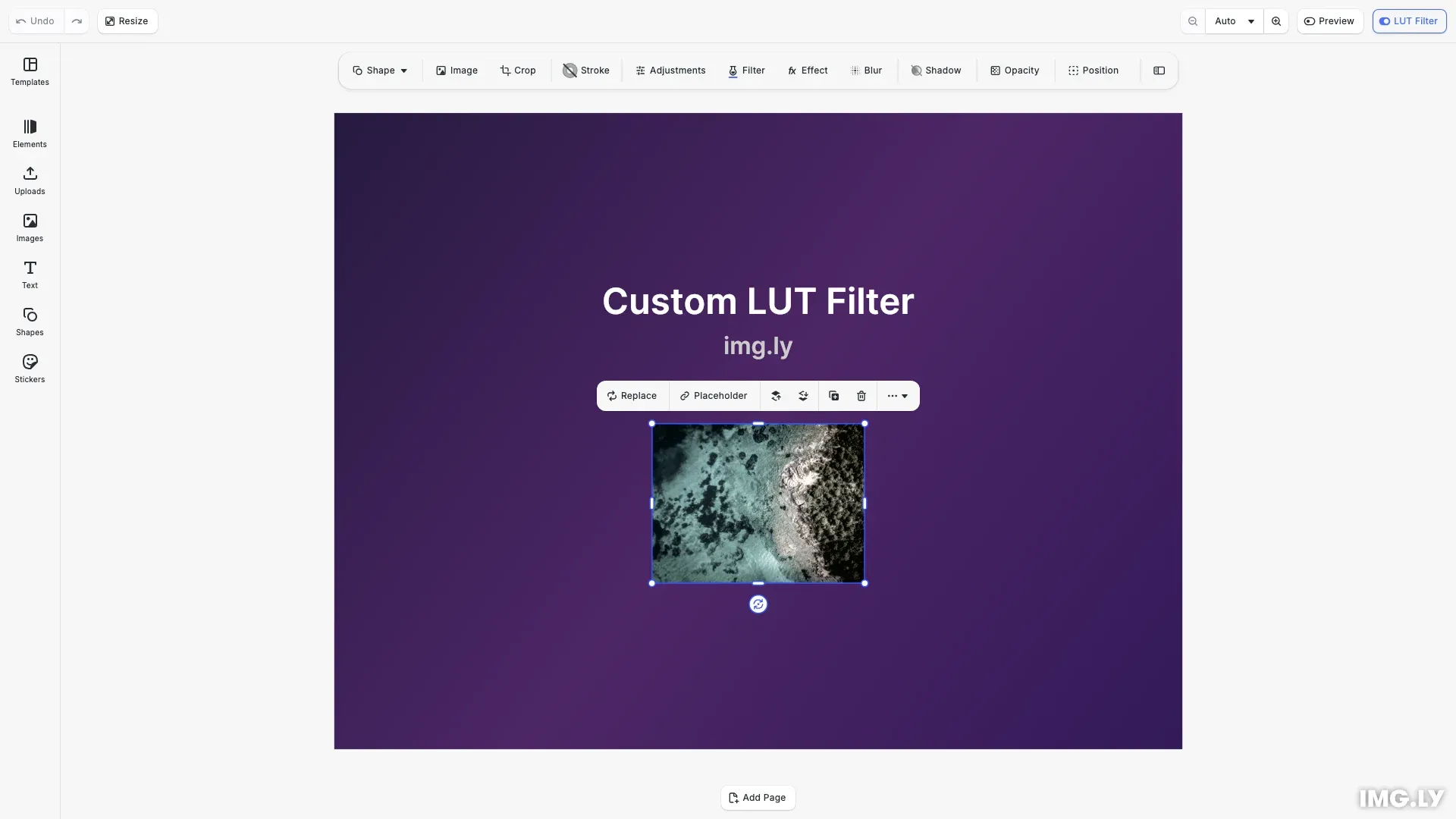
LUT filters remap colors through a predefined transformation table, enabling cinematic color grading and consistent brand aesthetics. This guide shows how to apply your own LUT files directly to design elements using the effect API. For organizing collections of filters through asset sources, see Create Custom Filters.
Understanding LUT Image Format#
CE.SDK uses a tiled PNG format where a 3D color cube is laid out as a 2D grid. Each tile represents a slice of the color cube along the blue axis.
The LUT image requires two configuration values:
horizontalTileCount- Number of tiles across the image widthverticalTileCount- Number of tiles down the image height
CE.SDK supports these tile configurations:
- 5×5 tiles with 128px cube size
- 8×8 tiles with 512px cube size
Standard .cube files must be converted to this tiled PNG format using image processing tools.
Creating LUT PNG Images#
Obtaining LUT Files#
LUT files are available from multiple sources:
- Color grading software - Adobe Photoshop, DaVinci Resolve, and Affinity Photo can export 3D LUT files in
.cubeformat - Online LUT libraries - Many free and commercial LUT packs are available for download
- LUT generators - Tools that create custom color transformations from reference images
Converting .cube to Tiled PNG#
CE.SDK requires LUTs in a specific tiled PNG format where each tile represents a slice of the 3D color cube along the blue axis. To convert a standard .cube file:
- Parse the .cube file - Read the 3D color lookup table data
- Arrange slices as tiles - Each blue channel value becomes a separate tile containing the red-green color plane
- Export as PNG - Save the grid as a PNG image
CE.SDK’s built-in LUTs follow a naming convention: imgly_lut_{name}_{h}_{v}_{cubeSize}.png where h and v are tile counts and cubeSize indicates the LUT precision.
Using Python for Conversion#
You can write a Python script using PIL/Pillow and NumPy to convert .cube files:
# Pseudocode for .cube to tiled PNG conversion# 1. Parse the .cube file to extract the 3D LUT data# 2. Reshape data into (blue_slices, height, width, 3) array# 3. Arrange slices in a grid matching tile configuration# 4. Save as PNG with Image.fromarray()Using CE.SDK’s Built-in LUTs#
The simplest approach is to use CE.SDK’s existing LUT assets as a starting point. The built-in filters use pre-generated tiled PNGs that you can reference for format verification. Check the filter extension at ly.img.cesdk.filters.lut for examples of properly formatted LUT images.
Hosting LUT Files#
LUT images must be served from an accessible URL. For production deployments, use HTTPS and enable CORS headers for cross-origin requests in browser environments.
Creating the LUT Effect#
Create a lut_filter effect instance using the effect API:
// Create a LUT filter effectconst lutEffect = engine.block.createEffect( '//ly.img.ubq/effect/lut_filter');This creates an effect that can be configured and applied to image blocks.
Configuring LUT Properties#
Set the LUT file URL and tile dimensions to match your LUT image:
// Configure the LUT file URI - this is a tiled PNG containing the color lookup tableconst lutUrl =  'https://cdn.img.ly/assets/v4/ly.img.filter.lut/LUTs/imgly_lut_ad1920_5_5_128.png';engine.block.setString(lutEffect, 'effect/lut_filter/lutFileURI', lutUrl);
// Set the tile grid dimensions - must match the LUT image structureengine.block.setInt(lutEffect, 'effect/lut_filter/horizontalTileCount', 5);engine.block.setInt(lutEffect, 'effect/lut_filter/verticalTileCount', 5);
The tile counts must match the actual LUT image grid structure. Using incorrect values produces distorted colors.
Setting Filter Intensity#
Control the strength of the color transformation with intensity:
// Set filter intensity (0.0 = no effect, 1.0 = full effect)engine.block.setFloat(lutEffect, 'effect/lut_filter/intensity', 0.8);Values range from 0.0 (no effect) to 1.0 (full effect). Use intermediate values for subtle color grading.
Applying the Effect#
Attach the configured effect to an image block:
// Apply the effect to the image blockengine.block.appendEffect(imageBlock, lutEffect);The effect renders immediately after being applied.
Toggling the Effect#
Add a toggle button to the navigation bar for enabling and disabling the filter:
// Register a custom button component to toggle the LUT filtercesdk.ui.registerComponent('lut.toggle', ({ builder }) => {  const isEnabled = engine.block.isEffectEnabled(lutEffect);  builder.Button('toggle-lut', {    label: 'LUT Filter',    icon: isEnabled ? '@imgly/ToggleIconOn' : '@imgly/ToggleIconOff',    isActive: isEnabled,    onClick: () => {      engine.block.setEffectEnabled(lutEffect, !isEnabled);    }  });});
// Add the toggle button to the navigation barcesdk.ui.insertOrderComponent(  { in: 'ly.img.navigation.bar', position: 'end' },  'lut.toggle');
The registerComponent function creates a custom UI component that tracks the effect’s enabled state. The insertOrderComponent method adds it to the navigation bar. Clicking the button toggles the effect while preserving all settings.
Managing Effects#
Retrieve and inspect effects applied to a block:
// Retrieve all effects on the blockconst effects = engine.block.getEffects(imageBlock);console.log('Number of effects:', effects.length); // 1
// Check if block supports effectsconst supportsEffects = engine.block.supportsEffects(imageBlock);console.log('Supports effects:', supportsEffects); // true
Use getEffects() to access all effects on a block and supportsEffects() to verify compatibility before applying.
Troubleshooting#
LUT Not Rendering#
- Verify the LUT image URL is accessible and CORS-enabled
- Confirm the image uses PNG format
- Check that tile count values match the actual image grid
Colors Look Wrong#
- Verify tile counts match the LUT image structure
- Ensure the LUT was generated with sRGB color space
API Reference#
| Method | Description |
|---|---|
engine.block.createEffect('//ly.img.ubq/effect/lut_filter') | Create a LUT filter effect instance |
engine.block.setString(effect, 'effect/lut_filter/lutFileURI', uri) | Set the LUT image URL |
engine.block.setInt(effect, 'effect/lut_filter/horizontalTileCount', count) | Set horizontal tile count |
engine.block.setInt(effect, 'effect/lut_filter/verticalTileCount', count) | Set vertical tile count |
engine.block.setFloat(effect, 'effect/lut_filter/intensity', value) | Set filter intensity (0.0-1.0) |
engine.block.appendEffect(block, effect) | Apply effect to a block |
engine.block.getEffects(block) | Get all effects on a block |
engine.block.setEffectEnabled(effect, enabled) | Enable or disable an effect |
engine.block.isEffectEnabled(effect) | Check if effect is enabled |
engine.block.removeEffect(block, index) | Remove effect at index |
engine.block.destroy(effect) | Destroy an effect instance |
engine.block.supportsEffects(block) | Check if block supports effects |
cesdk.ui.registerComponent(id, renderFn) | Register a custom UI component |
cesdk.ui.insertOrderComponent(options, component) | Add a component to the navigation bar |
Next Steps#
- Create Custom Filters - Register custom LUT filters as asset sources
- Apply Filters and Effects - Learn more about the effects system
- Duotone Effects - Create two-color artistic treatments