CE.SDK lets you load complete design templates from scene files to start projects from pre-designed templates, implement template galleries, and build template management systems.
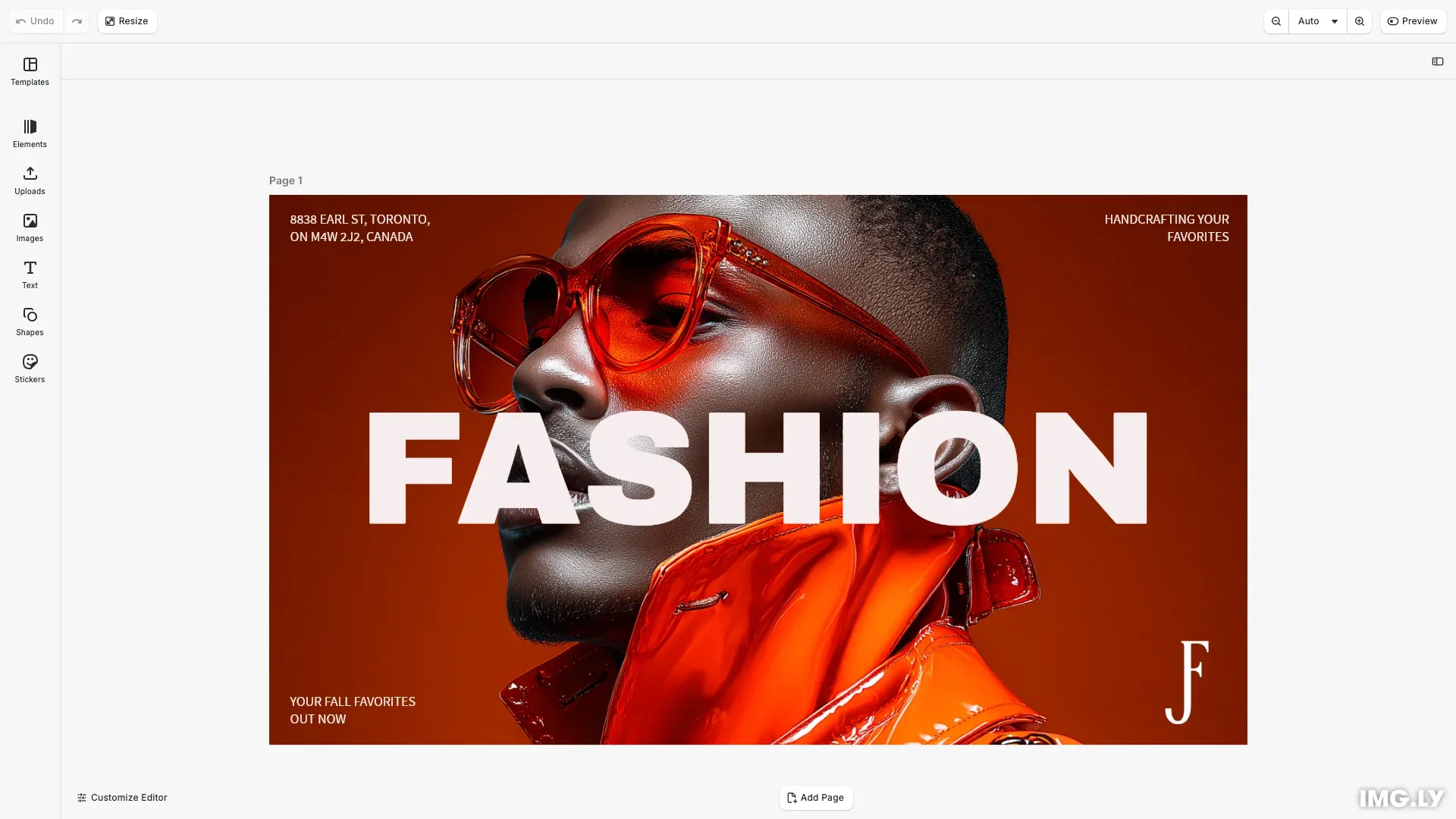
Scene files are portable design templates that preserve the entire design structure including blocks, assets, styles, and layout.
This guide covers loading scenes from archives, loading from URLs, applying templates while preserving dimensions, and understanding scene file formats.
Scene File Formats#
CE.SDK supports two scene file formats for importing templates:
Scene Format (.scene)#
Scene files are JSON-based representations of design structures. They reference external assets via URLs, making them lightweight and suitable for database storage. However, the referenced assets must remain accessible at their URLs.
When to use:
- Templates stored in databases
- Templates with hosted assets
- Lightweight transmission
Archive Format (.archive or .zip)#
Archive files are self-contained packages that bundle the scene structure with all referenced assets in a ZIP file. This makes them portable and suitable for offline use.
When to use:
- Template distribution
- Offline-capable templates
- Complete portability
- Recommended for most use cases
Load Scene from Archive#
The most common way to load templates is from archive URLs. This method loads both the scene structure and all embedded assets:
// Load a complete template from an archive (ZIP) file// This loads both the scene structure and all embedded assetsawait engine.scene.loadFromArchiveURL( 'https://cdn.img.ly/assets/templates/starterkits/16-9-fashion-ad.zip');When you load from an archive:
- The ZIP file is fetched and extracted
- All assets are registered with CE.SDK
- The scene structure is loaded
- Asset paths are automatically resolved
Load Scene from URL#
You can also load scenes directly from .scene file URLs. This approach requires that all referenced assets remain accessible at their original URLs:
// await engine.scene.loadFromURL(// 'https://cdn.img.ly/assets/demo/v3/ly.img.template/templates/cesdk_postcard_1.scene'// );Important: With this method, if asset URLs become unavailable (404 errors, CORS issues, etc.), those assets won’t load and your template may appear incomplete.
Apply Template vs Load Scene#
CE.SDK provides two approaches for working with templates, each serving different purposes:
Load Scene#
When you use loadFromURL() or loadFromArchiveURL(), CE.SDK:
- Replaces the entire current scene
- Adopts the template’s page dimensions
- Loads all content as-is
This is appropriate when starting a new project from a template.
Apply Template#
When you use applyTemplateFromURL() or applyTemplateFromString(), CE.SDK:
- Keeps your current page dimensions
- Adjusts template content to fit
- Preserves your scene structure
This is useful when you want to load template content into an existing scene with specific dimensions:
// // First create a scene with specific dimensions// await cesdk.actions.run('scene.create', { page: { width: 1920, height: 1080, unit: 'Pixel' } });// const page = engine.block.findByType('page')[0];//// // Now apply template - content will be adjusted to fit// await engine.scene.applyTemplateFromURL(// 'https://cdn.img.ly/assets/demo/v3/ly.img.template/templates/cesdk_instagram_photo_1.scene'// );Error Handling#
When loading templates, several issues can occur:
Network Errors#
Template URLs might be unreachable:
try { await engine.scene.loadFromArchiveURL(templateUrl);} catch (error) { console.error('Failed to load template:', error); // Show error message to user // Fall back to default template or empty scene}Invalid Scene Format#
The file might not be a valid scene:
try { await engine.scene.loadFromURL(sceneUrl);} catch (error) { if (error.message.includes('parse')) { console.error('Invalid scene file format'); }}Missing Assets#
For .scene files, referenced assets might be unavailable. The scene loads but assets appear missing. Consider using archives to avoid this issue.
Performance Considerations#
Loading Time#
Archive size directly impacts loading time:
- Small archives (< 1MB): Nearly instant
- Medium archives (1-5MB): 1-2 seconds
- Large archives (> 5MB): Several seconds
Show loading indicators for better user experience.
CORS Considerations#
When loading templates from external URLs, ensure proper CORS headers are set on the server hosting the files. Archives must be accessible with appropriate CORS policies.
API Reference#
| Method | Description |
|---|---|
engine.scene.loadFromArchiveURL() | Loads a complete scene from an archive (ZIP) file |
engine.scene.loadFromURL() | Loads a scene from a .scene file URL |
engine.scene.applyTemplateFromURL() | Applies a template while preserving page dimensions |
engine.scene.get() | Returns the current scene block ID |
engine.scene.getPages() | Returns all page IDs in the scene |
engine.scene.getDesignUnit() | Returns the measurement unit |
engine.scene.zoomToBlock() | Zooms the viewport to fit a specific block |