Apply sRGB colors to design elements for screen-based output using RGBA color values with red, green, blue, and alpha components.
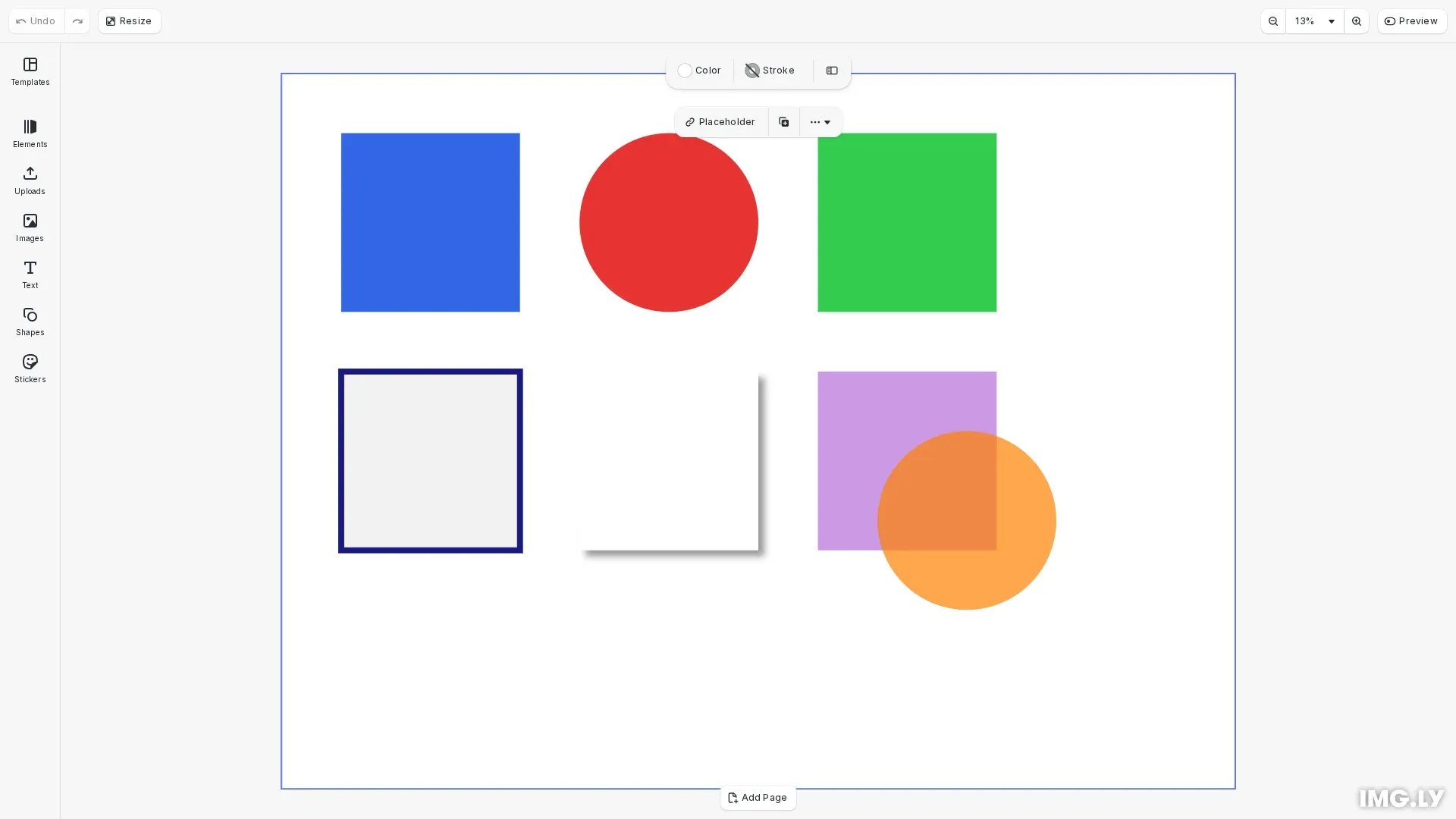
sRGB is the standard color space for screen displays. CE.SDK represents sRGB colors as RGBA objects where each component (red, green, blue, alpha) uses floating-point values between 0.0 and 1.0. This differs from the traditional 0-255 integer range used in many design tools.
This guide covers creating RGBA color objects, applying them to fills, strokes, and shadows, retrieving colors from elements, converting colors to sRGB, and working with transparency.
Using the Built-in Color Picker UI#
The built-in color picker allows users to select sRGB colors visually. Users can pick colors from a gradient, enter hex values, or adjust RGB sliders. The color picker automatically handles value conversion between hex and floating-point formats.
The UI includes:
- Color picker gradient and hue slider
- Hex value input field
- RGB component sliders
- Opacity/alpha slider for transparency control
Creating sRGB Colors Programmatically#
We first set up a design scene and get a reference to the page.
// Create a design scene using CE.SDKawait cesdk.actions.run('scene.create', {  page: { width: 800, height: 600, unit: 'Pixel' }});
const engine = cesdk.engine;
// Get the pageconst pages = engine.block.findByType('page');const page = pages[0];if (!page) {  throw new Error('No page found');}
We create RGBA color objects by specifying r, g, b, and a properties. All four components are required and use values from 0.0 to 1.0.
// Create RGBA color objects for sRGB color space// Values are floating-point numbers between 0.0 and 1.0const blueColor = { r: 0.2, g: 0.4, b: 0.9, a: 1.0 };const redColor = { r: 0.9, g: 0.2, b: 0.2, a: 1.0 };const greenColor = { r: 0.2, g: 0.8, b: 0.3, a: 1.0 };The alpha channel controls transparency. A value of 1.0 is fully opaque, while 0.0 is fully transparent.
// Create semi-transparent colors using the alpha channel// Alpha of 0.5 means 50% opacityconst semiTransparentPurple = { r: 0.6, g: 0.2, b: 0.8, a: 0.5 };const semiTransparentOrange = { r: 1.0, g: 0.5, b: 0.0, a: 0.7 };Applying sRGB Colors to Fills#
We use engine.block.setColor() to apply colors to block properties. For fills, we first create a color fill and then set its color value.
// Apply sRGB colors to block fills// First create a color fill, then set its color valueconst fill1 = engine.block.createFill('color');engine.block.setFill(block1, fill1);engine.block.setColor(fill1, 'fill/color/value', blueColor);
const fill2 = engine.block.createFill('color');engine.block.setFill(block2, fill2);engine.block.setColor(fill2, 'fill/color/value', redColor);
const fill3 = engine.block.createFill('color');engine.block.setFill(block3, fill3);engine.block.setColor(fill3, 'fill/color/value', greenColor);
Applying sRGB Colors to Strokes#
We can apply sRGB colors to strokes using the 'stroke/color' property path.
// Apply sRGB color to strokeengine.block.setStrokeEnabled(strokeBlock, true);engine.block.setStrokeWidth(strokeBlock, 5);engine.block.setColor(strokeBlock, 'stroke/color', { r: 0.1, g: 0.1, b: 0.5, a: 1.0});Applying sRGB Colors to Shadows#
Drop shadows also support sRGB colors. We use the 'dropShadow/color' property path. A semi-transparent black creates a natural shadow effect.
// Apply sRGB color to drop shadowengine.block.setDropShadowEnabled(shadowBlock, true);engine.block.setDropShadowBlurRadiusX(shadowBlock, 10);engine.block.setDropShadowBlurRadiusY(shadowBlock, 10);engine.block.setDropShadowOffsetX(shadowBlock, 5);engine.block.setDropShadowOffsetY(shadowBlock, 5);engine.block.setColor(shadowBlock, 'dropShadow/color', { r: 0.0, g: 0.0, b: 0.0, a: 0.4});Retrieving Colors from Elements#
We use engine.block.getColor() to read the current color from a design element. The returned color could be RGBA, CMYK, or a spot color depending on what was set.
// Retrieve the current color from a design elementconst currentColor = engine.block.getColor(fill1, 'fill/color/value');console.log('Current color:', currentColor);Identifying sRGB Colors#
We use the isRGBAColor() type guard to check if a color is sRGB. This is useful when working with colors that could be from any supported color space.
// Use type guard to check if color is RGBA (sRGB)if (isRGBAColor(currentColor)) { console.log('Color is sRGB/RGBA'); console.log('Red:', currentColor.r); console.log('Green:', currentColor.g); console.log('Blue:', currentColor.b); console.log('Alpha:', currentColor.a);}Converting Colors to sRGB#
We use engine.editor.convertColorToColorSpace() to convert CMYK or spot colors to sRGB for screen display.
// Convert a CMYK color to sRGBconst cmykColor = { c: 0.0, m: 1.0, y: 1.0, k: 0.0, tint: 1.0 };const convertedToSrgb = engine.editor.convertColorToColorSpace( cmykColor, 'sRGB');console.log('Converted to sRGB:', convertedToSrgb);API Reference#
| Method | Description |
|---|---|
createFill('color') | Create a new color fill object |
setFill(block, fill) | Assign fill to a block |
setColor(block, property, color) | Set color value (RGBA) |
getColor(block, property) | Get current color value |
setStrokeEnabled(block, enabled) | Enable or disable stroke rendering |
setStrokeWidth(block, width) | Set stroke width |
setDropShadowEnabled(block, enabled) | Enable or disable drop shadow |
convertColorToColorSpace(color, space) | Convert color to specified color space |
isRGBAColor(color) | Type guard to check if color is RGBA |
Troubleshooting#
Colors appear incorrect: Verify values are in the 0.0-1.0 range, not 0-255. A value of 255 would be clamped to 1.0.
Color not visible: Check that the alpha value is not 0.0 and that the fill or stroke is enabled on the block.
Type errors: Ensure all four components (r, g, b, a) are provided for RGBA colors. Omitting alpha will cause validation errors.