Build custom color palettes that appear in the CE.SDK color picker using sRGB, CMYK, and Spot colors.
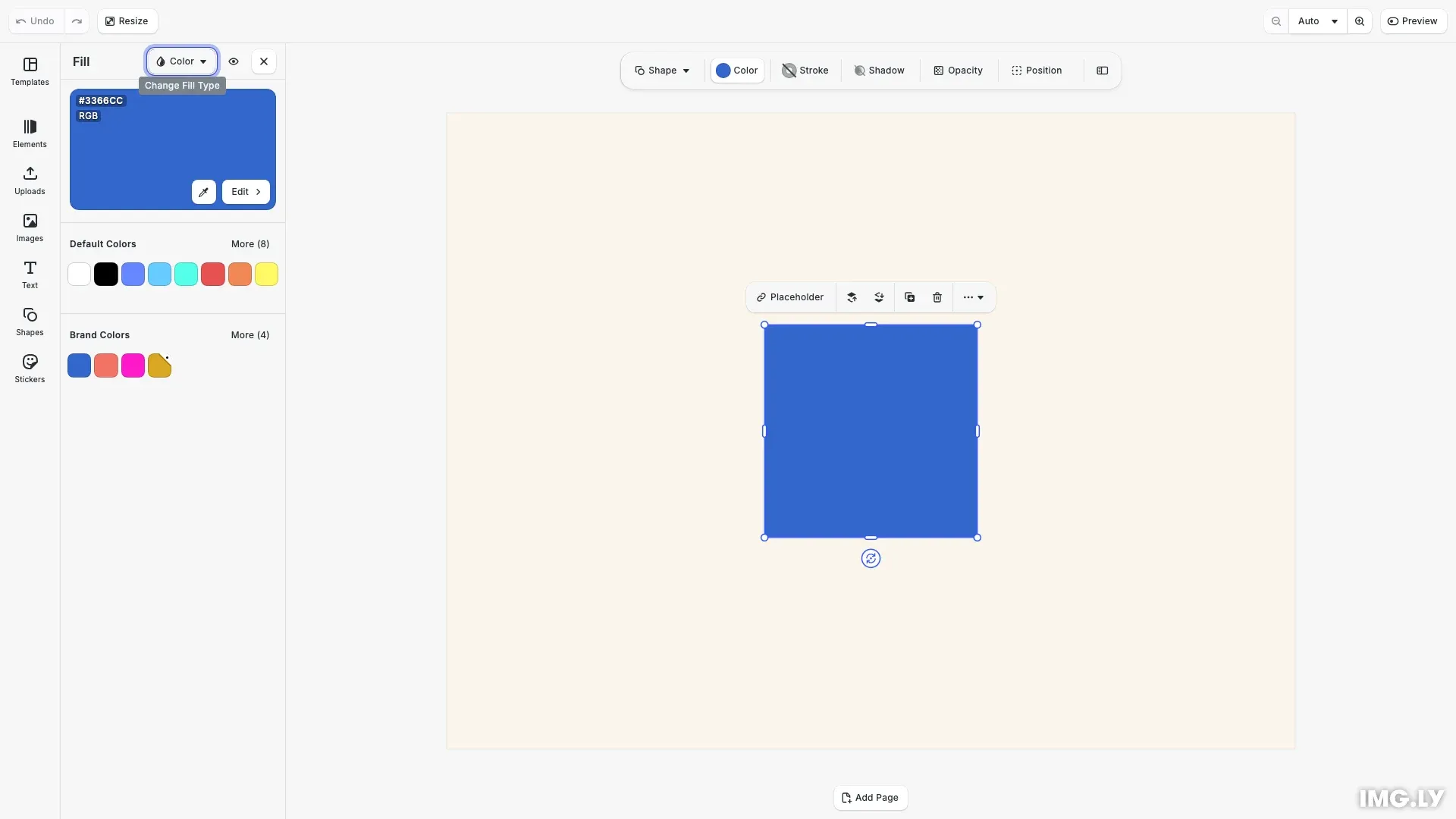
Color libraries in CE.SDK are implemented as asset sources containing individual colors as assets. Each library has a unique source ID and can include sRGB colors for screen display, CMYK colors for print workflows, and Spot colors for specialized printing applications. You configure which libraries appear in the color picker through the 'ly.img.colors' asset library entry.
This guide covers how to define colors in different color spaces, create and configure color libraries, set custom labels, and control the display order in the color picker.
Defining Color Assets#
Colors are added to libraries as AssetDefinition objects. Each color asset has an id, optional label and tags for display and search, and a payload.color property containing the color data. The color type determines which color space is used.
sRGB Colors#
sRGB colors use the AssetRGBColor type with colorSpace: 'sRGB' and r, g, b components as floats from 0.0 to 1.0. Use sRGB colors for screen-based designs and web content.
// Define color assets for each color space typeconst colors: AssetDefinition[] = [ { id: 'brand-blue', label: { en: 'Brand Blue' }, tags: { en: ['brand', 'blue', 'primary'] }, payload: { color: { colorSpace: 'sRGB', r: 0.2, g: 0.4, b: 0.8 } } }, { id: 'brand-coral', label: { en: 'Brand Coral' }, tags: { en: ['brand', 'coral', 'secondary'] }, payload: { color: { colorSpace: 'sRGB', r: 0.95, g: 0.45, b: 0.4 } } }, { id: 'print-magenta', label: { en: 'Print Magenta' }, tags: { en: ['print', 'magenta', 'cmyk'] }, payload: { color: { colorSpace: 'CMYK', c: 0, m: 0.9, y: 0.2, k: 0 } } }, { id: 'metallic-gold', label: { en: 'Metallic Gold' }, tags: { en: ['spot', 'metallic', 'gold'] }, payload: { color: { colorSpace: 'SpotColor', name: 'Metallic Gold Ink', externalReference: 'Custom Inks', representation: { colorSpace: 'sRGB', r: 0.85, g: 0.65, b: 0.13 } } } }];The example defines four colors demonstrating different color spaces. The first two colors—“Brand Blue” and “Brand Coral”—use sRGB for screen display.
CMYK Colors#
CMYK colors use the AssetCMYKColor type with colorSpace: 'CMYK' and c, m, y, k components as floats from 0.0 to 1.0. Use CMYK colors for print workflows where color accuracy in printing is critical.
The “Print Magenta” color in the example demonstrates the CMYK color space with cyan at 0, magenta at 0.9, yellow at 0.2, and black at 0.
Spot Colors#
Spot colors use the AssetSpotColor type with colorSpace: 'SpotColor', a name that identifies the spot color, an externalReference indicating the color book or ink system, and a representation using sRGB or CMYK for screen preview.
The “Metallic Gold” color demonstrates the spot color format, using a custom ink reference with an sRGB representation for on-screen preview.
Creating a Color Library#
We create a local asset source using engine.asset.addLocalSource() with a unique source ID. Then we add each color asset using engine.asset.addAssetToSource().
    // Create a local asset source and add each color    const sourceId = 'my-brand-colors';    engine.asset.addLocalSource(sourceId);
    for (const color of colors) {      await engine.asset.addAssetToSource(sourceId, color);    }
    // Set labels for the color library using i18n    cesdk.i18n.setTranslations({      en: {        'libraries.my-brand-colors.label': 'Brand Colors'      }    });
    // Configure the color picker to show custom colors first, then defaults    cesdk.ui.updateAssetLibraryEntry('ly.img.color.palette', {      sourceIds: ['my-brand-colors', 'ly.img.color.palette']    });
    await cesdk.addPlugin(new DesignEditorConfig());
    // Add asset source plugins    await cesdk.addPlugin(new BlurAssetSource());    await cesdk.addPlugin(new ColorPaletteAssetSource());    await cesdk.addPlugin(new CropPresetsAssetSource());    await cesdk.addPlugin(new UploadAssetSources({ include: ['ly.img.image.upload'] }));    await cesdk.addPlugin(      new DemoAssetSources({        include: [          'ly.img.templates.blank.*',          'ly.img.templates.presentation.*',          'ly.img.templates.print.*',          'ly.img.templates.social.*',          'ly.img.image.*'        ]      })    );    await cesdk.addPlugin(new EffectsAssetSource());    await cesdk.addPlugin(new FiltersAssetSource());    await cesdk.addPlugin(new PagePresetsAssetSource());    await cesdk.addPlugin(new StickerAssetSource());    await cesdk.addPlugin(new TextAssetSource());    await cesdk.addPlugin(new TextComponentAssetSource());    await cesdk.addPlugin(new TypefaceAssetSource());    await cesdk.addPlugin(new VectorShapeAssetSource());
    // Create a local asset source and add color assets to it    engine.asset.addLocalSource('my-brand-colors');    for (const color of colors) {      engine.asset.addAssetToSource('my-brand-colors', color);    }
    // Configure the color picker to show custom colors alongside the defaults    cesdk.ui.updateAssetLibraryEntry('ly.img.colors', {      sourceIds: ['my-brand-colors', 'ly.img.color.palette']    });
    await cesdk.actions.run('scene.create', {      page: { width: 800, height: 600, unit: 'Pixel' }    });
    // Set up the page with dimensions    const page = engine.block.findByType('page')[0];
    // Apply a soft cream background to the page fill    // This complements the Brand Blue rectangle    const pageFill = engine.block.getFill(page);    engine.block.setColor(pageFill, 'fill/color/value', {      r: 0.98,      g: 0.96,      b: 0.92,      a: 1.0    });
    // Create a graphic block with Brand Blue from the custom palette    const block = engine.block.create('//ly.img.ubq/graphic');    engine.block.setShape(      block,      engine.block.createShape('//ly.img.ubq/shape/rect')    );    const fill = engine.block.createFill('//ly.img.ubq/fill/color');    // Use Brand Blue from our custom palette    engine.block.setColor(fill, 'fill/color/value', {      r: 0.2,      g: 0.4,      b: 0.8,      a: 1.0    });    engine.block.setFill(block, fill);    engine.block.setWidth(block, 200);    engine.block.setHeight(block, 200);
    // Center the block on the page    const pageWidth = engine.block.getWidth(page);    const pageHeight = engine.block.getHeight(page);    engine.block.setPositionX(block, (pageWidth - 200) / 2);    engine.block.setPositionY(block, (pageHeight - 200) / 2);    engine.block.appendChild(page, block);
    // Select the block and open the fill inspector to show the color picker    engine.block.select(block);    cesdk.ui.openPanel('//ly.img.panel/inspector/fill');
    console.log('Create Color Palette example loaded successfully');  }}
The source ID 'my-brand-colors' identifies this library throughout the application. You can create multiple libraries with different source IDs to organize colors by purpose—for example, separate libraries for brand colors, print colors, and seasonal palettes.
Configuring Library Labels#
We set display labels for color libraries using cesdk.i18n.setTranslations(). Labels use the pattern libraries.<source-id>.label where <source-id> matches the ID used when creating the source.
// Set labels for the color library using i18ncesdk.i18n.setTranslations({ en: { 'libraries.my-brand-colors.label': 'Brand Colors' }});The label “Brand Colors” appears as the section header in the color picker. You can provide translations for multiple locales by adding additional language keys to the translations object.
Configuring the Color Picker#
We control which libraries appear in the color picker and their display order using cesdk.ui.updateAssetLibraryEntry(). The sourceIds array determines both visibility and order—libraries appear in the picker in the same order as the array.
    // Configure the color picker to show custom colors first, then defaults    cesdk.ui.updateAssetLibraryEntry('ly.img.color.palette', {      sourceIds: ['my-brand-colors', 'ly.img.color.palette']    });
    await cesdk.addPlugin(new DesignEditorConfig());
    // Add asset source plugins    await cesdk.addPlugin(new BlurAssetSource());    await cesdk.addPlugin(new ColorPaletteAssetSource());    await cesdk.addPlugin(new CropPresetsAssetSource());    await cesdk.addPlugin(new UploadAssetSources({ include: ['ly.img.image.upload'] }));    await cesdk.addPlugin(      new DemoAssetSources({        include: [          'ly.img.templates.blank.*',          'ly.img.templates.presentation.*',          'ly.img.templates.print.*',          'ly.img.templates.social.*',          'ly.img.image.*'        ]      })    );    await cesdk.addPlugin(new EffectsAssetSource());    await cesdk.addPlugin(new FiltersAssetSource());    await cesdk.addPlugin(new PagePresetsAssetSource());    await cesdk.addPlugin(new StickerAssetSource());    await cesdk.addPlugin(new TextAssetSource());    await cesdk.addPlugin(new TextComponentAssetSource());    await cesdk.addPlugin(new TypefaceAssetSource());    await cesdk.addPlugin(new VectorShapeAssetSource());
    // Create a local asset source and add color assets to it    engine.asset.addLocalSource('my-brand-colors');    for (const color of colors) {      engine.asset.addAssetToSource('my-brand-colors', color);    }
    // Configure the color picker to show custom colors alongside the defaults    cesdk.ui.updateAssetLibraryEntry('ly.img.colors', {      sourceIds: ['my-brand-colors', 'ly.img.color.palette']    });
    await cesdk.actions.run('scene.create', {      page: { width: 800, height: 600, unit: 'Pixel' }    });
    // Set up the page with dimensions    const page = engine.block.findByType('page')[0];
    // Apply a soft cream background to the page fill    // This complements the Brand Blue rectangle    const pageFill = engine.block.getFill(page);    engine.block.setColor(pageFill, 'fill/color/value', {      r: 0.98,      g: 0.96,      b: 0.92,      a: 1.0    });
    // Create a graphic block with Brand Blue from the custom palette    const block = engine.block.create('//ly.img.ubq/graphic');    engine.block.setShape(      block,      engine.block.createShape('//ly.img.ubq/shape/rect')    );    const fill = engine.block.createFill('//ly.img.ubq/fill/color');    // Use Brand Blue from our custom palette    engine.block.setColor(fill, 'fill/color/value', {      r: 0.2,      g: 0.4,      b: 0.8,      a: 1.0    });    engine.block.setFill(block, fill);    engine.block.setWidth(block, 200);    engine.block.setHeight(block, 200);
    // Center the block on the page    const pageWidth = engine.block.getWidth(page);    const pageHeight = engine.block.getHeight(page);    engine.block.setPositionX(block, (pageWidth - 200) / 2);    engine.block.setPositionY(block, (pageHeight - 200) / 2);    engine.block.appendChild(page, block);
    // Select the block and open the fill inspector to show the color picker    engine.block.select(block);    cesdk.ui.openPanel('//ly.img.panel/inspector/fill');
    console.log('Create Color Palette example loaded successfully');  }}
The special source ID 'ly.img.color.palette' represents CE.SDK’s built-in default color palette. Include it in the array to show the default colors alongside your custom library. Remove it from the array to hide the default palette entirely.
Removing Colors#
You can remove individual colors from a library using engine.asset.removeAssetFromSource() with the source ID and the color’s asset ID.
engine.asset.removeAssetFromSource('my-brand-colors', 'brand-blue');This removes the color from the library immediately. The color picker updates to reflect the change the next time it renders.
Troubleshooting#
Colors Not Appearing in Picker#
If your colors don’t appear in the color picker:
- Verify the source ID is included in the
sourceIdsarray passed toupdateAssetLibraryEntry() - Check that colors were added using
addAssetToSource()with the correct source ID - Ensure the asset source was created with
addLocalSource()before adding colors
Label Not Showing#
If the library label doesn’t appear:
- Verify the translation key follows the
libraries.<source-id>.labelpattern exactly - Check that the source ID in the translation key matches the source ID used in
addLocalSource() - Ensure
setTranslations()was called before the color picker renders
Spot Color Appears Incorrect#
If a spot color displays incorrectly:
- Check that the
representationproperty contains a valid sRGB or CMYK color for screen preview - Verify the
nameproperty is defined and not empty - Ensure the
colorSpaceis set to'SpotColor'
Wrong Library Order#
The order of libraries in the color picker matches the order in the sourceIds array. To change the order:
- Reorder the source IDs in the array passed to
updateAssetLibraryEntry() - The first source ID appears at the top of the color picker
API Reference#
| Method | Description |
|---|---|
engine.asset.addLocalSource(sourceId) | Create a local asset source for colors |
engine.asset.addAssetToSource(sourceId, asset) | Add a color asset to a source |
engine.asset.removeAssetFromSource(sourceId, assetId) | Remove a color asset from a source |
cesdk.ui.updateAssetLibraryEntry(entryId, config) | Configure color library display order |
cesdk.i18n.setTranslations(translations) | Set labels for color libraries |
| Type | Properties | Description |
|---|---|---|
AssetRGBColor | colorSpace, r, g, b | sRGB color for screen display |
AssetCMYKColor | colorSpace, c, m, y, k | CMYK color for print workflows |
AssetSpotColor | colorSpace, name, externalReference, representation | Named spot color for specialized printing |
AssetDefinition | id, label, tags, payload | Color asset structure with metadata |