Animate the characters, words or lines of a text block with text animators, such as a letter-by-letter reveal, a highlighted word or a wave.
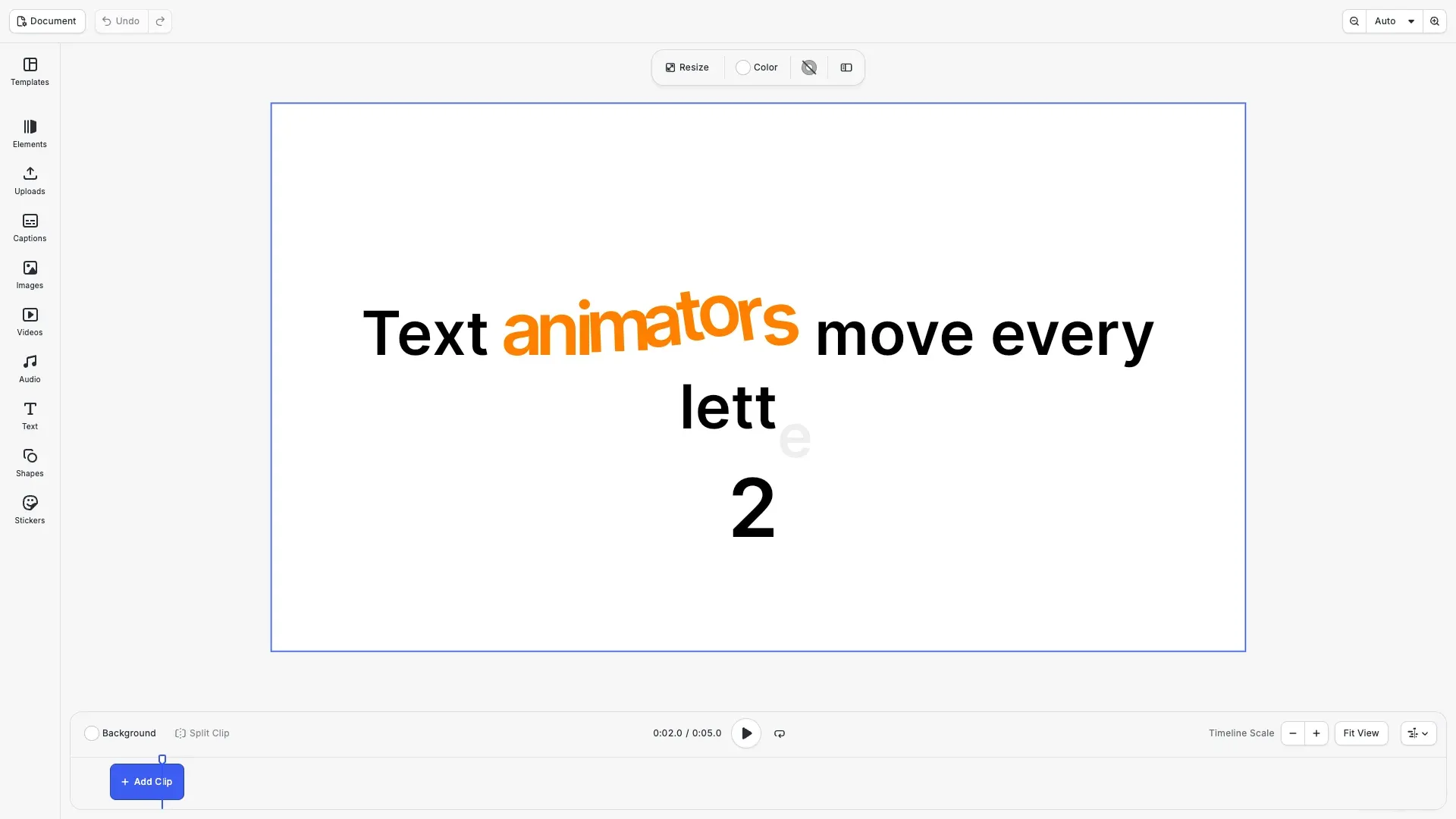
Text presets animate a whole text with fixed settings. A text animator gives you control over each glyph. It selects a range of characters, words or lines and changes their position, scale, rotation, skew, opacity, colors, stroke width, spacing and blur. Every property of a text animator accepts keyframes, so the range and the changes can move over time. Text animators render in playback and in video export. The editor has no text animator controls, so you set them with the block API. For text presets, see Text Animations.
This guide covers creating and attaching text animators, the glyph properties and the range selector. It also covers keyframes, the order of several animators, removing them, keyframes on the text content, and errors.
Creating the Text Block#
We create a headline with a duration of 5 seconds. The keyframes of its text animators use this duration.
// A 5 second headline in the middle of the pageconst text = engine.block.create('text');engine.block.replaceText(text, 'Text animators move every letter');engine.block.setTextFontSize(text, 120);engine.block.setEnum(text, 'text/horizontalAlignment', 'Center');engine.block.setWidth(text, 1600);engine.block.setHeightMode(text, 'Auto');engine.block.setPositionX(text, 160);engine.block.setPositionY(text, 380);engine.block.appendChild(page, text);engine.block.setDuration(text, 5);Creating a Text Animator#
supportsTextAnimators() returns true for text and caption blocks. createTextAnimator() creates a text animator, and appendTextAnimator() attaches it to the end of the text’s animator list.
console.log(engine.block.supportsTextAnimators(text)); // trueconsole.log(engine.block.supportsTextAnimators(page)); // false
// The covered glyphs sit 60 units lower and are hiddenconst reveal = engine.block.createTextAnimator();engine.block.setFloat(reveal, 'text_animator/positionY', 60);engine.block.setBool(reveal, 'text_animator/opacityEnabled', true);engine.block.setFloat(reveal, 'text_animator/opacity', 0);engine.block.appendTextAnimator(text, reveal);
All properties of a text animator start with text_animator/. A new text animator changes nothing, because its offsets are 0 and its scale is 1. This animator moves the glyphs 60 units down and hides them. The range selector decides which glyphs get these changes. By default it covers the whole text.
| Property | Unit | Effect on a covered glyph |
|---|---|---|
positionX, positionY |
Design units | Moves the glyph |
anchorX, anchorY |
Design units | Moves the pivot for scale, rotation and skew |
scaleX, scaleY |
Factor, 1 is no change | Scales the glyph |
rotation |
Radians | Rotates the glyph |
skew, skewAxis |
Degrees | Skews the glyph along an axis |
opacity |
0 to 1 | Fades the glyph when opacityEnabled is true |
fillColor |
Color | Colors the glyph when fillColorEnabled is true |
strokeColor |
Color | Colors the stroke when strokeColorEnabled is true |
strokeWidth |
Design units | Adds to the stroke width when the text has a stroke |
tracking |
Design units | Adds space, half before and half after the glyph |
blurX, blurY |
Design units | Blurs the glyph |
Animating the Range with Keyframes#
Every text animator property accepts keyframes with setKeyframes(). The keyframe times refer to the duration of the text block. Here selectorStart moves from 0 to 1 in the first 2.5 seconds. The range then covers fewer glyphs, from the left. Each glyph that leaves the range rises to its place and fades in.
// Move the start of the range from 0 to 1 in the first half of the// text's duration. The uncovered glyphs rise and fade in, left to right.engine.block.setKeyframes(reveal, 'text_animator/selectorStart', [ { time: 0, value: { type: 'Float', value: 0 }, easing: { type: 'Preset', preset: 'EaseOut' } }, { time: 0.5, value: { type: 'Float', value: 1 } }]);For more on keyframe values and easing, see Keyframes.
The Range Selector#
The range selector gives each glyph a coverage from 0 to 1. A glyph with full coverage gets the full change of the animator. These properties control the selector:
selectorBasedOnis the element that the selector counts:'Characters','CharactersExcludingSpaces','Words'or'Lines'.selectorUnitsis'Percentage'by default, where 0 to 1 spans all elements.'Index'counts elements from 0.selectorStart,selectorEndandselectorOffsetdefine the range. The offset moves the whole range.selectorShapeis the coverage curve over the range:'Square','RampUp','RampDown','Triangle','Round'or'Smooth'.selectorSmoothnesssoftens the edges of a square.selectorAmountscales the coverage, from -1 to 1.selectorEaseHighandselectorEaseLowbend the curve.selectorRandomizeshuffles the order of the elements. The sameselectorSeedgives the same order on every platform.selectorEnabledset tofalsecovers every glyph.
This animator covers the second word, colors it orange and scales it up.
// Cover the second word only: words are counted from 0 in index unitsconst highlight = engine.block.createTextAnimator();engine.block.setEnum(highlight, 'text_animator/selectorBasedOn', 'Words');engine.block.setEnum(highlight, 'text_animator/selectorUnits', 'Index');engine.block.setFloat(highlight, 'text_animator/selectorStart', 1);engine.block.setFloat(highlight, 'text_animator/selectorEnd', 2);
// Color and scale the covered glyphsengine.block.setBool(highlight, 'text_animator/fillColorEnabled', true);engine.block.setColor(highlight, 'text_animator/fillColor', {  r: 1,  g: 0.5,  b: 0,  a: 1});engine.block.setFloat(highlight, 'text_animator/scaleX', 1.2);engine.block.setFloat(highlight, 'text_animator/scaleY', 1.2);
In index units the default selectorEnd of 1 covers only the first element. Set the end to the index after the last element that you want to cover.
Combining Several Animators#
A text block can have several text animators. They apply in list order, and each adds its change to the result of the animators before it. insertTextAnimator() attaches an animator at an index, and getTextAnimators() returns the list.
// Insert the highlight before the revealengine.block.insertTextAnimator(text, highlight, 0);console.log(engine.block.getTextAnimators(text)); // [highlight, reveal]A third animator runs a wave across the text. The triangle shape covers a quarter of the characters and peaks in its middle. A keyframed selectorOffset moves this range from before the first character to after the last one.
// A triangle covers a quarter of the characters and peaks in its middleconst wave = engine.block.createTextAnimator();engine.block.setEnum(wave, 'text_animator/selectorShape', 'Triangle');engine.block.setFloat(wave, 'text_animator/selectorEnd', 0.25);engine.block.setFloat(wave, 'text_animator/positionY', -40);engine.block.setFloat(wave, 'text_animator/rotation', -0.2);
// Move the range across the text over the whole durationengine.block.setKeyframes(wave, 'text_animator/selectorOffset', [  { time: 0, value: { type: 'Float', value: -0.25 } },  { time: 1, value: { type: 'Float', value: 1 } }]);engine.block.appendTextAnimator(text, wave);
Removing a Text Animator#
removeTextAnimator() removes the animator at an index. It does not destroy the animator, so you can attach it again or destroy it with destroy(). To change the order, remove an animator and insert it at the new index.
// Remove the highlight at index 0. The animator stays valid.engine.block.removeTextAnimator(text, 0);console.log(engine.block.isValid(highlight)); // true
// Append it again so that it applies lastengine.block.appendTextAnimator(text, highlight);console.log(engine.block.getTextAnimators(text)); // [reveal, wave, highlight]
Animating the Text Content#
The text/text property of a text block accepts 'Discrete' string keyframes. The shown text changes at the time of each keyframe. This countdown shows 3, then 2, then 1.
// A second text block counts down from 3 to 1const countdown = engine.block.create('text');engine.block.replaceText(countdown, '3');engine.block.setTextFontSize(countdown, 160);engine.block.setWidthMode(countdown, 'Auto');engine.block.setHeightMode(countdown, 'Auto');engine.block.setPositionX(countdown, 900);engine.block.setPositionY(countdown, 700);engine.block.appendChild(page, countdown);engine.block.setDuration(countdown, 5);
engine.block.setKeyframes(countdown, 'text/text', [  { time: 0, value: { type: 'Discrete', value: '3' } },  { time: 0.33, value: { type: 'Discrete', value: '2' } },  { time: 0.67, value: { type: 'Discrete', value: '1' } }]);
The keyframed text uses the style at the start of the static text. getString() and editing in the canvas use the static text, not the keyframed one. Caption blocks accept the same keyframes on caption/text.
Handling Errors#
Invalid input throws an EngineError. Its code names the problem. A text animator belongs to one text block at a time, so attaching it to a second block fails.
try { // The reveal already belongs to the headline engine.block.appendTextAnimator(countdown, reveal);} catch (error) { if (isEngineError(error)) { console.log(error.code); // 'BLOCK.TEXT_ANIMATOR_ALREADY_ATTACHED' }}Text Animators and Other Block Operations#
Text animators take part in the usual block operations:
- Preset animations apply together with text animators.
- Undo and redo restore the animators of a text and their properties.
- Saving and loading a scene keeps the animators and their keyframes.
- Duplicating a text block copies its animators in their order.
- Destroying a text block destroys its animators. Destroying an animator removes it from its text block.
- Changing the design unit converts the length properties of an animator, such as
tracking. Factors such asscaleXstay the same.
appendTextAnimator(), insertTextAnimator() and removeTextAnimator() need the appearance/animation scope.
Troubleshooting#
- The block does not accept text animators (
BLOCK.TEXT_ANIMATORS_UNSUPPORTED): use a text or caption block. Check it withsupportsTextAnimators(). - The block to attach is not a text animator (
BLOCK.TEXT_ANIMATOR_NOT_AN_ANIMATOR): create the block withcreateTextAnimator(). - The animator already belongs to a block (
BLOCK.TEXT_ANIMATOR_ALREADY_ATTACHED): remove it from its text block first, or create a new animator. - The index is out of bounds (
BLOCK.TEXT_ANIMATOR_INDEX_OUT_OF_BOUNDS): to insert, use an index from 0 to the length ofgetTextAnimators(). To remove, use a lower index. - Only the first character changes: in
'Index'units the default end of 1 covers only element 0. SetselectorEnd. - The opacity or a color does not change: set
opacityEnabled,fillColorEnabledorstrokeColorEnabledtotrue. - The stroke width does not change: enable the stroke of the text block.
- A negative amount does not fade the glyphs: a negative coverage moves, scales and rotates glyphs, but it does not change opacity or colors.
API Reference#
| Method | Description |
|---|---|
block.supportsTextAnimators(id) |
Check whether a block accepts text animators |
block.createTextAnimator() |
Create a text animator |
block.appendTextAnimator(id, animatorId) |
Attach an animator at the end of the list |
block.insertTextAnimator(id, animatorId, index) |
Attach an animator at an index |
block.getTextAnimators(id) |
Get the animators of a block in the order they apply |
block.removeTextAnimator(id, index) |
Remove the animator at an index without destroying it |
block.setFloat(), block.setInt(), block.setBool(), block.setEnum(), block.setColor() |
Set the properties of a text animator. selectorSeed is an integer |
block.setKeyframes(id, property, keyframes) |
Animate a text animator property or the text content |
Next Steps#
- Keyframes: animate single block properties with keyframes and easing.
- Text Animations: apply preset animations to text blocks.
- Animation Overview: understand animation concepts and capabilities.