Customize the Android asset library by registering custom asset sources, exposing upload sources, and choosing which sections appear in the editor UI.
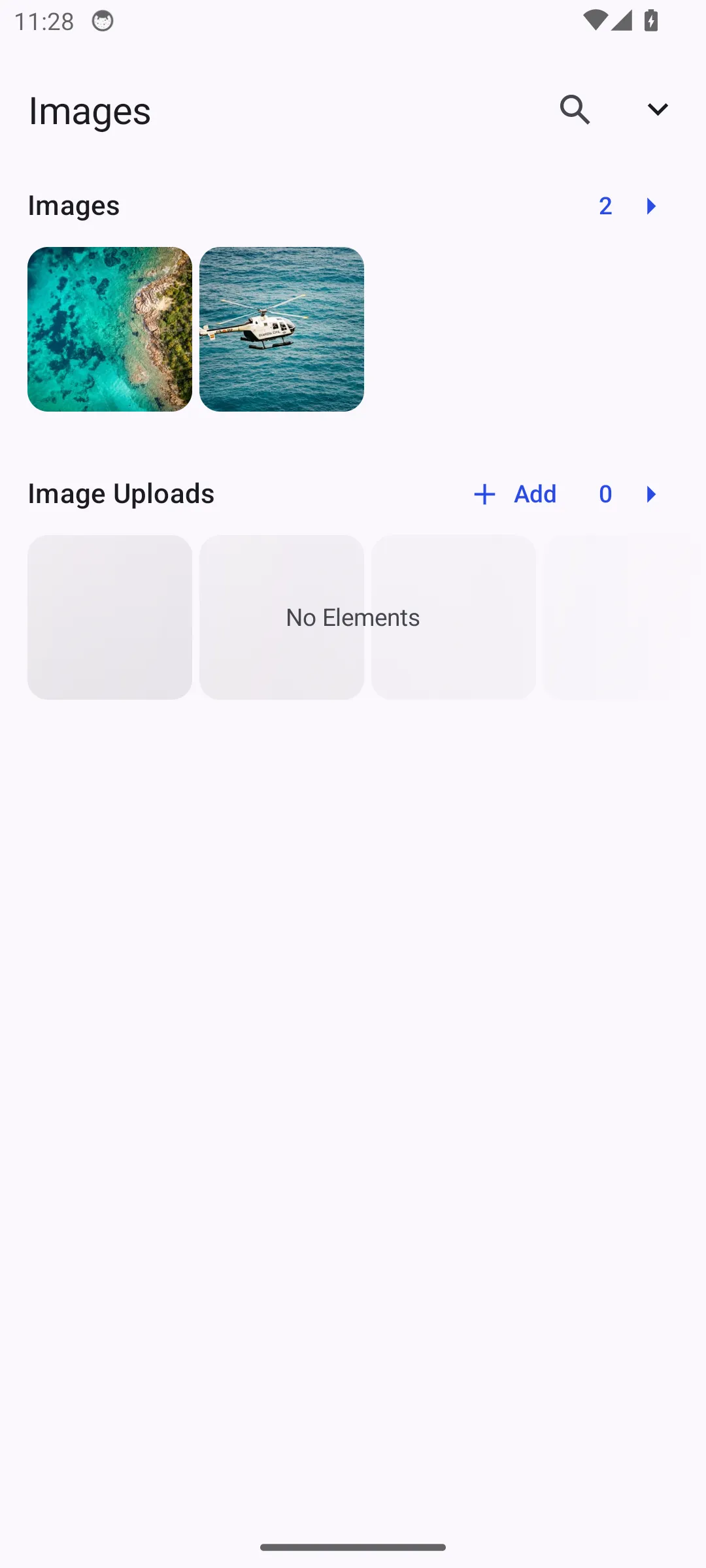
The Android editor renders the asset library from an AssetLibrary configuration. Each visible section points to one or more AssetSourceType values, and those source types must match sources that you register with the CreativeEngine.
For a complete editor surface that includes the asset library, see the Design Editor Starter Kit. This guide focuses on the asset library configuration that you can add to your own editor setup.
Creating Custom Asset Sources#
Start by defining stable source IDs for the assets you load from your backend and for assets users upload during an editing session. The same IDs connect the engine sources to the UI sections.
private const val BRAND_IMAGE_SOURCE_ID = "ly.img.example.brand.images"private const val BRAND_UPLOAD_SOURCE_ID = "ly.img.example.brand.uploads"private const val CAMPAIGN_GROUP = "campaign"private const val PRODUCT_GROUP = "product"
private val brandImageSourceType = AssetSourceType(sourceId = BRAND_IMAGE_SOURCE_ID)private val brandUploadSourceType = UploadAssetSourceType(    sourceId = BRAND_UPLOAD_SOURCE_ID,    mimeTypeFilter = "image/*",)
Register the custom source during editor creation after your onCreate callback creates or loads a scene. The example also creates a local upload source so the upload section can store user-selected images during the session.
val engine = editorContext.engineif (BRAND_IMAGE_SOURCE_ID !in engine.asset.findAllSources()) { engine.asset.addSource( BrandImageAssetSource( engine = engine, assetBaseUri = editorContext.baseUri.buildUpon() .appendPath("ly.img.image") .build(), ), )}if (BRAND_UPLOAD_SOURCE_ID !in engine.asset.findAllSources()) { engine.asset.addLocalSource( sourceId = BRAND_UPLOAD_SOURCE_ID, supportedMimeTypes = listOf(MimeType.JPEG.key, MimeType.PNG.key), )}Adding Asset Library Panels#
Android uses LibraryCategory and LibraryContent to describe the tabs, sections, and grids shown in the asset library. Here we replace the Images tab with a custom category that contains a curated image section and an upload section.
assetLibrary = {    remember {        val brandImages = LibraryCategory.Images.copy(            content = LibraryContent.Sections(                titleRes = R.string.ly_img_editor_asset_library_title_images,                sections = listOf(                    LibraryContent.Section(                        titleRes = R.string.ly_img_editor_asset_library_section_images,                        sourceTypes = listOf(brandImageSourceType),                        groups = listOf(CAMPAIGN_GROUP),                        assetType = AssetType.Image,                        expandContent = LibraryContent.Grid(                            titleRes = R.string.ly_img_editor_asset_library_section_images,                            sourceType = brandImageSourceType,                            groups = listOf(CAMPAIGN_GROUP),                            assetType = AssetType.Image,                        ),                    ),                    LibraryContent.Section(                        titleRes = R.string.ly_img_editor_asset_library_section_image_uploads,                        sourceTypes = listOf(brandUploadSourceType),                        assetType = AssetType.Image,                    ),                ),            ),        )
        AssetLibrary.getDefault(            tabs = listOf(AssetLibrary.Tab.IMAGES),            images = brandImages,        )    }}
Use this pattern when you want to reorder tabs, remove default categories, or point a category at custom sources. For more specialized layouts, construct an AssetLibrary directly and provide different categories for tabs, replacement sheets, or media-specific entry points.
Implementing the Source#
Implement AssetSource when assets come from a remote API, a Digital Asset Management system, or another app-managed catalog. Start with source metadata so the editor knows which MIME types the source supports and which credits or license should be attached to its results.
private class BrandImageAssetSource(    private val engine: Engine,    private val assetBaseUri: Uri,) : AssetSource(sourceId = BRAND_IMAGE_SOURCE_ID) {    override val credits = AssetCredits(        name = "Brand Media Team",        uri = Uri.parse("https://img.ly/"),    )
    override val license = AssetLicense(        name = "Internal use",        uri = null,    )
    override val supportedMimeTypes = listOf(MimeType.JPEG.key, MimeType.PNG.key)
findAssets maps the engine query to your data model, handles group and search filtering, and returns paginated Asset results. Replace the in-memory list with your network or storage client while keeping the returned result shape the same.
override suspend fun findAssets(query: FindAssetsQuery): FindAssetsResult {    val locale = query.locale ?: "en"    val filteredAssets = assets        .asSequence()        .filter { it.matches(query) }        .map { it.toAsset(sourceId = sourceId, locale = locale) }        .filter { asset ->            query.filter.orEmpty().all { filter -> asset.matches(filter) }        }        .toList()    val page = query.page.coerceAtLeast(0)    val perPage = query.perPage.coerceAtLeast(1)    val start = page * perPage    val pageAssets = filteredAssets        .drop(start)        .take(perPage)
    return FindAssetsResult(        assets = pageAssets,        currentPage = page,        nextPage = if (start + perPage < filteredAssets.size) page + 1 else -1,        total = filteredAssets.size,    )}
FindAssetsQuery.filter contains structured AssetFilter predicates in
addition to search text, tags, and groups. Evaluate these predicates against
each converted Asset; this example supports equality and containment checks
for labels, IDs, tags, groups, and meta.<key> values, along with nested
And, Or, and Not filters.
private fun Asset.matches(filter: AssetFilter): Boolean = when (filter) {    is AssetFilter.Equals -> filterValues(filter.property).any {        it.lowercaseAscii() == filter.value.lowercaseAscii()    }    is AssetFilter.Contains -> filterValues(filter.property).any {        filter.value.lowercaseAscii() in it.lowercaseAscii()    }    is AssetFilter.And -> {        require(filter.filters.isNotEmpty()) { "AssetFilter.And must not be empty." }        filter.filters.all { child -> matches(child) }    }    is AssetFilter.Or -> {        require(filter.filters.isNotEmpty()) { "AssetFilter.Or must not be empty." }        filter.filters.any { child -> matches(child) }    }    is AssetFilter.Not -> !matches(filter.filter)}
private fun Asset.filterValues(property: String): List<String> = when (property) {    "label" -> listOfNotNull(label)    "id" -> listOf(id)    "tags" -> tags.orEmpty()    "groups" -> groups.orEmpty()    else -> {        require(property.startsWith("meta.") && property.length > "meta.".length) {            "Unsupported asset filter property: $property"        }        listOfNotNull(meta?.get(property.removePrefix("meta.")))    }}
private fun String.lowercaseAscii(): String = buildString(length) {    for (character in this@lowercaseAscii) {        append(            if (character in 'A'..'Z') {                (character.code + 32).toChar()            } else {                character            },        )    }}
Map each item to an Asset with the metadata the default image apply behavior expects. For image assets, include the asset URI, thumbnail URI, MIME type, block type, fill type, shape type, and dimensions when you have them.
private fun BrandImage.toAsset( sourceId: String, locale: String,) = Asset( id = id, context = AssetContext(sourceId = sourceId), label = label, locale = locale, tags = tags, groups = groups, meta = mapOf( "uri" to assetUri("images", fileName), "thumbUri" to assetUri("thumbnails", fileName), "mimeType" to MimeType.JPEG.key, "kind" to "image", "blockType" to DesignBlockType.Graphic.key, "fillType" to FillType.Image.key, "shapeType" to ShapeType.Rect.key, "width" to width.toString(), "height" to height.toString(), ), credits = credits, license = license,)The same source can customize how an asset is applied. In the example, applyAsset delegates to engine.asset.defaultApplyAsset() and then writes metadata to the created block.
override suspend fun applyAsset(asset: Asset): DesignBlock? { val block = engine.asset.defaultApplyAsset(asset) ?: return null engine.block.setMetadata(block = block, key = "asset/source", value = sourceId) engine.block.setMetadata(block = block, key = "asset/externalId", value = asset.id) return block}Enabling User Uploads#
For uploads, create a local source with engine.asset.addLocalSource() and use an UploadAssetSourceType with the same source ID in your library section. The editor’s upload flow adds selected files to that local source automatically.
If your app needs durable uploads, implement EditorConfiguration.onUpload and replace the temporary URI in the provided AssetDefinition with the permanent URI returned by your storage service before returning the definition.
onUpload = { assetDefinition, uploadSource -> uploadTransientResource( assetDefinition = assetDefinition, uploadSource = uploadSource, )}The helper below keeps the uploaded asset’s metadata intact and replaces only the local URI fields. Replace the placeholder storage call with your app’s upload client.
private suspend fun uploadTransientResource(    assetDefinition: AssetDefinition,    uploadSource: UploadAssetSourceType,): AssetDefinition {    val meta = assetDefinition.meta ?: return assetDefinition    val localUri = meta["uri"] ?: return assetDefinition    val permanentUri = uploadToPermanentStorage(        uri = localUri,        sourceId = uploadSource.sourceId,    )    val permanentMeta = meta.toMutableMap()    permanentMeta["uri"] = permanentUri    meta["thumbUri"]?.let { thumbnailUri ->        permanentMeta["thumbUri"] = if (thumbnailUri == localUri) {            permanentUri        } else {            uploadToPermanentStorage(                uri = thumbnailUri,                sourceId = uploadSource.sourceId,            )        }    }    return assetDefinition.copy(meta = permanentMeta)}
private suspend fun uploadToPermanentStorage(    uri: String,    sourceId: String,): String {    check(sourceId.isNotBlank()) { "Upload source id is required." }    // Replace this with your app's storage client and return its permanent URI.    return Uri.parse("https://assets.example.com")        .buildUpon()        .appendPath(sourceId)        .appendQueryParameter("sourceUri", uri)        .build()        .toString()}
Querying and Organizing Assets#
FindAssetsQuery carries the current search text, locale, tags, groups, and pagination request. Use these values in findAssets so the UI can search and page through large catalogs without loading every asset at once.
Groups are useful for categories such as campaigns, products, or seasons. Return the complete group list from getGroups(), then pass groups on a LibraryContent.Section or LibraryContent.Grid to show a filtered slice of the source.
Troubleshooting#
Assets Do Not Appear#
Check that the source ID in AssetSourceType(sourceId = ...) exactly matches the ID registered with engine.asset.addSource() or engine.asset.addLocalSource(). Also confirm that findAssets returns a non-empty assets list and a matching total.
Uploads Are Hidden#
Upload buttons only appear for UploadAssetSourceType sections. Register a local source with the same ID and keep the section’s sourceTypes list to that single upload source.
Applying an Asset Fails#
For image assets, include uri, thumbUri, mimeType, blockType, fillType, shapeType, width, and height metadata where possible. If you override applyAsset, call engine.asset.defaultApplyAsset() unless you intentionally create or update blocks yourself.
API Reference#
| API | Purpose |
|---|---|
EditorConfiguration.remember(builder=_) |
Configure editor callbacks and the asset library UI. |
engine.asset.findAllSources() |
Check whether a source ID is already registered. |
engine.asset.addSource(source=_) |
Register a custom AssetSource. |
engine.asset.addLocalSource(sourceId=_, supportedMimeTypes=_) |
Register an engine-managed source for user uploads or runtime assets. |
EditorConfiguration.onUpload |
Intercept uploaded asset definitions before the editor stores them in an upload source. |
AssetLibrary.getDefault(tabs=_, images=_) |
Start from the default library and override selected tabs or categories. |
LibraryContent.Sections(titleRes=_, sections=_) |
Render multiple asset sections inside a category. |
LibraryContent.Section(titleRes=_, sourceTypes=_, groups=_, assetType=_, expandContent=_) |
Configure a preview section for one or more asset sources. |
LibraryContent.Grid(titleRes=_, sourceType=_, groups=_, assetType=_) |
Render one asset source as a paginated grid. |
AssetSourceType(sourceId=_) |
Connect a UI section to a registered source ID. |
UploadAssetSourceType(sourceId=_, mimeTypeFilter=_) |
Connect a UI section to a source that should show upload controls. |
AssetSource.findAssets(query=_) |
Return filtered, paginated assets for a source. |
FindAssetsQuery.filter |
Provide structured AssetFilter predicates for an asset query. |
AssetSource.fetchAsset(id=_, options=_) |
Resolve one asset by ID when the engine requests it directly. |
AssetSource.getGroups() |
Return the groups available for category filtering. |
engine.asset.defaultApplyAsset(asset=_) |
Apply an asset using the built-in block creation behavior. |
engine.block.setMetadata(block=_, key=_, value=_) |
Store source metadata on the block created from an asset. |
Next Steps#
- Create a Custom Panel — Design a custom sidebar panel to support unique workflows and user needs.
- Import From Remote Source - Fetch assets remotely
- Import Media Overview - Asset management fundamentals
- UI Extensions - Extend editor capabilities