Customize the page format presets that appear in the CE.SDK editor UI so your users can choose only the sizes your workflow supports.
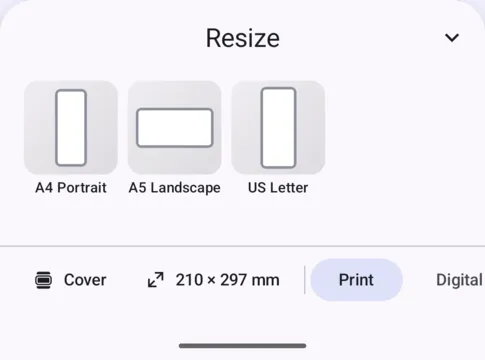
CE.SDK includes page format presets in the resize sheet. The Android editor UI reads these presets from the ly.img.page.presets asset source, so you customize the selector by replacing that source with your own fixed-size assets.
Using the Built-in Page Format UI#
Users can open the resize sheet from the CE.SDK editor UI and select one of the registered page presets. Selecting a preset resizes the current page, or all pages when the resize-all flow is active.
Each Android page format is an asset with an AssetTransformPreset.FixedSize payload. The groups list controls how formats are grouped in the selector.
Replacing the Page Format Source#
Register the source with the default page preset ID, "ly.img.page.presets". If the editor already registered that source, remove it first so the selector reads only your custom formats.
val pagePresetsSourceId = "ly.img.page.presets"if (editorContext.engine.asset.findAllSources().contains(pagePresetsSourceId)) { editorContext.engine.asset.removeSource(pagePresetsSourceId)}editorContext.engine.asset.addLocalSource( sourceId = pagePresetsSourceId, supportedMimeTypes = emptyList(),)Adding Page Format Assets#
Each page format asset needs a FixedSize transform preset:
widthandheightdefine the page dimensions.designUnitsets the unit for those dimensions:DesignUnit.PIXEL,DesignUnit.MILLIMETER, orDesignUnit.INCH.labelis the text shown in the selector.groupslets the selector organize formats into sections such as print or digital sizes.
Using Millimeter Dimensions#
Use millimeters for print formats. This example adds A4 portrait and A5 landscape presets to the same page preset source.
editorContext.engine.asset.addAsset( sourceId = pagePresetsSourceId, asset = AssetDefinition( id = "a4-portrait", label = mapOf("en" to "A4 Portrait"), groups = listOf("print"), payload = AssetPayload( transformPreset = AssetTransformPreset.FixedSize( width = 210F, height = 297F, designUnit = DesignUnit.MILLIMETER, ), ), ),)editorContext.engine.asset.addAsset( sourceId = pagePresetsSourceId, asset = AssetDefinition( id = "a5-landscape", label = mapOf("en" to "A5 Landscape"), groups = listOf("print"), payload = AssetPayload( transformPreset = AssetTransformPreset.FixedSize( width = 210F, height = 148F, designUnit = DesignUnit.MILLIMETER, ), ), ),)Using Pixel Dimensions#
Use pixels for screen-first formats. A square preset uses the same width and height so it keeps a 1:1 page shape.
editorContext.engine.asset.addAsset( sourceId = pagePresetsSourceId, asset = AssetDefinition( id = "square-social", label = mapOf("en" to "Square Social"), groups = listOf("digital"), payload = AssetPayload( transformPreset = AssetTransformPreset.FixedSize( width = 1080F, height = 1080F, designUnit = DesignUnit.PIXEL, ), ), ),)Using Inch Dimensions#
Use inches for formats common in regions that use imperial measurements.
editorContext.engine.asset.addAsset( sourceId = pagePresetsSourceId, asset = AssetDefinition( id = "letter", label = mapOf("en" to "US Letter"), groups = listOf("print"), payload = AssetPayload( transformPreset = AssetTransformPreset.FixedSize( width = 8.5F, height = 11F, designUnit = DesignUnit.INCH, ), ), ),)Creating the Scene#
Load the page format source before creating the scene. Then create the initial page with the dimensions you want users to see first.
val scene = editorContext.engine.scene.create(designUnit = DesignUnit.MILLIMETER)val page = editorContext.engine.block.create(DesignBlockType.Page)editorContext.engine.block.setWidth(block = page, value = 210F)editorContext.engine.block.setHeight(block = page, value = 297F)editorContext.engine.block.appendChild(parent = scene, child = page)The Android editor UI does not read a meta.default field from page format assets during scene creation. If your app needs a default page size, create the first page with that size in your onCreate callback.
Page Orientation#
Orientation comes from the relationship between width and height. A wider format appears as landscape, while a taller format appears as portrait.
Android represents each orientation as a separate fixed-size asset. Add one portrait asset and one landscape asset when users need both options; the Android resize sheet does not read the web-only fixedOrientation metadata flag.
Troubleshooting#
- Custom formats do not appear: Make sure the source ID is
"ly.img.page.presets"and that you add the source before opening the resize sheet. - Default page size is unchanged: Create the initial page with the desired dimensions in
onCreate; Android does not applymeta.defaultautomatically. - Formats appear in the wrong unit: Check that each
AssetTransformPreset.FixedSizeuses the intendedDesignUnit.
API Reference#
| Method | Category | Description |
|---|---|---|
editorContext.engine.asset.findAllSources() |
Asset | Check whether the page preset source already exists |
editorContext.engine.asset.removeSource(sourceId=_) |
Asset | Remove the existing page preset source before replacing it |
editorContext.engine.asset.addLocalSource(sourceId=_, supportedMimeTypes=_) |
Asset | Register a local source for page format assets |
editorContext.engine.asset.addAsset(sourceId=_, asset=_) |
Asset | Add one page format asset to the source |
editorContext.engine.scene.create(designUnit=_) |
Scene | Create the scene with the unit used by the initial page |
editorContext.engine.block.create(blockType=_) |
Block | Create the initial page block |
editorContext.engine.block.setWidth(block=_, value=_) |
Block | Set the initial page width |
editorContext.engine.block.setHeight(block=_, value=_) |
Block | Set the initial page height |
editorContext.engine.block.appendChild(parent=_, child=_) |
Block | Attach the page to the scene |
Related Types#
| Type | Purpose |
|---|---|
AssetDefinition |
Describes one page format asset |
AssetPayload |
Stores the transformPreset for a page format asset |
AssetTransformPreset.FixedSize |
Defines fixed page dimensions and their design unit |
DesignUnit |
Selects pixel, millimeter, or inch dimensions |