Apply crop presets programmatically to enforce specific aspect ratios or dimensions on Android editor blocks.
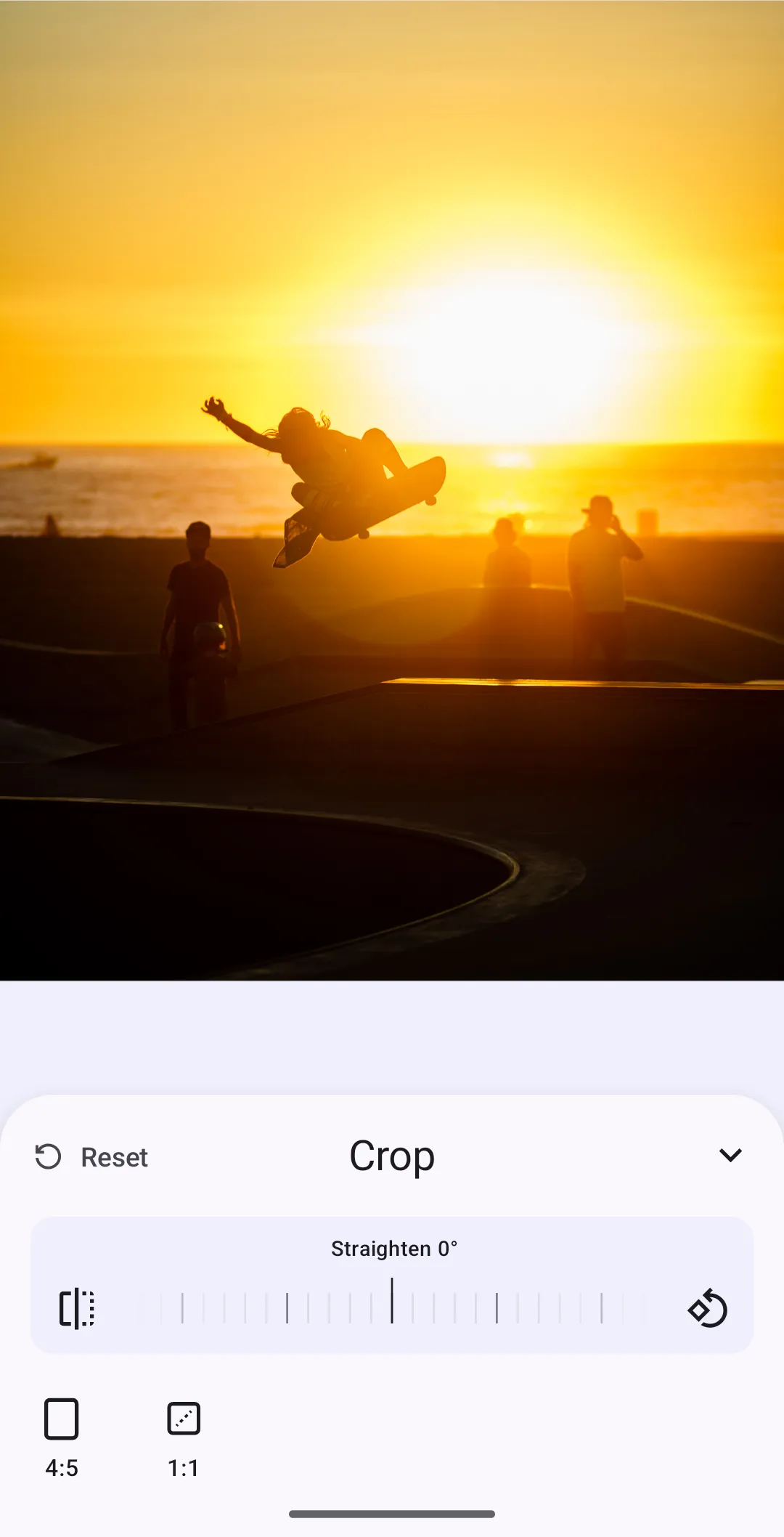
The Android force crop flow uses EditorEvent.ApplyForceCrop with a ForceCropConfiguration. The event targets a page or any other croppable block, resolves the configured preset candidates from asset sources, selects the best match for the block’s current dimensions, and applies it according to the selected mode.
This guide covers how to apply crop presets programmatically, load custom fixed aspect ratio or fixed size presets, and control whether the crop UI opens after applying the preset.
Loading Crop Presets#
CE.SDK ships with default fixed aspect ratio presets in the ly.img.crop.presets source and fixed size page presets in the ly.img.page.presets source. The sample below replaces both asset sources with guide-local JSON files so the crop sheet only shows the candidate presets used by this guide. For the full crop preset structure, see Crop Presets.
val cropPresetsSourceId = "ly.img.crop.presets"val pagePresetsSourceId = "ly.img.page.presets"if (editorContext.engine.asset.findAllSources().contains(cropPresetsSourceId)) { editorContext.engine.asset.removeSource(cropPresetsSourceId)}if (editorContext.engine.asset.findAllSources().contains(pagePresetsSourceId)) { editorContext.engine.asset.removeSource(pagePresetsSourceId)}editorContext.engine.asset.addLocalSourceFromJSON( contentJSON = context.assets.open("force_crop_content.json").bufferedReader().use { it.readText() }, basePath = editorContext.baseUri.toString(),)editorContext.engine.asset.addLocalSourceFromJSON( contentJSON = context.assets.open("force_crop_page_content.json").bufferedReader().use { it.readText() }, basePath = editorContext.baseUri.toString(),)The cropPresetsSourceId and pagePresetsSourceId constants are the "ly.img.crop.presets" and "ly.img.page.presets" source IDs. ForceCropConfiguration uses these source IDs later to resolve the available preset candidates.
Creating Custom Crop Presets#
The guide-local asset files define fixed aspect ratio and fixed size presets through payload.transformPreset:
{ "version": "4.0.0", "id": "ly.img.crop.presets", "assets": [ { "id": "instagram-portrait", "label": { "en": "4:5", "de": "4:5" }, "payload": { "transformPreset": { "type": "FixedAspectRatio", "width": 4, "height": 5 } }, "groups": ["fixed-ratio"] }, { "id": "aspect-ratio-1-1", "label": { "en": "1:1", "de": "1:1" }, "meta": { "thumbUri": "{{base_url}}/ly.img.crop.presets/thumbnails/ratio-1-1.png" }, "payload": { "transformPreset": { "type": "FixedAspectRatio", "width": 1, "height": 1 } }, "groups": ["fixed-ratio"] } ]}{ "version": "4.0.0", "id": "ly.img.page.presets", "assets": [ { "id": "profile-photo", "label": { "en": "Profile Photo (400x400)", "de": "Profile Photo (400x400)" }, "meta": { "thumbUri": "{{base_url}}/ly.img.page.presets/thumbnails/instagram/ig-square.png" }, "payload": { "transformPreset": { "type": "FixedSize", "width": 400, "height": 400, "designUnit": "Pixel" } }, "groups": ["fixed-size"] } ]}Fixed Aspect Ratio Presets#
Fixed aspect ratio presets keep a ratio while allowing flexible dimensions. The sample includes an instagram-portrait preset with a 4:5 ratio.
Fixed Size Presets#
Fixed size presets enforce exact pixel dimensions and belong to ly.img.page.presets on Android. The sample includes a profile-photo preset with a 400x400 fixed size, Pixel design unit, and meta.thumbUri thumbnail so the preset tile can render in the crop UI.
Applying a Crop Preset#
Create a ForceCropConfiguration with the preset source, preset ID, additional preset candidates, and mode. Android combines the top-level sourceId and presetId with presetCandidates, skips missing sources or preset IDs, then selects the best match for the target block’s current dimensions. Send the configuration through the editor event handler in onLoaded or later so the target block already exists. Applying force crop in onCreate is too early because the editor has not finished loading the scene.
val cropPresetsSourceId = "ly.img.crop.presets"val pagePresetsSourceId = "ly.img.page.presets"// Android treats the top-level preset and presetCandidates as one candidate list.val configuration = ForceCropConfiguration( sourceId = cropPresetsSourceId, presetId = "instagram-portrait", presetCandidates = listOf( ForceCropPresetCandidate( sourceId = pagePresetsSourceId, presetId = "profile-photo", ), ForceCropPresetCandidate( sourceId = cropPresetsSourceId, presetId = "aspect-ratio-1-1", ), ), mode = ForceCropMode.IfNeeded(),)editorContext.eventHandler.send( event = EditorEvent.ApplyForceCrop( designBlock = page, configuration = configuration, ),)Understanding Crop Modes#
The mode parameter controls how the editor responds after applying a crop preset.
Silent Mode#
ForceCropMode.Silent applies the preset without opening the crop UI. Use it when the crop should happen as part of a background workflow.
Always Mode#
ForceCropMode.Always applies the preset and opens the crop sheet immediately. The crop UI keeps the preset dimensions locked while allowing the user to adjust the crop area.
If Needed Mode#
ForceCropMode.IfNeeded compares the preset with the current frame dimensions. The preset is applied and the crop sheet opens only when the current block differs from the target by more than the configured threshold.
Applying Force Crop to Pages#
When the target block is a page, Android temporarily enables page resize interaction while applying the preset. Silent mode restores the previous resize setting after the operation, while Always and IfNeeded keep the crop sheet open when a crop is applied.
Troubleshooting#
- The target block fails to crop: verify the block exists and supports cropping before sending the event. Use
engine.block.supportsCrop(block=_)for the same support check Android runs internally. - No preset is applied: Android resolves the configured
sourceIdandpresetIdplus everyForceCropPresetCandidate. Missing sources or preset IDs are skipped, so inspectengine.asset.findAllSources()and confirm each configured ID matches the loaded JSON assets. - No crop UI appears:
ForceCropMode.Silentintentionally applies the preset without opening the crop sheet. UseForceCropMode.AlwaysorForceCropMode.IfNeeded(threshold=_)when users should adjust the crop after the preset is applied.
API Reference#
| API | Description |
|---|---|
editorContext.eventHandler.send(event=_) |
Dispatches EditorEvent.ApplyForceCrop after the editor has loaded the scene |
engine.asset.addLocalSourceFromJSON(contentJSON=_, basePath=_) |
Loads guide-local crop preset JSON into an asset source |
engine.asset.findAllSources() |
Lists registered asset sources before replacing the preset sources |
engine.asset.removeSource(sourceId=_) |
Removes an existing preset source before loading replacement presets |
engine.block.supportsCrop(block=_) |
Checks whether the target block supports cropping |
Key Types#
| Type | Purpose |
|---|---|
EditorEvent.ApplyForceCrop(designBlock=_, configuration=_) |
Editor event consumed by the Android editor event handler |
ForceCropConfiguration(sourceId=_, presetId=_, mode=_, presetCandidates=_) |
Configuration object for the target preset, candidate presets, and crop mode |
ForceCropPresetCandidate(sourceId=_, presetId=_) |
Candidate preset identifier made from an asset source ID and preset ID |
ForceCropMode.Silent |
Applies the preset without opening the crop UI |
ForceCropMode.Always |
Applies the preset and opens the crop UI |
ForceCropMode.IfNeeded(threshold=_) |
Opens the crop UI only when the preset changes the block beyond the threshold |
Next Steps#
- Hide Elements - Hide complete editor components or remove specific buttons from CE.SDK editor UI components on Android.
- Rearrange Buttons - Reorder UI buttons across editor components to match your application’s workflows.