Replace the editor’s default color swatches with brand colors so fills, strokes, and other color-aware Android editor controls start from the same approved palette.
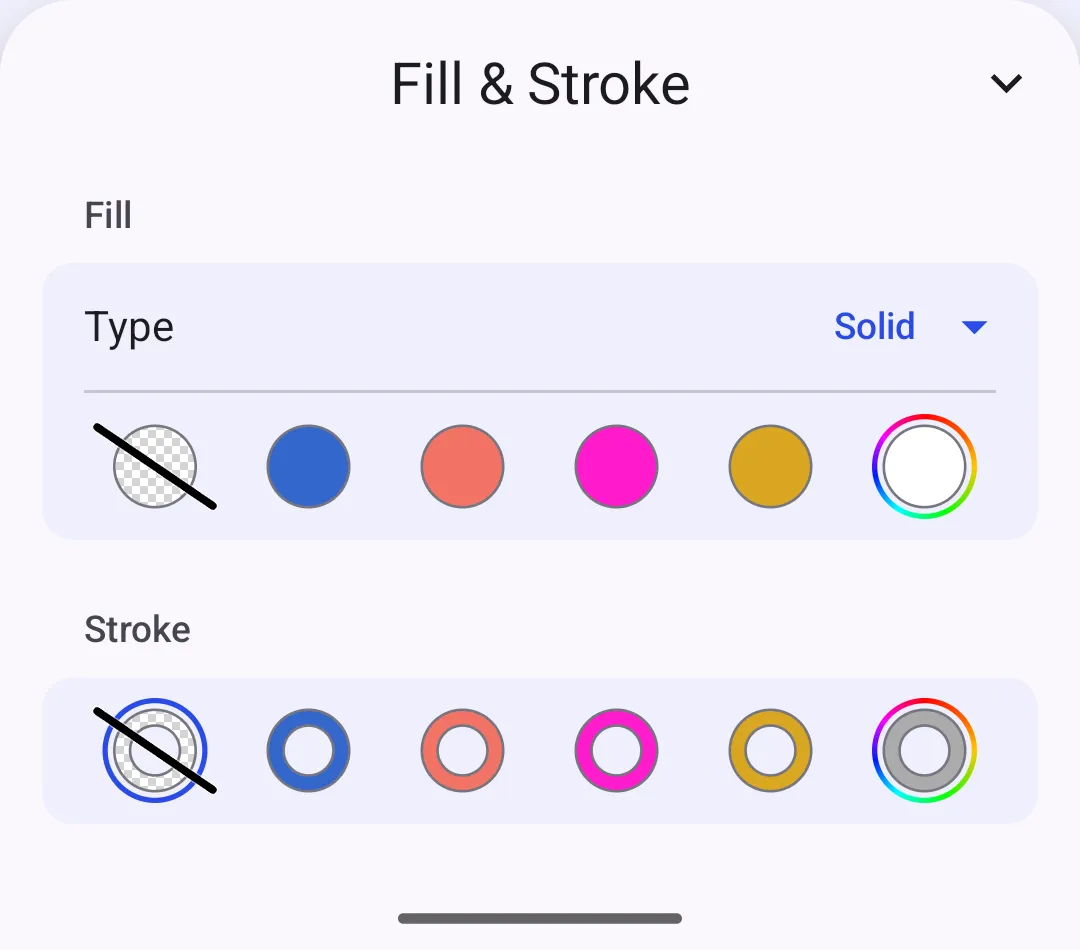
The Android editor reads palette swatches from EditorConfiguration.colorPalette. The list replaces the built-in swatches that appear in the CE.SDK editor UI’s fill, stroke, and similar color controls; include any default colors you still want to keep.
The sample also registers the same brand colors as a local asset source. That part is useful when your app needs reusable color definitions for custom UI, searches, or other engine workflows. For a dedicated asset-source walkthrough, see Create a Color Palette.
The Design Editor Starter Kit uses the same editor configuration model, so you can apply this palette configuration to a complete design editor surface as well.
Define Brand Colors#
Keep one data model for the reusable color assets and the editor swatches. The AssetDefinition stores labels, tags, and RGB, CMYK, or spot color payloads; paletteColor stores the Compose Color shown in Android’s swatch row.
private const val BRAND_COLOR_SOURCE_ID = "my-brand-colors"private const val BRAND_CORAL_ID = "brand-coral"
private data class BrandColorAsset(    val definition: AssetDefinition,    val paletteColor: ComposeColor?,)
private fun brandColorAssets() = listOf(    BrandColorAsset(        definition = AssetDefinition(            id = "brand-blue",            label = mapOf("en" to "Brand Blue"),            tags = mapOf("en" to listOf("brand", "blue", "primary")),            payload = AssetPayload(                color = AssetColor.RGB(r = 0.2F, g = 0.4F, b = 0.8F),            ),        ),        paletteColor = ComposeColor(red = 0.2F, green = 0.4F, blue = 0.8F),    ),    BrandColorAsset(        definition = AssetDefinition(            id = BRAND_CORAL_ID,            label = mapOf("en" to "Brand Coral"),            tags = mapOf("en" to listOf("brand", "coral", "secondary")),            payload = AssetPayload(                color = AssetColor.RGB(r = 0.95F, g = 0.45F, b = 0.4F),            ),        ),        paletteColor = ComposeColor(red = 0.95F, green = 0.45F, blue = 0.4F),    ),    BrandColorAsset(        definition = AssetDefinition(            id = "print-magenta",            label = mapOf("en" to "Print Magenta"),            tags = mapOf("en" to listOf("print", "magenta", "cmyk")),            payload = AssetPayload(                color = AssetColor.CMYK(c = 0F, m = 0.9F, y = 0.2F, k = 0F),            ),        ),        paletteColor = ComposeColor(red = 1F, green = 0.1F, blue = 0.8F),    ),    BrandColorAsset(        definition = AssetDefinition(            id = "metallic-gold",            label = mapOf("en" to "Metallic Gold"),            tags = mapOf("en" to listOf("spot", "metallic", "gold")),            payload = AssetPayload(                color = AssetColor.SpotColor(                    name = "Metallic Gold Ink",                    externalReference = "Custom Inks",                    representation = AssetColor.RGB(r = 0.85F, g = 0.65F, b = 0.13F),                ),            ),        ),        paletteColor = ComposeColor(red = 0.85F, green = 0.65F, blue = 0.13F),    ),)
private fun brandPaletteColors() = brandColorAssets().mapNotNull { it.paletteColor }
Android swatches are screen colors, so CMYK and spot color assets still need an sRGB preview value for paletteColor. The engine color remains in AssetPayload.color for workflows that query or apply the asset directly.
Register the Color Library#
Create the local source before adding color assets to it. The sample removes an existing source with the same ID first so repeated launches in the same editor process stay deterministic.
private fun createBrandColorLibrary(engine: Engine) { // Keep repeated guide launches idempotent inside the same editor process. if (BRAND_COLOR_SOURCE_ID in engine.asset.findAllSources()) { engine.asset.removeSource(sourceId = BRAND_COLOR_SOURCE_ID) } engine.asset.addLocalSource( sourceId = BRAND_COLOR_SOURCE_ID, supportedMimeTypes = emptyList(), ) brandColorAssets().forEach { color -> engine.asset.addAsset(sourceId = BRAND_COLOR_SOURCE_ID, asset = color.definition) } engine.asset.assetSourceContentsChanged(sourceId = BRAND_COLOR_SOURCE_ID)}Call the registration helper from EditorConfiguration.onCreate. In Android editor configurations, use onCreate when the callback owns scene creation or loading; this sample creates a blank scene and page before registering the library.
onCreate = {    val scene = editorContext.engine.scene.create()    val page = editorContext.engine.block.create(DesignBlockType.Page)    editorContext.engine.block.setWidth(block = page, value = 1080F)    editorContext.engine.block.setHeight(block = page, value = 1080F)    editorContext.engine.block.appendChild(parent = scene, child = page)
    createBrandColorLibrary(editorContext.engine)}
Configure the Editor Palette#
Assign colorPalette inside EditorConfiguration.remember. The editor shows the Compose colors in list order and replaces the default Android swatches with this list.
colorPalette = { remember { brandPaletteColors() }}Controls that allow disabling a color, such as Fill and Stroke, reserve one slot for the “no color” button and show up to the first six palette entries. Controls that always require a color can use the full configured list.
Update a Color Library#
When you change a local color source at runtime, mutate the source and then notify listeners. This updates the reusable asset library; EditorConfiguration.colorPalette remains the Compose swatch list configured by your editor state.
private fun removeBrandColor( engine: Engine, assetId: String = BRAND_CORAL_ID,) { engine.asset.removeAsset(sourceId = BRAND_COLOR_SOURCE_ID, assetId = assetId) engine.asset.assetSourceContentsChanged(sourceId = BRAND_COLOR_SOURCE_ID)}If your app also lets users remove visible editor swatches, back colorPalette with your own Compose state and remove the color from that state before the editor recomposes.
API Reference#
| Method | Description |
|---|---|
EditorConfiguration.Companion.remember(builder=_) |
Creates the editor configuration used by the Editor composable. |
EditorConfiguration.colorPalette |
Provides the ordered Compose color list used by Android editor color controls. |
engine.scene.create(sceneLayout=_) |
Creates the scene that hosts the sample page. |
engine.block.create(blockType=_) |
Creates the page block that receives the configured dimensions. |
engine.block.setWidth(block=_, value=_, maintainCrop=_) |
Sets the page width used by the sample scene. |
engine.block.setHeight(block=_, value=_, maintainCrop=_) |
Sets the page height used by the sample scene. |
engine.block.appendChild(parent=_, child=_) |
Adds the page block to the created scene. |
engine.asset.findAllSources() |
Lists registered asset source IDs so the sample can replace an existing local source. |
engine.asset.removeSource(sourceId=_) |
Removes an existing asset source by ID. |
engine.asset.addLocalSource(sourceId=_, supportedMimeTypes=_) |
Creates a local asset source for reusable color assets. |
engine.asset.addAsset(sourceId=_, asset=_) |
Adds a color asset definition to the local source. |
engine.asset.assetSourceContentsChanged(sourceId=_) |
Notifies listeners that local source contents changed. |
engine.asset.removeAsset(sourceId=_, assetId=_) |
Removes one asset from a local source. |
| Type | Description |
|---|---|
ComposeColor(red=_, green=_, blue=_) |
Compose color shown as an Android editor swatch. |
AssetDefinition |
Stores a reusable color asset ID, labels, tags, and payload. |
AssetPayload(color=_) |
Carries the color data inside an asset definition. |
AssetColor.RGB |
Defines an sRGB color with normalized RGB components. |
AssetColor.CMYK |
Defines a CMYK color with normalized CMYK components. |
AssetColor.SpotColor |
Defines a named spot color with a preview representation. |
Next Steps#
- Color Basics — Review CE.SDK’s color spaces and where they apply
- Apply Colors — Set fills, strokes, and text color programmatically
- Theming — Customize the editor’s appearance and color tokens
- Dock — Configure the editor’s primary navigation
- Inspector Bar — Tailor which controls appear when a block is selected