Build a custom Android editing surface by rendering the CE.SDK Engine into your own Compose UI and driving every control through Engine APIs.
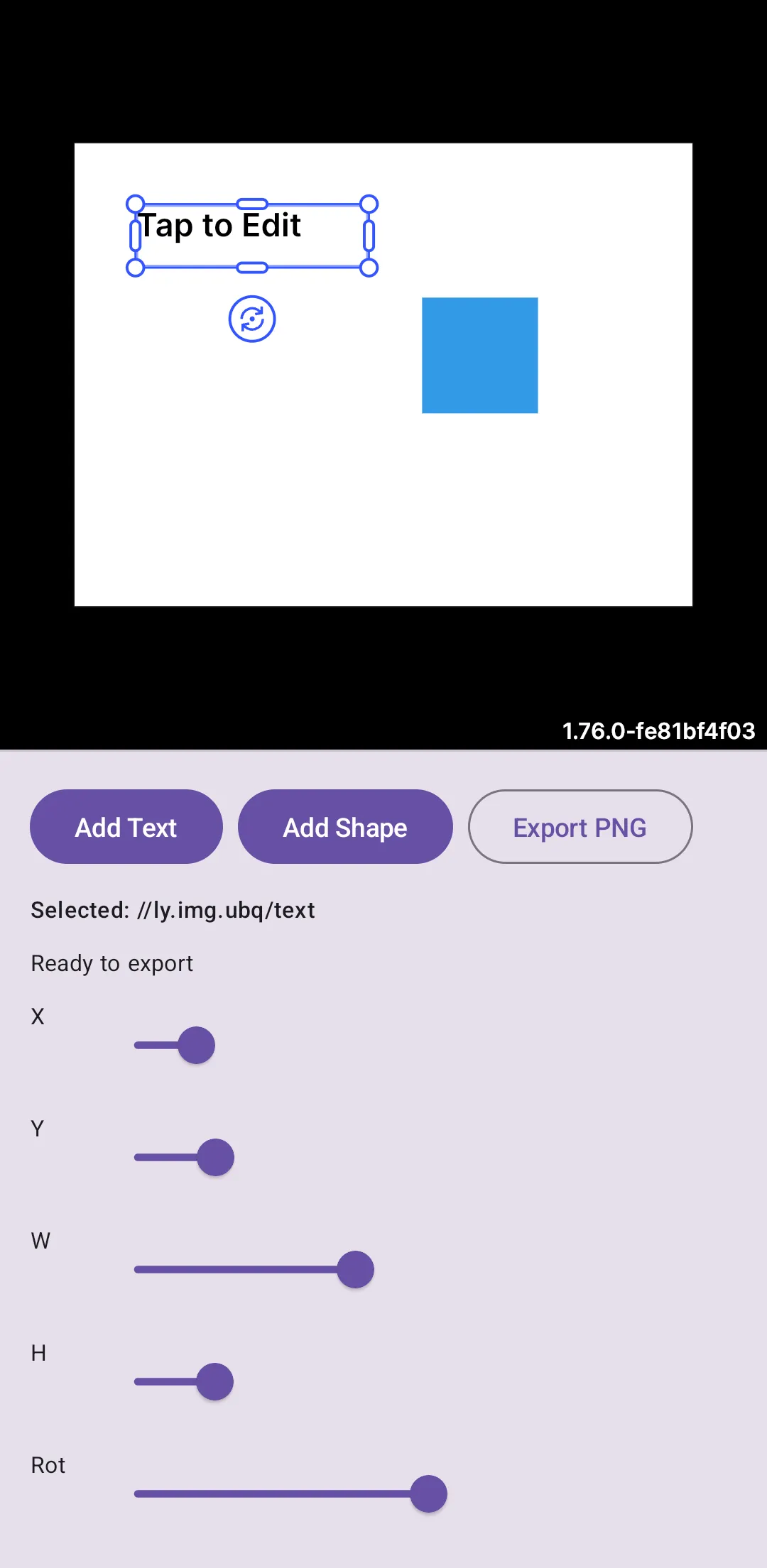
When you need complete control over the editing experience, you can start and bind the Engine yourself, host its render surface in your app, and build custom tools around it. This guide shows a Compose-based editor surface with a canvas, toolbar, property controls, event synchronization, block creation, and PNG export.
For a complete ready-made editing surface, start with the Design Editor Starter Kit. Use the direct Engine approach below when your app needs to own the layout, controls, and interaction model.
Architecture Overview#
A custom Android UI separates rendering from controls. The Engine renders into a SurfaceView, while Compose state mirrors the selected block and lets your buttons or sliders call Engine APIs such as engine.block.create(...), engine.block.setPositionX(...), and engine.block.export(...).
var page by remember { mutableStateOf<DesignBlock?>(null) }var selectedBlock by remember { mutableStateOf<DesignBlock?>(null) }var selectedType by remember { mutableStateOf("No block selected") }var positionX by remember { mutableStateOf(0F) }var positionY by remember { mutableStateOf(0F) }var width by remember { mutableStateOf(0F) }var height by remember { mutableStateOf(0F) }var rotationDegrees by remember { mutableStateOf(0F) }var exportStatus by remember { mutableStateOf("Ready to export") }
fun applySelectionState(selection: BuildYourOwnUISelection) {    selectedBlock = selection.block    selectedType = selection.type ?: "No block selected"    positionX = selection.positionX    positionY = selection.positionY    width = selection.width    height = selection.height    rotationDegrees = selection.rotationDegrees}
All Engine calls in this sample run from the main thread. The Engine event stream updates the Compose state whenever selection or block properties change, so the UI stays synchronized with canvas interactions and programmatic updates.
Initialize Engine and Setup Canvas#
Create an Engine instance, start it with your license, and bind it to a SurfaceView that Compose hosts through AndroidView. The sample owns the Engine lifecycle because it is not using the prebuilt editor UI.
For the complete Android Engine lifecycle and all render-target options, see the Engine Interface guide.
Create the Engine and the Android render view first.
val engine = remember(activity.application) { Engine.init(activity.application) Engine.getInstance(id = "ly.img.engine.examples.build-your-own-ui")}val surfaceView = remember { SurfaceView(activity) }Host the render view in Compose with AndroidView.
Box(modifier = Modifier.weight(1F)) { AndroidView( modifier = Modifier .fillMaxSize() .semantics { contentDescription = "Custom CE.SDK canvas" }, factory = { surfaceView }, )}Start the Engine and bind the render view before creating scene content.
engine.start( license = license.takeIf { it.isNotBlank() }, userId = "build-your-own-ui", savedStateRegistryOwner = savedStateRegistryOwner,)engine.bindSurfaceView(surfaceView)Release the render target and stop the Engine when the custom editor leaves composition.
DisposableEffect(activity, engine) { onDispose { if (engine.isEngineRunning()) { engine.unbind() if (!activity.isChangingConfigurations) { engine.stop() } } }}Engine.init(application) prepares the Android runtime. Engine.getInstance(id=_) gives you a stable Engine instance, engine.start(...) starts it, and engine.bindSurfaceView(surfaceView=_) makes the Engine draw into your custom UI.
Create Initial Content#
Seed the scene with a page, a text block, and a graphic block so the custom controls have immediate content to operate on. Graphic blocks need a shape and fill before they render.
private fun findOrCreateInitialPage(engine: Engine): DesignBlock {    val existingScene = engine.scene.get()    if (existingScene != null) {        val existingPage = engine.block.findByType(DesignBlockType.Page).firstOrNull {            engine.block.isValid(it)        }        if (existingPage != null) return existingPage    }
    return createInitialContent(engine = engine, scene = existingScene)}
private fun createInitialContent(    engine: Engine,    scene: DesignBlock?,): DesignBlock {    val targetScene = scene ?: engine.scene.create()    val page = engine.block.create(DesignBlockType.Page)    engine.block.setWidth(block = page, value = 800F)    engine.block.setHeight(block = page, value = 600F)    engine.block.appendChild(parent = targetScene, child = page)
    val textBlock = engine.block.create(DesignBlockType.Text)    engine.block.setString(block = textBlock, property = "text/text", value = "Tap to Edit")    engine.block.setPositionX(block = textBlock, value = 80F)    engine.block.setPositionY(block = textBlock, value = 80F)    engine.block.setWidth(block = textBlock, value = 300F)    engine.block.setHeight(block = textBlock, value = 80F)    engine.block.appendChild(parent = page, child = textBlock)
    val shapeBlock = engine.block.create(DesignBlockType.Graphic)    val shape = engine.block.createShape(type = ShapeType.Rect)    val fill = engine.block.createFill(fillType = FillType.Color)    engine.block.setShape(block = shapeBlock, shape = shape)    engine.block.setFill(block = shapeBlock, fill = fill)    engine.block.setFillSolidColor(        block = shapeBlock,        color = Color.fromRGBA(r = 0.2F, g = 0.6F, b = 0.9F, a = 1F),    )    engine.block.setPositionX(block = shapeBlock, value = 450F)    engine.block.setPositionY(block = shapeBlock, value = 200F)    engine.block.setWidth(block = shapeBlock, value = 150F)    engine.block.setHeight(block = shapeBlock, value = 150F)    engine.block.appendChild(parent = page, child = shapeBlock)
    engine.block.select(textBlock)    return page}
The sample reuses an existing page when Android saved-state restoration or configuration changes already kept a scene alive. For a newly created scene, the first text block is selected at the end of setup and flows into the property panel through the event handling code below.
Handle Engine Events#
Subscribe to Engine events and read the current selection after every event batch. Passing no block filter to engine.event.subscribe() receives events for the whole scene.
private data class BuildYourOwnUISelection(    val block: DesignBlock?,    val type: String?,    val positionX: Float,    val positionY: Float,    val width: Float,    val height: Float,    val rotationDegrees: Float,)
private suspend fun collectSelectionEvents(    engine: Engine,    onSelectionChanged: (BuildYourOwnUISelection) -> Unit,) {    onSelectionChanged(readSelection(engine))    engine.event.subscribe().collect {        onSelectionChanged(readSelection(engine))    }}
private fun readSelection(engine: Engine): BuildYourOwnUISelection {    val selected = engine.block.findAllSelected().firstOrNull()    if (selected == null || !engine.block.isValid(selected)) {        return BuildYourOwnUISelection(            block = null,            type = null,            positionX = 0F,            positionY = 0F,            width = 0F,            height = 0F,            rotationDegrees = 0F,        )    }
    return BuildYourOwnUISelection(        block = selected,        type = engine.block.getType(selected),        positionX = engine.block.getPositionX(selected),        positionY = engine.block.getPositionY(selected),        width = engine.block.getWidth(selected),        height = engine.block.getHeight(selected),        rotationDegrees = Math.toDegrees(engine.block.getRotation(selected).toDouble()).toFloat(),    )}
The sample reads the selected block type, position, size, and rotation after each event. If the selection becomes invalid, the UI resets to an empty state.
Build Custom UI Controls#
Compose buttons can control the Engine directly. The toolbar adds text, adds shapes, and triggers export; the same pattern works for icons, menus, segmented controls, or app-specific actions.
@Composableprivate fun BuildYourOwnUIControls(    selectedType: String,    positionX: Float,    positionY: Float,    width: Float,    height: Float,    rotationDegrees: Float,    exportStatus: String,    onPositionXChange: (Float) -> Unit,    onPositionYChange: (Float) -> Unit,    onWidthChange: (Float) -> Unit,    onHeightChange: (Float) -> Unit,    onRotationChange: (Float) -> Unit,    onPositionXFinished: () -> Unit,    onPositionYFinished: () -> Unit,    onWidthFinished: () -> Unit,    onHeightFinished: () -> Unit,    onRotationFinished: () -> Unit,    onAddText: () -> Unit,    onAddShape: () -> Unit,    onExport: () -> Unit,) {    Column(        modifier = Modifier            .fillMaxWidth()            .background(MaterialTheme.colorScheme.surfaceVariant)            .padding(16.dp),        verticalArrangement = Arrangement.spacedBy(12.dp),    ) {        Row(horizontalArrangement = Arrangement.spacedBy(8.dp)) {            Button(onClick = onAddText) {                Text("Add Text")            }            Button(onClick = onAddShape) {                Text("Add Shape")            }            OutlinedButton(onClick = onExport) {                Text("Export PNG")            }        }
        Text(text = "Selected: $selectedType", style = MaterialTheme.typography.labelMedium)        Text(text = exportStatus, style = MaterialTheme.typography.bodySmall)
        PropertyPanel(            positionX = positionX,            positionY = positionY,            width = width,            height = height,            rotationDegrees = rotationDegrees,            onPositionXChange = onPositionXChange,            onPositionYChange = onPositionYChange,            onWidthChange = onWidthChange,            onHeightChange = onHeightChange,            onRotationChange = onRotationChange,            onPositionXFinished = onPositionXFinished,            onPositionYFinished = onPositionYFinished,            onWidthFinished = onWidthFinished,            onHeightFinished = onHeightFinished,            onRotationFinished = onRotationFinished,        )    }}
Because the controls are regular Compose UI, you can style and arrange them with your app’s design system while keeping all creative operations inside the Engine.
Add Blocks Programmatically#
Create new blocks with typed block APIs, configure their properties, append them to the page, then select the new block so the property panel updates immediately.
private fun addTextBlock(    engine: Engine,    page: DesignBlock,) {    val textBlock = engine.block.create(DesignBlockType.Text)    engine.block.setString(block = textBlock, property = "text/text", value = "Custom headline")    engine.block.setPositionX(block = textBlock, value = 80F)    engine.block.setPositionY(block = textBlock, value = 80F)    engine.block.setWidth(block = textBlock, value = 320F)    engine.block.setHeight(block = textBlock, value = 100F)    engine.block.appendChild(parent = page, child = textBlock)    engine.block.select(textBlock)}
private fun addShapeBlock(    engine: Engine,    page: DesignBlock,) {    val shapeBlock = engine.block.create(DesignBlockType.Graphic)    val shape = engine.block.createShape(type = ShapeType.Rect)    val fill = engine.block.createFill(fillType = FillType.Color)    engine.block.setShape(block = shapeBlock, shape = shape)    engine.block.setFill(block = shapeBlock, fill = fill)    engine.block.setFillSolidColor(        block = shapeBlock,        color = Color.fromRGBA(r = 0.09F, g = 0.7F, b = 0.55F, a = 1F),    )    engine.block.setPositionX(block = shapeBlock, value = 120F)    engine.block.setPositionY(block = shapeBlock, value = 220F)    engine.block.setWidth(block = shapeBlock, value = 180F)    engine.block.setHeight(block = shapeBlock, value = 180F)    engine.block.appendChild(parent = page, child = shapeBlock)    engine.block.select(shapeBlock)}
The text and shape flows use the same create-configure-append-select recipe. Media blocks follow the same hierarchy pattern but also need a loaded resource or fill before they render.
Create Property Panels#
The property panel binds sliders to the selected block’s transform values. Slider movement updates Compose state first, then writes back to the Engine when editing finishes.
@Composableprivate fun PropertyPanel(    positionX: Float,    positionY: Float,    width: Float,    height: Float,    rotationDegrees: Float,    onPositionXChange: (Float) -> Unit,    onPositionYChange: (Float) -> Unit,    onWidthChange: (Float) -> Unit,    onHeightChange: (Float) -> Unit,    onRotationChange: (Float) -> Unit,    onPositionXFinished: () -> Unit,    onPositionYFinished: () -> Unit,    onWidthFinished: () -> Unit,    onHeightFinished: () -> Unit,    onRotationFinished: () -> Unit,) {    TransformSlider("X", positionX, 0F..800F, onPositionXChange, onPositionXFinished)    TransformSlider("Y", positionY, 0F..600F, onPositionYChange, onPositionYFinished)    TransformSlider("W", width, 1F..800F, onWidthChange, onWidthFinished)    TransformSlider("H", height, 1F..600F, onHeightChange, onHeightFinished)    TransformSlider("Rot", rotationDegrees, -180F..180F, onRotationChange, onRotationFinished)}
@Composableprivate fun TransformSlider(    label: String,    value: Float,    range: ClosedFloatingPointRange<Float>,    onValueChange: (Float) -> Unit,    onValueChangeFinished: () -> Unit,) {    Row(modifier = Modifier.fillMaxWidth()) {        Text(            modifier = Modifier.width(40.dp),            text = label,            style = MaterialTheme.typography.bodySmall,        )        Spacer(modifier = Modifier.width(8.dp))        Slider(            modifier = Modifier.weight(1F),            value = value,            onValueChange = onValueChange,            onValueChangeFinished = onValueChangeFinished,            valueRange = range,        )    }}
engine.block.setRotation(...) expects radians, so the sample converts the slider’s degree value before writing it to the Engine. The event reader converts the value back to degrees for display.
Export Designs#
Export the page or any other block with engine.block.export(...). The Android API returns a ByteBuffer that your app can save, share, or upload.
private suspend fun exportPagePng( engine: Engine, page: DesignBlock,): ByteBuffer = engine.block.export(block = page, mimeType = MimeType.PNG)The sample exports the page as PNG. Use another MimeType with engine.block.export(...) for supported static formats such as JPEG, PDF, or SVG. For MP4 or other video output, use engine.block.exportVideo(...) with a timeOffset, duration, and progressCallback.
Framework Integration Patterns#
Compose integrations typically use AndroidView to host a SurfaceView or TextureView, then bind the Engine after engine.start(...) completes. A View-based Activity or Fragment can use the same Engine APIs by creating the render view in XML or code and calling engine.bindSurfaceView(surfaceView=_) or engine.bindTextureView(textureView=_).
The rest of the custom UI is framework-agnostic: your controls hold app state, call Engine APIs in response to user intent, and update from engine.event.subscribe(...).
Troubleshooting#
Canvas Not Rendering#
Confirm the Engine has started, the SurfaceView is attached, and engine.bindSurfaceView(surfaceView=_) ran before scene setup. A visible custom UI needs a bound SurfaceView or TextureView; bindOffscreen(width=_, height=_) is for render-only flows without a visible canvas.
Events Not Firing#
Start collecting engine.event.subscribe(...) after scene setup and keep the collecting coroutine alive for the lifetime of the custom UI. If the composable recreates the Engine or cancels the LaunchedEffect, the property panel stops receiving updates.
Performance Issues#
Avoid writing to the Engine on every slider tick unless your UI really needs continuous updates. The sample writes values when editing finishes so the Engine does not receive unnecessary transform calls during every drag frame.
Blocks Not Responding#
Ensure new blocks are appended to the scene hierarchy with engine.block.appendChild(parent=_, child=_). Detached blocks exist in the Engine but do not render on the page.
Selection State Out of Sync#
Use engine.block.select(block=_) for single selection after programmatic changes, and refresh UI state from engine.block.findAllSelected() inside your event handler.
API Reference#
| Method | Category | Purpose |
|---|---|---|
Engine.init(application=_) |
Engine | Prepare the Android Engine runtime before creating instances. |
Engine.getInstance(id=_, audioContext=_) |
Engine | Get or create a named Engine instance. |
engine.start(license=_, userId=_, savedStateRegistryOwner=_) |
Engine | Start the Engine and optionally enable Android saved-state restoration. |
engine.bindSurfaceView(surfaceView=_) |
Engine | Render Engine frames into a SurfaceView. |
engine.bindTextureView(textureView=_) |
Engine | Render Engine frames into a TextureView. |
engine.unbind() |
Engine | Detach the current render target. |
engine.isEngineRunning() |
Engine | Check whether the Engine is currently started. |
engine.stop() |
Engine | Stop the Engine and release runtime resources. |
engine.scene.create() |
Scene | Create a new scene. |
engine.scene.get() |
Scene | Return the active scene, or null when no scene exists yet. |
engine.scene.zoomToBlock(block=_, paddingLeft=_, paddingTop=_, paddingRight=_, paddingBottom=_) |
Scene | Zoom the canvas viewport to a block. |
engine.block.create(blockType=_) |
Block | Create a block of the requested type. |
engine.block.findByType(type=_) |
Block | Find blocks of a requested type in the active scene. |
engine.block.createShape(type=_) |
Block | Create a shape block used by a graphic block. |
engine.block.createFill(fillType=_) |
Block | Create a fill block used by a graphic block. |
engine.block.setShape(block=_, shape=_) |
Block | Attach a shape to a graphic block. |
engine.block.setFill(block=_, fill=_) |
Block | Attach a fill to a graphic block. |
engine.block.appendChild(parent=_, child=_) |
Block | Add a block to the scene hierarchy. |
engine.block.select(block=_) |
Block | Select a block and clear the previous single selection. |
engine.block.findAllSelected() |
Block | Read the current selection. |
engine.block.isValid(block=_) |
Block | Check whether a block ID still refers to an existing block. |
engine.block.getType(block=_) |
Block | Read a block’s type. |
engine.block.setPositionX(block=_, value=_) |
Block | Set a block’s x position. |
engine.block.setPositionY(block=_, value=_) |
Block | Set a block’s y position. |
engine.block.getPositionX(block=_) |
Block | Read a block’s x position. |
engine.block.getPositionY(block=_) |
Block | Read a block’s y position. |
engine.block.setWidth(block=_, value=_) |
Block | Set a block’s width. |
engine.block.setHeight(block=_, value=_) |
Block | Set a block’s height. |
engine.block.getWidth(block=_) |
Block | Read a block’s width. |
engine.block.getHeight(block=_) |
Block | Read a block’s height. |
engine.block.setRotation(block=_, radians=_) |
Block | Set a block’s rotation in radians. |
engine.block.getRotation(block=_) |
Block | Read a block’s rotation in radians. |
engine.block.setString(block=_, property=_, value=_) |
Block | Write a string property such as text/text. |
engine.block.setFillSolidColor(block=_, color=_) |
Block | Set a solid fill color on a block. |
engine.block.export(block=_, mimeType=_) |
Block | Export a block or page to bytes. |
engine.block.exportVideo(block=_, timeOffset=_, duration=_, mimeType=_, progressCallback=_) |
Block | Export a page to video bytes with progress updates. |
engine.event.subscribe(blocks=_) |
Event | Subscribe to block lifecycle events. |
Next Steps#
- Headless Mode - Deep dive into direct Engine concepts.
- Blocks - Understand block types and hierarchy.
- Export Designs - Explore export options and formats.